
In our previous blog post, we explored how effective prompts can be used to create Win2PDF Plug-Ins with AI chatbots. Today, let’s examine a specific customer solution we developed.
Customer Requirement: Every time a Technical Bulletin is saved as a PDF, the customer needs the first page—containing a summary description—saved as a JPG image. This allows them to display the summary image on their website, linking it to the full PDF bulletin for download.
Solution: There are multiple ways to automate this process. One efficient method involved creating a Win2PDF Plug-In with minimal effort using Microsoft Copilot. Here’s how we achieved it.
1. Use AI to generate a Powershell program for the Plug-In
In our example, we’re using Microsoft Copilot but you can try using any AI chatbot.
For the first prompt, copy ALL of the documentation text for the Win2PDF PDF to JPG Command Line and paste it into the chatbot.
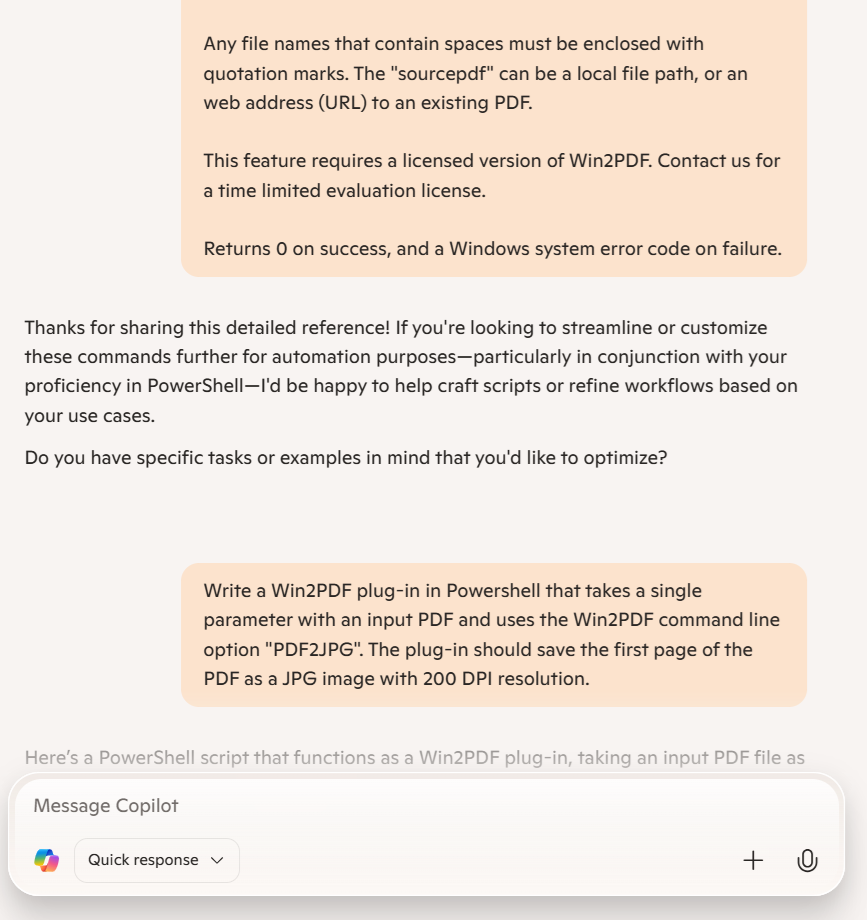
Copilot acknowledges the input of reference documentation and asks if we have a specific task using this information. Since we do, we’ll enter our prompt for the customer requirement, including the programming language, the Win2PDF command required for the Plug-In, and the desired JPG resolution.
Write a Win2PDF plug-in in Powershell that takes a single parameter with an input PDF and uses the Win2PDF command line option “PDF2JPG”. The plug-in should save the first page of the PDF as a JPG image with 200 DPI resolution.
Here are the results returned by Copilot:
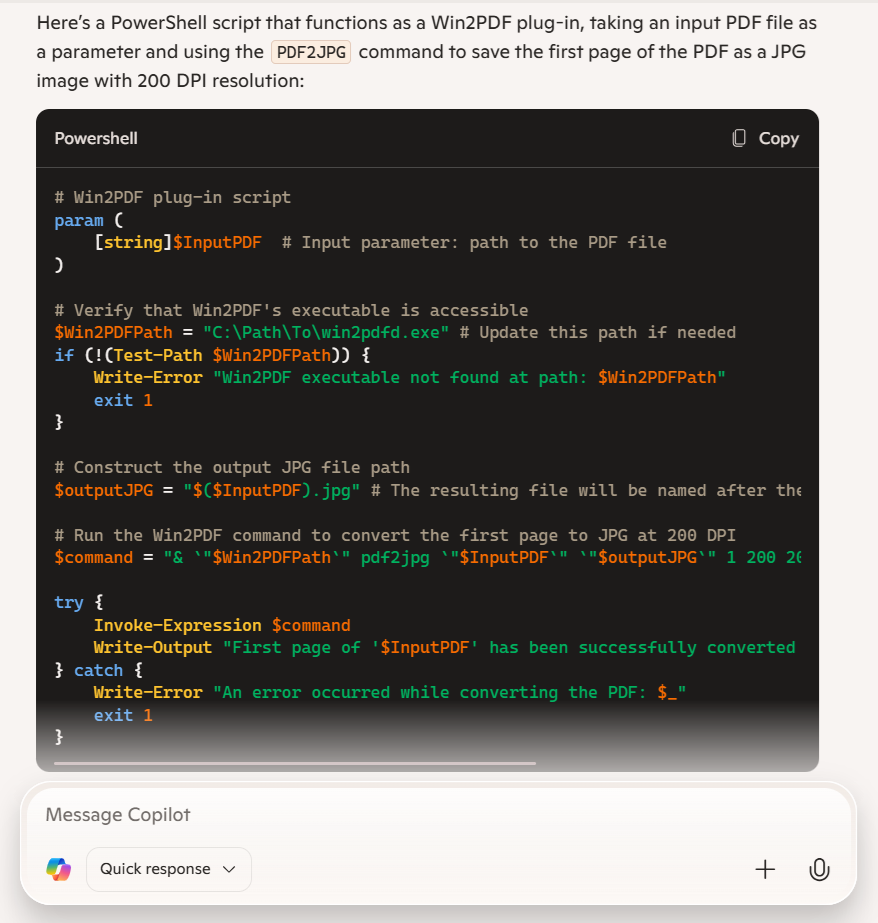
We’ll then save this Powershell code as a text file located somewhere on the hard drive where it is accessible, such as:
c:\users\test_ai\SaveFirstPageAsJPG.ps1
There was one small edit required, which was for the path for the Win2PDF Desktop program ($Win2PDFPath). Since we’re using a 64-bit bit version of Windows, the Win2PDF Desktop program on my PC is located here:
C:\windows\system32\spool\drivers\x64\3\
In this example, we used PowerShell because it’s easy to use and doesn’t require compilation. Alternatively, you can adapt your prompt to use C#, VB.NET, or any other programming language if you prefer a different approach.
2. Change the default execution policy on your PC.
Since our Plug-In is a Powershell script, we’ll need to change the default execution policy on our PC to allow scripts to run.
- Start Windows PowerShell with the “Run as Administrator” option. Only members of the Administrators group on the computer can change the execution policy.
- Enable running unsigned scripts by entering the following and choosing [A] Yes to All:
set-executionpolicy remotesigned
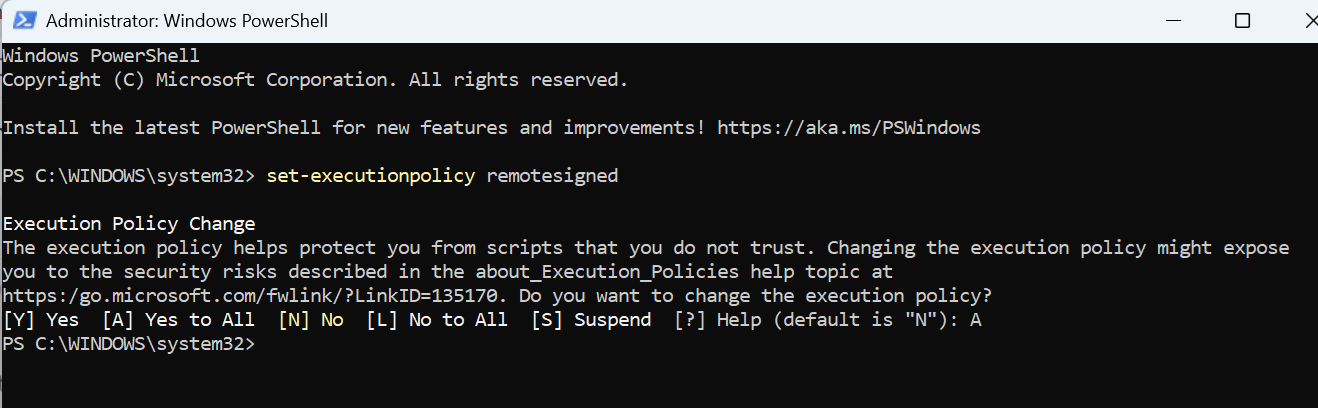
This will allow running unsigned scripts on your local computer and signed scripts from the Internet. This will change the policy permanently.
We can test our script by opening a command prompt and typing
powershell -F c:\users\tmp\SaveFirstPageAsJPG.ps1 c:\testTechBulletin.pdf
3. Use the Win2PDF Administrator Utility to use this program when creating a PDF file.
Finally, download and install the free Win2PDF Administrator Utility.
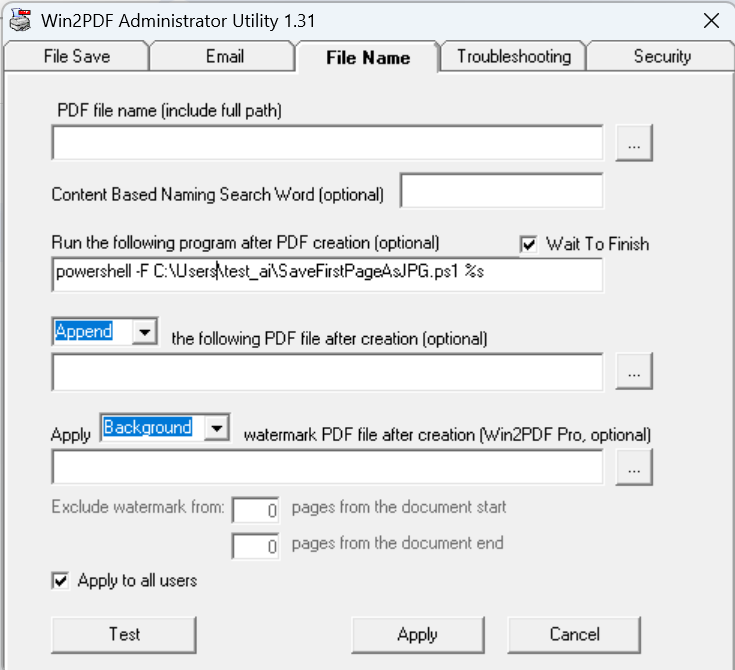
To use this as a Plug-In, open the Win2PDF Administrator Utility and enter the following command under “Run this program after PDF creation (optional)” on the File Name tab:
powershell -F c:\users\tmp\SaveFirstPageAsJPG.ps1
Then click the “Apply” button to save this command a Plug-In. [Note: The Win2PDF Administrator Utility will automatically add a “%s” argument to the end of the command when saved, so Win2PDF will automatically pass the PDF file name to the Plug-In.]
If you’re not familiar with Powershell programming, check out Microsoft’s online documentation for assistance or better yet, ask your AI chatbot for help.
4. Test the Results
Create a new technical bulletin and print it using the Win2PDF TechBulletin printer. Once complete, confirm that both the PDF file and a JPG copy of the first page are saved in the same location.
This simple example demonstrates how quickly and easily you can automate a workflow when an out-of-the-box solution isn’t available. You could expand this process further—for instance, by resizing the JPG or moving it to another folder—but this provides a clear idea of the steps to create your own Plug-In.
If you get stuck, don’t worry. Just ask and we’ll help.

 PDF Blog - Topics from the makers of Win2PDF