AI in Action: Developing a Win2PDF Plug-In as a Practical Case Study

In our previous blog post, we explored how effective prompts can be used to create Win2PDF Plug-Ins with AI chatbots. Today, let’s examine a specific customer solution we developed.

Customer Requirement: Every time a Technical Bulletin is saved as a PDF, the customer needs the first page—containing a summary description—saved as a JPG image. This allows them to display the summary image on their website, linking it to the full PDF bulletin for download.

Solution: There are multiple ways to automate this process. One efficient method involved creating a Win2PDF Plug-In with minimal effort using Microsoft Copilot. Here’s how we achieved it.

1. Use AI to generate a Powershell program for the Plug-In

In our example, we’re using Microsoft Copilot but you can try using any AI chatbot.

For the first prompt, copy ALL of the documentation text for the Win2PDF PDF to JPG Command Line and paste it into the chatbot.

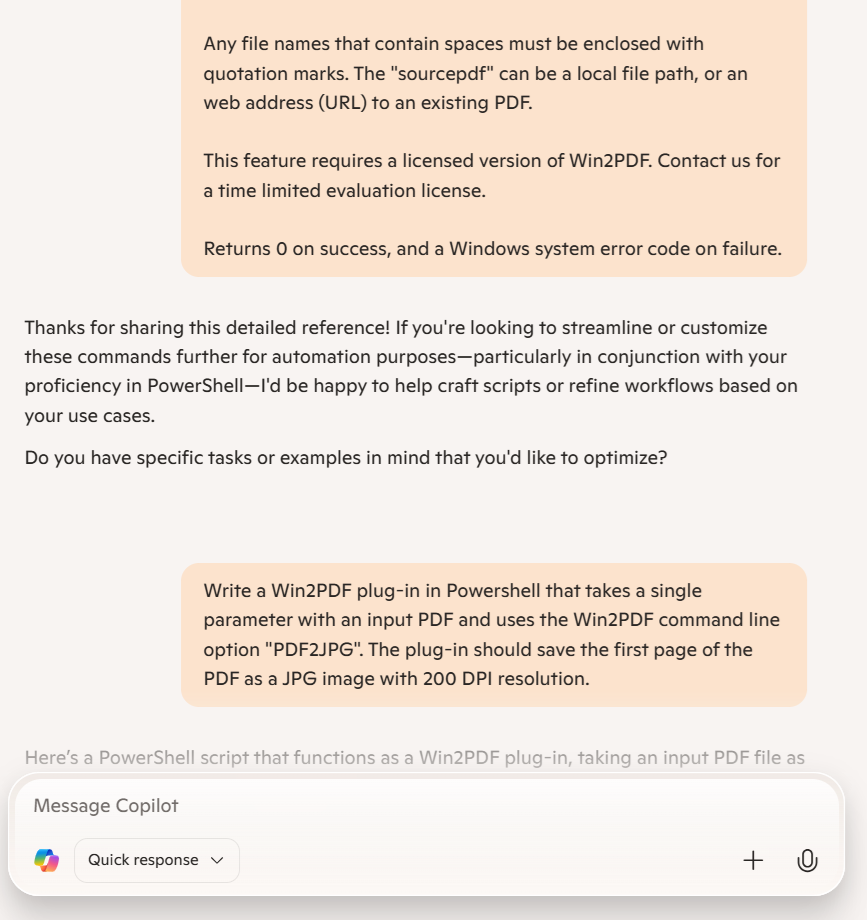
Copilot acknowledges the input of reference documentation and asks if we have a specific task using this information. Since we do, we’ll enter our prompt for the customer requirement, including the programming language, the Win2PDF command required for the Plug-In, and the desired JPG resolution.

Write a Win2PDF plug-in in Powershell that takes a single parameter with an input PDF and uses the Win2PDF command line option “PDF2JPG”. The plug-in should save the first page of the PDF as a JPG image with 200 DPI resolution.

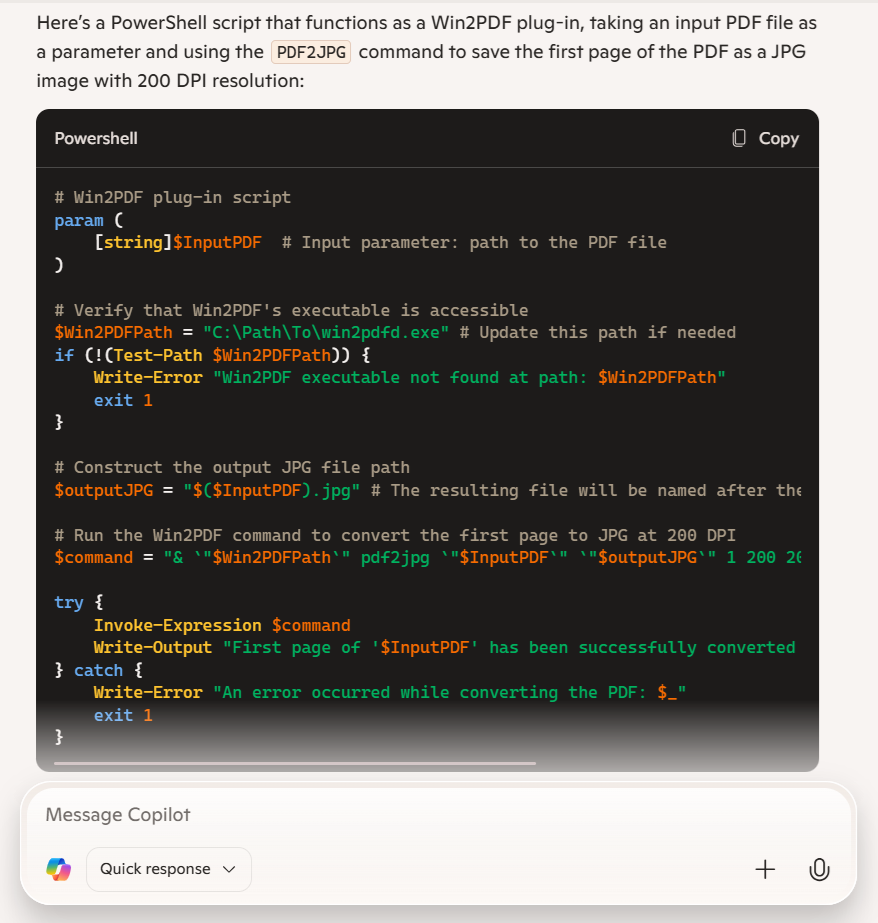
Here are the results returned by Copilot:

We’ll then save this Powershell code as a text file located somewhere on the hard drive where it is accessible, such as:

c:\users\test_ai\SaveFirstPageAsJPG.ps1

There was one small edit required, which was for the path for the Win2PDF Desktop program ($Win2PDFPath). Since we’re using a 64-bit bit version of Windows, the Win2PDF Desktop program on my PC is located here:

C:\windows\system32\spool\drivers\x64\3\

In this example, we used PowerShell because it’s easy to use and doesn’t require compilation. Alternatively, you can adapt your prompt to use C#, VB.NET, or any other programming language if you prefer a different approach.

2. Change the default execution policy on your PC.

Since our Plug-In is a Powershell script, we’ll need to change the default execution policy on our PC to allow scripts to run.

  • Start Windows PowerShell with the “Run as Administrator” option. Only members of the Administrators group on the computer can change the execution policy.
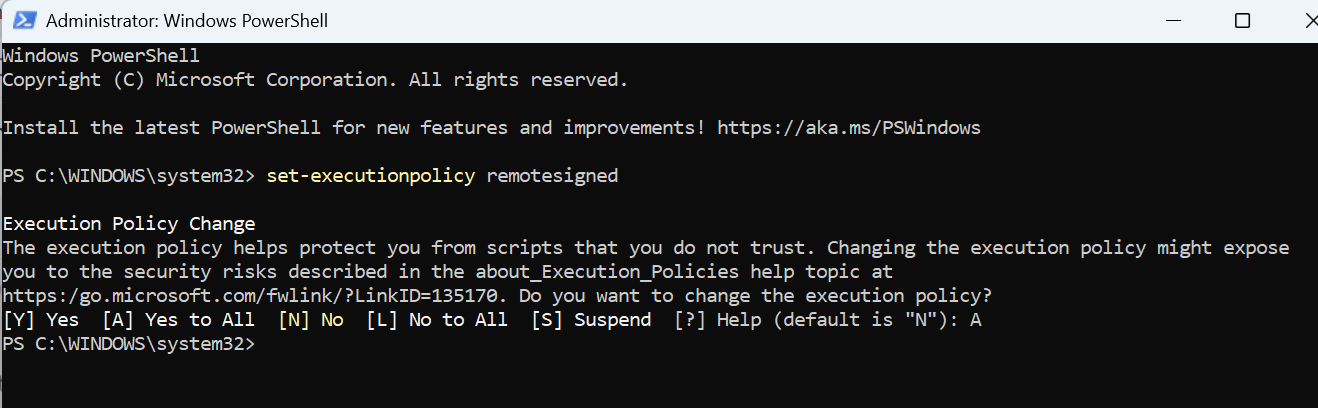
  • Enable running unsigned scripts by entering the following and choosing [A] Yes to All:

set-executionpolicy remotesigned

This will allow running unsigned scripts on your local computer and signed scripts from the Internet. This will change the policy permanently.

We can test our script by opening a command prompt and typing

powershell -F c:\users\tmp\SaveFirstPageAsJPG.ps1 c:\testTechBulletin.pdf

3. Use the Win2PDF Administrator Utility to use this program when creating a PDF file.

Finally, download and install the free Win2PDF Administrator Utility.

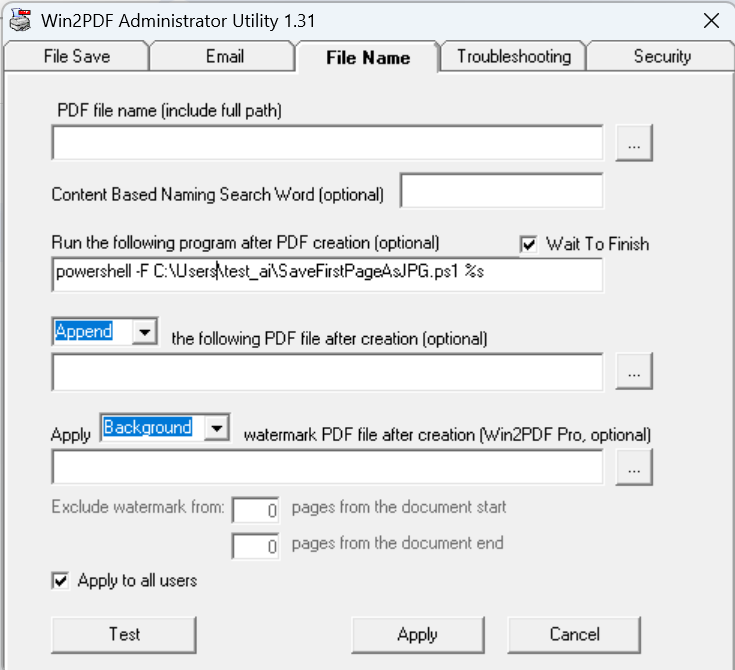
To use this as a Plug-In, open the Win2PDF Administrator Utility and enter the following command under “Run this program after PDF creation (optional)” on the File Name tab:

powershell -F c:\users\tmp\SaveFirstPageAsJPG.ps1

Then click the “Apply” button to save this command a Plug-In. [Note: The Win2PDF Administrator Utility will automatically add a “%s” argument to the end of the command when saved, so Win2PDF will automatically pass the PDF file name to the Plug-In.]

If you’re not familiar with Powershell programming, check out Microsoft’s online documentation for assistance or better yet, ask your AI chatbot for help.

4. Test the Results

Create a new technical bulletin and print it using the Win2PDF TechBulletin printer. Once complete, confirm that both the PDF file and a JPG copy of the first page are saved in the same location.

This simple example demonstrates how quickly and easily you can automate a workflow when an out-of-the-box solution isn’t available. You could expand this process further—for instance, by resizing the JPG or moving it to another folder—but this provides a clear idea of the steps to create your own Plug-In.

If you get stuck, don’t worry. Just ask and we’ll help.

Vibe Coding: Crafting Effective AI Prompts for Custom Win2PDF Plug-ins

Vibe coding is a novel approach to software development that leverages artificial intelligence (AI) to generate code based on desired functionality or “vibe.” It allows developers to express their intentions in a more abstract and intuitive way, rather than writing explicit, line-by-line instructions. This methodology is particularly useful for creating Win2PDF Plug-Ins, enabling faster development and innovative solutions for specific customer applications.

Vibe coding utilizes AI models trained on vast amounts of code and natural language. Developers provide high-level descriptions of what they want the Plug-In to achieve, and the AI interprets these descriptions to generate the corresponding code. Since Win2PDF has extensive online documentation with syntax descriptions and code examples, most AI programs can already generate Win2PDF Plug-Ins.

And while creating a custom Win2PDF Plug-In with the help of AI can be powerful, its success relies heavily on the quality and specificity of your prompts. We’ve been experimenting with a variety of different AI chatbots to see how they can handle generating code for Win2PDF Plug-Ins, and the results can vary widely depending on how the prompts are structured. We’ve tried this with Google Gemini, Microsoft Copilot, OpenAI ChatGPT, GitHub Copilot, Anthropic Claude, and others.

Chatbots can create Win2PDF Plug-Ins

Based on our experience, here are some tips to help you write successful AI prompts.

Be Specific and Detailed

The more details you provide, the better the AI can understand your requirements. Avoid vague statements and instead, describe exactly what you want the Plug-In to do. For example:

Instead of: “Make a Win2PDF Plug-In for PDF watermarks.

Try: “Create a Win2PDF Plug-In in C# that adds a custom watermark file to all pages of a PDF document except for the first page. Name the new file with the same name as the input file, but add “_watermarked” to the file name.

Break Down Complex Tasks

If your Plug-In needs to perform multiple functions, break them down into separate prompts. This makes it easier for the AI to understand each part and generate the corresponding code. For example:

Instead of: “Write a PDF Plug-In to extract pages in different files with watermarks.

Try:

  • “Write a Win2PDF Plug-In in C# to export pages 2-4 and 5-6 in separate files and add a watermark to both. “
  • “Use the Win2PDF command line “extractpages” and Win2PDF command line “watermark” commands.”
  • “The watermark should use the existing “confidential.pdf” file as the watermark.”

Specify the Programming Language

If you have a preference for a specific programming language (e.g., VB.NET, C#, Powershell), mention it in your prompt. This will help the AI generate code that is compatible with your existing setup.

Example: “Generate a program using C# that extracts text from the last page of the PDF and saves it to a text file using Win2PDF.

Provide Context and Examples

Give the AI context about the existing Win2PDF environment and provide examples of the desired output. This can help the AI understand your needs better.

Example: “Write a Powershell program that will save the first page of a PDF file as a JPG image with a user-definable resolution. It should use the following command syntax: “win2pdfd.exe pdf2jpg “sourcepdf” “destjpg” pagenumber xresolution yresolution”, where the xresolution and yresolution are set to be 200. The output JPG files should be the same name as the input file name, but with a “_page1.jpg” added to the input file name.

Iterate and Refine

Don’t expect perfect results from the first prompt. Review the generated code and provide feedback to the AI. You may need to refine your prompts and ask for modifications several times to achieve the desired outcome.

Example: “The generated code is close, but the encryption is not using AES-256. Please modify the code to use AES-256 encryption instead of the current algorithm.

Also, to improve results, tailor your prompts for the AI you are working with. For Github Copilot, for example, browse to the Win2PDF.Samples repository before asking it to generate a Plug-In. Github Copilot will use the Win2PDF.Samples repository to produce better code that is more likely to work as expected.

If a generated Plug-In doesn’t work, try copying the Win2PDF documentation into the prompt and ask it again. For example:

Instead of: “Write a Win2PDF Plug-In in Windows Powershell that takes a single parameter with an input PDF and exports pages 2-4 and 5-6 in separate files and adds a watermark to both.”

Try: “Write a Win2PDF Plug-In in Windows Powershell that takes a single parameter with an input PDF and exports pages 2-4 and 5-6 in separate files and adds a watermark to both. The new files should be placed in the same folder as the source file. Use the Win2PDF command line win2pdfd.exe “extractpages” and Win2PDF command line “watermark” commands . The watermark should use the existing “confidential.pdf” file as the watermark. The documentation for the watermark command is: win2pdfd.exe watermark “sourcefile” “watermarkfile” “destfile” mode excludepre excludepost Where: “mode” is either “watermark”, “background”, “watermarklink”, or “backgroundlink” If mode is “watermark” or ““watermarklink”, the watermarkfile PDF is overlaid on top of all existing graphics on the page. If mode is “background” or “backgroundlink”, the watermarkfile PDF is placed underneath all existing graphics on the page. If the watermark file has click-able links, you can use the “watermarklink” or “backgroundlink” variation to keep these links active in the final PDF file. “excludepre” is the number of pages from the beginning of the document to skip applying the watermark. Set to 0 apply watermarkfile to all pages including the first page. Set to a negative value to include the watermark to the absolute value of the number of pages from the beginning of the document. “excludepost” is the number of pages from the end of the document to skip applying the watermark. Set to 0 to apply the watermarkfile to all pages including the last page. Set to a negative value to include the watermark to the absolute value of the number of pages from the end of the document. The documentation for the “extractpages” command is: win2pdfd.exe extractpages “sourcefile” startpage endpage “destfile” Extract pages from “sourcefile” starting at “startpage” to “endpage”, and save extracted pages in “destfile”. Any file names that contain spaces must be enclosed with quotation marks. The “sourcefile” can be a local file path, or an web address (URL) to an existing PDF. Returns 0 on success, and a Windows system error code on failure. If “sourcefile” and “destfile” are the same file, the file is modified in place. Any file names that contain spaces must be enclosed with quotation marks. The “sourcefile” can be a local file path, or an web address (URL) to an existing PDF. Returns 0 on success, and a Windows system error code on failure.”

While that looks complicated, it’s essentially the same prompt WITH copied documentation on how to use each of the commands we know the Plug-In will need to use, and the steps the Plug-In will need to perform. AI will understand this better than you or I, and the results are much improved.

Test Thoroughly

Always test the generated Plug-In thoroughly to ensure it works as expected. Pay attention to error handling and edge cases. Using AI to generate code is still not fool-proof, and in our experiments the code results frequently need to be tweaked to make them work as desired. Over time and with the rate of AI advancement, we expect this to be less of a problem in the future.

By following these tips, you can effectively communicate your needs to the AI and create custom Win2PDF Plug-Ins that meet your specific requirements.

If AI can’t get you the results you need, contact us with your specific requests and customizations for Win2PDF.

FTC Action Highlights Problems With PDF Software Subscriptions

Over the past decade, there has been an increasing trend to move software licensing to a subscription-based model, with monthly fees replacing the previously common one-time cost for a perpetual license. While these software subscriptions can be beneficial to a software company’s bottom line, they can be detrimental for users. The high cost and the difficulty in terminating these subscriptions can be major pain points for consumers.

The recent actions taken by the Federal Trade Commission against Adobe and its executives highlight this issue. Adobe’s practices of obscuring early termination fees and making cancellation processes difficult have resulted in consumer confusion and frustration. Users complain they were tricked into year-long contracts hidden by fine print, and the company made it intentionally difficult to try to get out of the subscriptions.

Compounding this problem, moving PDF and other software services to the cloud (and your data into the hands of another company) can also represent significant concerns in terms of privacy or confidentiality of customer data. Adobe faced similar backlash when it recently updated its terms of service.

The new terms include provisions that grant Adobe extensive rights to access, use, and potentially monetize data uploaded to or processed by their software. This includes artwork, designs, and other creative works, which can be scanned and utilized for various purposes, including machine learning and other services under Adobe’s vast umbrella.

Consider the implications for customer’s working under non-disclosure agreements (NDAs), or customers working with legal documents or medical records that are protected under HIPAA. Allowing your PDF provider access to your data can be perilous for many reasons.

These issues serve as a reminder that software companies should prioritize transparency and user-friendly cancellation processes to ensure fair treatment of their customers.

Win2PDF has not changed its licensing, prices or terms of service in over two decades and we have no plans to do so. Our software is sold as a perpetual one-time license, comes with a simple 60-day return policy (for any reason) that we honor promptly, and your data is your data. It is never transferred, used or monetized by us. Just like Vegas, what happens on your computer, stays on your computer.

ChatGPT’s Latest Update: Analyzing PDFs for Powerful Insights

OpenAI’s ChatGPT has received a substantial update, allowing users to upload PDF documents and have the AI-powered chatbot analyze them. This newfound feature promises to be a game-changer in various scenarios where quick and efficient data extraction is required.

The power of this feature becomes evident when considering its real-world applications. Users can now feed ChatGPT specific PDF documents, enabling it to generate summaries, extract data points, and even create graphs and charts based on the provided information. What are the key points of this report? Can you summarize its conclusions? Can you help me write a slide show presentation for this document? Just think of the many ways that any type of PDF file can be analyzed.

“…you can now feed ChatGPT specific PDF documents and have it extract summaries, various data points, or even write graphs and charts based on that data.”

ChatGPT’s new ability to analyze PDFs is a remarkable advancement, expanding its utility beyond natural language understanding and generation. This update underscores the ever-evolving capabilities of AI-powered tools and their potential to transform the way we work with information.

We’ll continue to monitor the developments in the AI space to see how and where Win2PDF can be used to facilitate the PDF integrations. If you have any questions or specific use cases in this area, please let us know. We’re always interested in how our users may be incorporating or interfacing with this type of application.