
Navigating the New Outlook in Windows: How Win2PDF is Keeping Up with Changes

Your Outlook looks… (new)…

Microsoft recently replaced its built-in Windows 11 Mail app with a new version of Outlook in a February 2025 security update. After the update, the new app is installed as Outlook (new). If you previously had Outlook 365 or an older version of Outlook, it’s named Outlook (classic).

Haven’t we been here before?

Despite the similar appearance and name, the new Outlook is a complete rewrite of Outlook with many advanced features intentionally removed. One of the features that is not included is the interface that Win2PDF uses to attach a PDF to an email when the Use Microsoft Outlook option is configured.

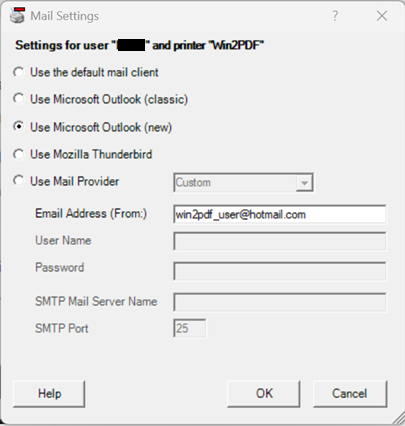
As you may have guessed, we’ve now updated our Configure Win2PDF Mail Settings interface to include both the Outlook (new) and Outlook (classic) configuration options (the latter has not changed).

When Use Microsoft Outlook (new) is selected, you’ll first need to specify the “Email Address (From:)“, and this address must match the configured address in Outlook (new). This is a new requirement compared to Use Microsoft Outlook (classic).
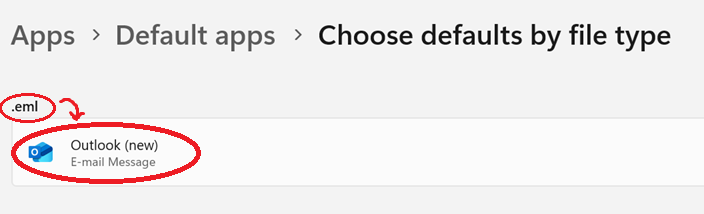
Also, Outlook (new) must be set as the default program for “.eml” files for this support to work correctly, but that should be the default handler already. (If needed, here are instructions for changing the default app in Windows 11).
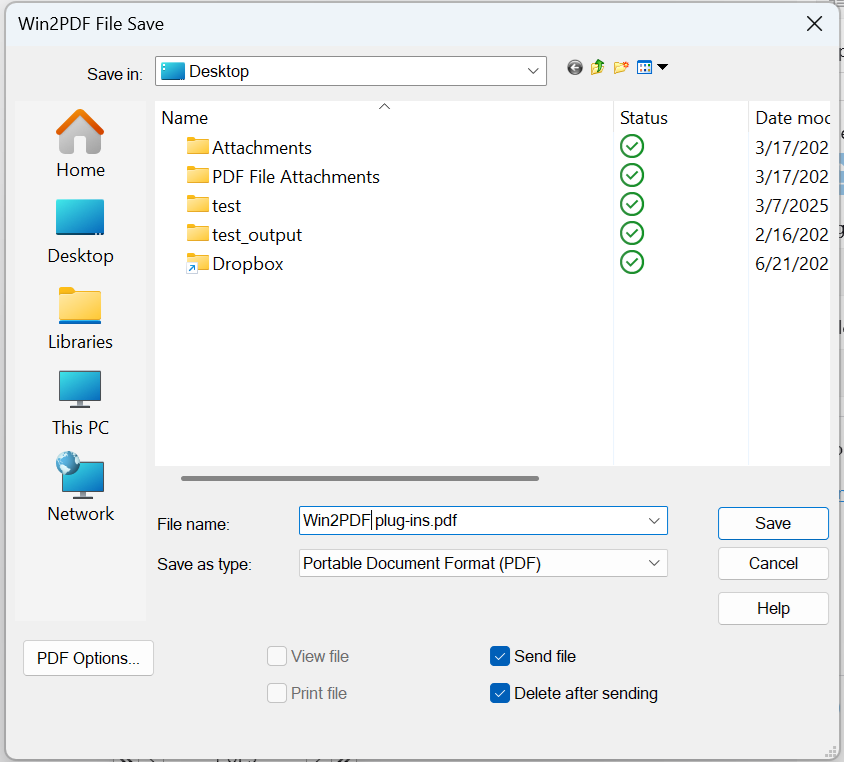
Once the Outlook (new) mail is configured, it will be available for Win2PDF to use when sending a PDF by email.
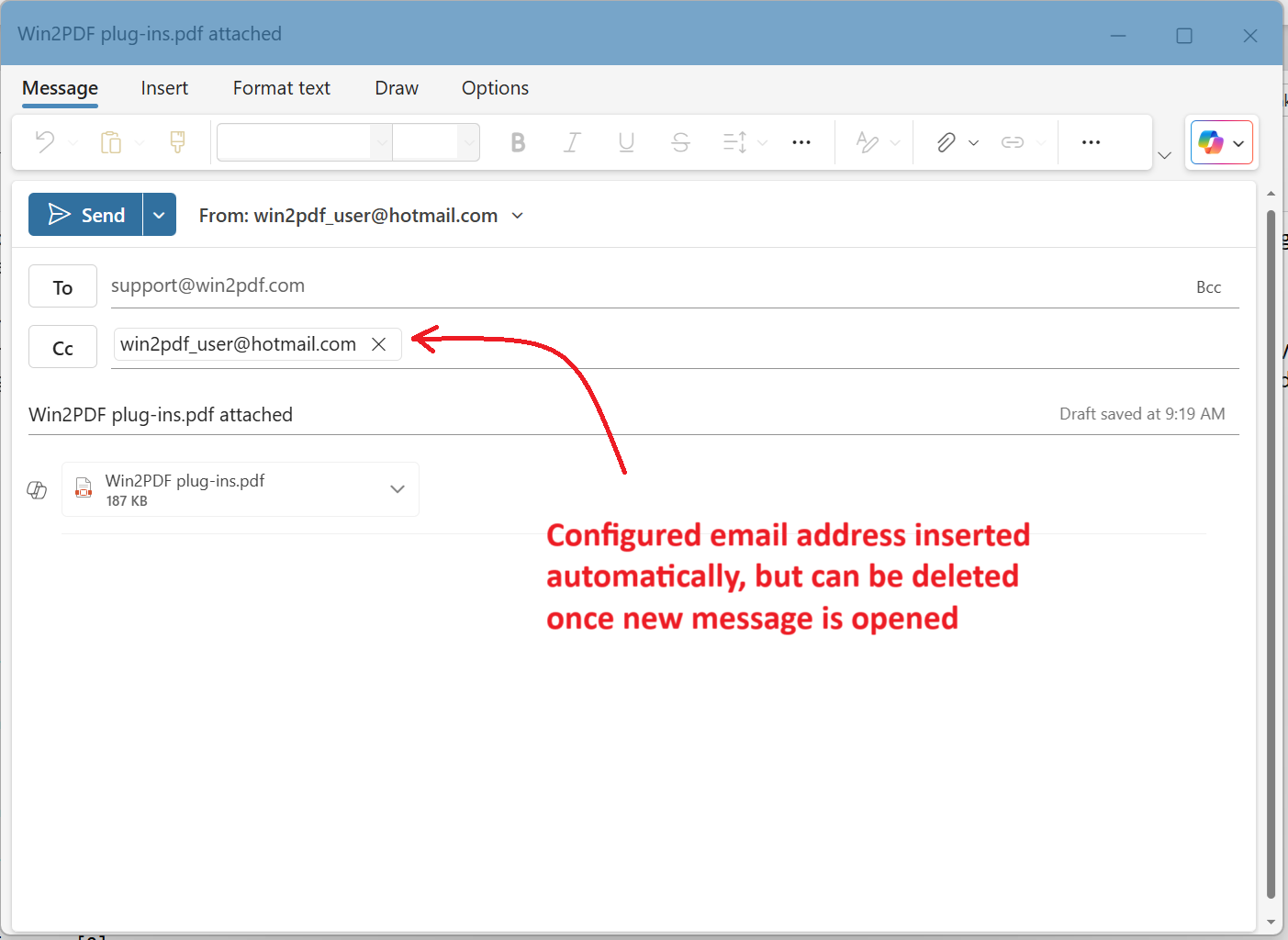
When a new mail message is created, the new Outlook requires a destination email address to be provided. Currently Win2PDF populates the Cc address with the From address (set in Configure Win2PDF Mail). Once the new mail message is created, the user can delete the Cc address after specifying a new To address if desired.
These changes are included in the updated Win2PDF Desktop 10.0.175. This is a free update to all current Win2PDF 10 users.

Win2PDF 10 build 172: Win2PDF Pro Converts Excel Spreadsheets to PDF, Image, and Text Formats

A new release of Win2PDF (version 10 build 172) is now available on the Win2PDF Download site with a variety of new features and enhancements.

We’ll cover other features in a subsequent post, but the most significant addition is that Win2PDF Pro now supports the ability to easily convert Microsoft Excel and OpenDocument spreadsheets (XLSX, XLS, XLSB, ODS, and CSV formats) to PDF, images, and text. Win2PDF supports these formats directly, and Microsoft Excel or OpenOffice do not need to be installed. (Note: This is a Win2PDF Pro feature only)

Converting a spreadsheet file to PDF is useful for several reasons:

  • Preservation of Formatting: PDF ensures that the layout, fonts, and formatting of the spreadsheet remain consistent across different devices and operating systems. This is crucial when sharing the file with others who may not have Excel or have a different version.
  • Security: PDFs can be password-protected, preventing unauthorized editing or copying of the data. This is important for sensitive financial or personal information.
  • Portability: PDFs are widely supported and can be opened on virtually any device without the need for specific software. This makes them ideal for sharing and distributing information.
  • Archiving: PDFs are a stable format suitable for long-term archiving of data, as they are less likely to become corrupted or incompatible with future software.

Earlier versions of Win2PDF Pro supported Microsoft Word document formats, but this update expands coverage to Microsoft Excel and OpenOffice spreadsheet formats. This is a free update to licensed users of Win2PDF 7 or higher.

In the Win2PDF Desktop app, you’ll now see conversion options for XLSX, XLS, XLSB, ODS, and CSV formats in the Batch Convert and Watch Folder (Win2PDF Pro TSE only) interfaces. These features now support the following spreadsheet file formats:

  • XLSX – Microsoft Excel Workbook
  • XLS – Microsoft Excel 97-2003 Workbook
  • XLSB – Microsoft Excel Binary Workbook
  • CSV – Comma Separated Values
  • ODS – OpenDocument Spreadsheet

One thing to note is that there are differences between these spreadsheet formats when used as inputs versus outputs. As an input format, the new spreadsheet formats can be read and converted to anything (PDF, Image, Text). As an output format, however, it can only handle another spreadsheet format as input.

Here are a few examples:

Convert Type

Supported?

XLS to PDF

Yes. Spreadsheet to PDF file is supported

XLS to JPG

Yes. Spreadsheet to Image file is supported

XLS to TXT

Yes. Spreadsheet to Text file is supported

XLS to XLSX

Yes. Excel spreadsheet to another spreadsheet format is supported

PDF to XLS

No. PDF to spreadsheet is not supported because formatting is different between file types

DOC to XLS

No. Word to spreadsheet is not supported because formatting is different between file types

The command line options of Win2PDF Pro have been similarly updated. Here are the new command line options to convert from spreadsheet formats to PDF:

And these added command line options allow users to print spreadsheet formats to a paper printer:

Plus, the following output formats have been added to the convertto, batchconvert, and watchconvert commands:

  • “xlsx” – Microsoft Excel Workbook
  • “xls” – Microsoft Excel 97-2003 Workbook
  • “xlsb” – Microsoft Excel Binary Workbook
  • “ods” – OpenDocument Spreadsheet
  • “csv” – Comma Separated Values
  • “pdfa” – PDF for archiving

Stay tuned as we’ll be covering the other updates and enhancements to this release in a follow-up post. If you have any questions, please contact us.

Scratching Under the Surface

Now that Windows 8 is starting to get traction on new devices, we’re seeing more and more customers using Win2PDF on tablets and laptop/tablet hybrids.  One of the more interesting entries has been Microsoft’s first foray into the hardware world with their Surface tablet.

Microsoft Surface Tablet
Microsoft Surface, photo by methodshop.com via Flickr

Microsoft released its newest version — Surface Pro — earlier this month.  While similar in design to the more inexpensive and lighter Surface RT, the Surface Pro really is a full-fledged PC stuffed into the form factor of a tablet.

Please note, there is a significant difference between Surface RT and Surface Pro:

Surface RT uses an ARM-processor and can only run apps designed for the newer Windows 8 style interface.  Many existing desktop Windows applications (including our Win2PDF product) will not run on this platform at this time.  Also, you can only install applications through Microsoft’s App Store.  This is probably a suitable option for people that only want an iPad-like tablet for running specialized apps or accessing email or a web browser on the go.

Surface Pro, on the other hand, has an Intel processor and uses the complete Windows 8 operating system. This makes it especially useful for business users who need a full Windows compatible PC to run any type of application (and yes, our Win2PDF product is fully supported on this device).  For our needs, and for others who need PDF tools like Win2PDF, the Surface Pro is the only model that is capable of running all applications from the tablet.

We haven’t got our hands on one yet, but most reviews are generally favorable.

  • Consumer reports:  “The Microsoft Surface Pro delivers on its promise to provide the most laptop-like performance yet from a tablet. But like most groundbreaking devices, it has flaws—including limited storage and hefty weight and size—that mean it’s suited mainly to road warriors who can’t wait for a better super-tablet device to come along.”
  • New York Times:  “But inside, the Pro is a full-blown Windows PC, with the same Intel chip that powers many high-end laptops, and even two fans to keep it cool (they’re silent). As a result, the Pro can run any of the four million Windows programs, like iTunes, Photoshop, Quicken, and, of course, Word, Excel and PowerPoint…  Are you getting it? This is a PC, not an iPad.”
  • ZDNet: “There are a number of Windows 8 laptop and tablet options, but I haven’t seen any that are as light, well designed, and compelling to me as the Surface Pro. I want a super portable computer that is well designed and does not limit me from doing what I need to do when the occasion arises and I believe the Microsoft Surface Pro is that computer.”

It has decent horsepower and capability for serious Windows users, but the Surface Pro is not without its flaws.

Wired claims that it is virtually unrepairable should something go wrong:  ” In a teardown of Microsoft’s tablet-laptop hybrid, the company gave it a rock-bottom score of just one — one! — out of 10 for repairability, lower even than Apple’s iPad and the Windows Surface RT.”

For now, the Microsoft Surface Pro seems to be a good option for users who need to access to a full-fledged Windows PC (with applications like Win2PDF), but still want the portability and tablet features like touch-screen and pen-based applications.  I’m sure the options will continue to increase as other hardware vendors introduce new products, and hopefully the competition will reduce prices as well.  Until that happens, though, the Surface Pro seems to be a respectable option if you’re looking for a tablet today.