
Your Outlook looks… (new)…

Microsoft recently replaced its built-in Windows 11 Mail app with a new version of Outlook in a February 2025 security update. After the update, the new app is installed as Outlook (new). If you previously had Outlook 365 or an older version of Outlook, it’s named Outlook (classic).
Haven’t we been here before?

Despite the similar appearance and name, the new Outlook is a complete rewrite of Outlook with many advanced features intentionally removed. One of the features that is not included is the interface that Win2PDF uses to attach a PDF to an email when the Use Microsoft Outlook option is configured.
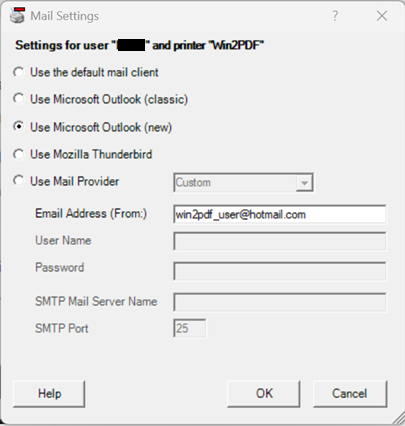
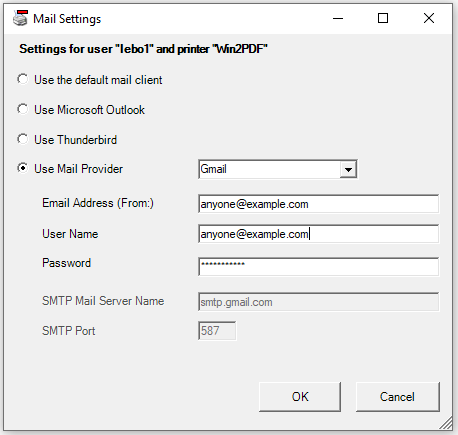
As you may have guessed, we’ve now updated our Configure Win2PDF Mail Settings interface to include both the Outlook (new) and Outlook (classic) configuration options (the latter has not changed).
When Use Microsoft Outlook (new) is selected, you’ll first need to specify the “Email Address (From:)“, and this address must match the configured address in Outlook (new). This is a new requirement compared to Use Microsoft Outlook (classic).
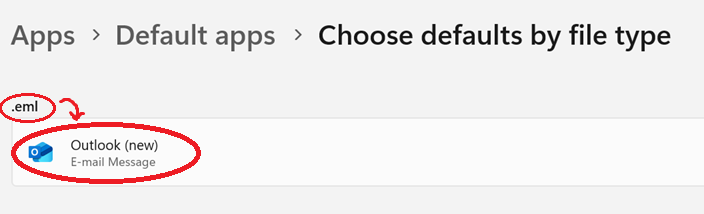
Also, Outlook (new) must be set as the default program for “.eml” files for this support to work correctly, but that should be the default handler already. (If needed, here are instructions for changing the default app in Windows 11).
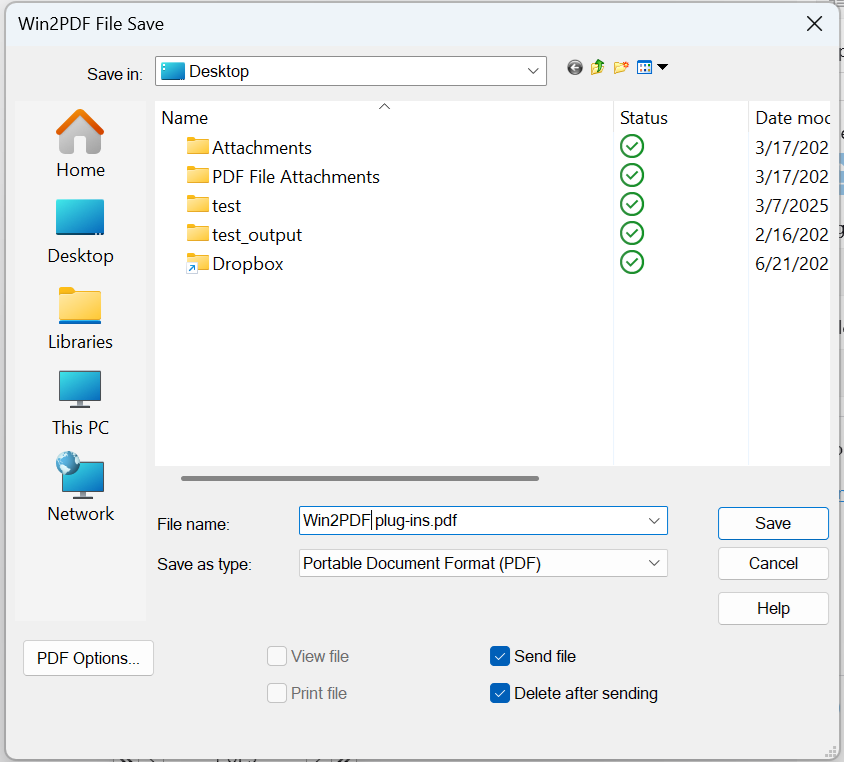
Once the Outlook (new) mail is configured, it will be available for Win2PDF to use when sending a PDF by email.
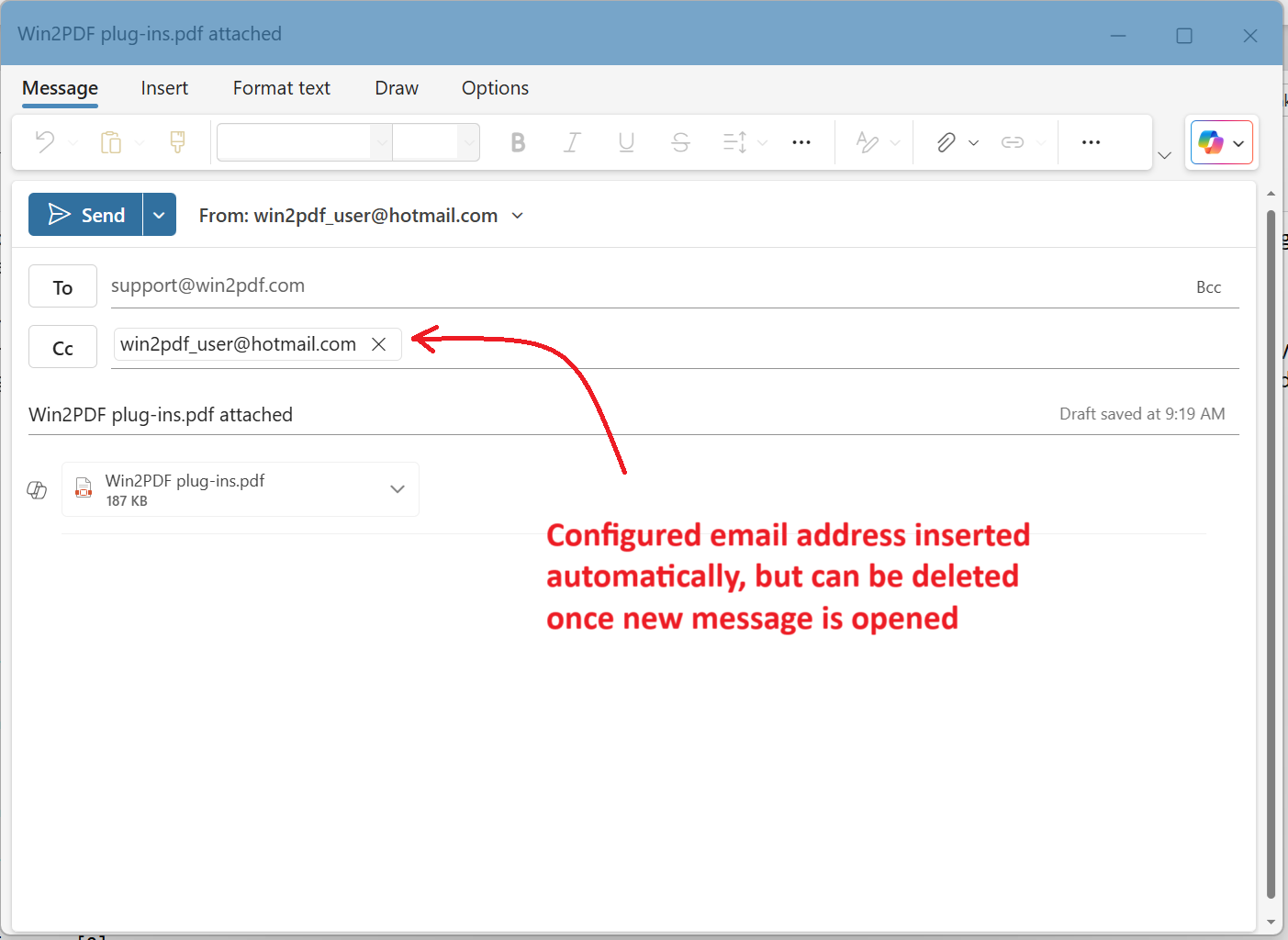
When a new mail message is created, the new Outlook requires a destination email address to be provided. Currently Win2PDF populates the Cc address with the From address (set in Configure Win2PDF Mail). Once the new mail message is created, the user can delete the Cc address after specifying a new To address if desired.
These changes are included in the updated Win2PDF Desktop 10.0.175. This is a free update to all current Win2PDF 10 users.
 PDF Blog - Topics from the makers of Win2PDF