Easily Organize Your PDF Files! Introducing “Reorder Pages” for Win2PDF Desktop

The latest Win2PDF Desktop now includes a Reorder Pages feature that makes it easy to manipulate an existing PDF’s page order—without needing a separate PDF editor.

Here’s what you need to know:

🧩 What It Does

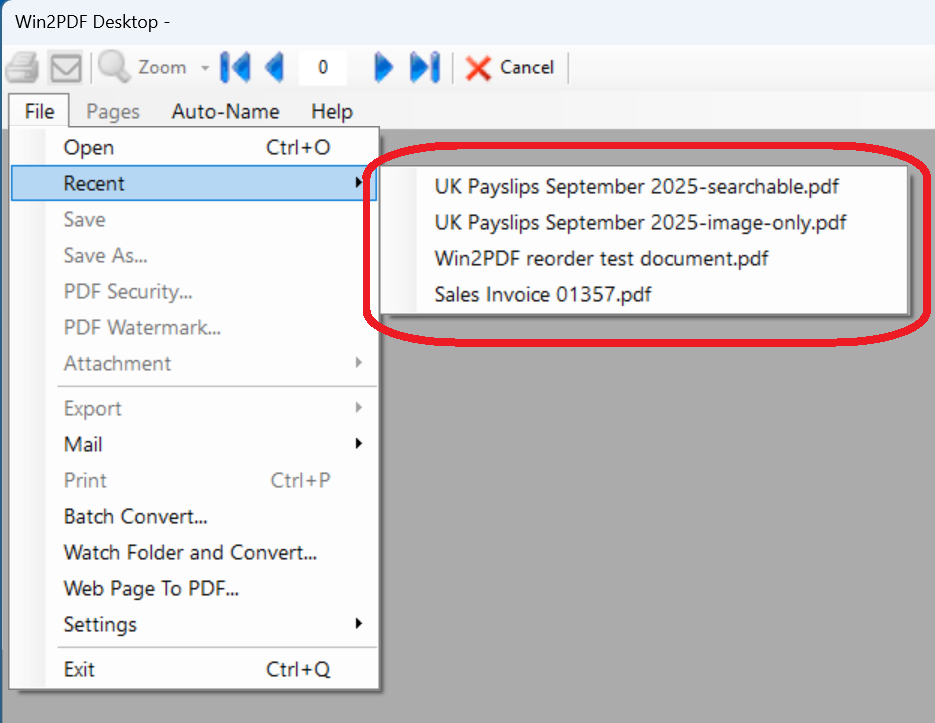
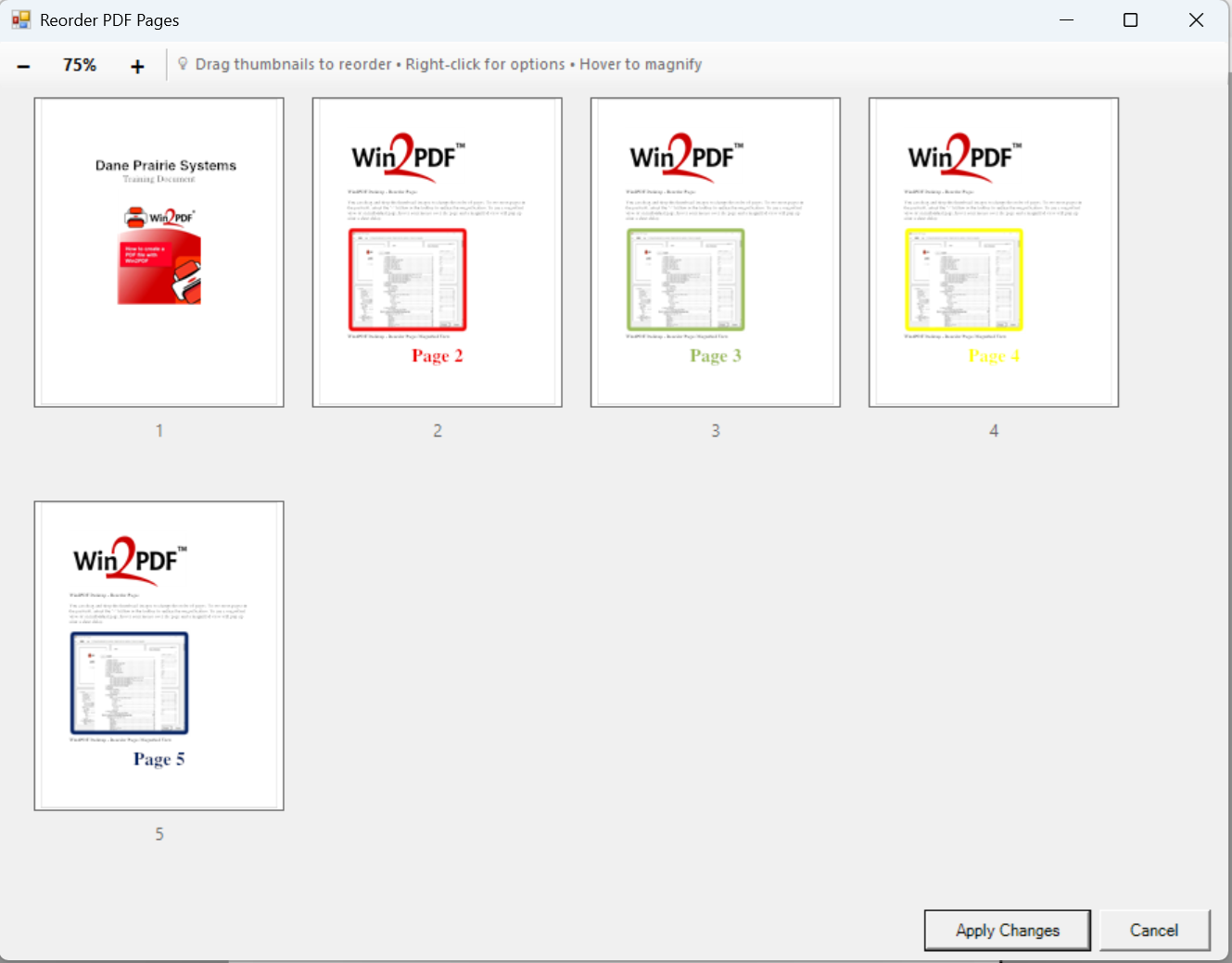
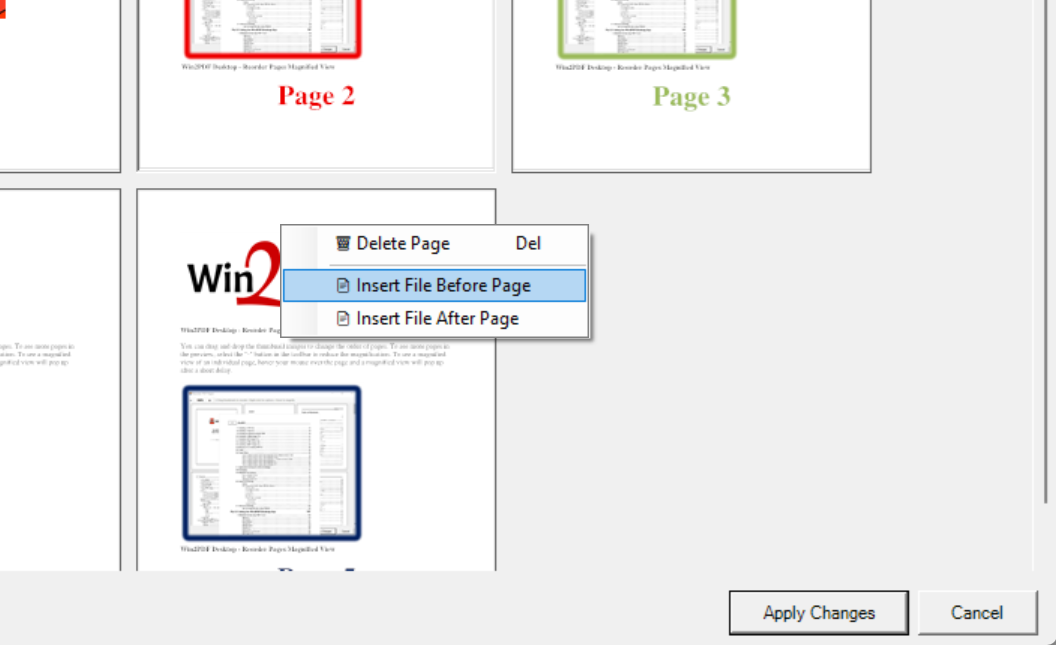
After opening a PDF into Win2PDF Desktop, choose Pages → Reorder Pages… to launch a thumbnail-based preview.


You can drag and drop individual pages to rearrange their order.

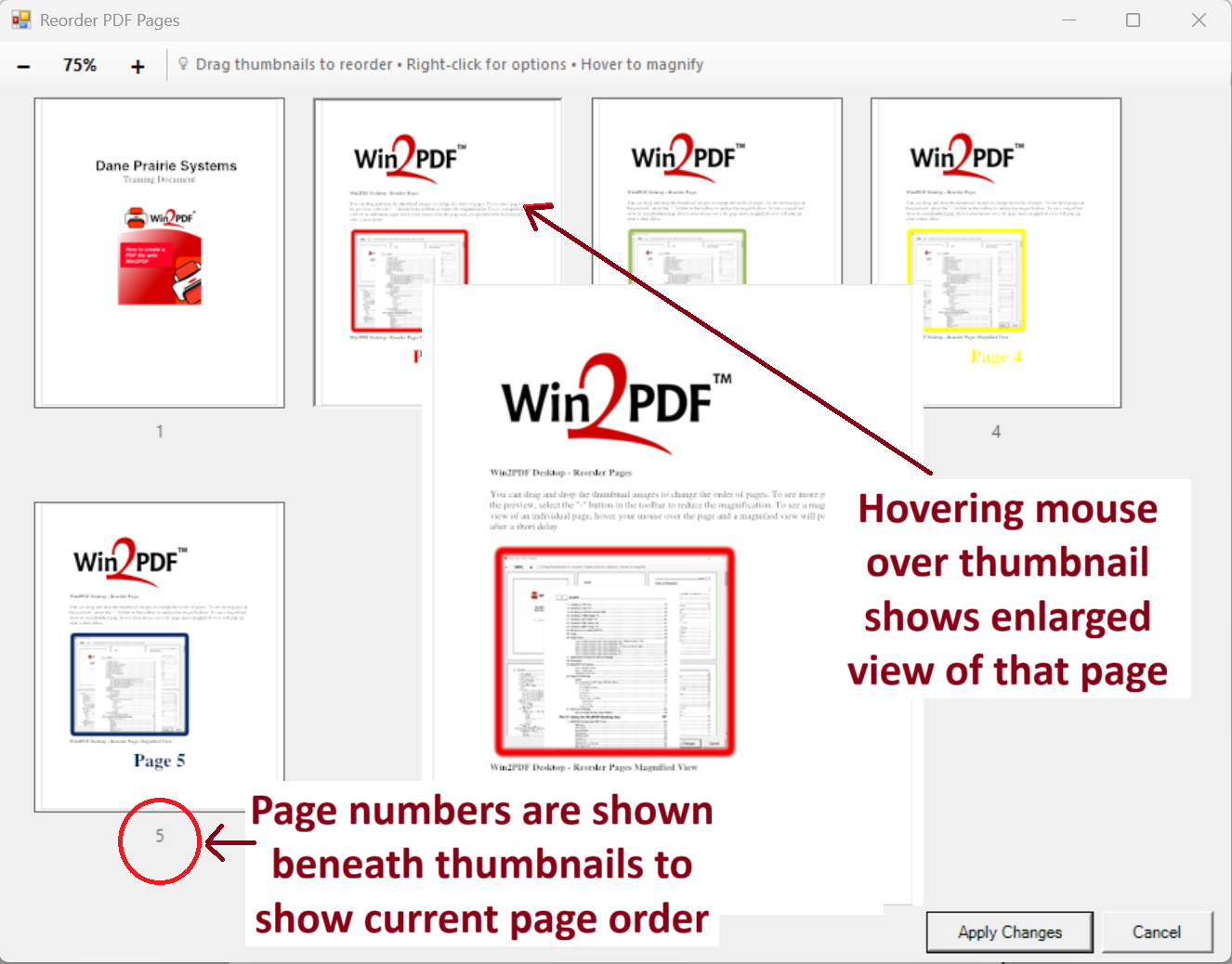
Hovering over a thumbnail shows a magnified preview to help you identify the page before reordering.  Small pages numbers are shown beneath each thumbnail to show the current page position in the document.


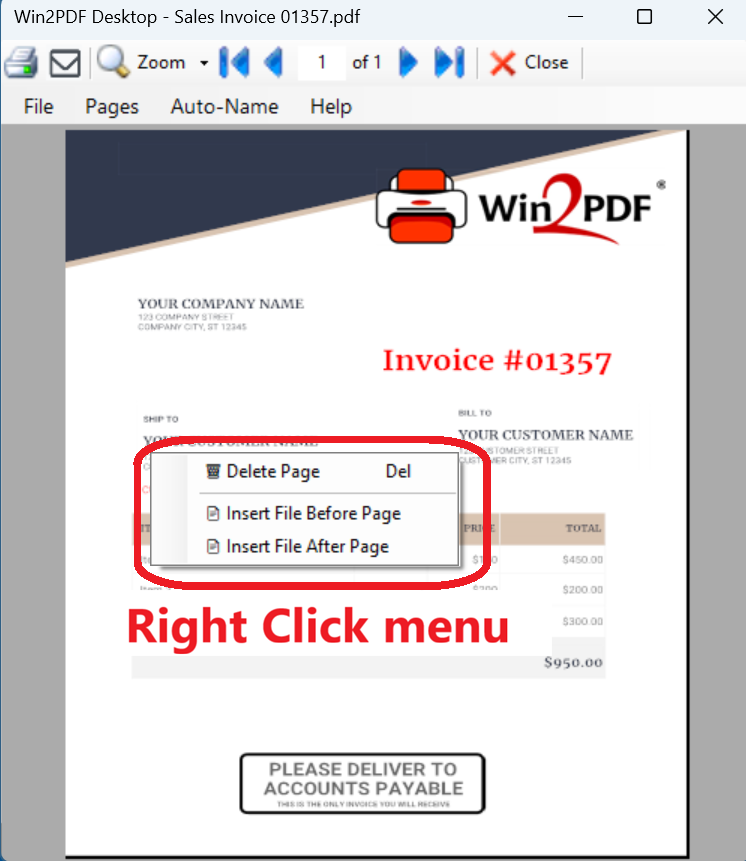
A right-click menu on any page offers extra options:

  • Delete Page
  • Insert File Before Page / After Page — you can insert documents in formats supported by Win2PDF (e.g. JPG, PNG, TIFF) or, with Win2PDF Pro, even DOCX, XLSX, HTML, TXT, ODT, etc.


When you’re done, click Apply Changes and Win2PDF returns you to the modified preview.

You can see a short video showing how this feature works here:

💡 Why It’s Useful

  • No third-party PDF editor needed — this gives users more flexibility to reorganize pages from within the existing Win2PDF Desktop App.
  • Speed and simplicity — drag/drop interface and live preview make it fast to reorder pages.
  • Mixed document assembly — you can splice in compatible documents right in the flow of your existing PDF, or delete unneeded pages. The inserted file can be in any format supported by Win2PDF (XPS, JPG, TIFF, PNG, GIF, BMP) or Win2PDF Pro (DOCX, RTF, XLSX, HTML, TXT, ODT).
  • Secure processing on your computer — all of the editing is done local to your computer, so nothing is ever uploaded to the cloud.
  • Great for multipage reports, manuals, proposals or presentations — any time you need to reshuffle chapters or sections.

🔐 Licensing & Availability

This feature is available in licensed versions of Win2PDF Desktop. Contact us for 30-day trial license to try it.

New Outlook Support and Enhanced PDF Workflow in Win2PDF Version 11.0

We are pleased to announce the release of Win2PDF version 11.0, a free update that introduces several enhancements to expand the capabilities and features of Win2PDF. This update is designed to completely support Microsoft’s Windows 11 operating system, and to optimize your PDF workflows and provide greater efficiency.

Key features and improvements in this release include:

Enhanced Microsoft Outlook Integration: Microsoft is transitioning users from its older Windows Mail and Calendar apps to a new version of Outlook for Windows 11. The new Outlook is a move towards a more unified, modern, and feature-rich email client integrated with the Microsoft 365 ecosystem, but it does have some differences compared to both the old Mail app and the classic Outlook, including some that affect how Win2PDF attaches PDF files to email. Win2PDF now supports both the existing Outlook (classic), and provides the same seamless functionality to users moving to Outlook (new).

Automated Blank Page Removal: If you’ve ever received or generated a PDF that contains extra blank pages, you can now remove them using the new Delete Blank Pages feature.  It automatically identifies and removes empty pages from your PDFs, contributing to cleaner and more professional documents.  This feature also has an associated DELETEBLANKPAGES command line option.

Expanded Automation Customization Capabilities: Support for Batch Convert and Watch Folder and Convert plug-ins has been extended. You can customize batch convert processing by installing a Win2PDF Batch Convert Plug-in which can be very useful in many situations.  For example, suppose you wanted to batch convert a folder of documents and then perform a secondary process on those newly created files – a batch convert Plug-In would allow you to do that.  Current Plug-ins include the ability split pages, delete pages, append a PDF, apply watermarks, delete blank pages, digitally sign with a certificate, and more. When a batch convert plug-in is installed, an “Enable Plug-In” option is displayed in the Batch Convert Window.

Watch up to 20 folders with Watch Folder and Convert feature: The “CONFIGWATCHSERVICE” command line option now allows a single service to monitor up to 20 folders, enabling more robust automation for complex workflows. [Note:  Win2PDF Pro Terminal Server Edition only feature]

Refined Text and RTF Conversions: This update includes fixes to improve the conversion of text files containing smart quotes to PDF, ensuring accuracy. Additionally, formatting issues encountered during RTF to PDF conversion have been addressed, resulting in improved document fidelity.

Improved Command Line Printing: For users utilizing the “PRINTPDF” command line, paper size selection has been refined, offering enhanced control over printing options.

As a free upgrade for existing customers using Win2PDF 7 or higher, we encourage you to explore these new features and see how they can further enhance your productivity. And while this new Win2PDF 11.0 release fully supports Windows 11.0, it also continues to support Windows 10, Windows 8, Windows 8.1, Windows 7, Windows Vista, and Windows XP. Win2PDF Terminal Server Edition 11.0 continues to fully support Windows Server 2025, Server 2022, Server 2019, Server 2016, Server 2012, Server 2012 R2, Server 2008, Server 2008 R2, Server 2003, and Server 2003 R2 (including 64 bit editions).

Think Before You Upload: Why Offline PDF Tools Are the Safer Choice

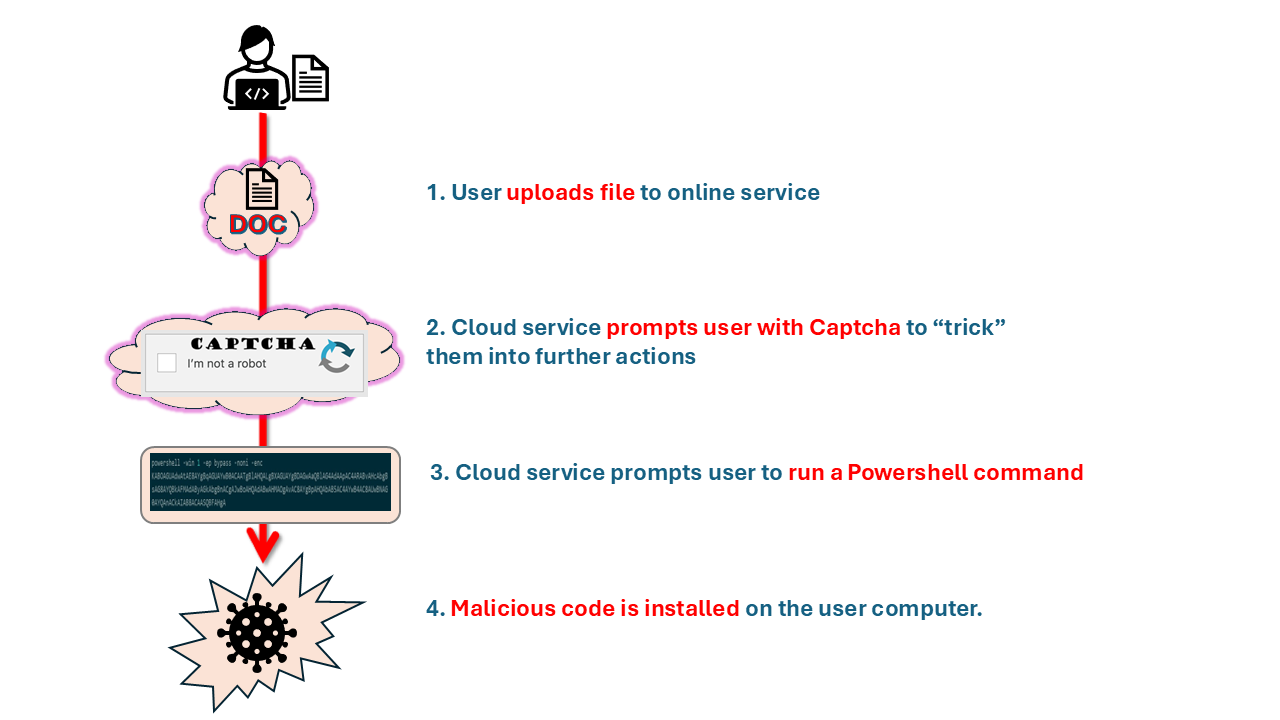
CloudSEK, a cybersecurity company that specializes in using artificial intelligence to predict and mitigate digital threats, recently wrote of a new threat posed by some online PDF converters. CloudSEK’s investigation reveals a growing threat from fake online PDF converters that mimic legitimate services.

These fraudulent websites trick users into uploading files for conversion, only to execute malicious PowerShell commands that install malware. The malware steals sensitive data such as browser credentials and cryptocurrency wallet information. This highlights the risks of relying on unverified online tools for file conversion.

Here’s how it works: When users start the PDF conversion process on a malicious website, they encounter clever tricks designed to manipulate their actions. This could be fake loading animations or a CAPTCHA request. These imitate legitimate security steps, which make the sites seem trustworthy.

However, following the deceptive CAPTCHA interaction, the website prompts users to execute a PowerShell command that infects the user’s computer with malware.

Offline PDF tools, such as Win2PDF, offer a significant security advantage over online converters by processing documents locally. This ensures sensitive files remain on your computer, mitigating the risks of data theft and malware.

Win2PDF operates exclusively on your local system, guaranteeing that your files and data never leave your computer or network.

To ensure the security of your personal and professional data amidst ongoing cyber threats targeting online platforms, selecting offline PDF tools such as Win2PDF is a safer approach. Offline solutions enable efficient file conversion while preserving data protection.

Ultimately, choosing software to process your company’s sensitive documents requires trust. You can trust Win2PDF because:

Trust your documents to a secure solution. Download Win2PDF and see why we’ve been trusted for over 25 years. (Also, make sure that you only download only official setup programs from the Win2PDF website.)

AI in Action: Developing a Win2PDF Plug-In as a Practical Case Study

In our previous blog post, we explored how effective prompts can be used to create Win2PDF Plug-Ins with AI chatbots. Today, let’s examine a specific customer solution we developed.

Customer Requirement: Every time a Technical Bulletin is saved as a PDF, the customer needs the first page—containing a summary description—saved as a JPG image. This allows them to display the summary image on their website, linking it to the full PDF bulletin for download.

Solution: There are multiple ways to automate this process. One efficient method involved creating a Win2PDF Plug-In with minimal effort using Microsoft Copilot. Here’s how we achieved it.

1. Use AI to generate a Powershell program for the Plug-In

In our example, we’re using Microsoft Copilot but you can try using any AI chatbot.

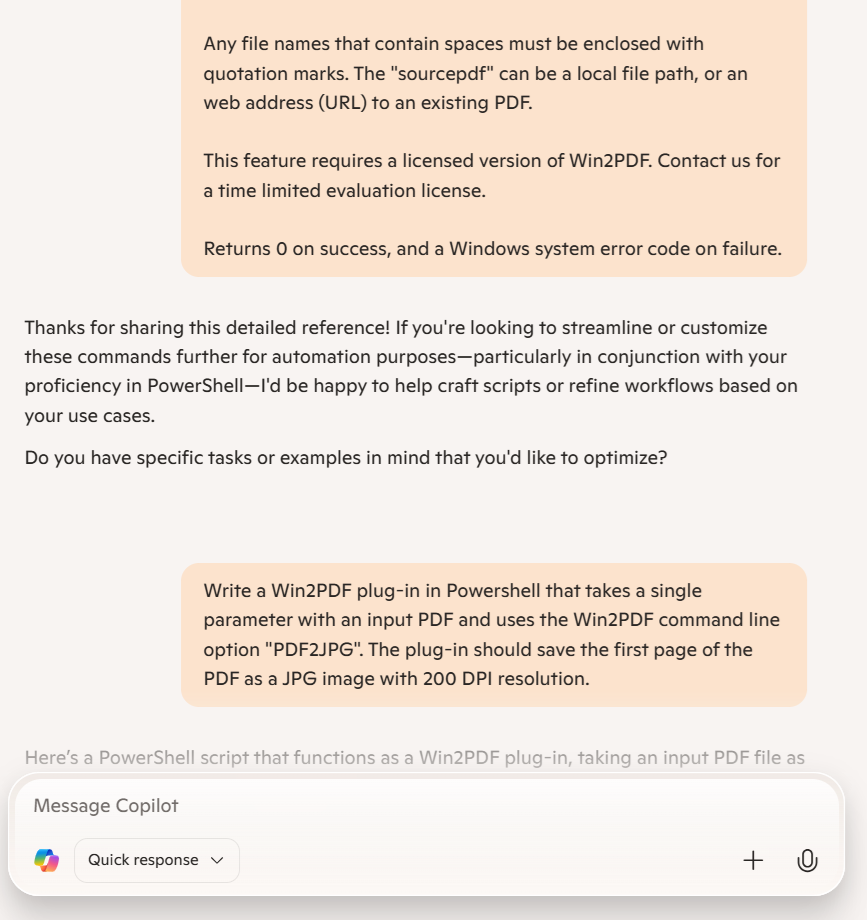
For the first prompt, copy ALL of the documentation text for the Win2PDF PDF to JPG Command Line and paste it into the chatbot.

Copilot acknowledges the input of reference documentation and asks if we have a specific task using this information. Since we do, we’ll enter our prompt for the customer requirement, including the programming language, the Win2PDF command required for the Plug-In, and the desired JPG resolution.

Write a Win2PDF plug-in in Powershell that takes a single parameter with an input PDF and uses the Win2PDF command line option “PDF2JPG”. The plug-in should save the first page of the PDF as a JPG image with 200 DPI resolution.

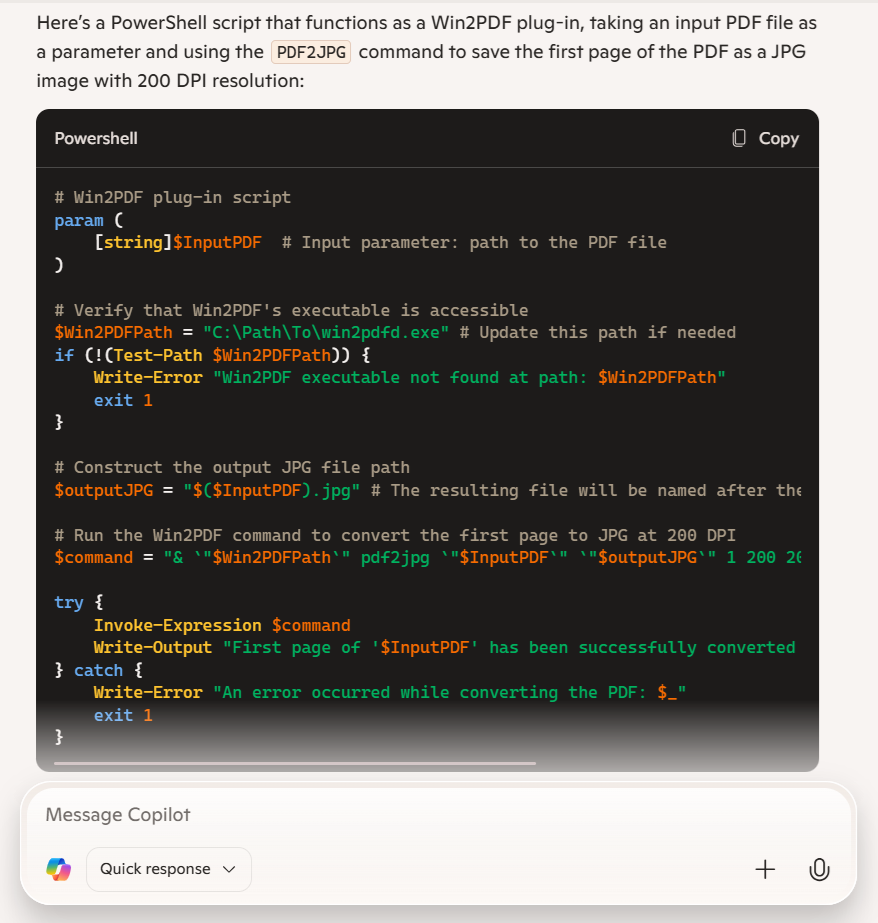
Here are the results returned by Copilot:

We’ll then save this Powershell code as a text file located somewhere on the hard drive where it is accessible, such as:

c:\users\test_ai\SaveFirstPageAsJPG.ps1

There was one small edit required, which was for the path for the Win2PDF Desktop program ($Win2PDFPath). Since we’re using a 64-bit bit version of Windows, the Win2PDF Desktop program on my PC is located here:

C:\windows\system32\spool\drivers\x64\3\

In this example, we used PowerShell because it’s easy to use and doesn’t require compilation. Alternatively, you can adapt your prompt to use C#, VB.NET, or any other programming language if you prefer a different approach.

2. Change the default execution policy on your PC.

Since our Plug-In is a Powershell script, we’ll need to change the default execution policy on our PC to allow scripts to run.

  • Start Windows PowerShell with the “Run as Administrator” option. Only members of the Administrators group on the computer can change the execution policy.
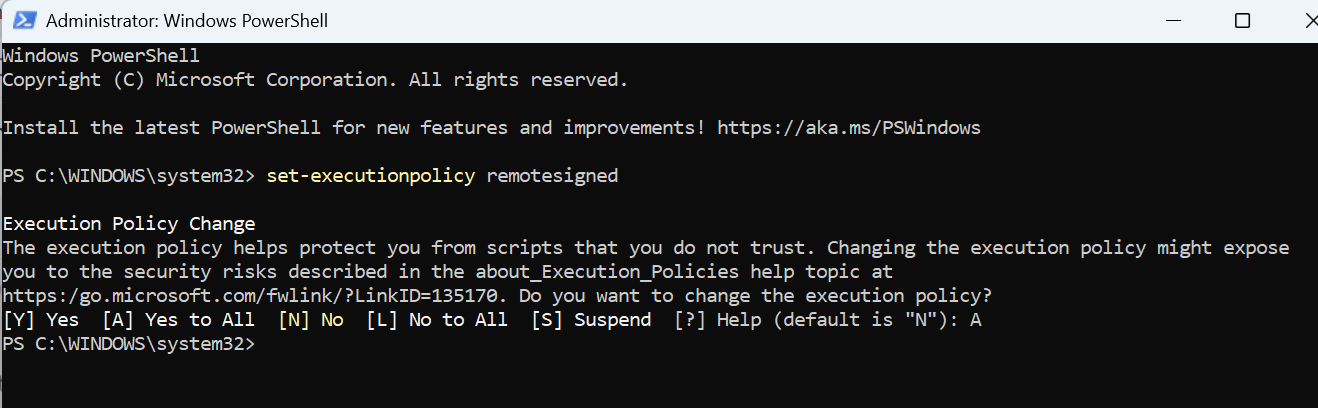
  • Enable running unsigned scripts by entering the following and choosing [A] Yes to All:

set-executionpolicy remotesigned

This will allow running unsigned scripts on your local computer and signed scripts from the Internet. This will change the policy permanently.

We can test our script by opening a command prompt and typing

powershell -F c:\users\tmp\SaveFirstPageAsJPG.ps1 c:\testTechBulletin.pdf

3. Use the Win2PDF Administrator Utility to use this program when creating a PDF file.

Finally, download and install the free Win2PDF Administrator Utility.

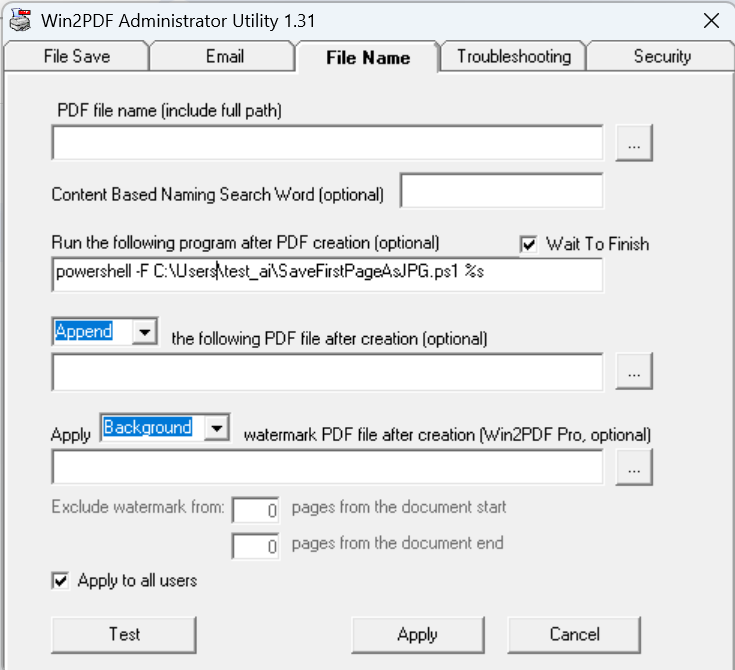
To use this as a Plug-In, open the Win2PDF Administrator Utility and enter the following command under “Run this program after PDF creation (optional)” on the File Name tab:

powershell -F c:\users\tmp\SaveFirstPageAsJPG.ps1

Then click the “Apply” button to save this command a Plug-In. [Note: The Win2PDF Administrator Utility will automatically add a “%s” argument to the end of the command when saved, so Win2PDF will automatically pass the PDF file name to the Plug-In.]

If you’re not familiar with Powershell programming, check out Microsoft’s online documentation for assistance or better yet, ask your AI chatbot for help.

4. Test the Results

Create a new technical bulletin and print it using the Win2PDF TechBulletin printer. Once complete, confirm that both the PDF file and a JPG copy of the first page are saved in the same location.

This simple example demonstrates how quickly and easily you can automate a workflow when an out-of-the-box solution isn’t available. You could expand this process further—for instance, by resizing the JPG or moving it to another folder—but this provides a clear idea of the steps to create your own Plug-In.

If you get stuck, don’t worry. Just ask and we’ll help.

Vibe Coding: Crafting Effective AI Prompts for Custom Win2PDF Plug-ins

Vibe coding is a novel approach to software development that leverages artificial intelligence (AI) to generate code based on desired functionality or “vibe.” It allows developers to express their intentions in a more abstract and intuitive way, rather than writing explicit, line-by-line instructions. This methodology is particularly useful for creating Win2PDF Plug-Ins, enabling faster development and innovative solutions for specific customer applications.

Vibe coding utilizes AI models trained on vast amounts of code and natural language. Developers provide high-level descriptions of what they want the Plug-In to achieve, and the AI interprets these descriptions to generate the corresponding code. Since Win2PDF has extensive online documentation with syntax descriptions and code examples, most AI programs can already generate Win2PDF Plug-Ins.

And while creating a custom Win2PDF Plug-In with the help of AI can be powerful, its success relies heavily on the quality and specificity of your prompts. We’ve been experimenting with a variety of different AI chatbots to see how they can handle generating code for Win2PDF Plug-Ins, and the results can vary widely depending on how the prompts are structured. We’ve tried this with Google Gemini, Microsoft Copilot, OpenAI ChatGPT, GitHub Copilot, Anthropic Claude, and others.

Chatbots can create Win2PDF Plug-Ins

Based on our experience, here are some tips to help you write successful AI prompts.

Be Specific and Detailed

The more details you provide, the better the AI can understand your requirements. Avoid vague statements and instead, describe exactly what you want the Plug-In to do. For example:

Instead of: “Make a Win2PDF Plug-In for PDF watermarks.

Try: “Create a Win2PDF Plug-In in C# that adds a custom watermark file to all pages of a PDF document except for the first page. Name the new file with the same name as the input file, but add “_watermarked” to the file name.

Break Down Complex Tasks

If your Plug-In needs to perform multiple functions, break them down into separate prompts. This makes it easier for the AI to understand each part and generate the corresponding code. For example:

Instead of: “Write a PDF Plug-In to extract pages in different files with watermarks.

Try:

  • “Write a Win2PDF Plug-In in C# to export pages 2-4 and 5-6 in separate files and add a watermark to both. “
  • “Use the Win2PDF command line “extractpages” and Win2PDF command line “watermark” commands.”
  • “The watermark should use the existing “confidential.pdf” file as the watermark.”

Specify the Programming Language

If you have a preference for a specific programming language (e.g., VB.NET, C#, Powershell), mention it in your prompt. This will help the AI generate code that is compatible with your existing setup.

Example: “Generate a program using C# that extracts text from the last page of the PDF and saves it to a text file using Win2PDF.

Provide Context and Examples

Give the AI context about the existing Win2PDF environment and provide examples of the desired output. This can help the AI understand your needs better.

Example: “Write a Powershell program that will save the first page of a PDF file as a JPG image with a user-definable resolution. It should use the following command syntax: “win2pdfd.exe pdf2jpg “sourcepdf” “destjpg” pagenumber xresolution yresolution”, where the xresolution and yresolution are set to be 200. The output JPG files should be the same name as the input file name, but with a “_page1.jpg” added to the input file name.

Iterate and Refine

Don’t expect perfect results from the first prompt. Review the generated code and provide feedback to the AI. You may need to refine your prompts and ask for modifications several times to achieve the desired outcome.

Example: “The generated code is close, but the encryption is not using AES-256. Please modify the code to use AES-256 encryption instead of the current algorithm.

Also, to improve results, tailor your prompts for the AI you are working with. For Github Copilot, for example, browse to the Win2PDF.Samples repository before asking it to generate a Plug-In. Github Copilot will use the Win2PDF.Samples repository to produce better code that is more likely to work as expected.

If a generated Plug-In doesn’t work, try copying the Win2PDF documentation into the prompt and ask it again. For example:

Instead of: “Write a Win2PDF Plug-In in Windows Powershell that takes a single parameter with an input PDF and exports pages 2-4 and 5-6 in separate files and adds a watermark to both.”

Try: “Write a Win2PDF Plug-In in Windows Powershell that takes a single parameter with an input PDF and exports pages 2-4 and 5-6 in separate files and adds a watermark to both. The new files should be placed in the same folder as the source file. Use the Win2PDF command line win2pdfd.exe “extractpages” and Win2PDF command line “watermark” commands . The watermark should use the existing “confidential.pdf” file as the watermark. The documentation for the watermark command is: win2pdfd.exe watermark “sourcefile” “watermarkfile” “destfile” mode excludepre excludepost Where: “mode” is either “watermark”, “background”, “watermarklink”, or “backgroundlink” If mode is “watermark” or ““watermarklink”, the watermarkfile PDF is overlaid on top of all existing graphics on the page. If mode is “background” or “backgroundlink”, the watermarkfile PDF is placed underneath all existing graphics on the page. If the watermark file has click-able links, you can use the “watermarklink” or “backgroundlink” variation to keep these links active in the final PDF file. “excludepre” is the number of pages from the beginning of the document to skip applying the watermark. Set to 0 apply watermarkfile to all pages including the first page. Set to a negative value to include the watermark to the absolute value of the number of pages from the beginning of the document. “excludepost” is the number of pages from the end of the document to skip applying the watermark. Set to 0 to apply the watermarkfile to all pages including the last page. Set to a negative value to include the watermark to the absolute value of the number of pages from the end of the document. The documentation for the “extractpages” command is: win2pdfd.exe extractpages “sourcefile” startpage endpage “destfile” Extract pages from “sourcefile” starting at “startpage” to “endpage”, and save extracted pages in “destfile”. Any file names that contain spaces must be enclosed with quotation marks. The “sourcefile” can be a local file path, or an web address (URL) to an existing PDF. Returns 0 on success, and a Windows system error code on failure. If “sourcefile” and “destfile” are the same file, the file is modified in place. Any file names that contain spaces must be enclosed with quotation marks. The “sourcefile” can be a local file path, or an web address (URL) to an existing PDF. Returns 0 on success, and a Windows system error code on failure.”

While that looks complicated, it’s essentially the same prompt WITH copied documentation on how to use each of the commands we know the Plug-In will need to use, and the steps the Plug-In will need to perform. AI will understand this better than you or I, and the results are much improved.

Test Thoroughly

Always test the generated Plug-In thoroughly to ensure it works as expected. Pay attention to error handling and edge cases. Using AI to generate code is still not fool-proof, and in our experiments the code results frequently need to be tweaked to make them work as desired. Over time and with the rate of AI advancement, we expect this to be less of a problem in the future.

By following these tips, you can effectively communicate your needs to the AI and create custom Win2PDF Plug-Ins that meet your specific requirements.

If AI can’t get you the results you need, contact us with your specific requests and customizations for Win2PDF.

Navigating the New Outlook in Windows: How Win2PDF is Keeping Up with Changes

Your Outlook looks… (new)…

Microsoft recently replaced its built-in Windows 11 Mail app with a new version of Outlook in a February 2025 security update. After the update, the new app is installed as Outlook (new). If you previously had Outlook 365 or an older version of Outlook, it’s named Outlook (classic).

Haven’t we been here before?

Despite the similar appearance and name, the new Outlook is a complete rewrite of Outlook with many advanced features intentionally removed. One of the features that is not included is the interface that Win2PDF uses to attach a PDF to an email when the Use Microsoft Outlook option is configured.

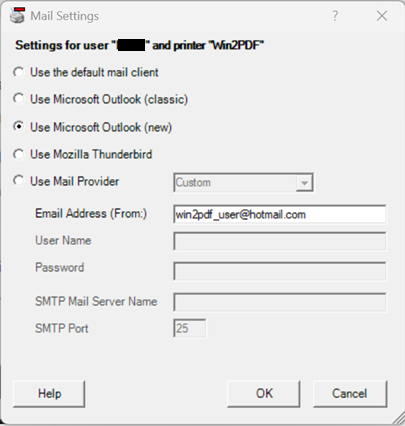
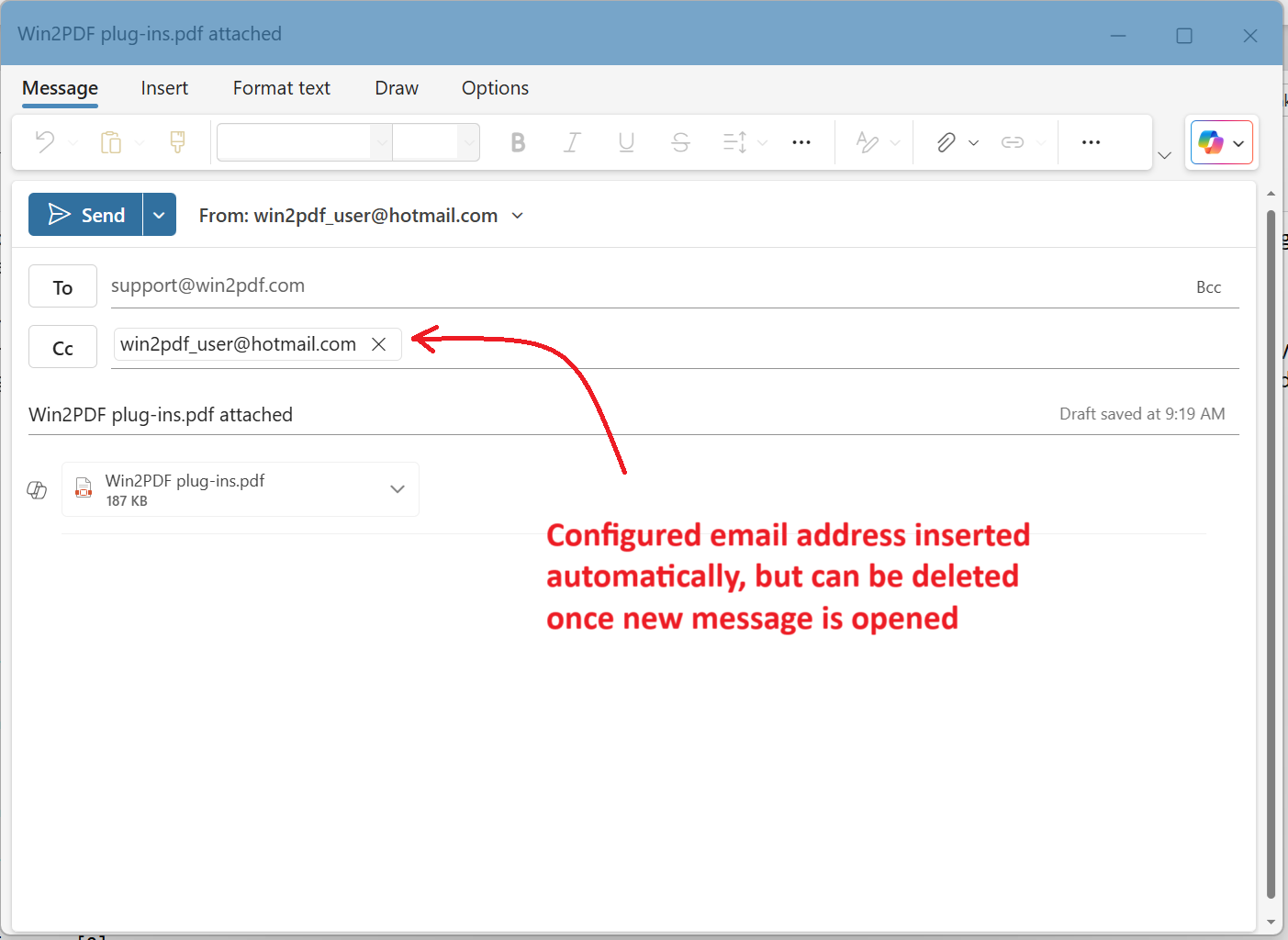
As you may have guessed, we’ve now updated our Configure Win2PDF Mail Settings interface to include both the Outlook (new) and Outlook (classic) configuration options (the latter has not changed).

When Use Microsoft Outlook (new) is selected, you’ll first need to specify the “Email Address (From:)“, and this address must match the configured address in Outlook (new). This is a new requirement compared to Use Microsoft Outlook (classic).

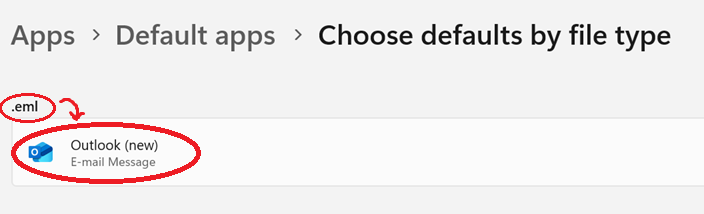
Also, Outlook (new) must be set as the default program for “.eml” files for this support to work correctly, but that should be the default handler already. (If needed, here are instructions for changing the default app in Windows 11).

Once the Outlook (new) mail is configured, it will be available for Win2PDF to use when sending a PDF by email.

When a new mail message is created, the new Outlook requires a destination email address to be provided. Currently Win2PDF populates the Cc address with the From address (set in Configure Win2PDF Mail). Once the new mail message is created, the user can delete the Cc address after specifying a new To address if desired.

These changes are included in the updated Win2PDF Desktop 10.0.175. This is a free update to all current Win2PDF 10 users.

Attach Source Files or Supplemental Documents to PDF Files with Win2PDF Pro

The latest Win2PDF update (version 10.0.174) includes several enhancements along with one significant new feature – the ability to attach a file to a PDF. This involves embedding the source document (like a Word document, Excel sheet, or another PDF) or adding a supplemental file within the PDF as an attachment.

When someone opens the PDF in a compatible viewer (like Adobe Acrobat), they can access and open the attached file.

This is useful for providing supplementary materials along with the main PDF document, or to include the source document as a reference for future editing or archiving purposes.

There are several practical reasons why you might want to insert or attach source documents into a PDF:

Maintaining Original File Formats

Sometimes, converting a file to PDF can lose certain functionalities or formatting. Attaching the original source file ensures that recipients have access to the file in its native format.

Legal or Auditing Purposes

In legal or auditing contexts, it’s often necessary to provide the original source documents as evidence. Attaching these files to a PDF ensures that they are kept together and are easily accessible.

Collaboration

When collaborating on a project, you might want to provide the source files for editing or review. Attaching them to a PDF makes it easy to share or archive all the necessary materials in one package.

Providing Supplementary Information

You might have a main PDF report, but want to include the raw data in an Excel spreadsheet, or detailed background information in a Word document. Attaching these files allows recipients to access the extra materials if they need them. For example, a financial report PDF could have the supporting financial data as an attached Excel file.


The Attachment feature can be accessed in several ways.

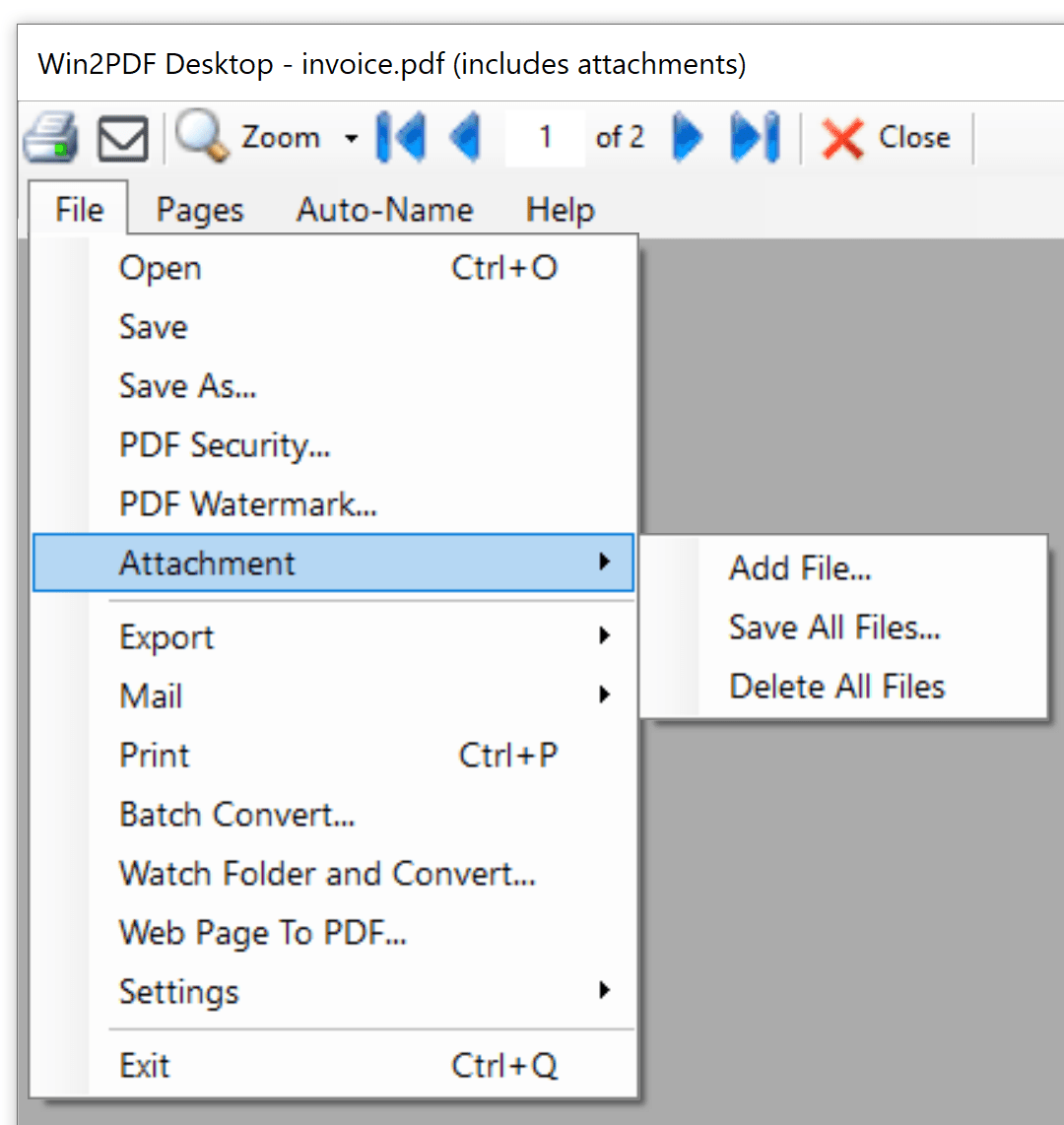
  • Through the Win2PDF Desktop App’s Attachment menu
Notice that when a PDF file has attachments, the Win2PDF Desktop window shows the PDF file name along with (includes attachments).

This method allows you to open a PDF file in the Win2PDF Desktop App and Add a file attachment, Save all attachments currently in the PDF file, and Delete all attachments in the PDF file. The Win2PDF Desktop window shows the PDF file name along with (includes attachments).

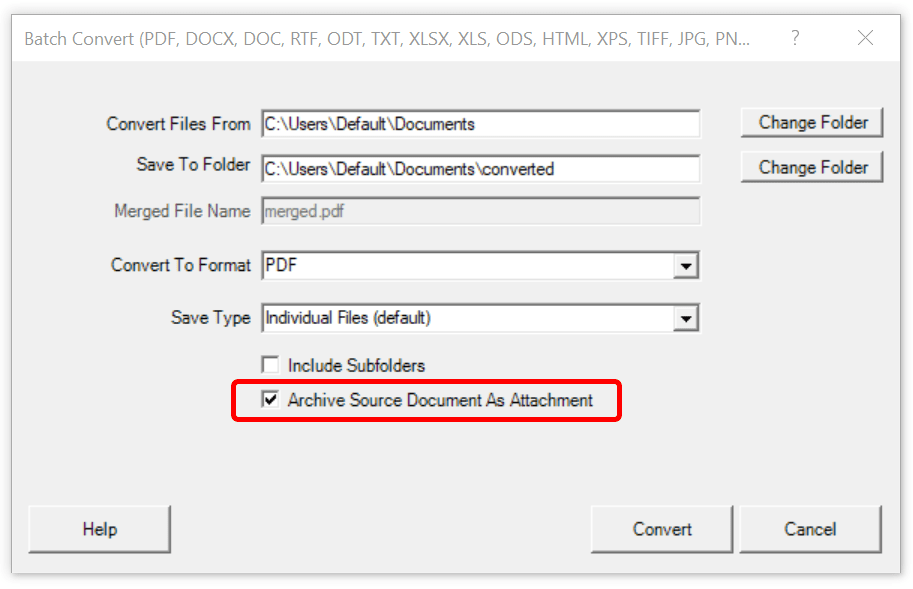
  • As part of the batch convert feature when the “Archive Source Document As Attachment” box is checked.
  • Through the Win2PDF command line.

PDF Add File Attachment Command Line Format

PDF Save All File Attachments Command Line Format

PDF Delete All File Attachments Command Line Format

PDF Attachment Count Command Line Format


Of course, there are security risks when attaching or saving additional files from a PDF. For security reasons, files that could potentially contain malicious code, like .zip, .exe, and .bat, cannot be attached or saved using Win2PDF.

Once file(s) have been attached to a PDF, you can verify the new file in Adobe Reader. To view attachments in Adobe Reader, go to ” ≡ ➜ View ➜ Show/Hide ➜ Side panels ➜ Attachments”


Other changes to this update are:

  • Added support for converting email formats EML, MSG, and MHT files to PDF, images, and text. (Win2PDF Pro only)
  • Added command lines to convert from email formats to PDF: “EML2PDF“, “MSG2PDF“, and “MHT2PDF” command lines. Also added command line options to print spreadsheet formats to a paper printer: “PRINTEML“, “PRINTMSG“, and “PRINTMHT“. (Win2PF Pro only)
  • Added “pdfscansearchable” output format to the command line “convertto”, “batchconvert”, and “watchconvert” commands to improve text recognition for lower quality scanned documents
  • Added “makescansearchable” command line option to improve the text recognition for lower quality scanned documents.
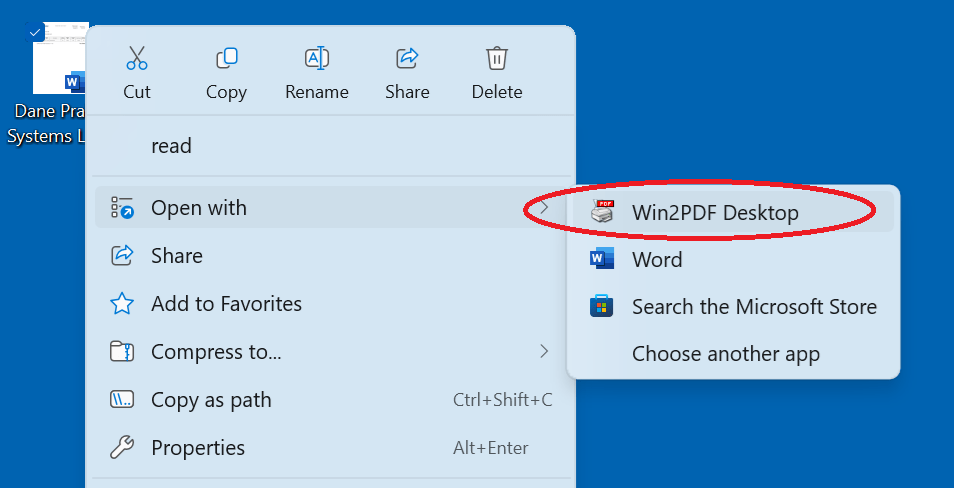
  • Added Windows Explorer “Open With” file associations for the following file types: .EML, .MSG, .MHT (Win2PDF Pro only)
  • Performance and stability improvements.

The downloads for the Win2PDF 10.0.174 Update are free for current Win2PDF 7 or higher users, and standard edition users can upgrade to Pro to get these new features.

Win2PDF 10 build 172: Additional Language Support for Win2PDF OCR Add-on

Our last post detailed the new Excel conversion enhancements in Win2PDF 10 build 172. Now, let’s look at the remaining changes in this release.

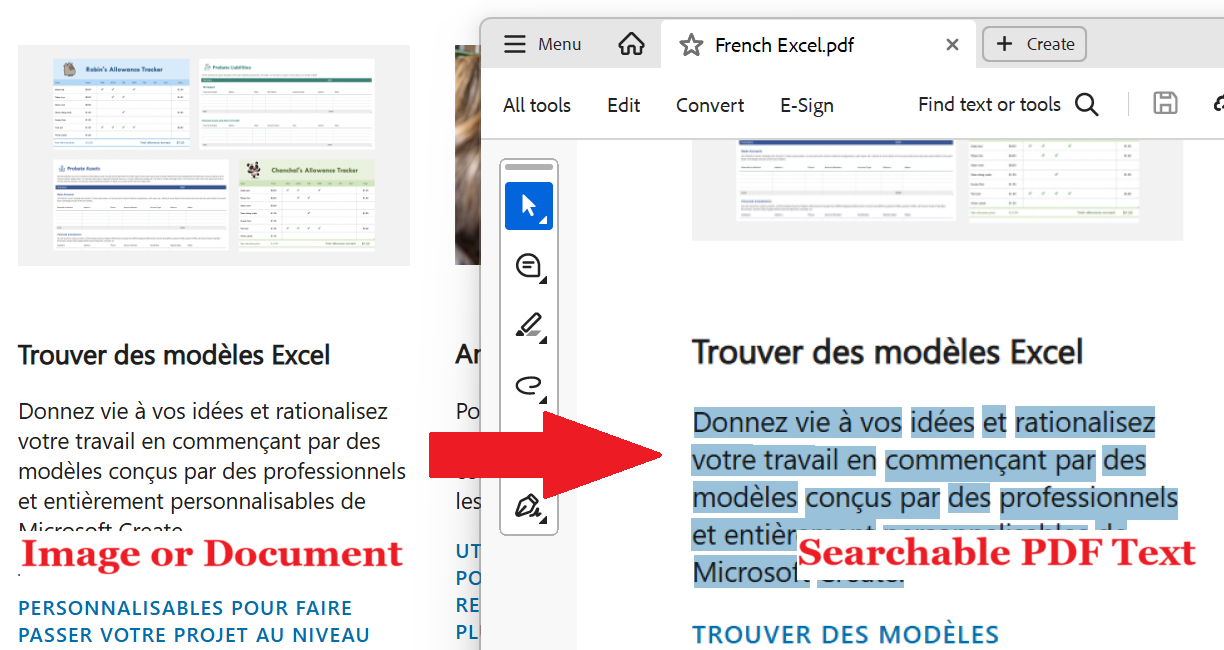
Most significant is the additional language support in the Win2PDF OCR Add-on setup program. Optical Character Recognition (OCR) is a powerful and useful tool used to convert scanned documents, images, previously archived documents, and other types of files to a PDF file with searchable text.

Win2PDF OCR Add-on

Users will now have the ability to dynamically download and install additional OCR training languages. The following language are now supported:

English, Deutsch (German), Français (French), Italiano (Italian), Nederlands (Dutch), Ελληνικά (Greek), Português (Portuguese), Español (Spanish), العربية (Arabic), Հայերեն (Armenian), Български (Bulgarian), বাংলা (Bengali), Català (Catalan), Corsu (Corsican), Hrvatski (Croatian), Čeština (Czech), 简体中文 (Chinese Simplified), Dansk (Danish), Suomi (Finnish), עברית (Hebrew), हिंदी (Hindi), Magyar (Hungarian), Íslenska (Icelandic), 日本語 (Japanese), 한국어 (Korean), Latviešu (Latvian), Lietuvių (Lithuanian), Norsk (Norwegian), Polski (Polish), Română (Romanian), Русский (Russian), Српски (Serbian), Slovenčina (Slovak), Slovenščina (Slovenian), Svenska (Swedish), ภาษาไทย (Thai), Türkçe (Turkish), Українська (Ukrainian), Tiếng Việt (Vietnamese)

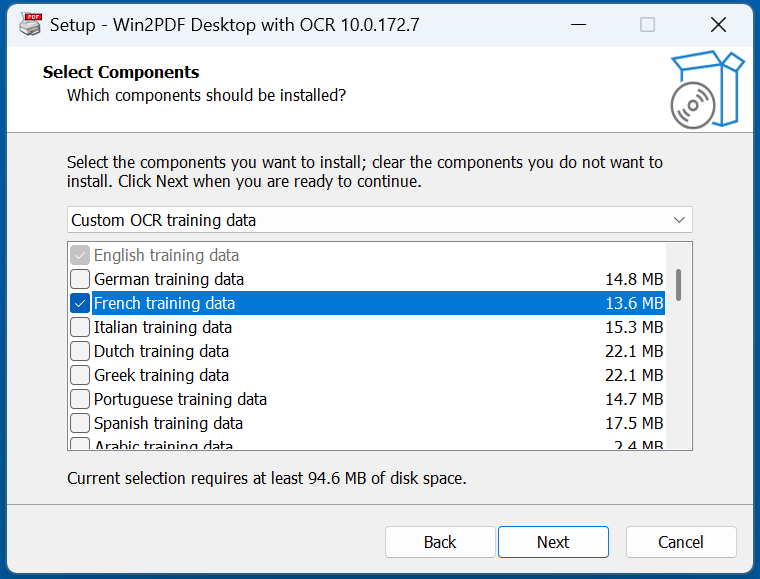
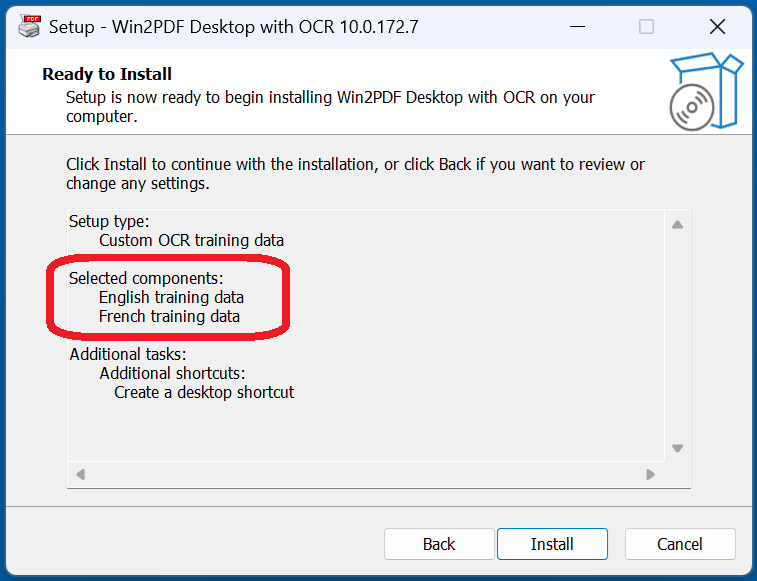
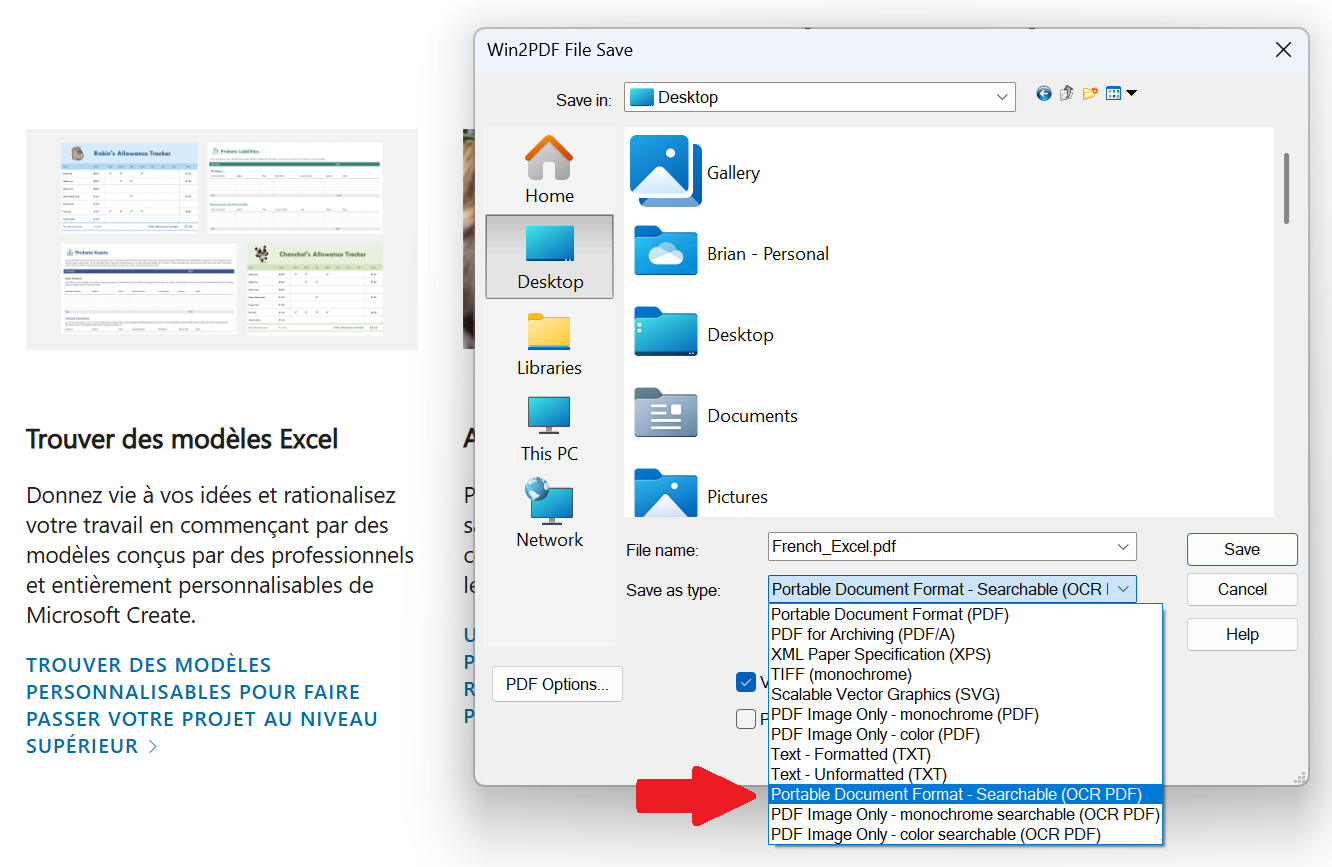
For example, if you wanted to use French training data in addition to English (and you’re using an English operating system), you’d select the following during the setup process.

Once the additional language training data is installed, you’ll be able to take any document or image file (with non-searchable French or English text) and convert it to a searchable PDF using Win2PDF and the “Searchable (OCR PDF)” output option. [Note: You’ll also be able to select this option using Batch Convert (Pro only), the MAKESEARCHABLE command line feature, or the Win2PDF Desktop Export features.]

In our example, since we installed the French training data, we’ll be able to OCR any document that contains French words and characters.

You can install any combination of language training data, but the training data is large and takes additional processing time so it’s best to only install language data for languages that you regularly use in documents.

And finally, here are the remainder of the version 10 build 172 enhancements:

  • Updated the PDF2DOCX and extracttext commands to automatically make the PDF searchable if it isn’t already searchable.
  • Added ispdfsearchable command line option that can be used to check the searchability of an existing PDF file.
  • Added addprinter command line option to add a Win2PDF printer.
  • Updated all command line options to create the output folder if it doesn’t exist.
  • Added Windows Explorer “Open With” file associations for the following file types:
    • .PDF, .BMP, .DIB, .TIF, .TIFF, .JPG, .JPE, .JPEG, .JFIF, .PNG, .GIF, .HTML, .HTM, .MHTML, .XPS, .OXPS.
    • For Win2PDF Pro, also added: .DOC, .RTF, .TXT, .DOCX, .ODT, .XLS, .XLSX, .XLSB, .CSV, .ODS

All of these features can be updated at no cost for Win2PDF version 7 and later users.

Win2PDF 10 build 172: Win2PDF Pro Converts Excel Spreadsheets to PDF, Image, and Text Formats

A new release of Win2PDF (version 10 build 172) is now available on the Win2PDF Download site with a variety of new features and enhancements.

We’ll cover other features in a subsequent post, but the most significant addition is that Win2PDF Pro now supports the ability to easily convert Microsoft Excel and OpenDocument spreadsheets (XLSX, XLS, XLSB, ODS, and CSV formats) to PDF, images, and text. Win2PDF supports these formats directly, and Microsoft Excel or OpenOffice do not need to be installed. (Note: This is a Win2PDF Pro feature only)

Converting a spreadsheet file to PDF is useful for several reasons:

  • Preservation of Formatting: PDF ensures that the layout, fonts, and formatting of the spreadsheet remain consistent across different devices and operating systems. This is crucial when sharing the file with others who may not have Excel or have a different version.
  • Security: PDFs can be password-protected, preventing unauthorized editing or copying of the data. This is important for sensitive financial or personal information.
  • Portability: PDFs are widely supported and can be opened on virtually any device without the need for specific software. This makes them ideal for sharing and distributing information.
  • Archiving: PDFs are a stable format suitable for long-term archiving of data, as they are less likely to become corrupted or incompatible with future software.

Earlier versions of Win2PDF Pro supported Microsoft Word document formats, but this update expands coverage to Microsoft Excel and OpenOffice spreadsheet formats. This is a free update to licensed users of Win2PDF 7 or higher.

In the Win2PDF Desktop app, you’ll now see conversion options for XLSX, XLS, XLSB, ODS, and CSV formats in the Batch Convert and Watch Folder (Win2PDF Pro TSE only) interfaces. These features now support the following spreadsheet file formats:

  • XLSX – Microsoft Excel Workbook
  • XLS – Microsoft Excel 97-2003 Workbook
  • XLSB – Microsoft Excel Binary Workbook
  • CSV – Comma Separated Values
  • ODS – OpenDocument Spreadsheet

One thing to note is that there are differences between these spreadsheet formats when used as inputs versus outputs. As an input format, the new spreadsheet formats can be read and converted to anything (PDF, Image, Text). As an output format, however, it can only handle another spreadsheet format as input.

Here are a few examples:

Convert Type

Supported?

XLS to PDF

Yes. Spreadsheet to PDF file is supported

XLS to JPG

Yes. Spreadsheet to Image file is supported

XLS to TXT

Yes. Spreadsheet to Text file is supported

XLS to XLSX

Yes. Excel spreadsheet to another spreadsheet format is supported

PDF to XLS

No. PDF to spreadsheet is not supported because formatting is different between file types

DOC to XLS

No. Word to spreadsheet is not supported because formatting is different between file types

The command line options of Win2PDF Pro have been similarly updated. Here are the new command line options to convert from spreadsheet formats to PDF:

And these added command line options allow users to print spreadsheet formats to a paper printer:

Plus, the following output formats have been added to the convertto, batchconvert, and watchconvert commands:

  • “xlsx” – Microsoft Excel Workbook
  • “xls” – Microsoft Excel 97-2003 Workbook
  • “xlsb” – Microsoft Excel Binary Workbook
  • “ods” – OpenDocument Spreadsheet
  • “csv” – Comma Separated Values
  • “pdfa” – PDF for archiving

Stay tuned as we’ll be covering the other updates and enhancements to this release in a follow-up post. If you have any questions, please contact us.

New Win2PDF Update Boosts Productivity with Parallel Processing

We’re pleased to announce the latest release of Win2PDF version 10.0.169.1 This free update brings a significant enhancement to our Batch Convert feature—parallel processing. Along with this update, we’ve included fixes for handling improperly formatted PDF files and addressed installation issues that were causing missing file errors.

Parallel Processing in Batch Convert

Most of today’s modern CPUs come with multiple cores, allowing them to perform several tasks simultaneously (provided that your software programs support them). This is where parallel processing shines—by dividing tasks into smaller chunks that can be executed concurrently, it dramatically speeds up processing times. With the release of Win2PDF 10.0.169.1, we’ve integrated parallel processing into Win2PDF’s Batch Convert feature, specifically for users who choose “individual files” as the output.

How Does It Work?

When converting a large batch of files, Win2PDF will now process multiple files simultaneously, utilizing the full power of your multi-core CPU. This means that instead of processing one file after another in a linear fashion (serial processing), Win2PDF can handle several files at once (parallel processing), significantly reducing the time needed to complete large conversion tasks.

Win2PDF Parallel Processing for Batch Convert

However, it’s important to note that this performance boost applies only when the output is set to “individual files.” If you choose to merge your files into a single PDF, the conversion must occur sequentially to ensure the correct order of pages. Despite this, you can still get a rough idea of the performance improvement by comparing the processing time for both individual and merged outputs. The new Batch Convert interface (shown below) now shows the time it took to complete the task, making it easier to gauge the impact of parallel processing.

Win2PDF Batch Convert Time Windows
Why Is This Important?

This enhancement is especially beneficial for customers who need to make large folders of scanned documents searchable using OCR (Optical Character Recognition). With the ability to process multiple files at once, the time it takes to convert and prepare documents for OCR is drastically reduced, allowing for a more efficient workflow.

It’s also important to note that this conversion process takes place entirely on your machine, using your hardware. Your files are never uploaded to the cloud or leave your computer.

Additional Fixes and Improvements
  • Handling Improperly Formatted PDF Files: We’ve improved how Win2PDF handles improperly formatted PDF files, reducing errors and ensuring smoother conversion processes.
  • Installation Fixes: This update also addresses issues related to missing files during installation, providing a more seamless setup experience.

Upgrade to Win2PDF 10.0.169.1 Today!

With the introduction of parallel processing, Win2PDF continues to evolve, offering enhanced performance and reliability for your PDF conversion tasks. Download the latest version today and experience the power of parallel processing.