Navigating the New Outlook in Windows: How Win2PDF is Keeping Up with Changes

Your Outlook looks… (new)…

Microsoft recently replaced its built-in Windows 11 Mail app with a new version of Outlook in a February 2025 security update. After the update, the new app is installed as Outlook (new). If you previously had Outlook 365 or an older version of Outlook, it’s named Outlook (classic).

Haven’t we been here before?

Despite the similar appearance and name, the new Outlook is a complete rewrite of Outlook with many advanced features intentionally removed. One of the features that is not included is the interface that Win2PDF uses to attach a PDF to an email when the Use Microsoft Outlook option is configured.

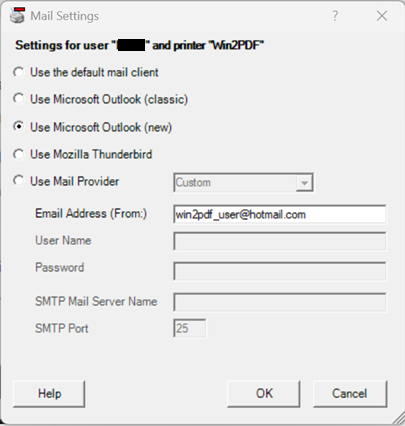
As you may have guessed, we’ve now updated our Configure Win2PDF Mail Settings interface to include both the Outlook (new) and Outlook (classic) configuration options (the latter has not changed).

When Use Microsoft Outlook (new) is selected, you’ll first need to specify the “Email Address (From:)“, and this address must match the configured address in Outlook (new). This is a new requirement compared to Use Microsoft Outlook (classic).
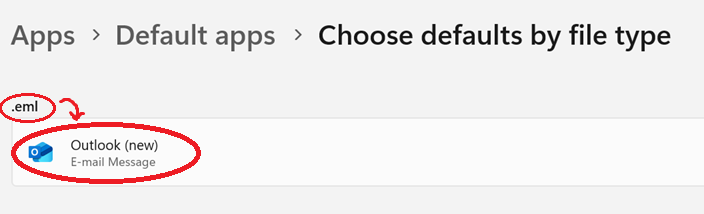
Also, Outlook (new) must be set as the default program for “.eml” files for this support to work correctly, but that should be the default handler already. (If needed, here are instructions for changing the default app in Windows 11).
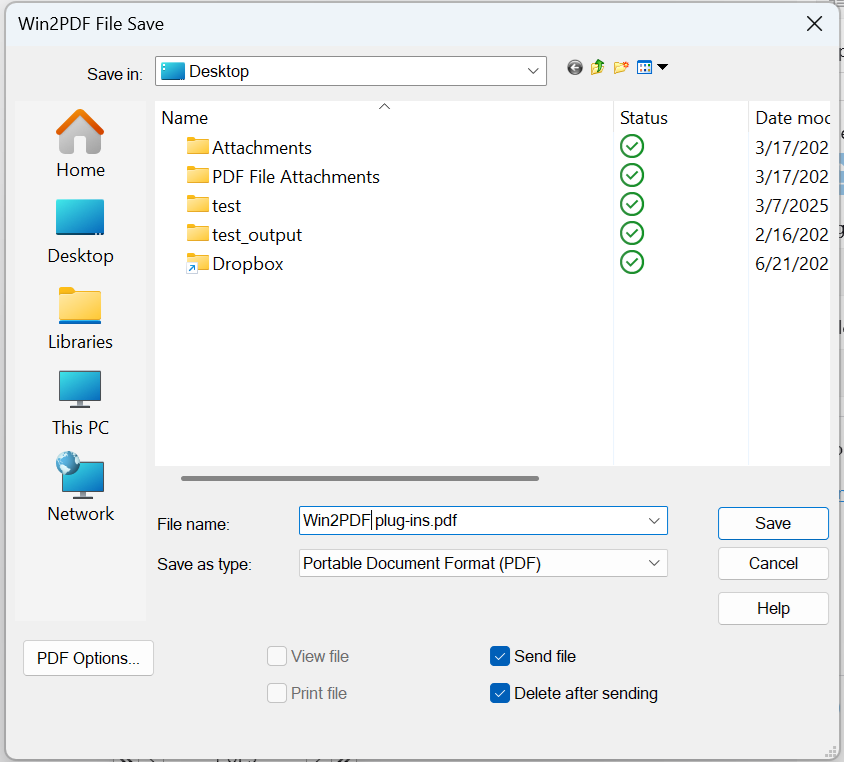
Once the Outlook (new) mail is configured, it will be available for Win2PDF to use when sending a PDF by email.
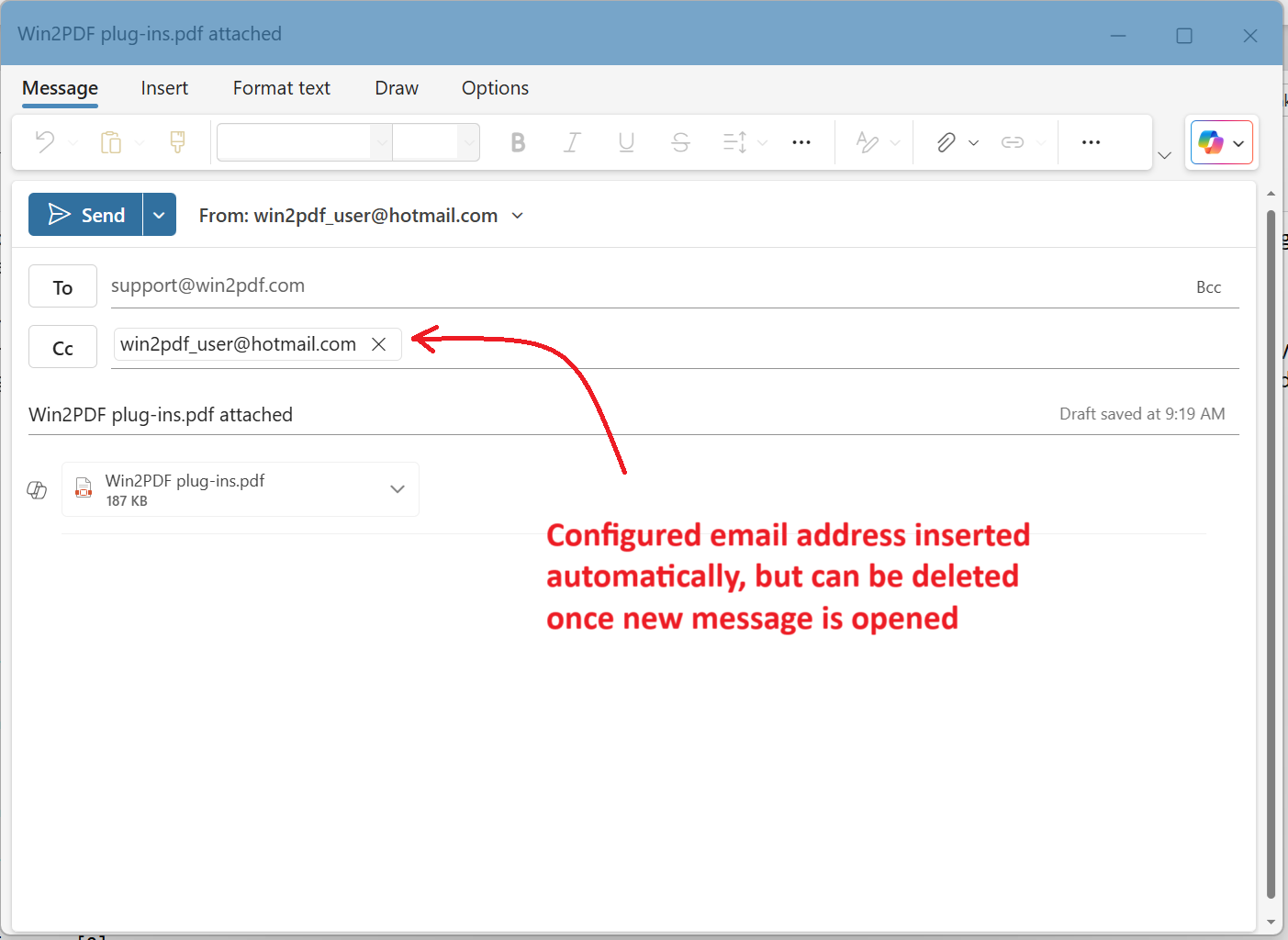
When a new mail message is created, the new Outlook requires a destination email address to be provided. Currently Win2PDF populates the Cc address with the From address (set in Configure Win2PDF Mail). Once the new mail message is created, the user can delete the Cc address after specifying a new To address if desired.
These changes are included in the updated Win2PDF Desktop 10.0.175. This is a free update to all current Win2PDF 10 users.

Microsoft Copilot+ PCs Arrive with Win2PDF Support

God Is My Co-Pilot

It’s not surprising that Microsoft didn’t borrow the slogan, ‘God Is My Co-Pilot’ for its release day. Although Qualcomm, maker of the Snapdragon X chips that power the first series of Copilot+ PCs, opted for Apple’s ‘I’m a Mac’ guy, so at least somebody’s having fun with Microsoft’s new product.

Nonetheless, today (June 18th) marks the official release for the first wave of Copilot+ with Qualcomm Snapdragon X PCs.

As we noted in our last blog post, starting today, as is the custom with new Windows related hardware and operating system releases, Win2PDF has a free update available with support for these PCs. This update is available on our helpdesk for now, but we’ll be updating our general release versions shortly once we complete more rigorous testing with the official release PCs. And again, it will install and operate just like Win2PDF on any other Windows computer.

While the first wave of Copilot+ PCs have the Qualcomm Snapdragon X processor, future PCs are set to include processors from the likes of AMD, Nvidia, and MediaTek. More PC options will abound, but since they’ll all be running on Windows 11 (specifically Windows for Arm), Win2PDF will support them all.

Stay tuned for future updates on Win2PDF and Copilot+ PCs now that they’ve hit the stores.

The Mobile Arms Race: Microsoft’s Copilot+ PCs Challenge Macbook for Edge Computing

Windows for ARM

Last year we announced limited support of Win2PDF for the next generation of Windows for Arm devices, which is Microsoft’s response to the growing popularity of lightweight, mobile friendly computers like the Apple MacBooks.

Now we’re back with an update featuring recent developments in this area.

First, let’s look at what’s new with Microsoft and Windows for Arm?

Microsoft Copilot

A little over a year ago, Microsoft introduced Microsoft Copilot, an AI assistant built into Microsoft 365 apps and Windows that uses large language models to help with writing, editing, and analyzing content across Word, Excel, PowerPoint, Outlook, and OneNote. It summarizes documents and emails, generates formulas and analyzes data, drafts replies and suggests follow-up actions, and even creates images.

Currently, most of these AI tasks are handled in the cloud because of the intensive processing required. While this is efficient in terms of performance, it comes at the expense of security risk and user control.

Copilot+ PCs

Now, Microsoft has announced a new class of computers called Copilot+ PCs that continue to expand the use of AI on the local hardware. The first batch of these new PCs, from PC manufacturers like HP, Acer, Lenovo, Samsung, and Dell, as well as Microsoft’s own Surface Laptops, feature a new Arm-based neural processing unit (NPU) powered by Snapdragon® X Series chips. Microsoft’s Satya Nadella talks about these Copilot+ PCs and how they align with Microsoft’s vision in this Wall Street Journal interview:

Interview with Microsoft CEO Satya Nadella

Essentially, Copilot+ PCs will bring AI processing closer to the “edge”– the local PC. With its ability to do more complex tasks at a greater speed and with less power, this finally positions Windows PCs on an even footing with Macbooks in the mobile computing market.

Win2PDF & Support for Windows for ARM

Will Win2PDF work on ARM based Copilot+ PCs just like existing PCs?

YES.

Many software applications can support ARM by simply emulating the Intel instruction set on Windows for ARM processors. While the compatibility (and performance) of existing applications under emulation is great, there is no emulation layer for print drivers like Win2PDF. These drivers still must be developed separately for ARM-based PCs, and many other printer-based products do not currently support them.

The new Win2PDF release will include a new printer driver for ARM based PCs. The setup program will automatically detect ARM based PCs and will install the correct version of the printer driver. As far as the end-user is concerned this will be completely transparent; there is no difference in how Win2PDF will install or work on the new PCs.

The History of Win2PDF OS and Hardware Support

How does Win2PDF fit into this new mobile landscape? Let’s look at our history.

Win2PDF was initially developed in 2000 for PCs running on x86 (Intel & AMD) chips on Windows NT. Since the introduction, we’ve continued to support new versions of Windows (Windows 2000, Vista, 7, 8, 10, 11) and new processor architectures.

With our upcoming releases, we’ll not only support Windows XP through Windows 11, but we’ll also support x86, x64, and ARM64 architectures. There are very few PDF software developers that still support this continuum of operating systems and architectures. Companies standardizing on Win2PDF will be able to use the same version of Win2PDF across the organization.

Stay tuned

Over the next several months you’ll see new release updates to Win2PDF that will continue to support this next generation of Copilot+ PCs.

Batch Convert Outlook Emails to PDF Files Using Win2PDF

We recently had the following question submitted to our Win2PDF support site:

I have a folder of Microsoft Outlook emails that I would like to convert to PDF. I want to convert just the one folder (the emails were filtered and sent to the folder by a rule when they were delivered to me). Is there a way to batch convert all emails? The batch convert tool doesn’t appear to include email messages but maybe I am missing something so I thought I should check. Thanks.

Nick

Great question. The Win2PDF Batch Convert feature doesn’t support Outlook emails directly, but it is possible to configure the Win2PDF Auto-name feature to make it easy to convert a folder of emails to PDF from Microsoft Outlook.

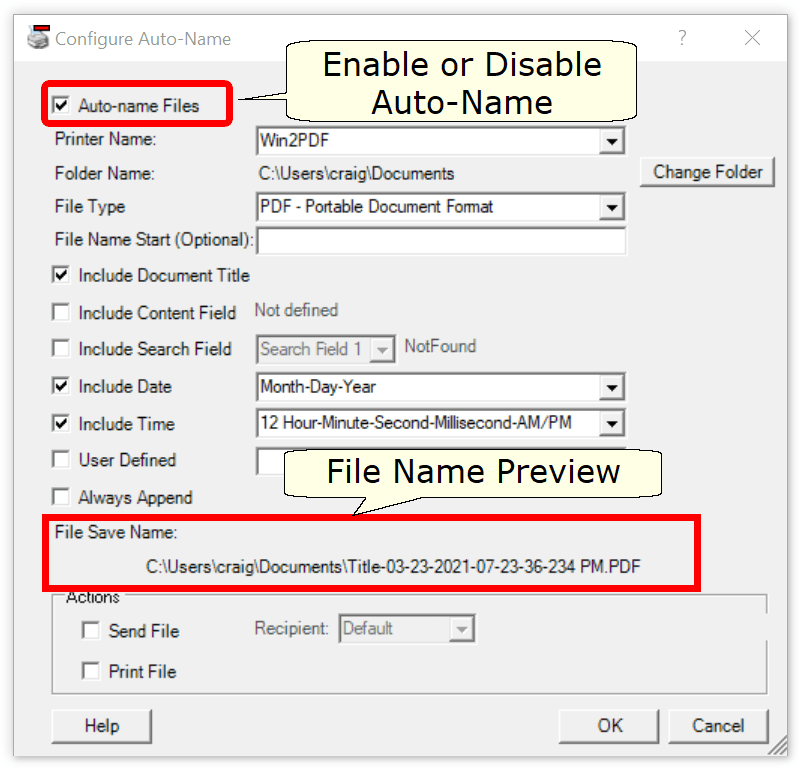
To do this, open the Configure Win2PDF Auto-name window and you’ll see the following options:

Enable the “Auto-name files” option, and set the folder name where you want the PDF file (or files) to be placed.

If you want all of the emails to be saved to a single PDF, you should set the following options:

  • (check) Include Document Title
  • (check) Include Date
  • (check) Always Append

If you want the emails saved to separate PDF files, you should set the following options:

  • (check) Include Time (to make each file name unique)
  • (uncheck) Always append

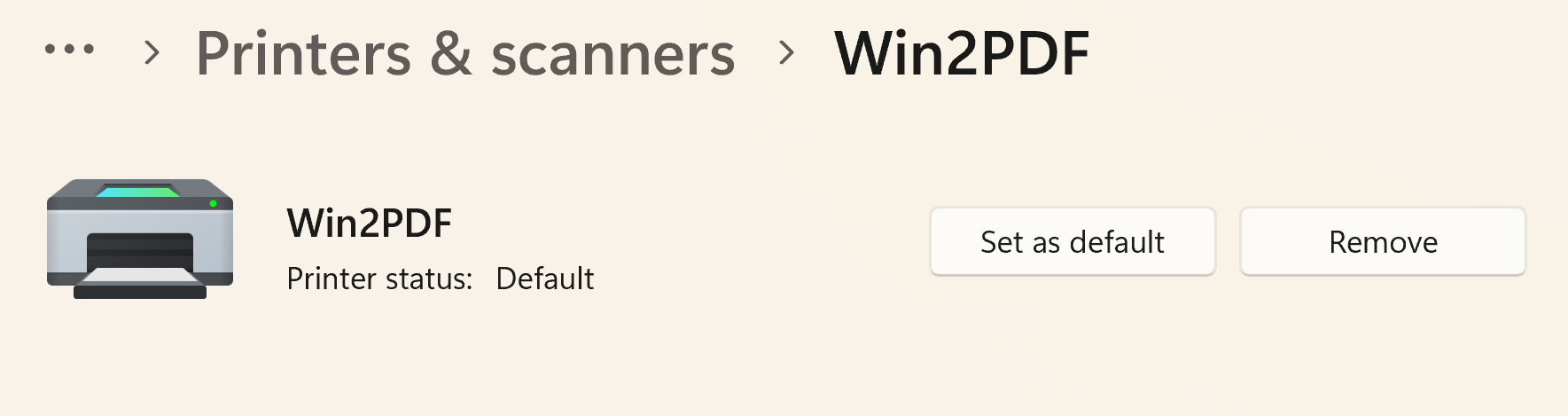
Next, you should make Win2PDF the default printer in the Windows Printers and Scanners folder. This is required because the Microsoft Outlook Quick Print feature only prints to the default printer.

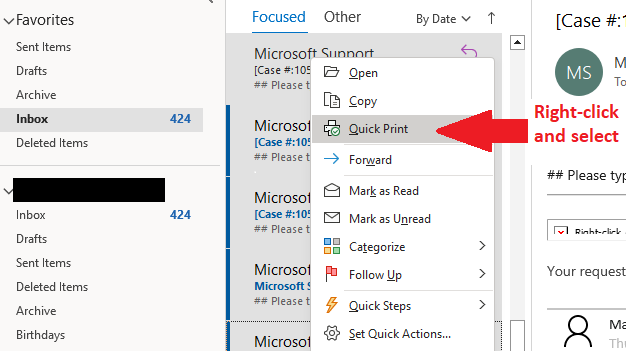
And finally, to create PDFs from the emails in your folder, select the emails in Outlook, right click, and select Quick Print.

Voila! The emails will be sent to the Win2PDF printer and will be automatically named with no user interaction.

This can be extremely useful if you want to archive or collect an email thread that is spread across many different messages, or a folder of messages related to a particular topic, person, or project.

If you have a tip like this for using Win2PDF, please let us know.

New Microsoft Edge Browser To Use Adobe Reader As Default PDF Viewer

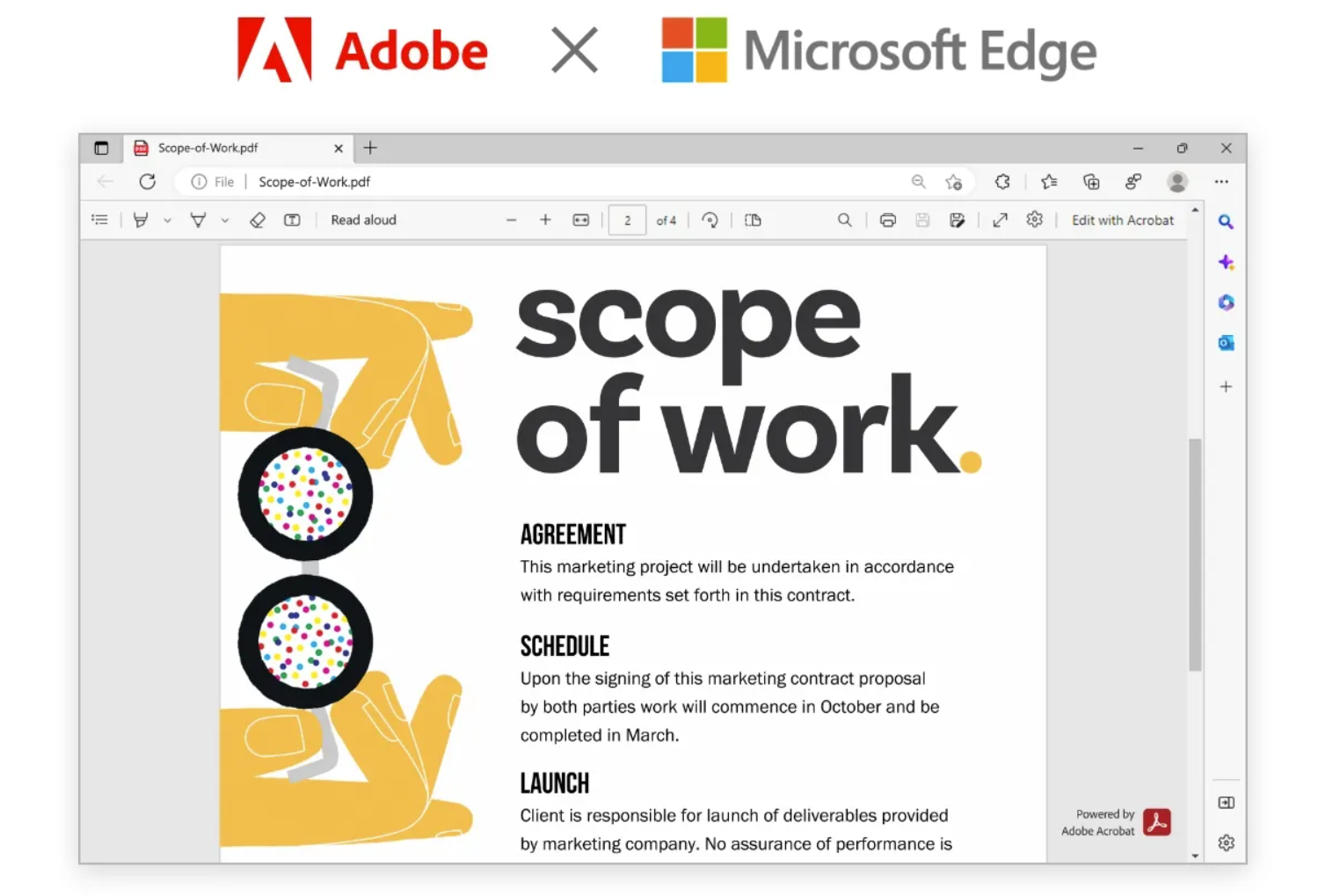
Microsoft and Adobe recently announced the inclusion of Adobe Reader as the default PDF reader in its newest Edge web browser. Basically, Microsoft will swap out its own PDF reader with Adobe’s. The result will be “higher fidelity for more accurate colors and graphics, improved performance, strong security for PDF handling, and greater accessibility, including better text selection and read-aloud narration,” Microsoft claims.

This move is expected to streamline the PDF reading experience for Edge users, and make it easier to access and view PDF files directly within the browser.

“This addition will only be available in Edge for Windows 10 and 11 at first, and it will arrive in the form of a browser update that’s delivered next month, in March 2023.”

For years, Adobe Reader has been the go-to PDF reader for most users, but with the inclusion of Adobe Reader in Edge, users will have a more seamless experience reading PDF files without having to download and install a separate application. This integration is expected to benefit users who work with PDF files regularly, such as those in business or education.

Microsoft’s decision to include Adobe Reader in Edge is part of its ongoing efforts to enhance the browser’s functionality and user experience. Having a more reliable and feature-rich native PDF viewer in the Edge browser is positive development for all users of PDF technology, including Win2PDF customers.

Batch Converting Folders of OpenDocument Text (.odt) Files to PDF Using Win2PDF

In last week’s post, we announced details on the latest Win2PDF support of various Word Processing formats like Microsoft Word (.doc, .docx), OpenDocument Text (.odt), and Rich Text Format (.rtf).

While MS-Office files have always been an important format for documents, there is an increasing need to support OpenDocument (ODF) files as well, mostly due to its increasing adoption within government and international organizations.  The reason for this is simple:  they’re open and not dependent on changes imposed by a single company.

Microsoft Office Documents (.doc) were originally binary files used by Microsoft as a proprietary format.  Microsoft adapted the format to an standards-based format based on Open Office XML in 2007, and this became the (.docx) format.  Today, both (.doc) and (.docx) formats are maintained by Microsoft.  The OpenDocument format, on the other hand, is an open format that is documented and maintained by an independent non-profit consortium known as OASIS.  

[If you’re interested in more details, here’s Microsoft’s list of differences between (.docx) and (.odt) files].

For these reasons and more, Win2PDF now supports more conversion options with .odt files. 

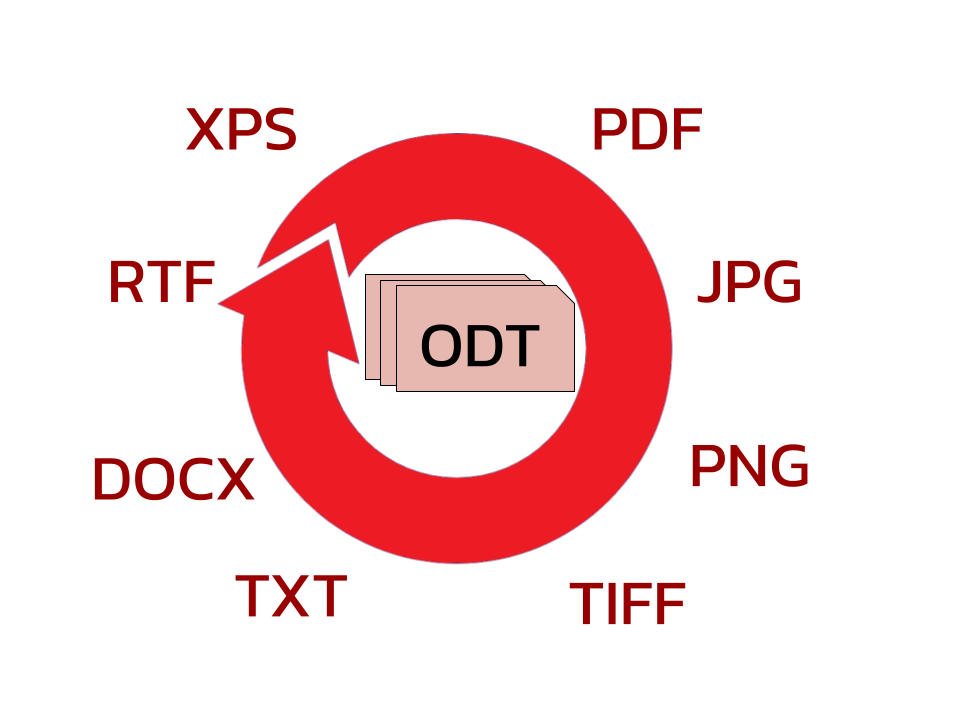
You can now read .odt files in the Win2PDF Desktop App, and batch convert folders of .odt files into the following formats:

If you want to convert individual files instead of batch converting folders of documents, you can either use the “export to ODT” feature or the “convertto” command line with the source or destination set to an .odt file.

Whether you’re looking to share these documents with others by email or the web, or simply preserve their formatting in another format, Win2PDF can help you batch convert folders of .odt documents to PDF quickly and easily.  If your organization is using OpenDocument Formats and there’s something else you’d like to see in terms of conversion, let us know.  We’re always interested in making the conversion process between different file formats easier and more flexible.