
We’ve released Win2PDF version 11.0.8.1, a maintenance update that introduces several usability improvements, performance enhancements, and new command line capabilities.
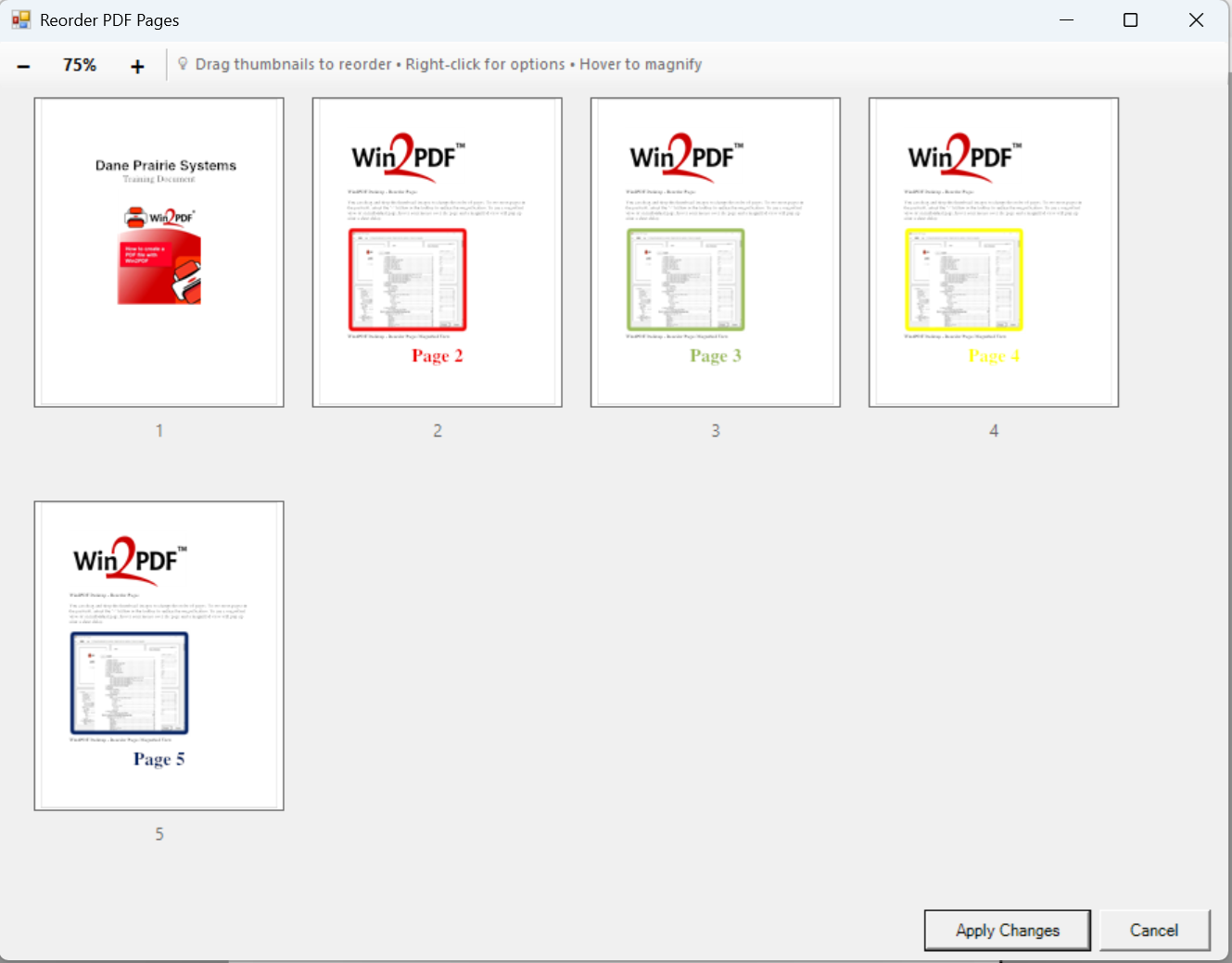
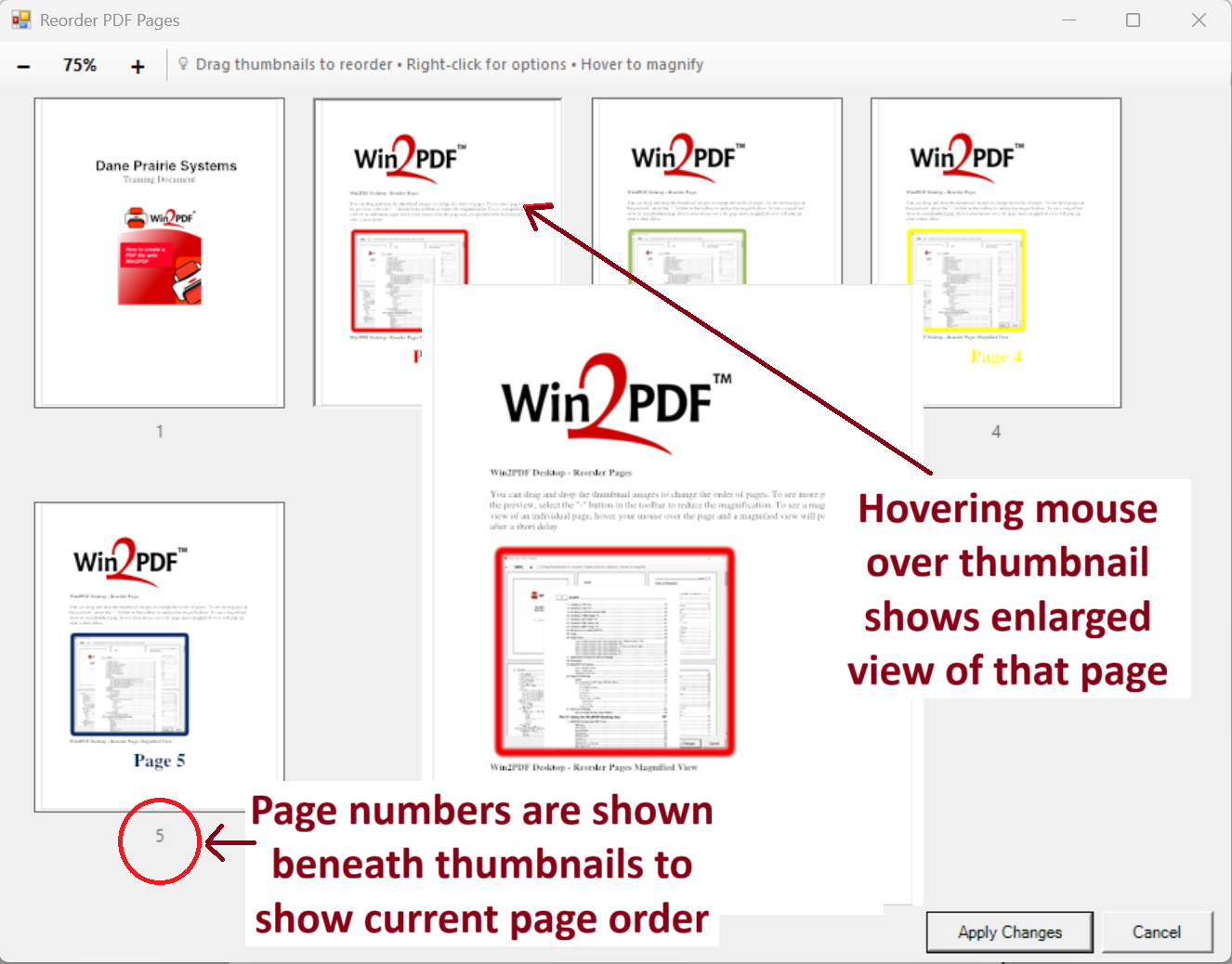
This update adds a Reorder Pages feature to Win2PDF Desktop, making it easier to rearrange pages within an existing PDF. Our recent blog post on the Reorder Pages feature has more details.
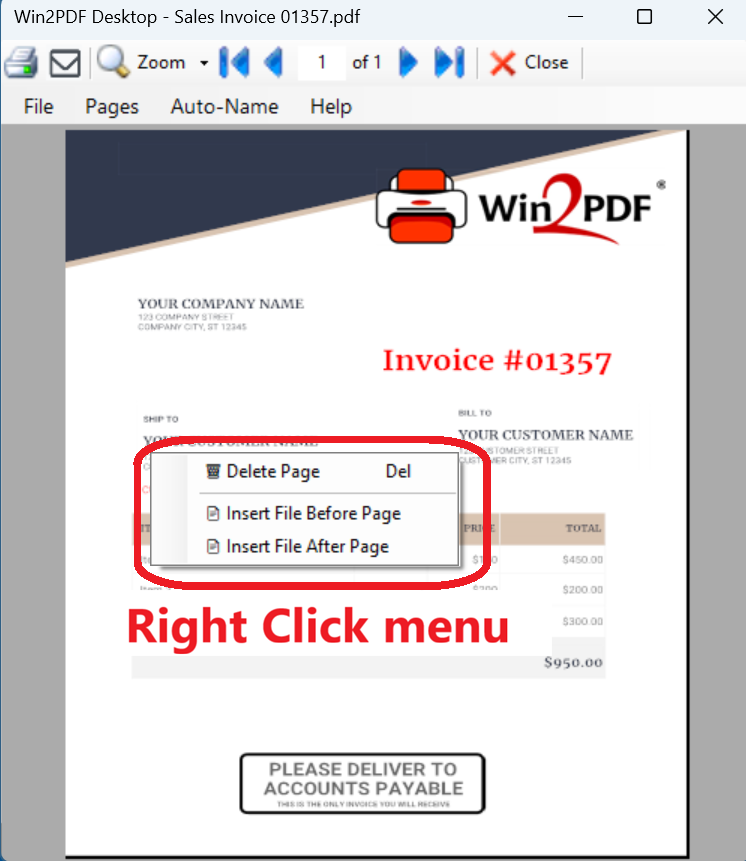
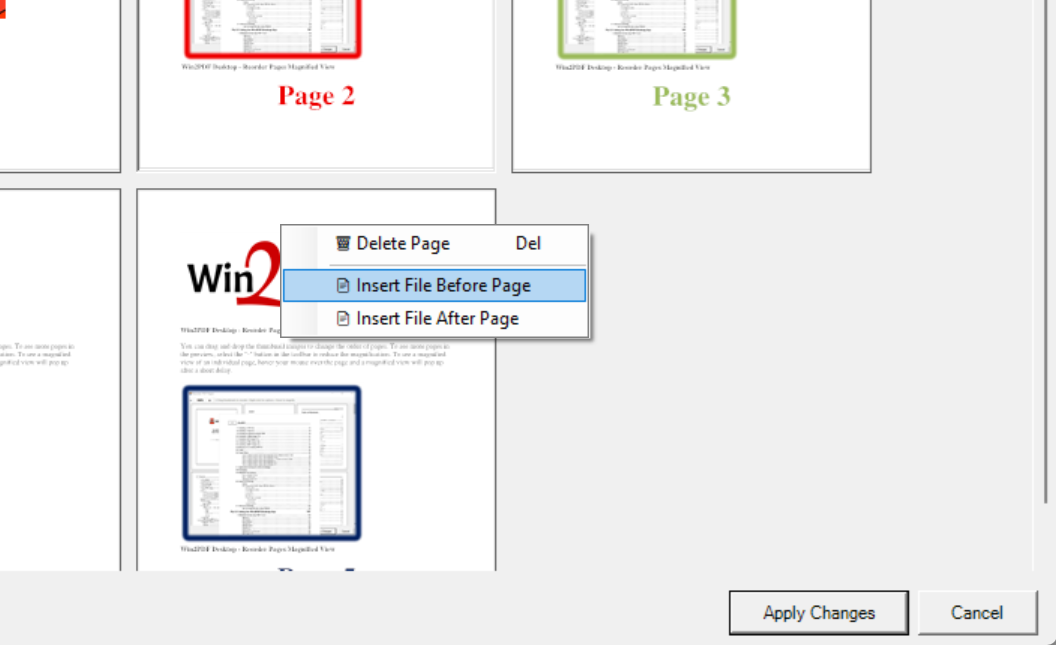
The Win2PDF Desktop PDF viewer now also supports right‑click context menus, allowing quick access to common actions such as deleting pages or inserting additional files. When you have a document open, just right-click anywhere on the document to bring up the new menu with options.
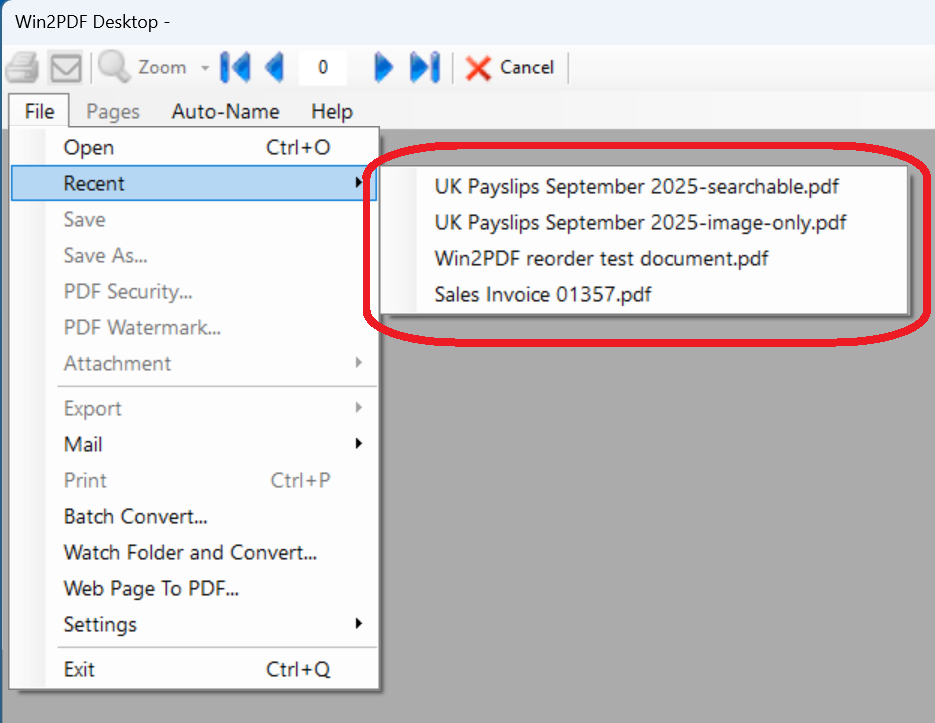
To streamline navigation, Win2PDF Desktop now includes a Recent Files menu, providing faster access to previously opened documents.
And for users who rely on automated workflows, this release adds support for rename plug‑ins, enabling custom file‑naming behavior through the Default Rename Action registry setting. The Auto‑Rename feature has also been optimized with improved performance through parallel processing.
Several new command line options are included as well.
- MAKESEARCHABLEONEPAGE allows OCR processing of only the first page of a document.
- SETPDFACONFORMANCE sets PDF/A conformance levels during PDF creation.
Win2PDF 11.0.8.1 is available now as a free update to users with licensed copies of Win2PDF 7 or later.

 PDF Blog - Topics from the makers of Win2PDF