
Our last post detailed the new Excel conversion enhancements in Win2PDF 10 build 172. Now, let’s look at the remaining changes in this release.
Most significant is the additional language support in the Win2PDF OCR Add-on setup program. Optical Character Recognition (OCR) is a powerful and useful tool used to convert scanned documents, images, previously archived documents, and other types of files to a PDF file with searchable text.
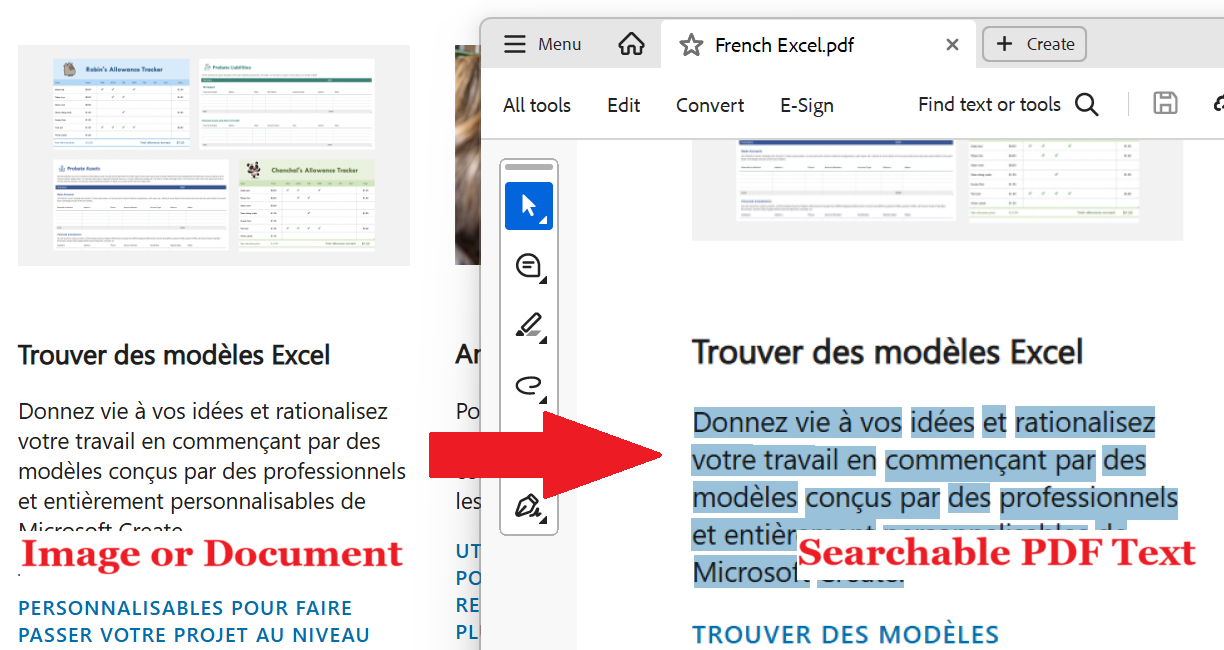
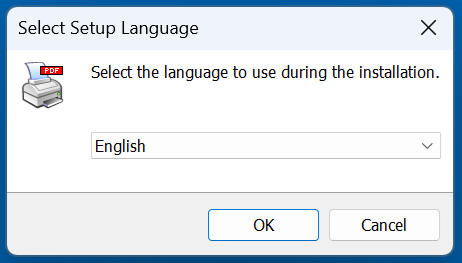
Users will now have the ability to dynamically download and install additional OCR training languages. The following language are now supported:
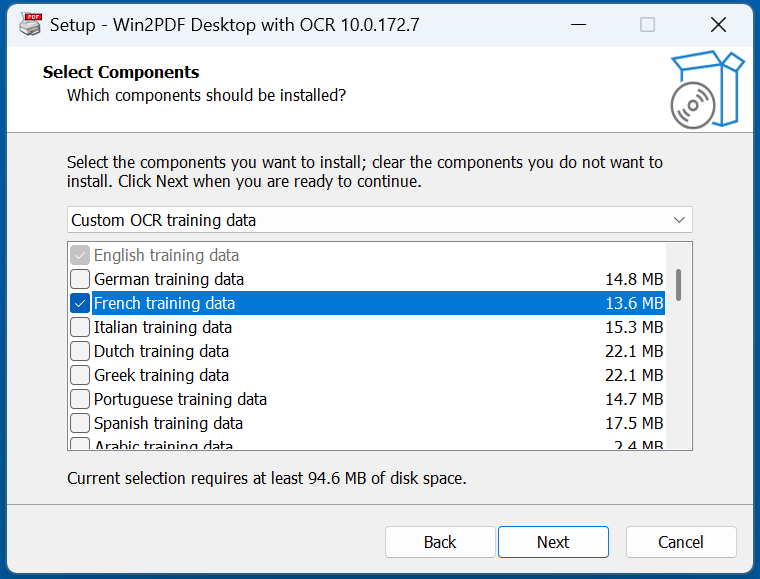
English, Deutsch (German), Français (French), Italiano (Italian), Nederlands (Dutch), Ελληνικά (Greek), Português (Portuguese), Español (Spanish), العربية (Arabic), Հայերեն (Armenian), Български (Bulgarian), বাংলা (Bengali), Català (Catalan), Corsu (Corsican), Hrvatski (Croatian), Čeština (Czech), 简体中文 (Chinese Simplified), Dansk (Danish), Suomi (Finnish), עברית (Hebrew), हिंदी (Hindi), Magyar (Hungarian), Íslenska (Icelandic), 日本語 (Japanese), 한국어 (Korean), Latviešu (Latvian), Lietuvių (Lithuanian), Norsk (Norwegian), Polski (Polish), Română (Romanian), Русский (Russian), Српски (Serbian), Slovenčina (Slovak), Slovenščina (Slovenian), Svenska (Swedish), ภาษาไทย (Thai), Türkçe (Turkish), Українська (Ukrainian), Tiếng Việt (Vietnamese)
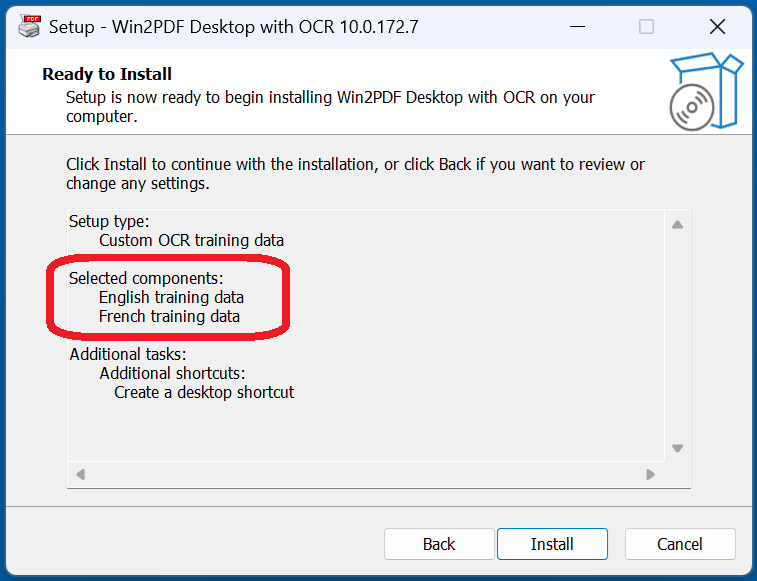
For example, if you wanted to use French training data in addition to English (and you’re using an English operating system), you’d select the following during the setup process.
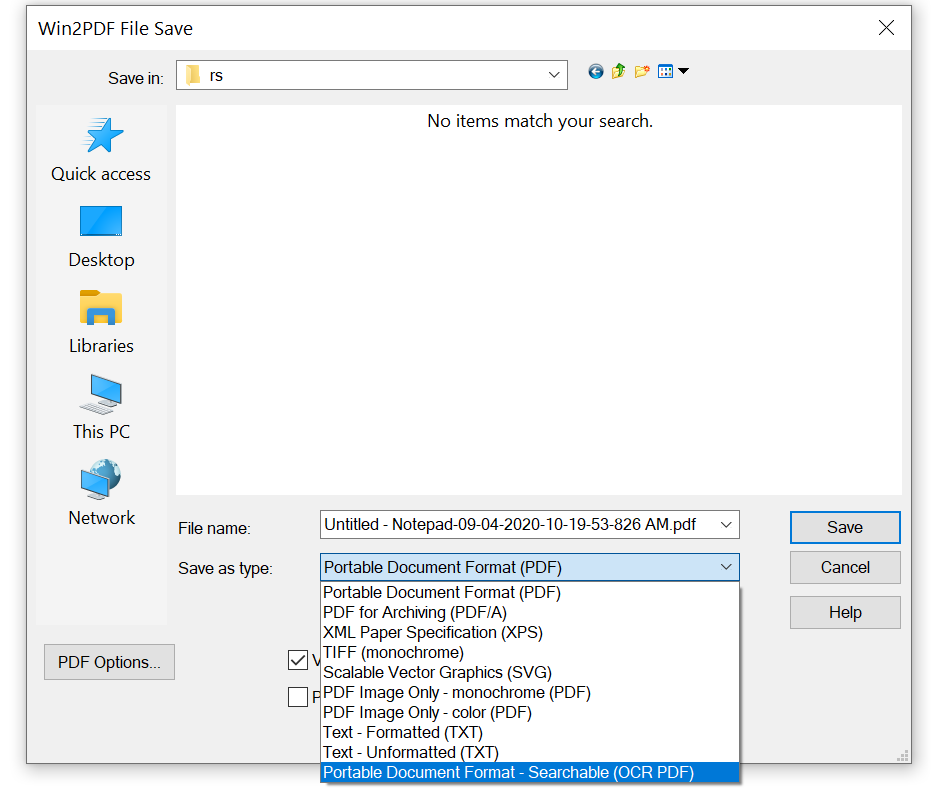
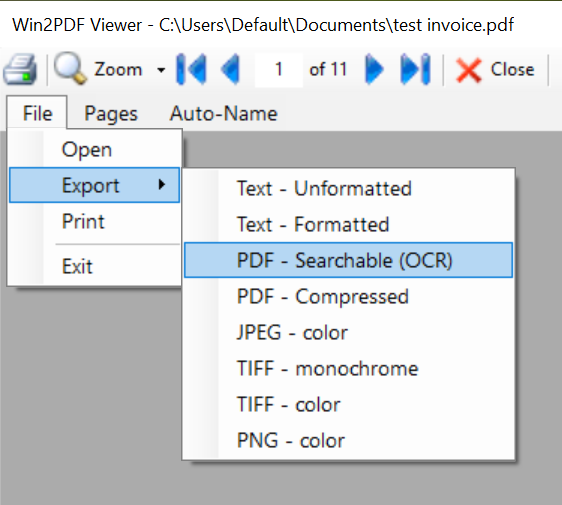
Once the additional language training data is installed, you’ll be able to take any document or image file (with non-searchable French or English text) and convert it to a searchable PDF using Win2PDF and the “Searchable (OCR PDF)” output option. [Note: You’ll also be able to select this option using Batch Convert (Pro only), the MAKESEARCHABLE command line feature, or the Win2PDF Desktop Export features.]
In our example, since we installed the French training data, we’ll be able to OCR any document that contains French words and characters.
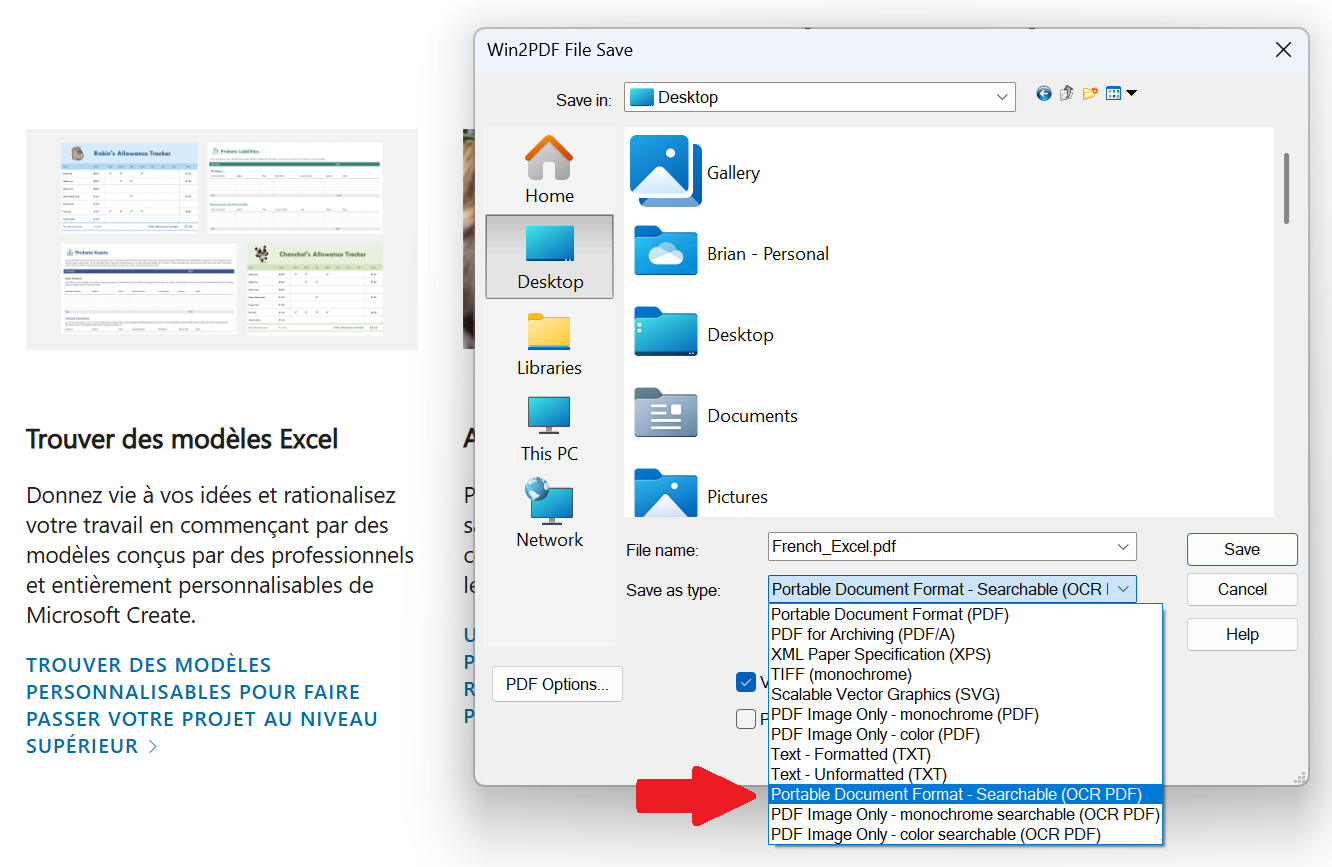
You can install any combination of language training data, but the training data is large and takes additional processing time so it’s best to only install language data for languages that you regularly use in documents.
And finally, here are the remainder of the version 10 build 172 enhancements:
- Updated the PDF2DOCX and extracttext commands to automatically make the PDF searchable if it isn’t already searchable.
- Added ispdfsearchable command line option that can be used to check the searchability of an existing PDF file.
- Added addprinter command line option to add a Win2PDF printer.
- Updated all command line options to create the output folder if it doesn’t exist.
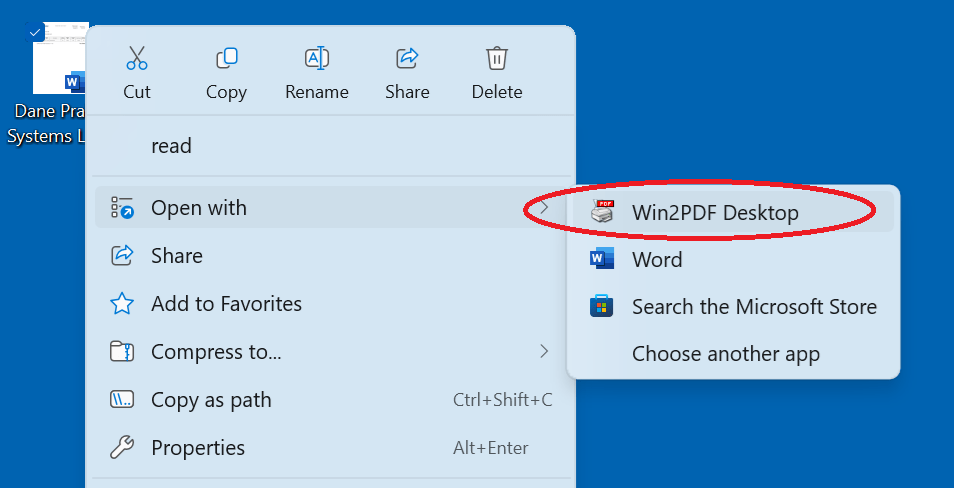
- Added Windows Explorer “Open With” file associations for the following file types:
- .PDF, .BMP, .DIB, .TIF, .TIFF, .JPG, .JPE, .JPEG, .JFIF, .PNG, .GIF, .HTML, .HTM, .MHTML, .XPS, .OXPS.
- For Win2PDF Pro, also added: .DOC, .RTF, .TXT, .DOCX, .ODT, .XLS, .XLSX, .XLSB, .CSV, .ODS
All of these features can be updated at no cost for Win2PDF version 7 and later users.
 PDF Blog - Topics from the makers of Win2PDF