Attach Source Files or Supplemental Documents to PDF Files with Win2PDF Pro

The latest Win2PDF update (version 10.0.174) includes several enhancements along with one significant new feature – the ability to attach a file to a PDF. This involves embedding the source document (like a Word document, Excel sheet, or another PDF) or adding a supplemental file within the PDF as an attachment.

When someone opens the PDF in a compatible viewer (like Adobe Acrobat), they can access and open the attached file.

This is useful for providing supplementary materials along with the main PDF document, or to include the source document as a reference for future editing or archiving purposes.

There are several practical reasons why you might want to insert or attach source documents into a PDF:

Maintaining Original File Formats

Sometimes, converting a file to PDF can lose certain functionalities or formatting. Attaching the original source file ensures that recipients have access to the file in its native format.

Legal or Auditing Purposes

In legal or auditing contexts, it’s often necessary to provide the original source documents as evidence. Attaching these files to a PDF ensures that they are kept together and are easily accessible.

Collaboration

When collaborating on a project, you might want to provide the source files for editing or review. Attaching them to a PDF makes it easy to share or archive all the necessary materials in one package.

Providing Supplementary Information

You might have a main PDF report, but want to include the raw data in an Excel spreadsheet, or detailed background information in a Word document. Attaching these files allows recipients to access the extra materials if they need them. For example, a financial report PDF could have the supporting financial data as an attached Excel file.


The Attachment feature can be accessed in several ways.

  • Through the Win2PDF Desktop App’s Attachment menu
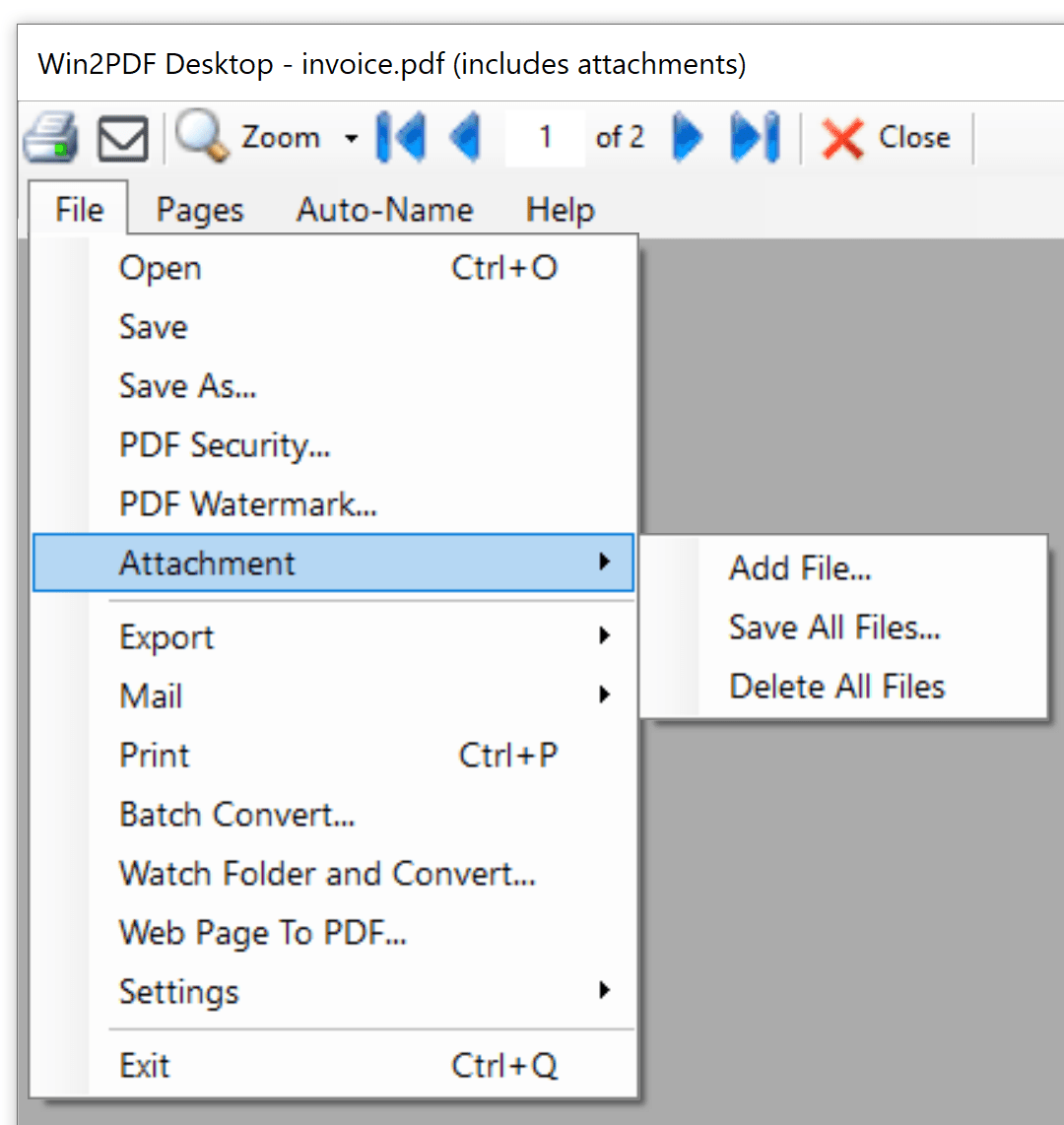
Notice that when a PDF file has attachments, the Win2PDF Desktop window shows the PDF file name along with (includes attachments).

This method allows you to open a PDF file in the Win2PDF Desktop App and Add a file attachment, Save all attachments currently in the PDF file, and Delete all attachments in the PDF file. The Win2PDF Desktop window shows the PDF file name along with (includes attachments).

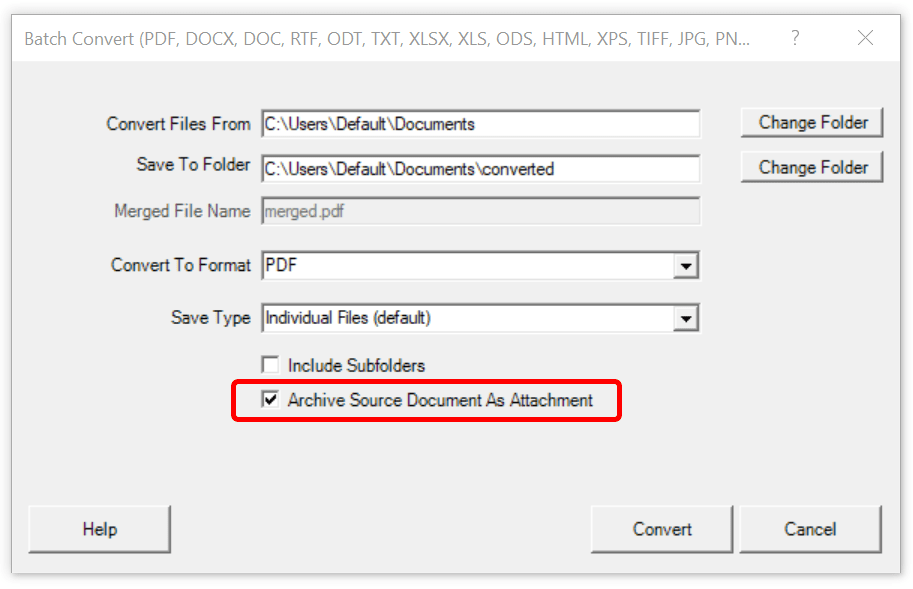
  • As part of the batch convert feature when the “Archive Source Document As Attachment” box is checked.
  • Through the Win2PDF command line.

PDF Add File Attachment Command Line Format

PDF Save All File Attachments Command Line Format

PDF Delete All File Attachments Command Line Format

PDF Attachment Count Command Line Format


Of course, there are security risks when attaching or saving additional files from a PDF. For security reasons, files that could potentially contain malicious code, like .zip, .exe, and .bat, cannot be attached or saved using Win2PDF.

Once file(s) have been attached to a PDF, you can verify the new file in Adobe Reader. To view attachments in Adobe Reader, go to ” ≡ ➜ View ➜ Show/Hide ➜ Side panels ➜ Attachments”


Other changes to this update are:

  • Added support for converting email formats EML, MSG, and MHT files to PDF, images, and text. (Win2PDF Pro only)
  • Added command lines to convert from email formats to PDF: “EML2PDF“, “MSG2PDF“, and “MHT2PDF” command lines. Also added command line options to print spreadsheet formats to a paper printer: “PRINTEML“, “PRINTMSG“, and “PRINTMHT“. (Win2PF Pro only)
  • Added “pdfscansearchable” output format to the command line “convertto”, “batchconvert”, and “watchconvert” commands to improve text recognition for lower quality scanned documents
  • Added “makescansearchable” command line option to improve the text recognition for lower quality scanned documents.
  • Added Windows Explorer “Open With” file associations for the following file types: .EML, .MSG, .MHT (Win2PDF Pro only)
  • Performance and stability improvements.

The downloads for the Win2PDF 10.0.174 Update are free for current Win2PDF 7 or higher users, and standard edition users can upgrade to Pro to get these new features.

FTC Action Highlights Problems With PDF Software Subscriptions

Over the past decade, there has been an increasing trend to move software licensing to a subscription-based model, with monthly fees replacing the previously common one-time cost for a perpetual license. While these software subscriptions can be beneficial to a software company’s bottom line, they can be detrimental for users. The high cost and the difficulty in terminating these subscriptions can be major pain points for consumers.

The recent actions taken by the Federal Trade Commission against Adobe and its executives highlight this issue. Adobe’s practices of obscuring early termination fees and making cancellation processes difficult have resulted in consumer confusion and frustration. Users complain they were tricked into year-long contracts hidden by fine print, and the company made it intentionally difficult to try to get out of the subscriptions.

Compounding this problem, moving PDF and other software services to the cloud (and your data into the hands of another company) can also represent significant concerns in terms of privacy or confidentiality of customer data. Adobe faced similar backlash when it recently updated its terms of service.

The new terms include provisions that grant Adobe extensive rights to access, use, and potentially monetize data uploaded to or processed by their software. This includes artwork, designs, and other creative works, which can be scanned and utilized for various purposes, including machine learning and other services under Adobe’s vast umbrella.

Consider the implications for customer’s working under non-disclosure agreements (NDAs), or customers working with legal documents or medical records that are protected under HIPAA. Allowing your PDF provider access to your data can be perilous for many reasons.

These issues serve as a reminder that software companies should prioritize transparency and user-friendly cancellation processes to ensure fair treatment of their customers.

Win2PDF has not changed its licensing, prices or terms of service in over two decades and we have no plans to do so. Our software is sold as a perpetual one-time license, comes with a simple 60-day return policy (for any reason) that we honor promptly, and your data is your data. It is never transferred, used or monetized by us. Just like Vegas, what happens on your computer, stays on your computer.

New Microsoft Edge Browser To Use Adobe Reader As Default PDF Viewer

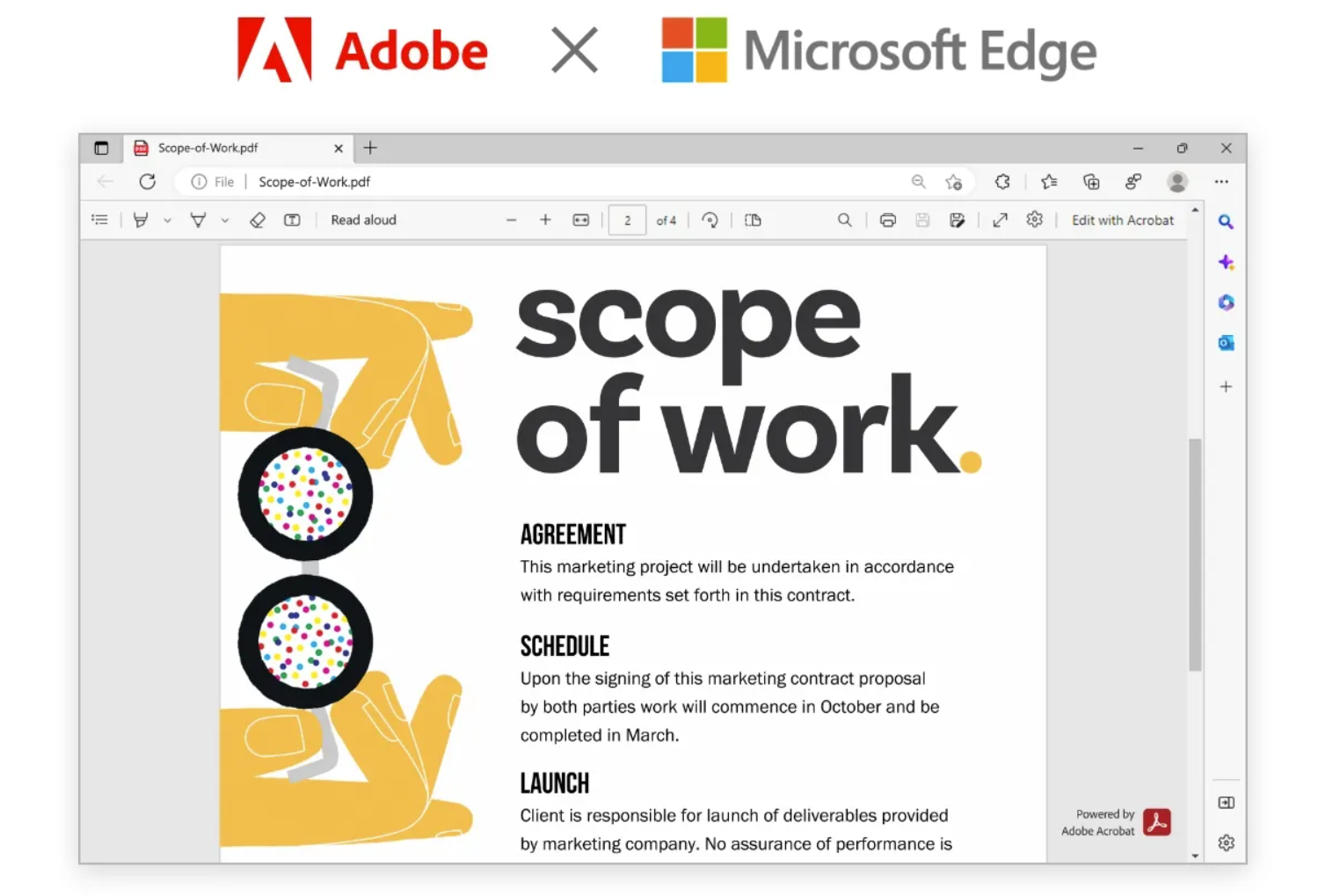
Microsoft and Adobe recently announced the inclusion of Adobe Reader as the default PDF reader in its newest Edge web browser. Basically, Microsoft will swap out its own PDF reader with Adobe’s. The result will be “higher fidelity for more accurate colors and graphics, improved performance, strong security for PDF handling, and greater accessibility, including better text selection and read-aloud narration,” Microsoft claims.

This move is expected to streamline the PDF reading experience for Edge users, and make it easier to access and view PDF files directly within the browser.

“This addition will only be available in Edge for Windows 10 and 11 at first, and it will arrive in the form of a browser update that’s delivered next month, in March 2023.”

For years, Adobe Reader has been the go-to PDF reader for most users, but with the inclusion of Adobe Reader in Edge, users will have a more seamless experience reading PDF files without having to download and install a separate application. This integration is expected to benefit users who work with PDF files regularly, such as those in business or education.

Microsoft’s decision to include Adobe Reader in Edge is part of its ongoing efforts to enhance the browser’s functionality and user experience. Having a more reliable and feature-rich native PDF viewer in the Edge browser is positive development for all users of PDF technology, including Win2PDF customers.

Co-founder of Adobe who helped develop PDF passes away at 81

Charles “Chuck” Geschke, the co-founder of Adobe who helped develop the PDF format, passed away at the age of 81.

His legacy is considerable, especially when you consider these estimates:

* Over 2.5 TRILLION PDF documents are created each year

* More than 50% of files stored in the cloud are PDF files

* 60% of non-image attachments in Outlook are PDF files

Our condolences to this truly remarkable pioneer of the desktop publishing industry. Rest in peace.

Flattening a PDF file with Win2PDF

We recently stumbled across this article outlining a problem with 2020 tax returns saved as a PDF file.


Q: I’ve been using the free Adobe Acrobat Reader DC to fill-in and save PDF tax forms on my PC. But when I recently called up a stored tax form, the data I’d filled-in appeared for a moment, then disappeared, leaving just a blank tax form. I then called up other tax forms that I’d saved earlier, and found that they still had their data. I then tried using another PC, and found that some stored tax forms contained the data I’d entered, while others had gone blank. Adobe won’t help me with this problem because I’m using a free app. What’s wrong and what can I do?


In this case, there was a glitch in the PDF viewer where the filled-in data appeared to “go missing”, even though the information was saved in the file. This type of problem is caused by PDF layers, and it can be easily fixed by flattening the PDF file.

Basically, flattening the PDF means compressing all of the data onto a single layer. No data or information will appear to be missing — all of it will be visible at all times — so the problem experienced with the “missing data” in the tax forms will be eliminated.

While there are several ways to flatten a PDF file, one of the easiest is to just print the document from Adobe Reader (or any PDF viewer) to the Win2PDF printer using the PDF Image Only option. That will flatten it automatically.

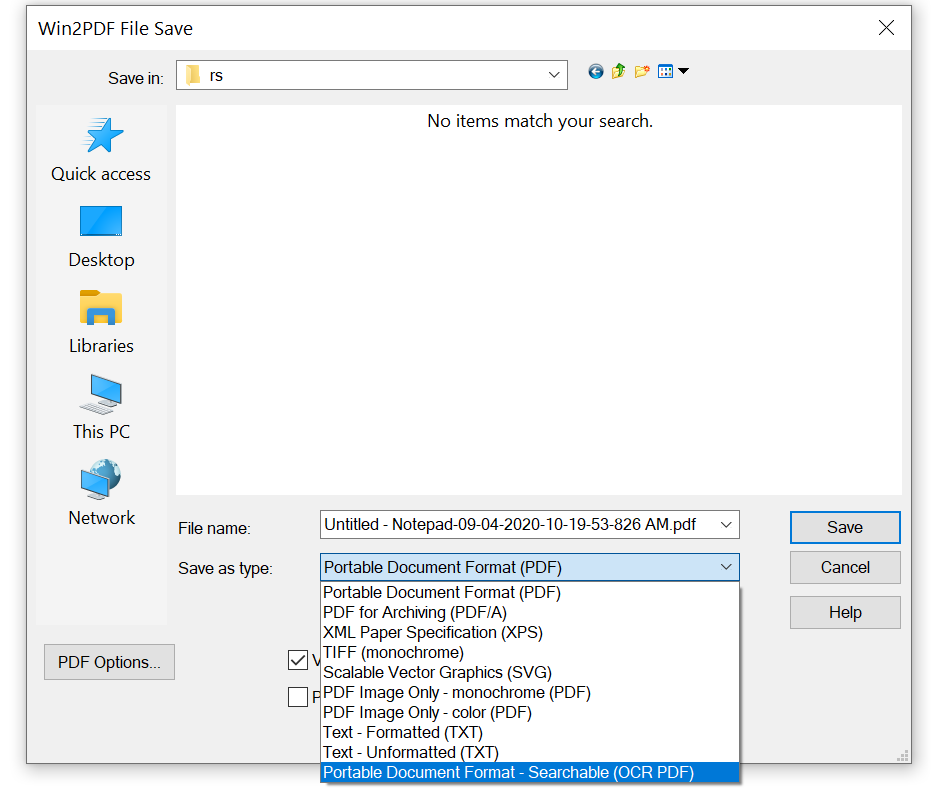
After you print to Win2PDF, the resulting PDF will no longer be searchable. If you want the text in the flattened PDF to be searchable, you can download and install the “Win2PDF Desktop with OCR” add-on and select “Portable Document Format – Searchable” as the Win2PDF “Save As Type”.

How the Lowly PDF Played the Longest Game in Tech

Here’s an interesting article on why PDF has been the de facto digital document format for almost 30 years (with Win2PDF being available for more than 20 years of that time). One secret to the format’s success: “You only think about it when it doesn’t work. And happily, for PDFs, that’s quite rare.”

As the article notes, “the real key to the dominance of the PDF has less to do with its future than with its roots. From the start, it was meant to be lightweight and forward compatible, meaning the format would continue to be readable well into the future.” Even documents created with PDF version 1.0 continue to be readable today with the existing PDF readers.

So, hats off to the lowly PDF. It rarely garners the respect it should.

Adobe Liquid Mode for Easier PDF Viewing on Mobile Devices

Have you ever tried to read a long PDF document on your iPhone or Android phone?

Painful, right? Pinching and zooming, pinching and zooming… Something we recently chronicalled on our blog post: PDFs are unfit for human consumption.

Well, Adobe is finally offering a cloud-based and artificial intelligence (AI)-based solution called Liquid Mode that works within the Adobe Reader mobile apps.

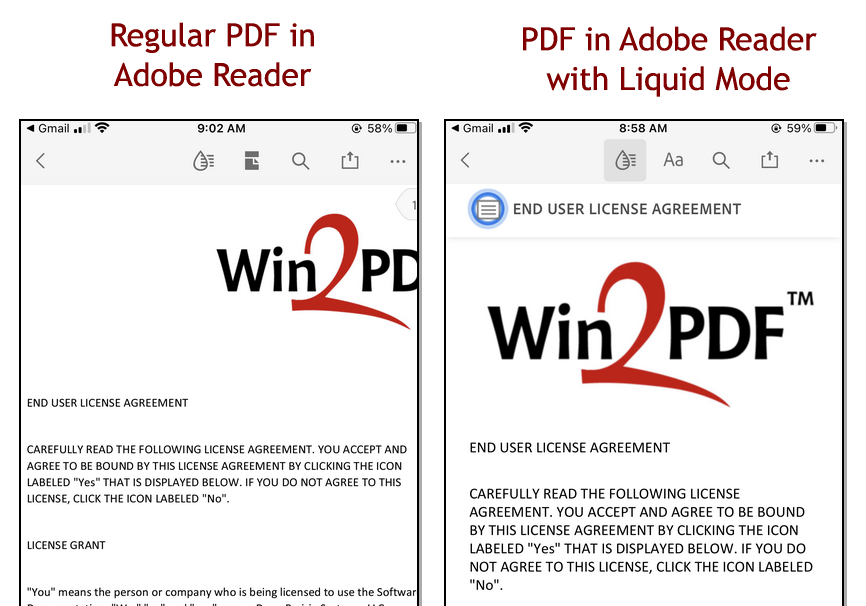
With the push of a button, Liquid Mode automatically reformats text, images, and tables for quick navigation and consumption on small screens. Powered by Adobe Sensei, Liquid Mode uses AI and machine learning in the background to understand and identify parts of a PDF, like headings, paragraphs, images, lists, tables, and more. It also attempts to understand the hierarchy and ordering of those parts to reformat a static PDF into a more dynamic and customizable experience.

Adobe

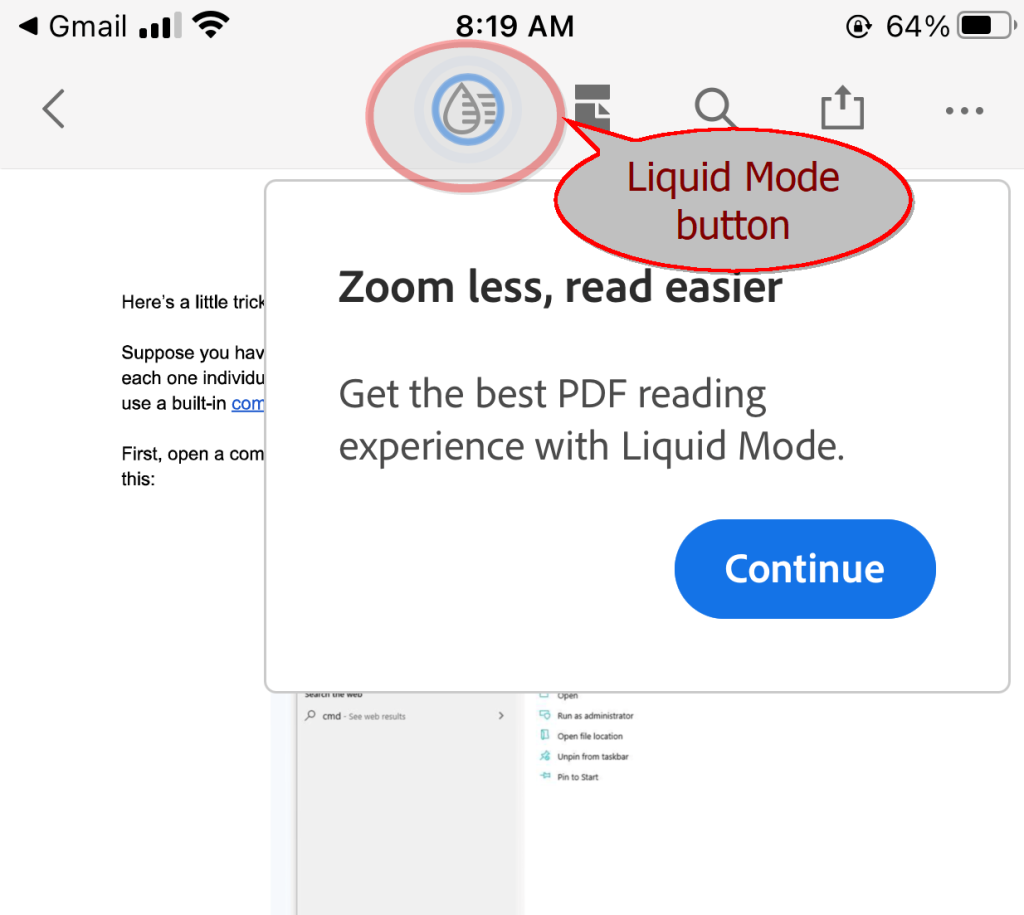
Essentially, when you open a PDF in the Acrobat Reader app (as shown in the iPhone example below), it will try to determine if it’ll work with Liquid Mode; if so, the Liquid Mode button lights up.


Tap the button and the file is sent to Adobe’s Document Cloud for processing. Once complete, users can tweak to their liking things like the font size and line spacing. Liquid Mode will use the headers/structure it detects to build a tappable table of contents where none existed before, allowing you to quickly hop from section to section. The whole thing is non-destructive, so nothing actually changes about the original PDF. Step back out of Liquid Mode and you’re back at the original, unmodified PDF.


Liquid Mode is available in the free Adobe Acrobat Reader app for iOS and Android. It will also work on Chromebooks that support the Google Play Store and will eventually be available on desktops and browsers.

Win2PDF creates PDF files that are compatible with Adobe’s Liquid Mode. However, Liquid Mode works with most, but not all PDF documents, and is currently limited to PDFs that are under 10 MB in size or 200 pages long. This is still a developing technology and Adobe will improve support and capabilities over time.

Create PDF Documents With Searchable Text from Google Chrome and Microsoft Edge

Win2PDF now has a feature that allows you to print documents that would normally contain non-searchable text to PDF files with searchable text.

Why this feature? When would you use it?  Well, there is one area in particular where this is useful, and that’s when it comes to printing PDF files from Google’s Chrome web browser, Microsoft’s newest Edge browser, or from other Google apps like Docs. Due to the way Google and Microsoft have developed their browsers and apps, printing from these programs creates PDF files that are image-based and not-searchable (or selectable) as actual text. When documents or web pages are printed to a paper printer, this isn’t noticeable or an issue. However it is a problem if you are using Win2PDF or another PDF printer since the files will be larger, non-searchable, and non-selectable.

We’ve solved this problem by adding a new save format called “Portable Document Format – Searchable (OCR PDF)”. When you use this save option when printing from Chrome, Edge, or Google Docs, the resulting PDF file will contain searchable text. It applies Optical Character Recognition (OCR) to the file and converts the image-based text into searchable text automatically.

This has been frequently reported to our Win2PDF help desk as a problem for users and prior to this feature we had to explain a multi-step process to get the desired results. Now, it’s just a single save like it would be from any other application.

This feature is still in our pre-release testing phase, but we want users to try this and give us some feedback. To try this feature, please do the following:

    1. Download and install Win2PDF 10.0.78 (or higher). This version can be downloaded from the Win2PDF 10 Update section of our knowledgebase.
    2. Download and install the Win2PDF Desktop with OCR Download.
    3. After you install the separate Win2PDF Desktop with OCR package, Win2PDF displays an extra save as type labeled “Portable Document Format – Searchable (OCR PDF)

While this is useful when you are creating new PDFs from Chrome or Edge, what about existing files that had previously been saved as image only, or that you received as email? Is there a way to “fix” those so that they are searchable?

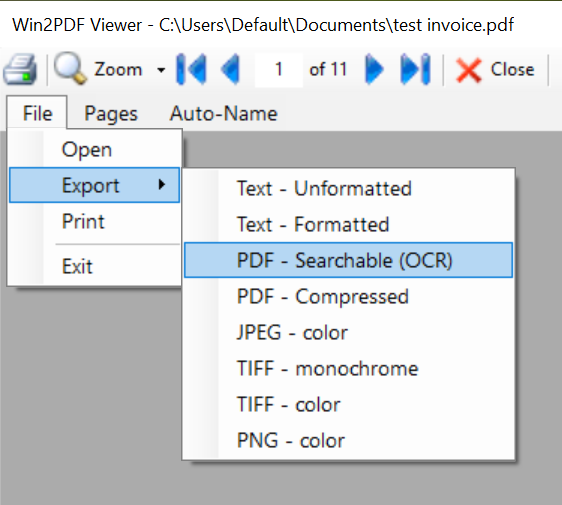
Yes. Just open the original PDF in the Win2PDF Desktop App and Select Export  -> PDF – Searchable (OCR) from the File menu.

make-pdf-searchable-menu

The Searchable OCR PDF is only available in our pre-release software and we’re working on improvements, but give it a try and if you have any feedback or issues, let us know by sending an email to [email protected] or opening a ticket at our Helpdesk page.

Researchers Say PDFs Are ‘Unfit for Human Consumption’

We just stumbled across this Vice article titled Researchers Say PDFs Are ‘Unfit for Human Consumption’. It references a new paper published by the Nielson Norman Group outlining the problems with the PDF format that still exist.

“The format is intended and optimized for print. It’s inherently inaccessible, unpleasant to read, and cumbersome to navigate online. Neither time nor changes in user behavior have softened our evidence-based stance on this subject,” the article reads. “Even 20 years later, PDFs are still unfit for human consumption in the digital space.”

Ouch!

While it is an interesting read and does outline some very real limitations of the Portable Document Format as well as strategies to make them more user-friendly, it is, after all, a document format. The primary function of PDF is to make files universally available on all platforms and to preserve the formatting and layout of the original documents.

Court filings, for example, require a consistent and universally accepted standard for submitting electronic documents. Most companies require standardization of company forms across their business practices. Government agencies like the IRS need standard forms and documents for processing. So do hospitals and clinics working with patient medical records. Many electronic texts require a specific layout of images and text in order to be understood correctly and in context. So many examples in just about every industry. And to accomplish this, you really need a standards-based document format.

Having said that, it’s certainly appropriate to make some information available in other formats, especially if the information needs to be dynamically formatted to different sized screens and for different users, but it’s hard to fault PDF because it doesn’t work for all users in all situations.

Also, it should be noted that there really aren’t any viable alternatives to the Adobe PDF for enterprise users where these types of considerations are paramount. Microsoft did try to gain support for its XML Paper Specification (XPS) but it never took hold as a replacement to PDF.

While PDF files do have limitations, especially for users reading the files on small screens like phones or tablets, they still provide the best technology for creating, archiving, and sharing electronic documents. Adobe’s blog gives many reasons why PDFs are better than other proprietary formats.

How to Create a Non-Searchable PDF File

When you create a PDF file from most applications, the result is a PDF that contains both text and images. The text can be searched from PDF viewers like Adobe Reader, can be cut & pasted into other documents, and it can also be indexed and searched by search engines like Google or Bing.

However, some people want to create PDF files that are NOT searchable for a variety of reasons.

We posted an example some time ago where some sensitive documents were redacted in the PDF, and even though they displayed correctly (where the text appeared blacked-out), the actual text in the PDF file was searchable and selectable. Whoops!

There are also situations where lawyers litigating cases need to share documents with the opposing side, and they have an interest in dumbing down the PDF file. That is, making it very difficult to search through the documents.

Whatever the reason, the easiest way to create non-searchable PDF files is to use the PDF Image Only file save option with Win2PDF. This will save all text in the document being printed as an image, so that it can’t be searched or indexed by search engines. You can save the output as either a monochrome image, or a color image depending on your needs.

One caveat with this feature is that it will make the file sizes larger, which is usually not desirable.

Unless, that is, you’re a lawyer litigating a case…