Attach Source Files or Supplemental Documents to PDF Files with Win2PDF Pro

The latest Win2PDF update (version 10.0.174) includes several enhancements along with one significant new feature – the ability to attach a file to a PDF. This involves embedding the source document (like a Word document, Excel sheet, or another PDF) or adding a supplemental file within the PDF as an attachment.

When someone opens the PDF in a compatible viewer (like Adobe Acrobat), they can access and open the attached file.

This is useful for providing supplementary materials along with the main PDF document, or to include the source document as a reference for future editing or archiving purposes.

There are several practical reasons why you might want to insert or attach source documents into a PDF:

Maintaining Original File Formats

Sometimes, converting a file to PDF can lose certain functionalities or formatting. Attaching the original source file ensures that recipients have access to the file in its native format.

Legal or Auditing Purposes

In legal or auditing contexts, it’s often necessary to provide the original source documents as evidence. Attaching these files to a PDF ensures that they are kept together and are easily accessible.

Collaboration

When collaborating on a project, you might want to provide the source files for editing or review. Attaching them to a PDF makes it easy to share or archive all the necessary materials in one package.

Providing Supplementary Information

You might have a main PDF report, but want to include the raw data in an Excel spreadsheet, or detailed background information in a Word document. Attaching these files allows recipients to access the extra materials if they need them. For example, a financial report PDF could have the supporting financial data as an attached Excel file.


The Attachment feature can be accessed in several ways.

  • Through the Win2PDF Desktop App’s Attachment menu
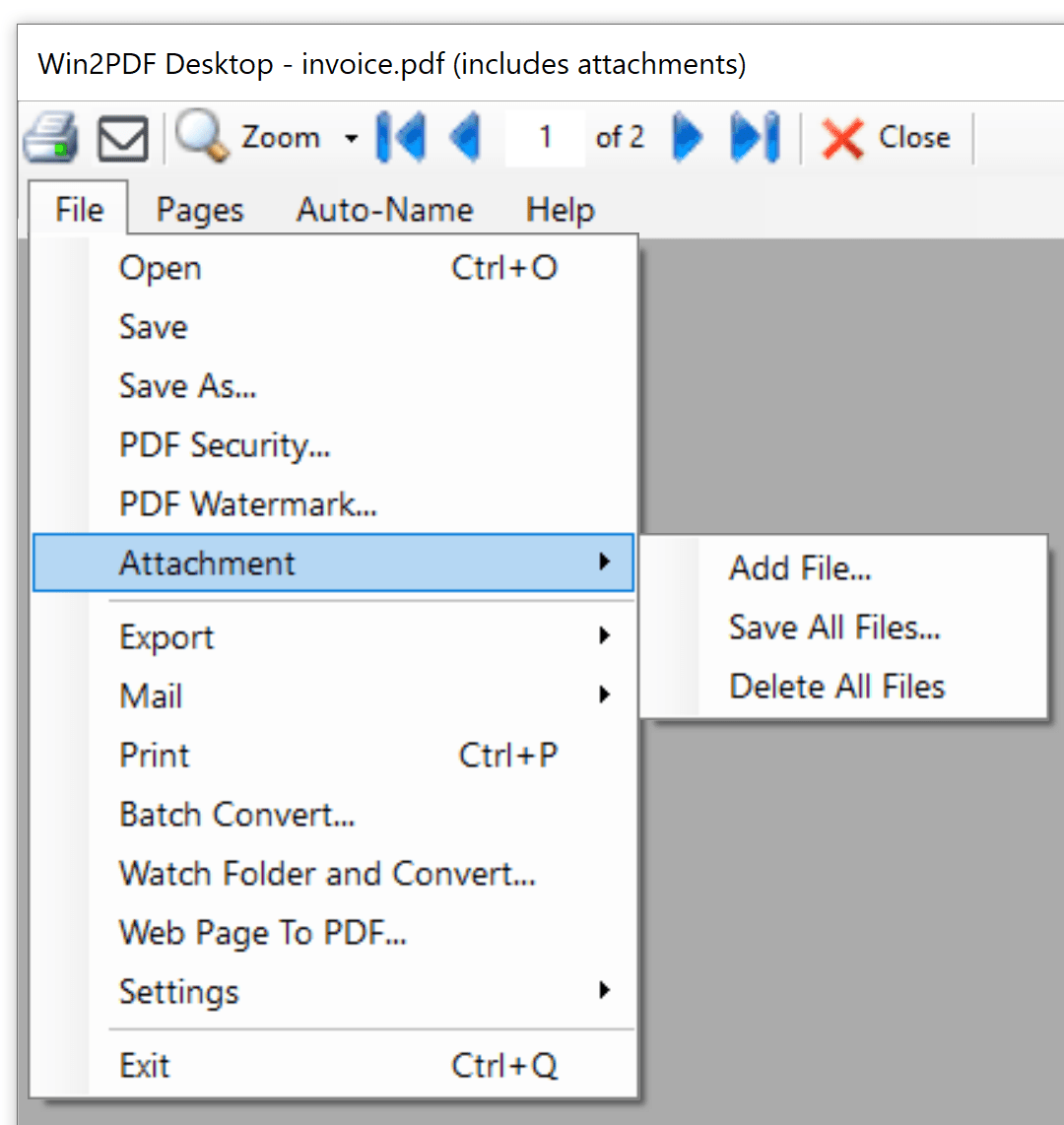
Notice that when a PDF file has attachments, the Win2PDF Desktop window shows the PDF file name along with (includes attachments).

This method allows you to open a PDF file in the Win2PDF Desktop App and Add a file attachment, Save all attachments currently in the PDF file, and Delete all attachments in the PDF file. The Win2PDF Desktop window shows the PDF file name along with (includes attachments).

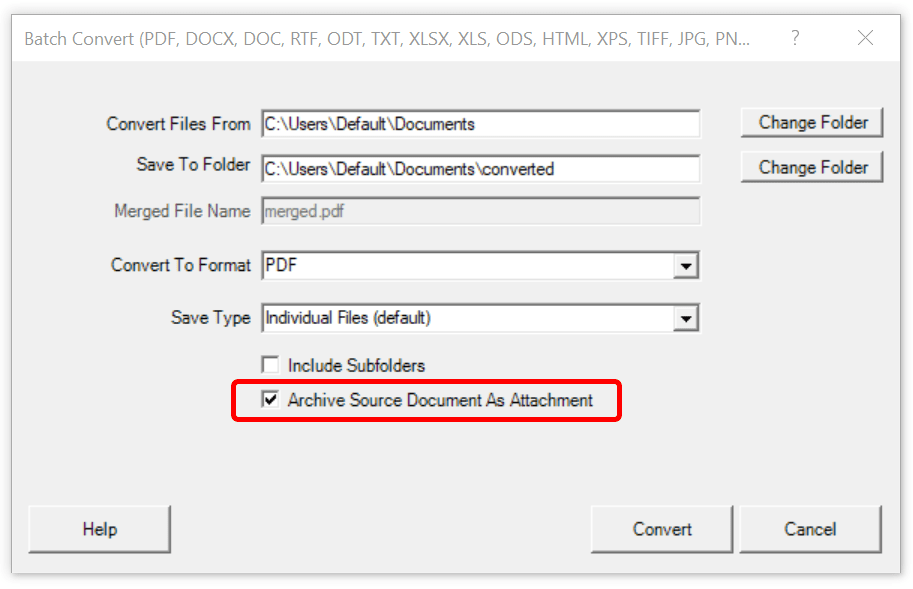
  • As part of the batch convert feature when the “Archive Source Document As Attachment” box is checked.
  • Through the Win2PDF command line.

PDF Add File Attachment Command Line Format

PDF Save All File Attachments Command Line Format

PDF Delete All File Attachments Command Line Format

PDF Attachment Count Command Line Format


Of course, there are security risks when attaching or saving additional files from a PDF. For security reasons, files that could potentially contain malicious code, like .zip, .exe, and .bat, cannot be attached or saved using Win2PDF.

Once file(s) have been attached to a PDF, you can verify the new file in Adobe Reader. To view attachments in Adobe Reader, go to ” ≡ ➜ View ➜ Show/Hide ➜ Side panels ➜ Attachments”


Other changes to this update are:

  • Added support for converting email formats EML, MSG, and MHT files to PDF, images, and text. (Win2PDF Pro only)
  • Added command lines to convert from email formats to PDF: “EML2PDF“, “MSG2PDF“, and “MHT2PDF” command lines. Also added command line options to print spreadsheet formats to a paper printer: “PRINTEML“, “PRINTMSG“, and “PRINTMHT“. (Win2PF Pro only)
  • Added “pdfscansearchable” output format to the command line “convertto”, “batchconvert”, and “watchconvert” commands to improve text recognition for lower quality scanned documents
  • Added “makescansearchable” command line option to improve the text recognition for lower quality scanned documents.
  • Added Windows Explorer “Open With” file associations for the following file types: .EML, .MSG, .MHT (Win2PDF Pro only)
  • Performance and stability improvements.

The downloads for the Win2PDF 10.0.174 Update are free for current Win2PDF 7 or higher users, and standard edition users can upgrade to Pro to get these new features.
New Win2PDF Pro TSE Feature: Run Watch Folder As A Service

Continuing our feature posts about the 10.0.154 Win2PDF Update, let’s now take a look at running the Watch Folder as a Windows Service.

Previously, the watch folder needed to be initiated by a user, and an open window needed to be running on the machine for the Watch Folder to work. Now, it can be set up as a Windows Service in the background. This feature is ONLY available in the Win2PDF Pro Terminal Server Edition (TSE) version of the software.

[Recommended: If you haven’t used the Watch Folder and Convert feature in the past, it’s recommended that you start by running the feature interactively by starting the “Watch Folder and Convert” shortcut from the Windows Start menu. This allows you to see any errors as you configure the folder and convert type options.]

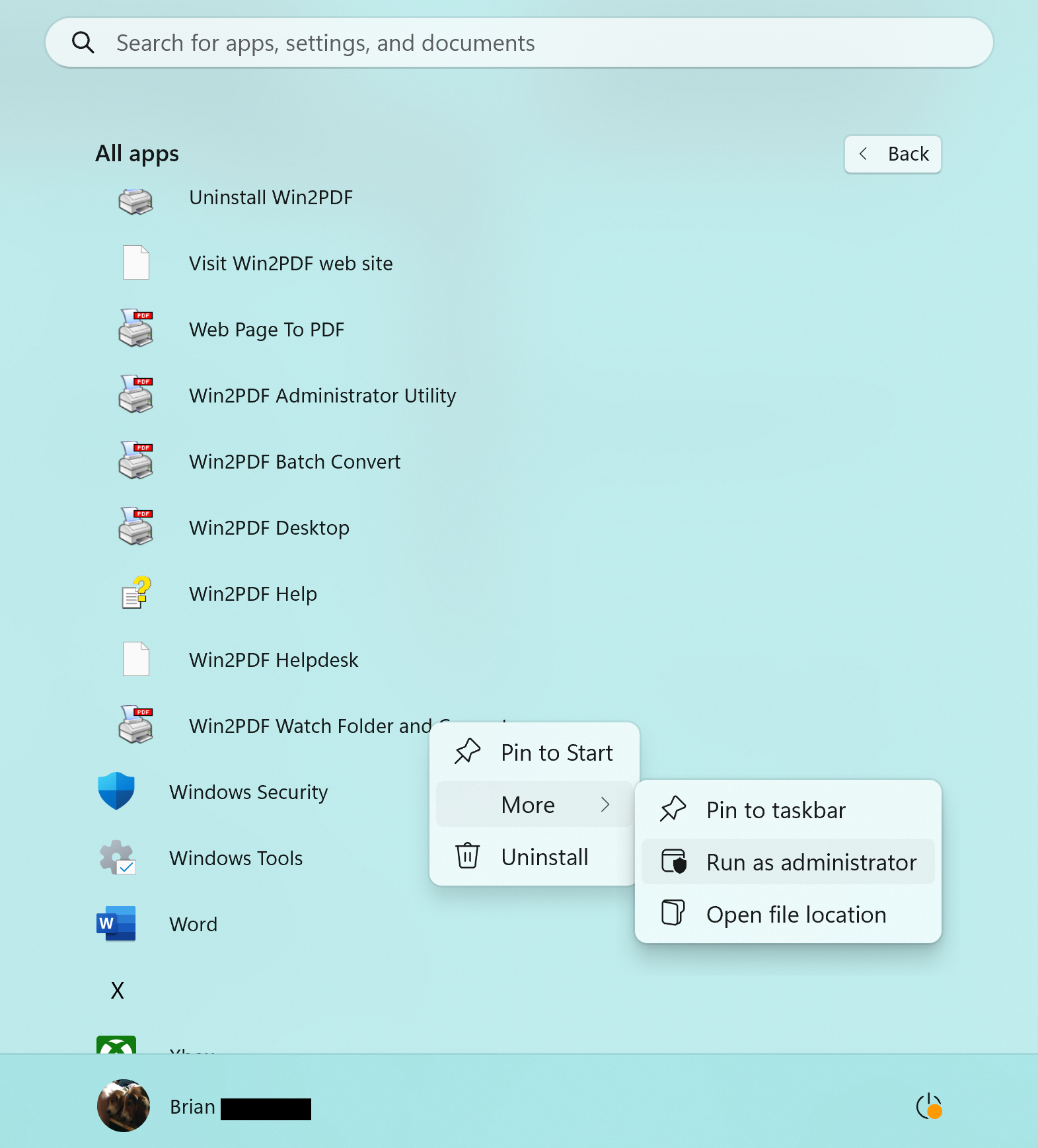
When everything is working correctly when running interactively and you’re ready to run the feature as a service, you should close the interactive Watch Folder window. Next, right click on the “Watch Folder and Convert” shortcut from the Windows Start menu, and choose “Run As Administrator…“.

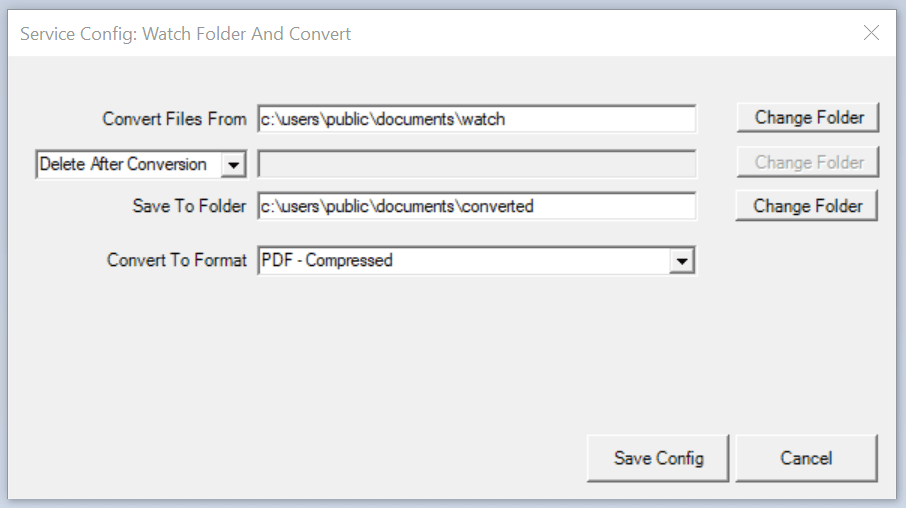
The title of the window will display “Service Config: Watch Folder and Convert“, and this is where you can select your watch folder and conversion format. The last used settings are restored in this Window.

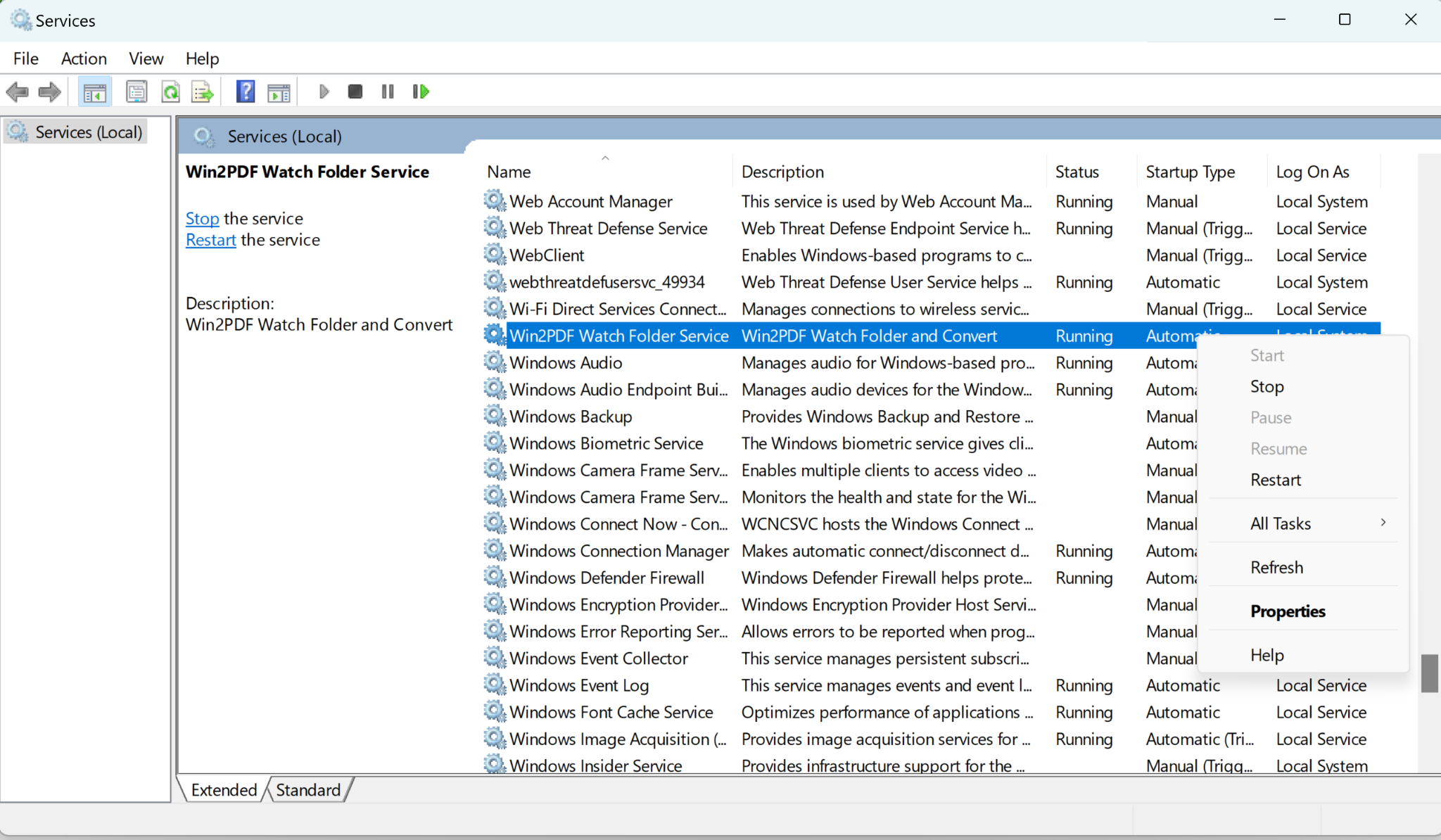
When you click on the Save Config button, Win2PDF installs and starts a Windows service using the settings in this window. The service will automatically start with Windows, and does not require that anyone is logged in to the server. You can verify the service is running by viewing the Services window from the Windows control panel.

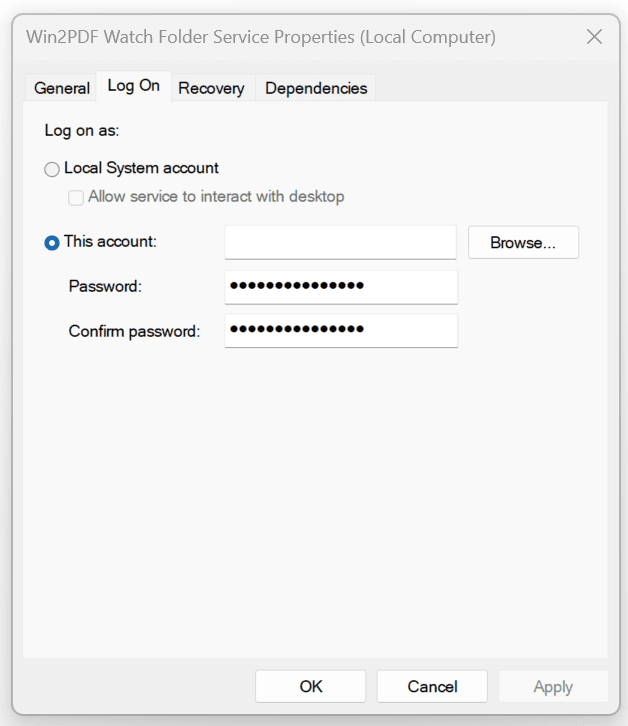
The service runs under the local system account by default. If the “Convert files from” or “Save To Folders” are not accessible from the local system account, you can configure the service to run under a different user using the “Log on” tab of the “Services” applet in the Control Panel Administrative Tools.

If you want to try this feature please request a 30-day evaluation license. Make sure to include that you need this specific feature in your request so we can send you the Win2PDF Pro TSE evaluation version.

Win2PDF Update Adds New Features for Batch Converting, Watch Folders, and Command Line Printing

The newest release of Win2PDF 10.0.154 is now available on the Win2PDF Download site.

New features in this update include the following.

For Win2PDF Pro only:

For Win2PDF Pro Terminal Server Edition (TSE) only:

For all versions of the Win2PDF command line:

  • Added a tray selection option to the command line PRINTPDF command.

For all versions of Win2PDF:

________

This Win2PDF 10 update is a free upgrade for Win2PDF 7 and Win2PDF 10 users. If you would like to evaluate one of the new Win2PDF Pro features (PDF watermark, PDF security, batch-convert, auto-rename, or watch folder), contact us for a free 30 day trial of Win2PDF Pro.

We’ll be providing a more detailed look at these new features in the subsequent blog posts.

Win2PDF 10.0.144 is now available

The latest release of Win2PDF (10.0.144) is now available on the Win2PDF Download site.

The biggest additions to this release are specific to the Win2PDF Pro version of the software, which now supports the ability to batch convert standard word processing documents (Microsoft Word, Open Document Text, and Rich Text Format) to PDF.

Here’s a summary of changes in this new version:

This Win2PDF 10 update is a free upgrade for all Win2PDF 7 and Win2PDF 10 users. If you have an existing Win2PDF standard edition license and wish to use any of the new Win2PDF Pro features, you can purchase a Win2PDF Pro Upgrade.

We’ll be posting more specific information on some of these features next week, with more details on changes to the interface and how these new features can be used. In the meantime, if you would like to evaluate one of the new Win2PDF Pro features (PDF watermark, PDF security, batch-convert, auto-rename, or watch folder), contact us for a free 30 day trial of Win2PDF Pro.

New Watermark Enhancements in Win2PDF Pro

Our latest release of Win2PDF Pro (10.0.60) has a couple of new enhancements to the watermark/background feature.

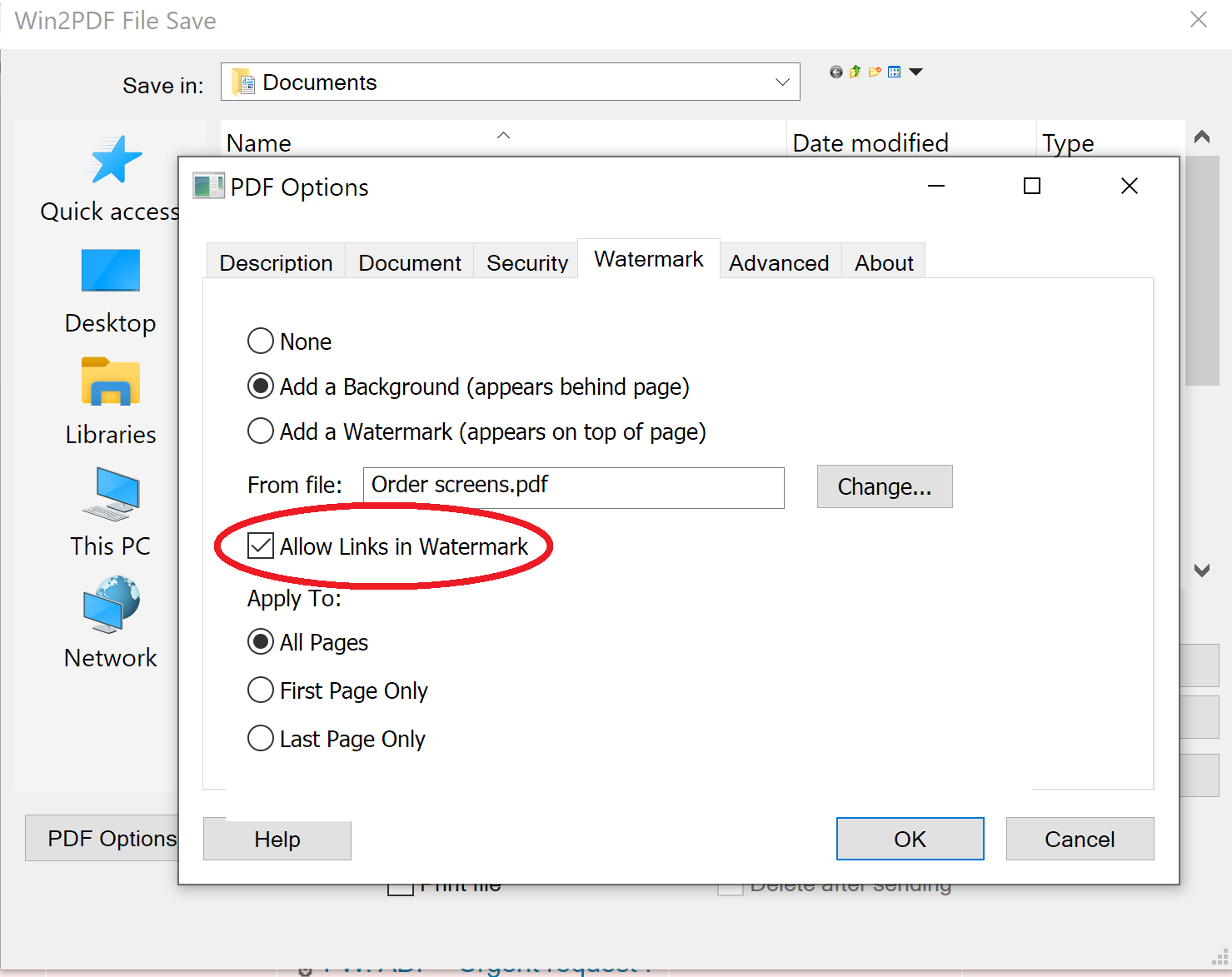
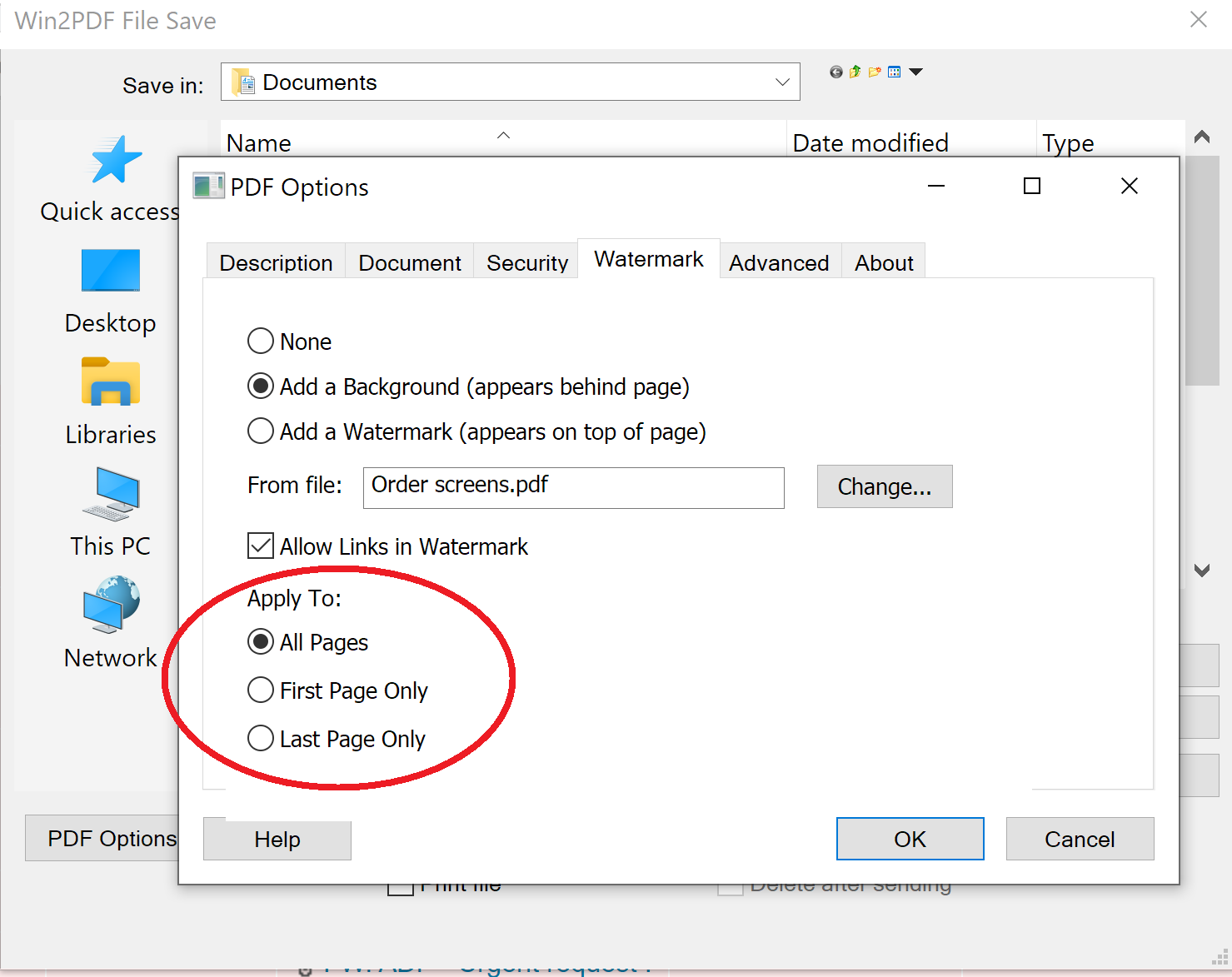
The first enhancement is that you can now apply a PDF watermark or background that contains a clickable link to an external web page. When you select the watermark in the PDF Options… you can check “Allow Links in Watermark” as shown below.

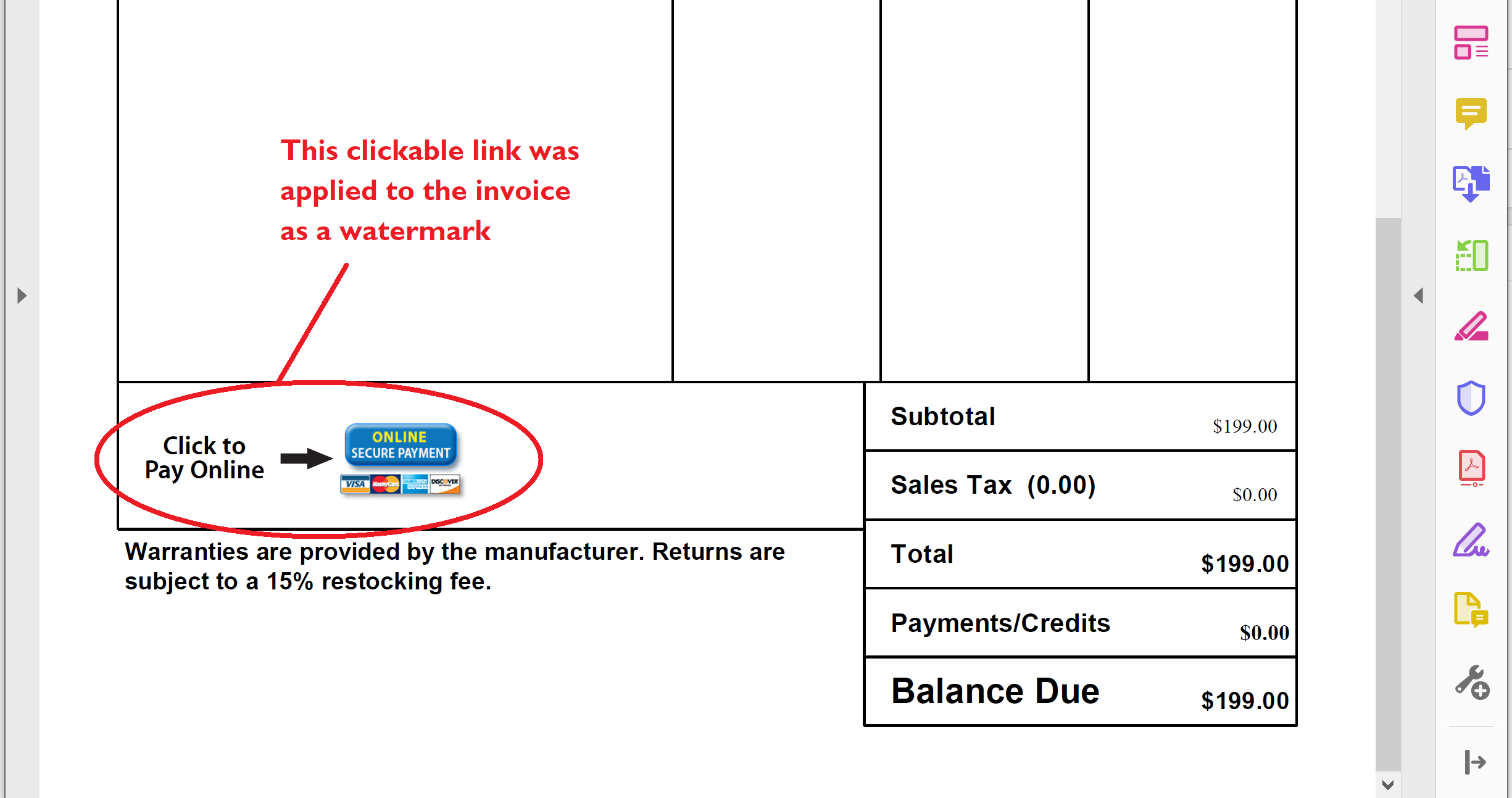
This can be quite useful for things like company letterheads, where you may wish to have a clickable link to the company home page. Or, you may wish to have a direct link in a PDF invoice that takes the customer directly to a payment page on your web site. Here is an example of what a PDF invoice would look like after a payment watermark has been applied.

We’ve heard from several customers who have needed this feature to automate their payments and invoicing process with Win2PDF.

Additionally, there are two new options on the PDF Options… Watermark tab that allow you to apply a watermark to ONLY the first page, ONLY the last page, or to all pages. Previously it applied to all pages only. Here is a screen shot of the new options.

These new features are now available in the 10.0.60 release of Win2PDF Pro*. If you have a licensed version of Win2PDF Pro, you can download the latest Win2PDF Pro Service Pack at the Win2PDF download page.

* The standard edition of Win2PDF does not have the watermark feature enabled. This is only available in Win2PDF Pro. Standard Edition users can purchase a Win2PDF Pro Upgrade if this feature is needed.