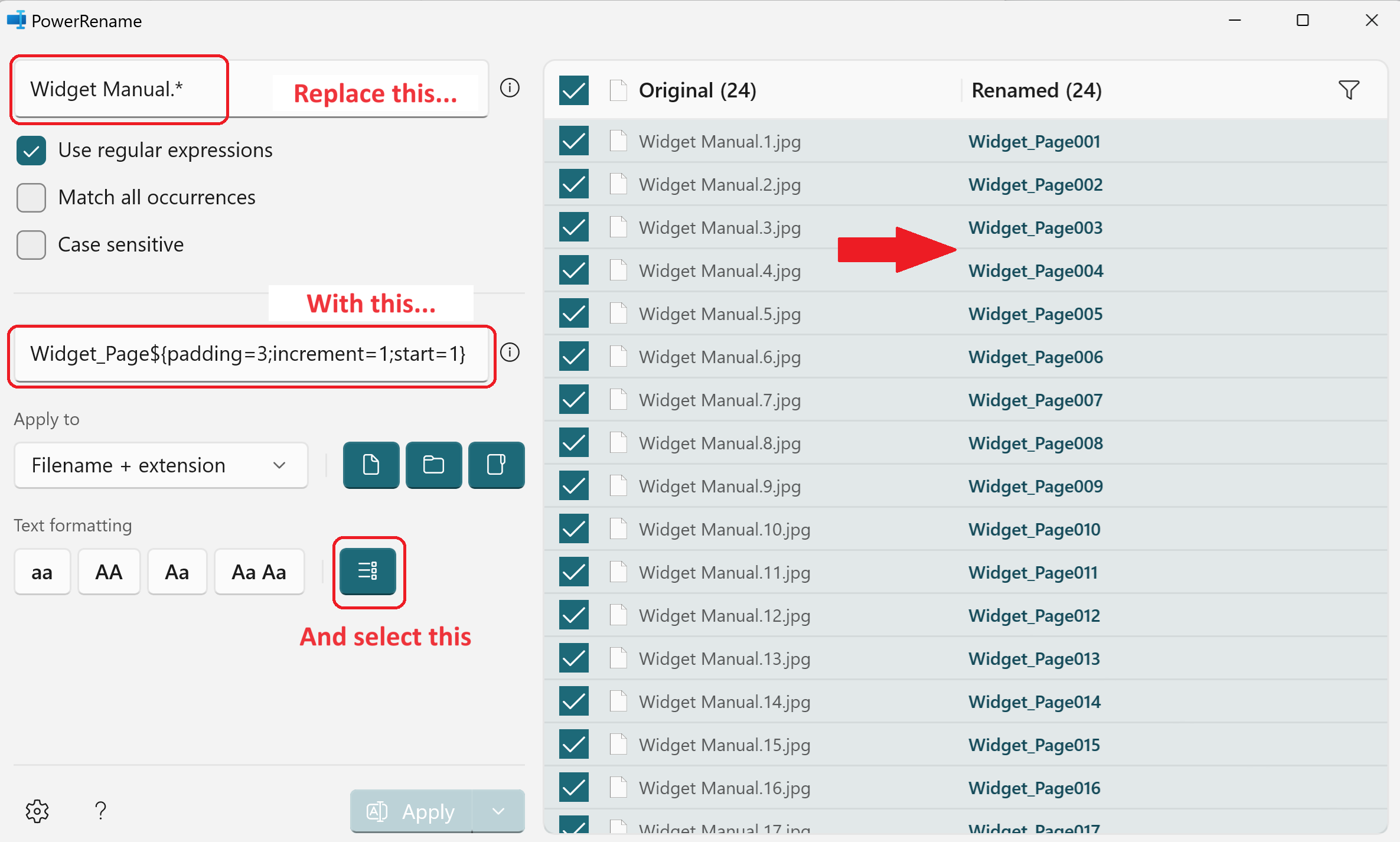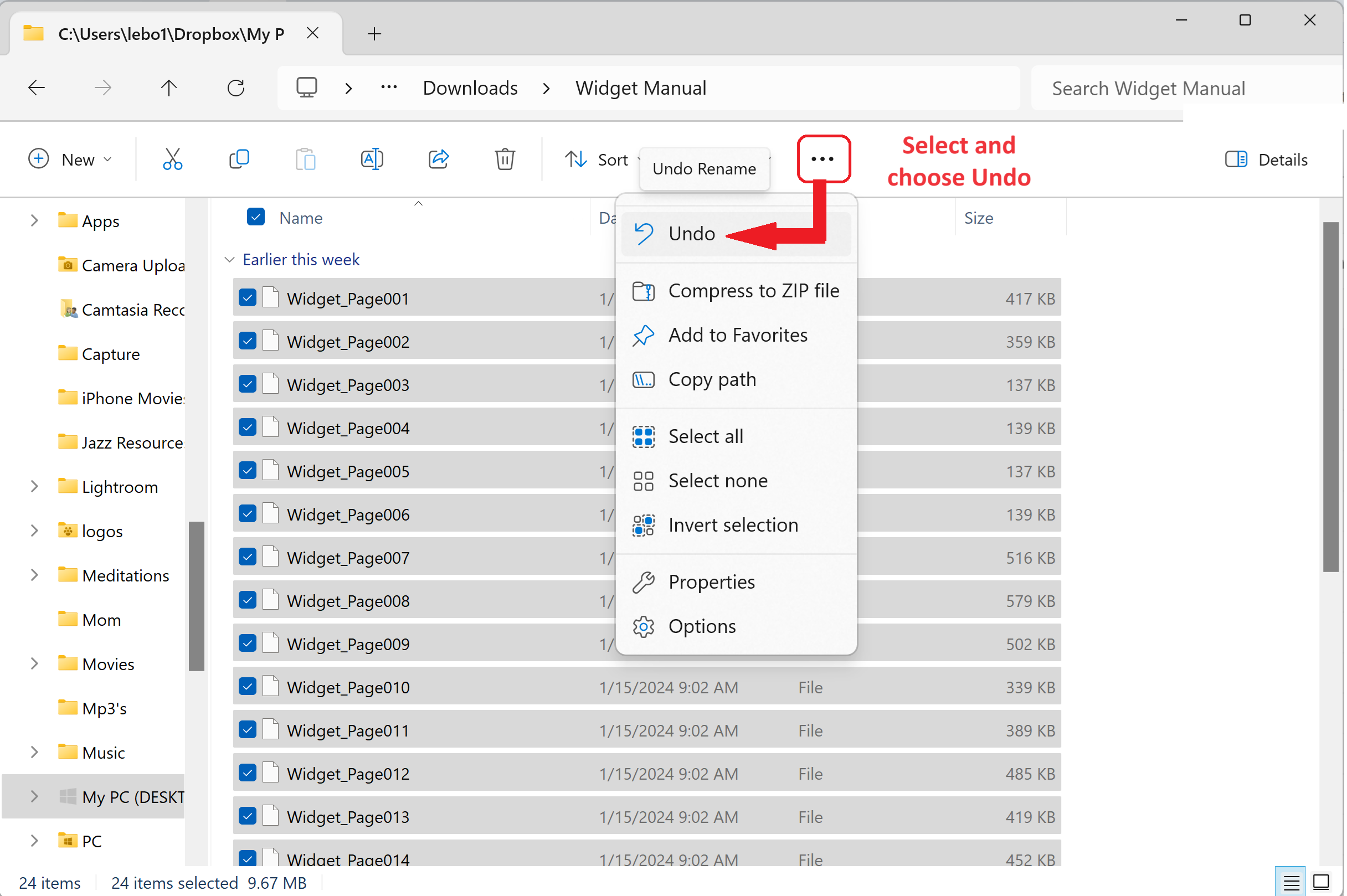
Win2PDF on A Mac? Win2PDF Pro Now Works On Windows for Arm devices, Including Macs

For years (decades, actually), Win2PDF has been providing customers with software to create, convert, and modify PDF files on their Windows computers. Typically, these have been Intel-based PCs, servers, and even older Macs/Macbooks with Intel-based processors (running Windows virtualization software like Parallels or VMWare).

But now we’re starting to get requests for Windows on Arm-based devices, which are increasingly popular for light-weight notebooks, tablets and especially with the newer Apple Mac M1 and M2 computers.

Starting today, with our Win2PDF Pro 10.0.159 prerelease, we’re providing limited support for Windows on Arm in our Win2PDF Pro software.

What is Arm? If my computer is running Windows, why does it matter?

For most users, it doesn’t. It does matter, however, to software developers like us. Additional coding is required to make software compatible with Windows for Arm, and we’ve just started that process with this prerelease. Very simply put, historically Intel processors have been more powerful and versatile (requiring comparatively higher resources and power). Arm processors, on the other hand, are newer, more efficient, require less power, and are increasingly matching or exceeding performance compared to Intel chips.

That’s why Arm processors are popular right now. Their low power consumption makes them ideal for lightweight mobile products like Apple MacBooks and Microsoft Surface.

Will Win2PDF Pro fully support Windows on Arm?

The Win2PDF Pro software contains three primary components – a PDF printer (named “Win2PDF”), an Image printer (named “Win2Image”), and a Win2PDF Desktop App. The Win2PDF printer creates PDFs by printing from any application, the Win2Image printer creates image files by printing from any application, and the Win2PDF Desktop supports multiple format conversions to and from PDF, batch convert, advanced rename features, and email options.

Currently, the Win2PDF Pro for Windows on Arm prerelease only supports the Win2PDF Desktop App and command line functionality. The reasons for the limited support are lengthy and technical, but in a nutshell, the first two components – Win2PDF and Win2Image – are printers, and these printers are more difficult to adapt to work on different hardware. We’ll continue to evaluate and work on expanded support for Windows on Arm in the future, but for now, it’ll just work with the Win2PDF Desktop App and command line.

Ready to get started?

Head over to the Win2PDF website to download Win2PDF Pro for Windows on Arm now.

If you do not already have a Win2PDF Pro license, request a 30-day trial license and put “Win2PDF Pro for ARM” in the Subject field.

Streamline Your Batch PDF Conversions with Nested Folder Support in Latest Win2PDF Update

The latest Win2PDF 10 Build 158 update brings forth a series of new features that have been requested by our customers. Let’s take a closer look at the notable additions and improvements:

1. Subfolder Support in Batch Convert (Win2PDF Pro only)

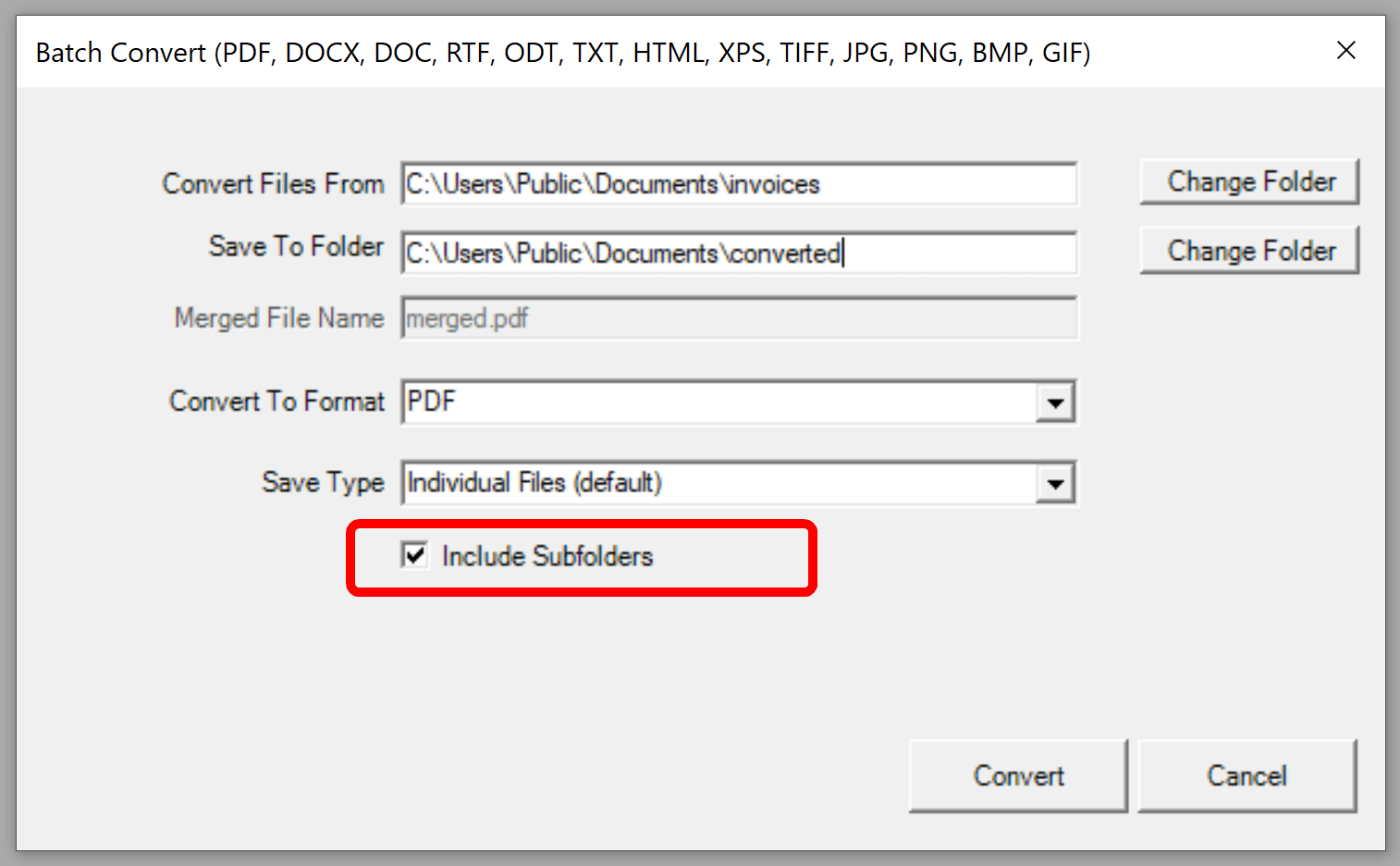
One of the most frequently requested additions in this update is the inclusion of subfolder support in the Batch Convert feature (and Batch Convert command line option). Previously, you could only batch convert files in a single folder. With this enhancement, however, you can convert documents within multiple nested subfolders.

For example, suppose you wanted to convert many scanned image files to .PDF files in a folder called “Invoices”. And under the “Invoices” folder you had subfolders for years (e.g. “2021”, “2022”, “2023”, etc.). And under each year subfolder you had additional subfolders for months (e.g. “Jan”, “Feb”, “Mar”, etc.). Now you can convert all files with a single operation just by selecting the topmost parent folder and then checking the ‘Include Subfolders’ option.

When you enable the “Include Subfolders” option, the folder structure in the “Convert Files From” is mirrored in the “Save To Folder” location.

2. Optional Margin Parameters in HTML2PDF Command Line

With the integration of optional margin parameters in the HTML2PDF command line, users gain greater control over the layout and presentation of converted HTML files into PDF format. This feature allows for customized margin settings (for top, bottom, left and right margins), ensuring documents maintain their intended formatting in the converted PDF files.

3. New SIGNWITHSTAMP Command Line option for PDF Signing (Win2PDF Pro only)

This update also adds the SIGNWITHSTAMP command line feature, which enables users to sign PDF documents with a certificate AND include a signature bitmap. Users can specify the size and location of the signature bitmap using new command line parameters.

4. Optional Width and Height Parameters in Image-to-PDF Command Lines

The update brings optional width and height parameters to various command lines (“TIFF2PDF“, “JPG2PDF“, “PNG2PDF“, “BMP2PDF“, “GIF2PDF“, “IMAGE2PDF“). This enhancement allows for precise customization of the output PDF dimensions, offering flexibility in document size and layout.

5. Improved DOCX to PDF Conversion (Win2PDF Pro only)

Win2PDF 10 Build 158 significantly enhances the DOCX to PDF conversion process in both the DOCX2PDF command line and Batch Convert DOCX to PDF feature. These improvements ensure better accuracy and fidelity when converting Microsoft Word documents to PDF format.

Upgrade and Trial Information

Existing Win2PDF 7 and Win2PDF 10 users can enjoy this update as a free upgrade.

This latest update contains features that were all created based on customer requests and feedback. Do you have a feature you’d like to have added or modified? If so, let us know and we’ll look into it.

ChatGPT’s Latest Update: Analyzing PDFs for Powerful Insights

OpenAI’s ChatGPT has received a substantial update, allowing users to upload PDF documents and have the AI-powered chatbot analyze them. This newfound feature promises to be a game-changer in various scenarios where quick and efficient data extraction is required.

The power of this feature becomes evident when considering its real-world applications. Users can now feed ChatGPT specific PDF documents, enabling it to generate summaries, extract data points, and even create graphs and charts based on the provided information. What are the key points of this report? Can you summarize its conclusions? Can you help me write a slide show presentation for this document? Just think of the many ways that any type of PDF file can be analyzed.

“…you can now feed ChatGPT specific PDF documents and have it extract summaries, various data points, or even write graphs and charts based on that data.”

ChatGPT’s new ability to analyze PDFs is a remarkable advancement, expanding its utility beyond natural language understanding and generation. This update underscores the ever-evolving capabilities of AI-powered tools and their potential to transform the way we work with information.

We’ll continue to monitor the developments in the AI space to see how and where Win2PDF can be used to facilitate the PDF integrations. If you have any questions or specific use cases in this area, please let us know. We’re always interested in how our users may be incorporating or interfacing with this type of application.

Celebrating 15 Years of Excellence: Dane Prairie Systems, LLC and the BBB

In today’s rapidly evolving business landscape, it’s a remarkable feat for a company to not only survive but thrive for over two decades. Dane Prairie Systems, LLC has achieved this impressive milestone, marking 23 years of unwavering commitment to its customers and innovative solutions. Additionally, the company has proudly been a member of the Better Business Bureau (BBB) for 15 years, earning an A+ rating. This achievement speaks volumes about Dane Prairie Systems’ dedication to ethical business practices and outstanding customer service. This rating not only highlights Dane Prairie Systems’ integrity but also gives customers the confidence that they are dealing with a company that values their trust.

From all of us at Dane Prairie Systems, LLC, we thank our customers for their continued support! We appreciate your business and we look forward to serving you for many years to come. You can always reach out to us for customer support, feedback, or requests through the Win2PDF online support portal.

Enhanced Printing Options: Win2PDF’s Latest Command Line Features

And in our final feature post about the 10.0.154 Win2PDF Update, we’ll look at the remaining new features.

New Command Line Support To Print Document and Image Files to a Windows Printer

Another frequently requested feature is the ability to print files directly from the command line, typically to a paper printer. There is a generalized PRINT command, along with commands used for printing specifically formatted image and document files. These are:

  • PRINT General Print command line option
  • PRINTDOCX ** Print Microsoft Word .docx files
  • PRINTRTF ** Print RichText Format .rtf files
  • PRINTODT ** Print OpenDocument Format .odt files
  • PRINTTXT ** Print Text .txt files
  • PRINTHTML Print HTML files
  • PRINTSVG Print Scalable Vector Graphic .svg files
  • PRINTXPS Print XML Paper Specification .xps files
  • PRINTTIFF Print TIFF .tif image files
  • PRINTJPG Print JPG .jpg image files
  • PRINTPNG Print PNG .png image files
  • PRINTBMP Print Bitmap .bmp image files
  • PRINTGIF Print GIF .gif image files

** feature requires Win2PDF Pro version of the software

And a couple of other new command line features were added as well:

  • PRINTPDFACTUALSIZE – used to print a PDF with no scaling
  • PRINTPDF – Added the ability to make a tray selection option from this command

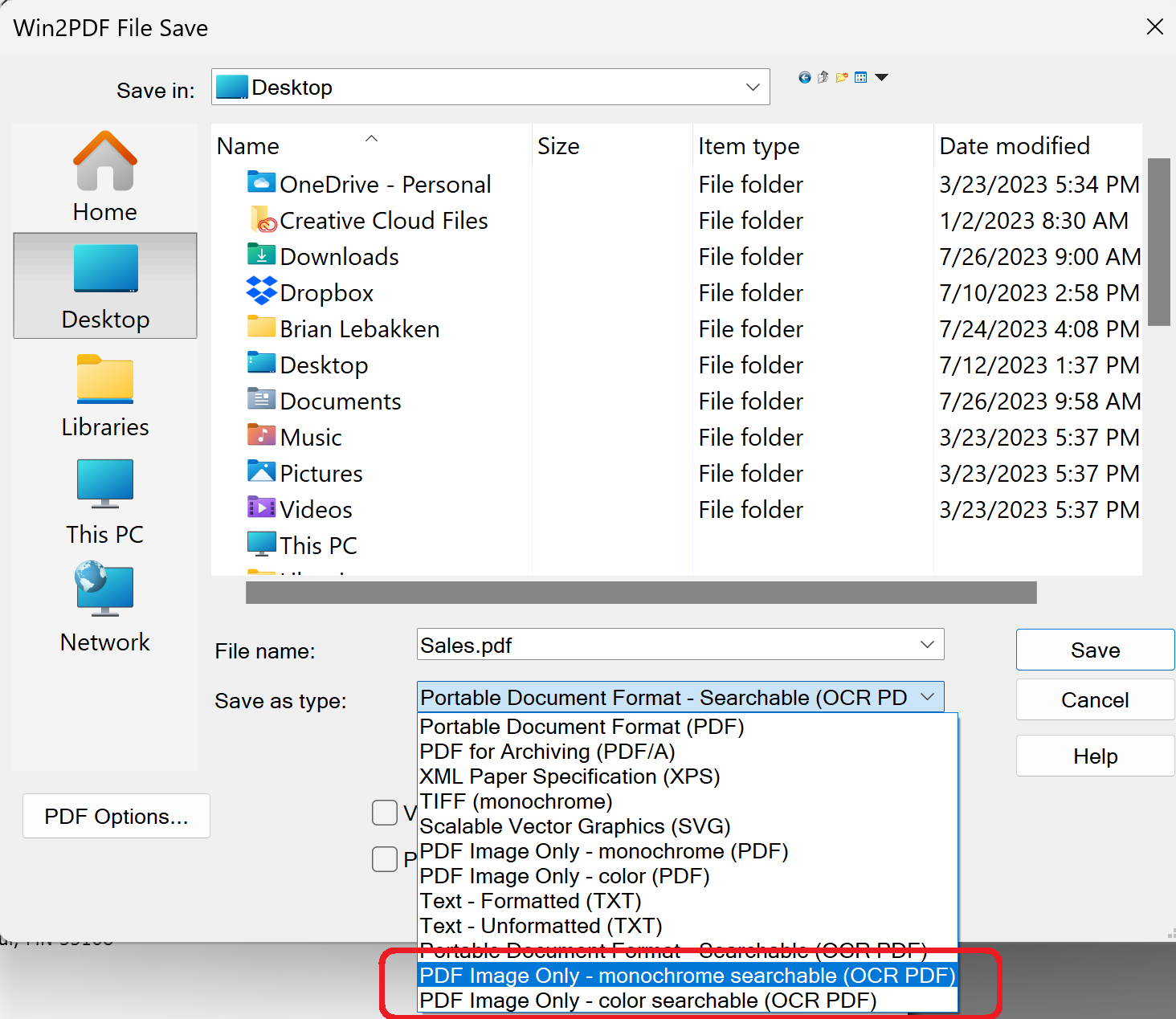
And finally, two new save as types and “Configure Auto-name” file types were added — PDF Image Only – monochrome searchable (OCR PDF) and PDF Image Only – color searchable (OCR PDF).

These formats can be useful when using Auto-name search fields. Some applications, like Crystal Reports, use encoded text to prevent searching. In this case, Win2PDF’s search fields and content fields can’t be found. These two new file types help work around this issue and are worth trying if the standard Portable Document Format – Searchable (OCR PDF) file type doesn’t work.

New Win2PDF Pro TSE Feature: Run Watch Folder As A Service

Continuing our feature posts about the 10.0.154 Win2PDF Update, let’s now take a look at running the Watch Folder as a Windows Service.

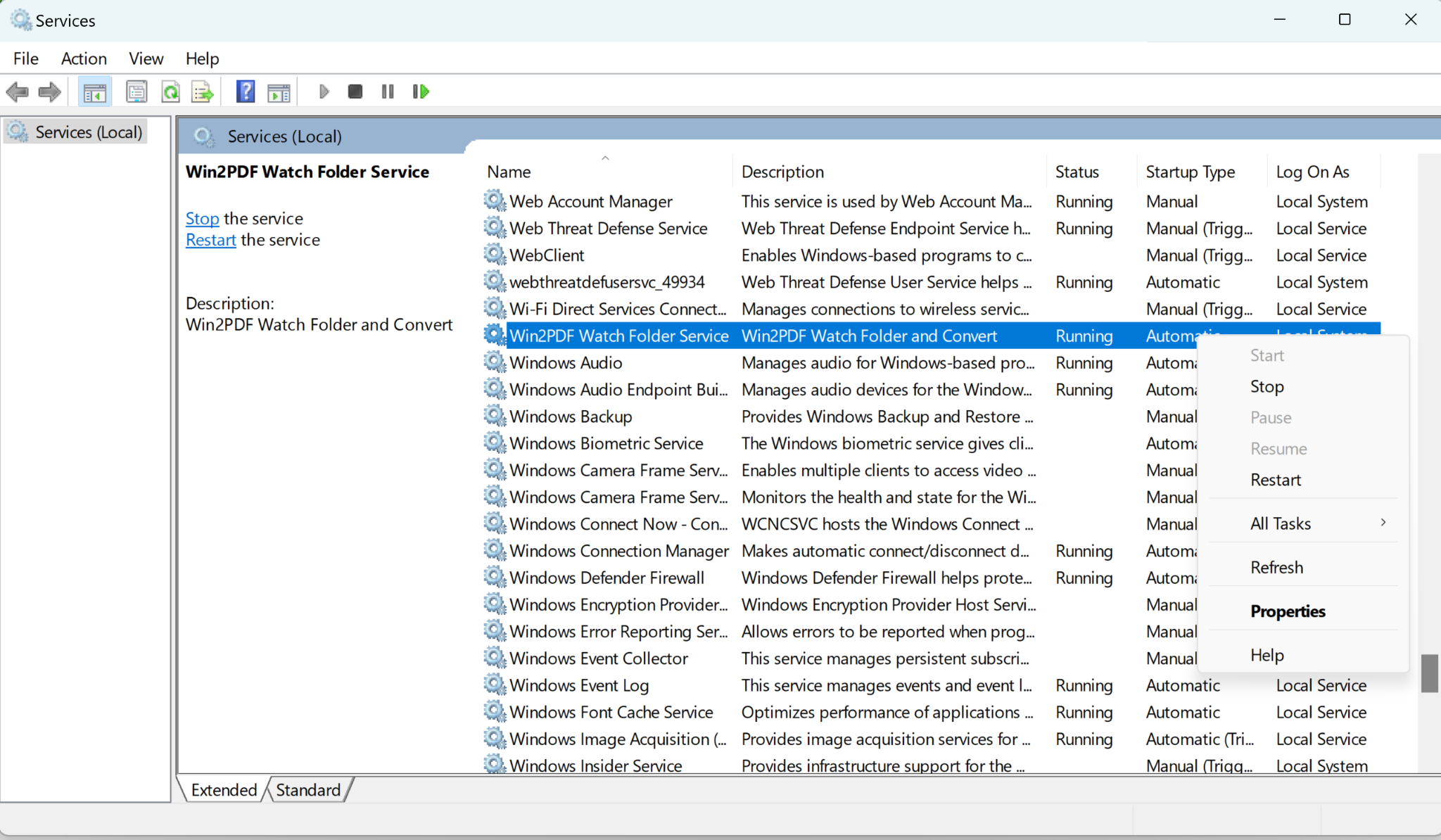
Previously, the watch folder needed to be initiated by a user, and an open window needed to be running on the machine for the Watch Folder to work. Now, it can be set up as a Windows Service in the background. This feature is ONLY available in the Win2PDF Pro Terminal Server Edition (TSE) version of the software.

[Recommended: If you haven’t used the Watch Folder and Convert feature in the past, it’s recommended that you start by running the feature interactively by starting the “Watch Folder and Convert” shortcut from the Windows Start menu. This allows you to see any errors as you configure the folder and convert type options.]

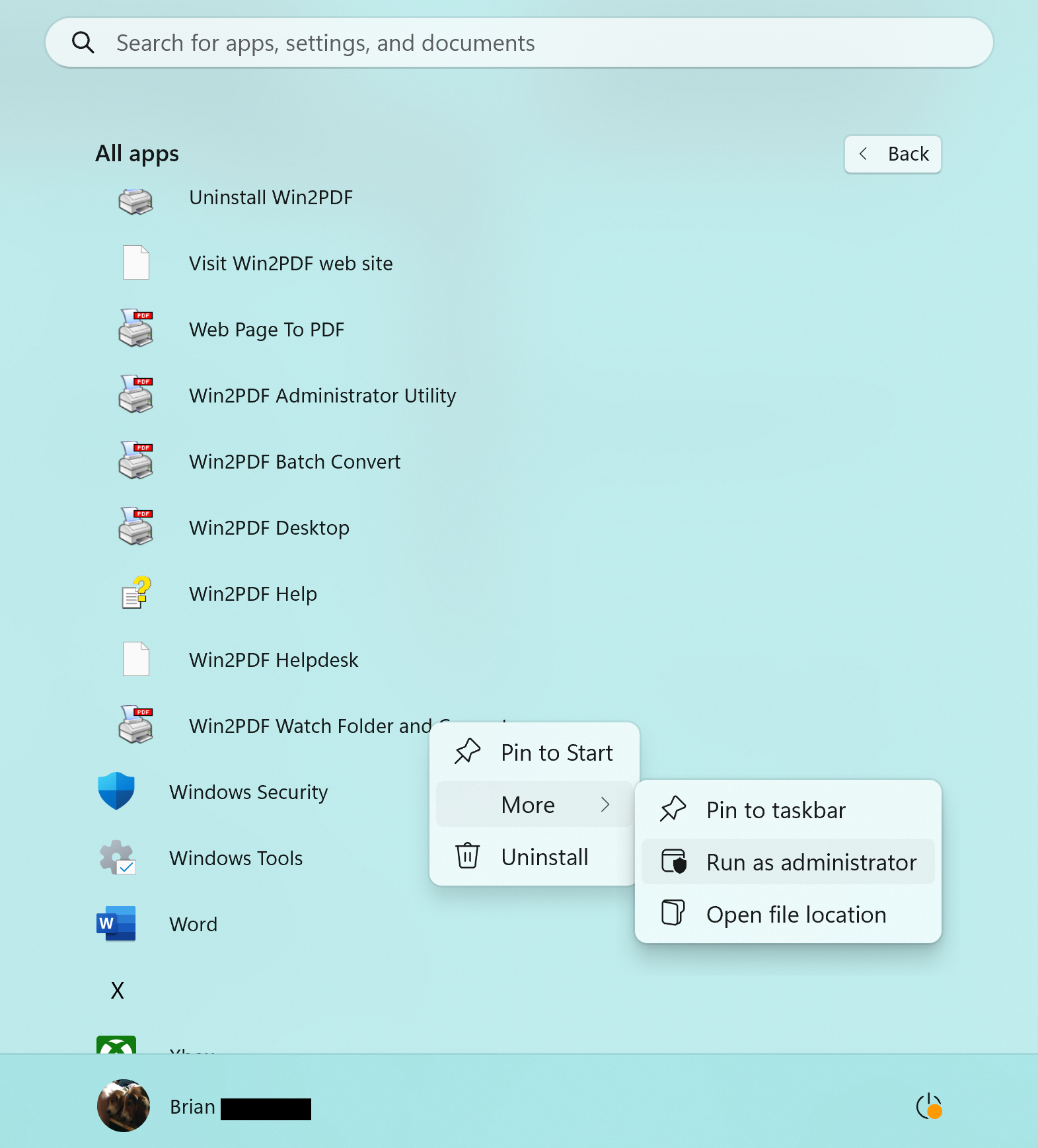
When everything is working correctly when running interactively and you’re ready to run the feature as a service, you should close the interactive Watch Folder window. Next, right click on the “Watch Folder and Convert” shortcut from the Windows Start menu, and choose “Run As Administrator…“.

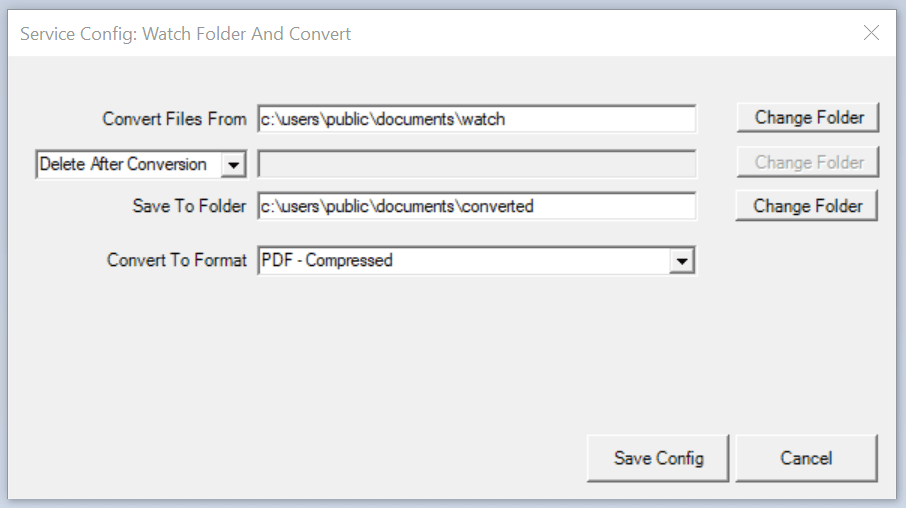
The title of the window will display “Service Config: Watch Folder and Convert“, and this is where you can select your watch folder and conversion format. The last used settings are restored in this Window.

When you click on the Save Config button, Win2PDF installs and starts a Windows service using the settings in this window. The service will automatically start with Windows, and does not require that anyone is logged in to the server. You can verify the service is running by viewing the Services window from the Windows control panel.

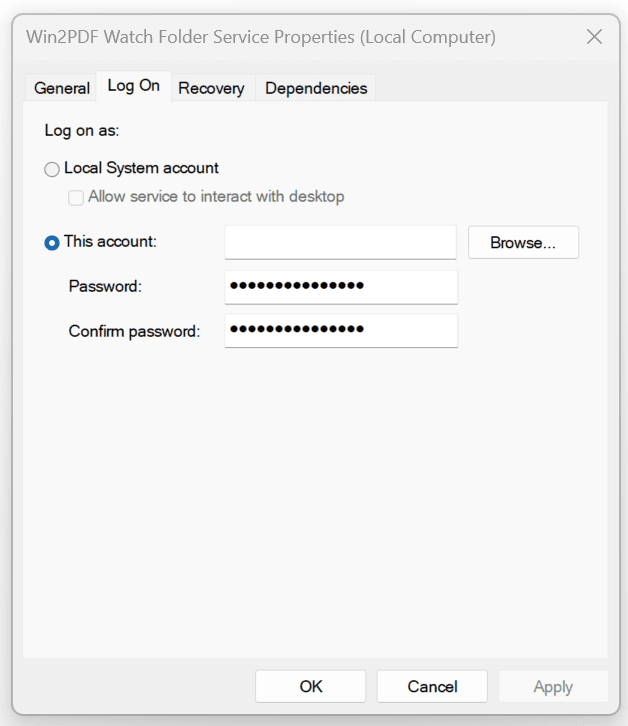
The service runs under the local system account by default. If the “Convert files from” or “Save To Folders” are not accessible from the local system account, you can configure the service to run under a different user using the “Log on” tab of the “Services” applet in the Control Panel Administrative Tools.

If you want to try this feature please request a 30-day evaluation license. Make sure to include that you need this specific feature in your request so we can send you the Win2PDF Pro TSE evaluation version.

New Win2PDF Pro Features: Batch Convert To A Single PDF File

In our previous blog post announcing the 10.0.154 Win2PDF Update, we mentioned a couple of new features that are specific to Win2PDF Pro. Let’s take a closer look at the first.

Batch Convert to a Single Merged PDF File

Previously, the batch convert feature in Win2PDF Desktop converted a folder of files in one format to another folder with a different format. If you had 10 .JPG files, for example, you could create 10 PDF files with batch convert.

However, suppose you had a folder of image files that were scanned pages of a book or document and you wanted to convert them all into a single PDF file, and one that had searchable text?

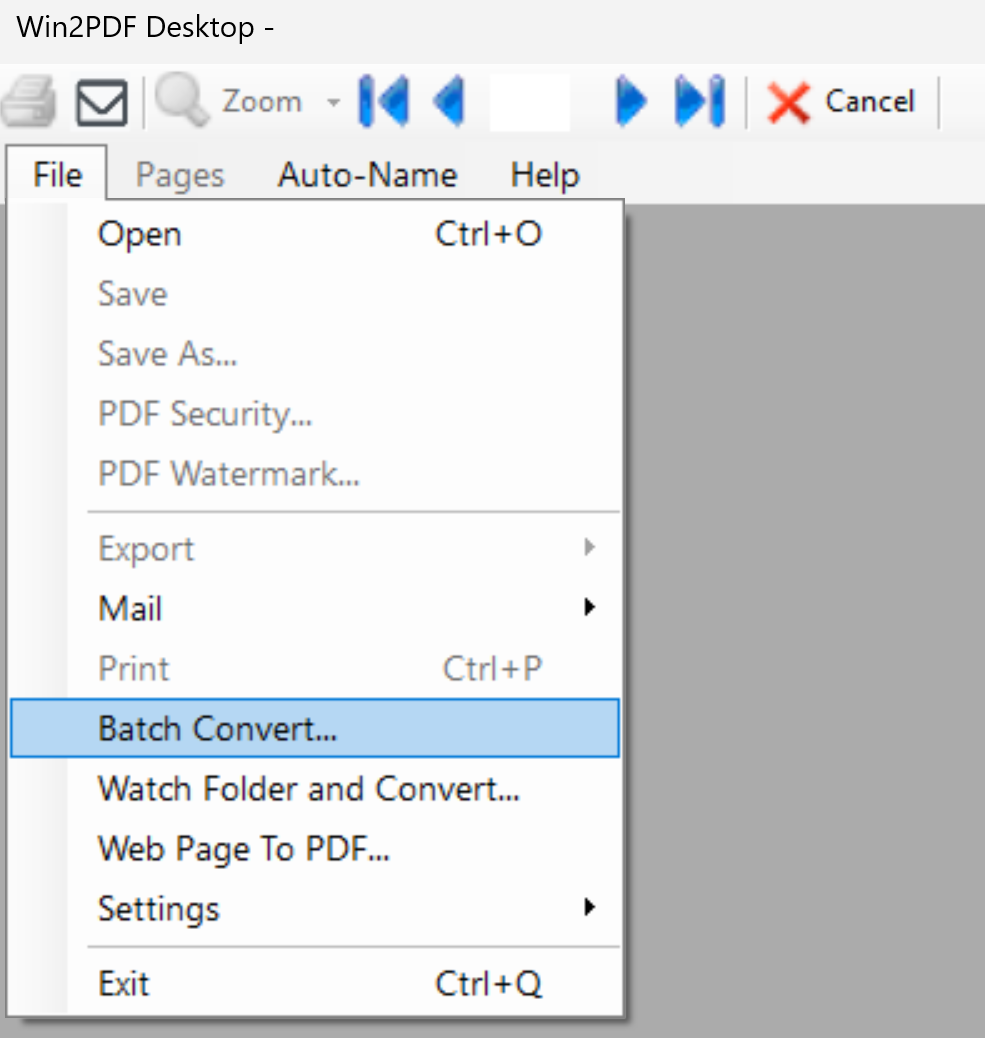
That’s where the new feature comes in. To use it, you just need to open the Win2PDF Desktop app and choose Batch Convert…

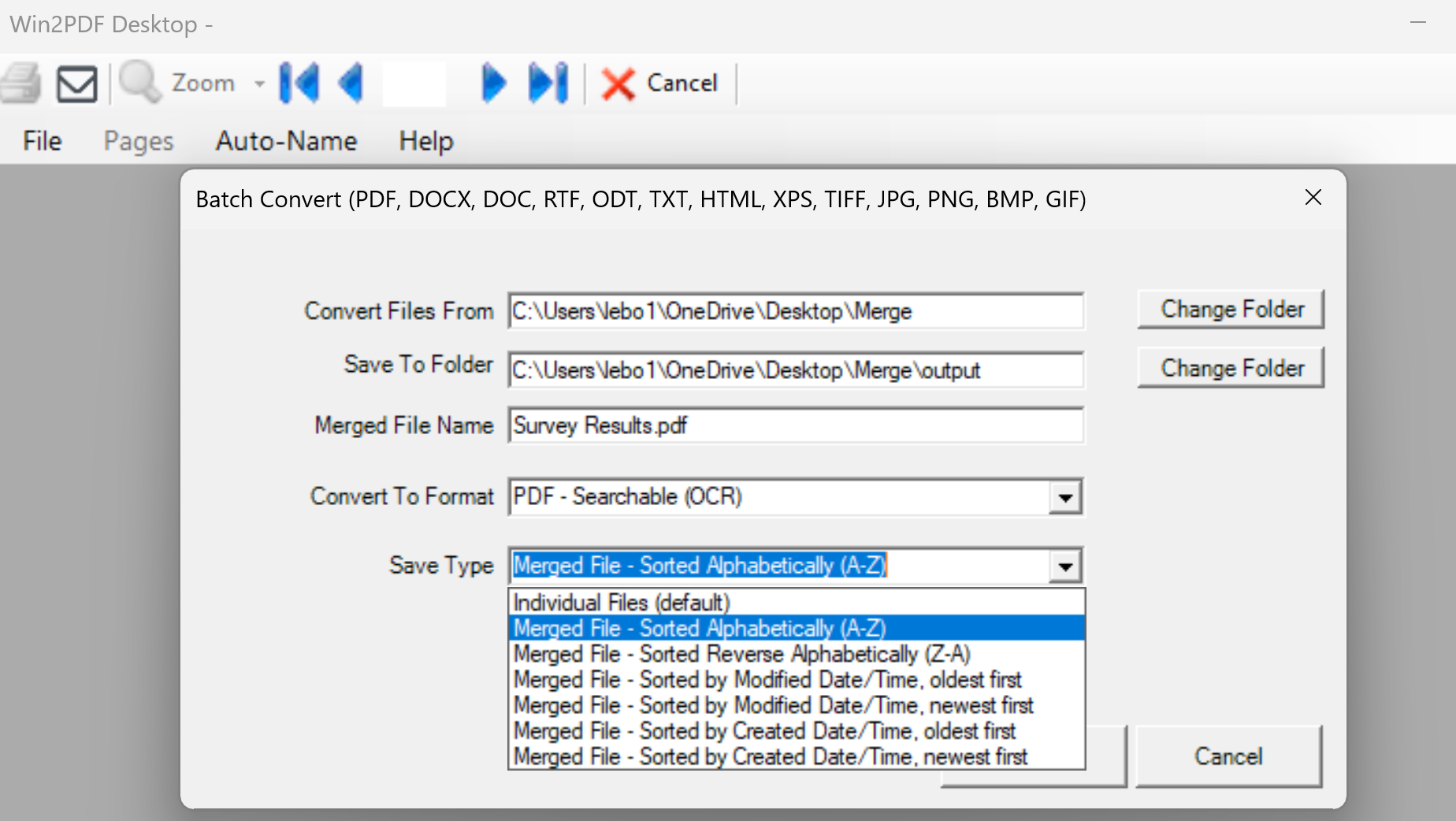
Select the folder that has your original files (Convert Files From). These can be PDF files, image files, or documents in various formats. And select the output folder (Save To Folder), and then choose the Save Type to be “Merged File…” When any of the “Merged File…” options are selected, you will be able to input a Merged File Name for the resulting file.

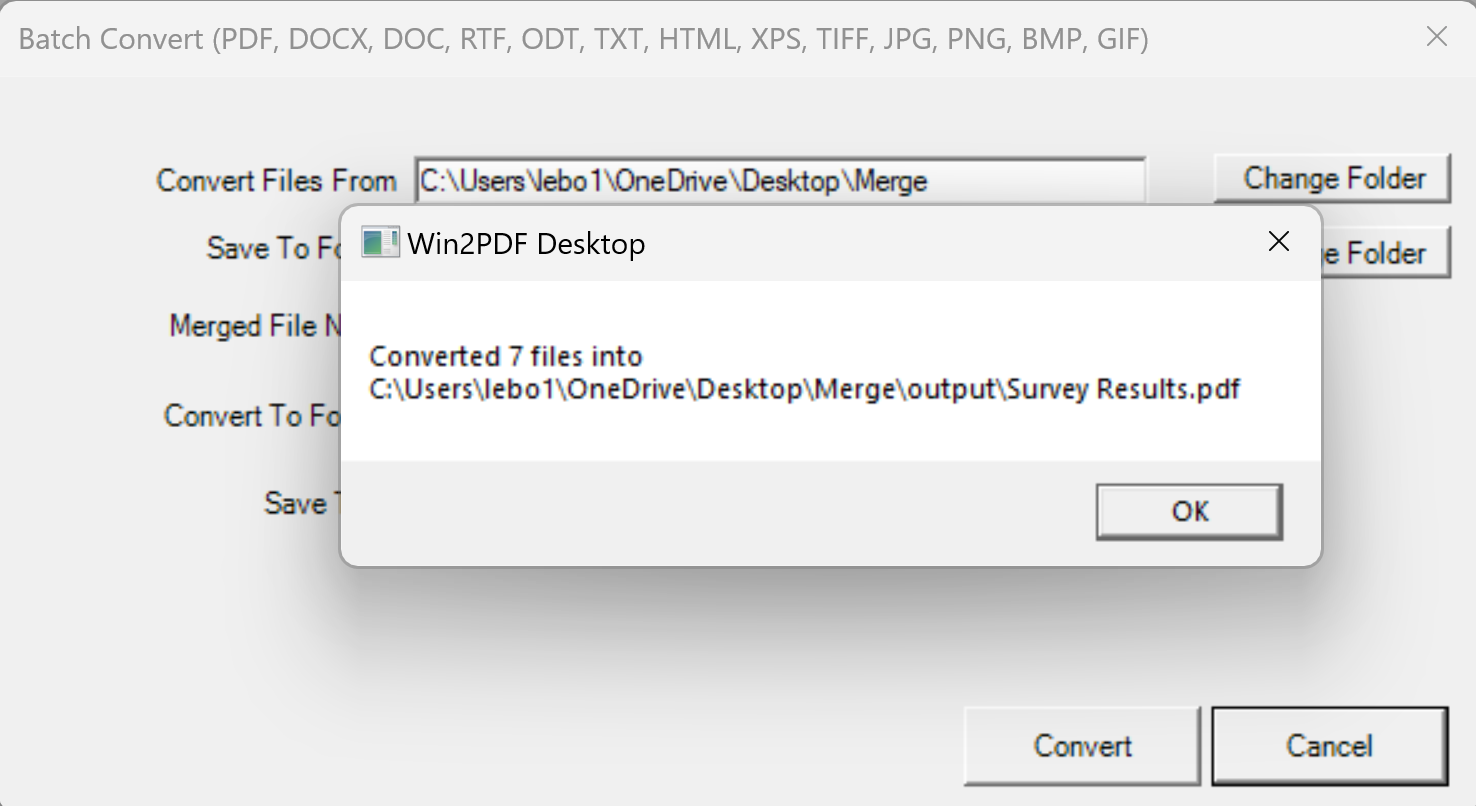
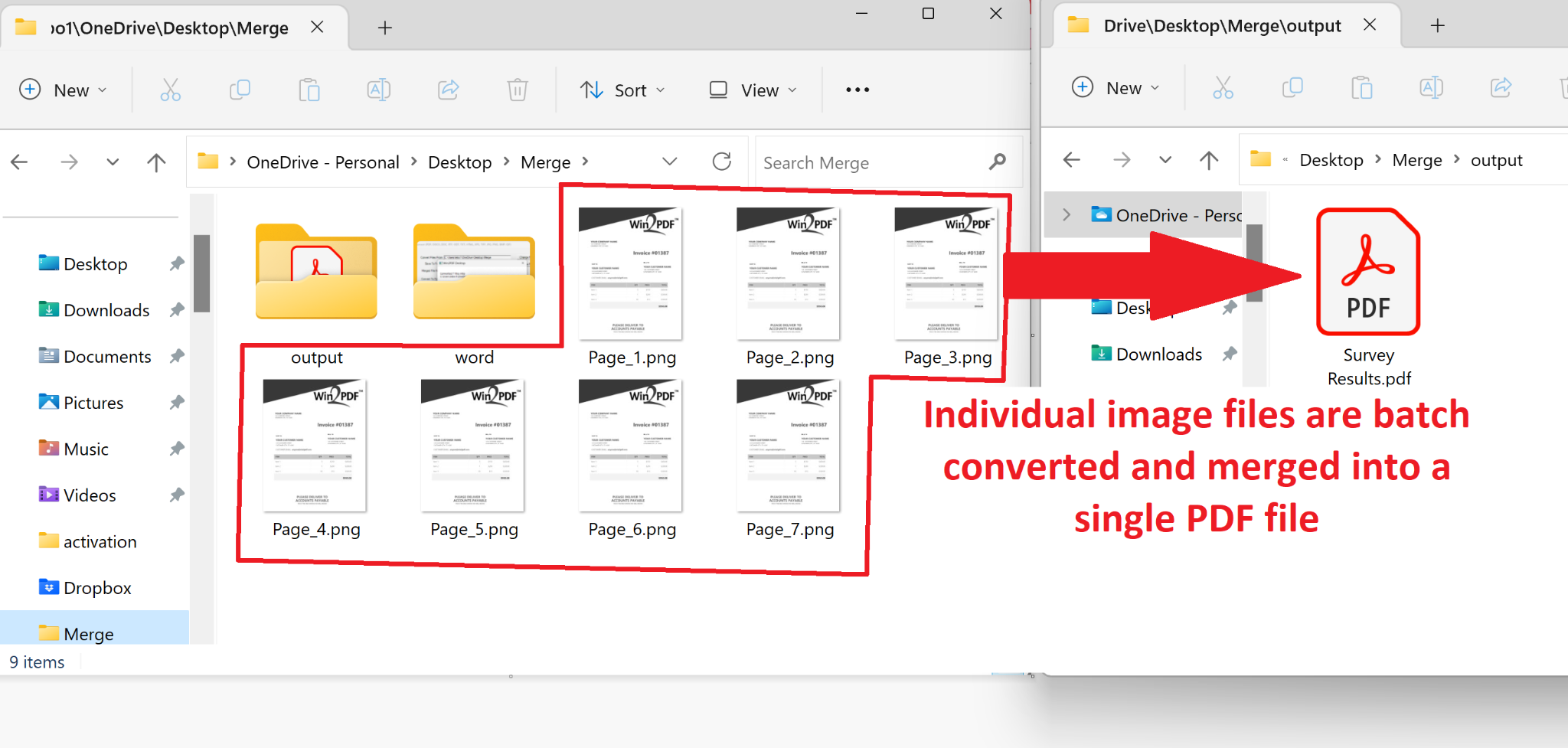
In our example, we’ll convert a folder of seven .PNG image files (each representing a scanned survey result), and store the results in as a Searchable (OCR) PDF file named ‘Survey Results.pdf’. Note: Any type of PDF output format can be used, but the OCR feature will make sure the results are searchable.

Notice that there are several Merged File options, which allows you to control the order in which the files are merged together. They can be sorted by alphabetical order (based on the original filename), or based on the time the original files were created or modified. When you press the Convert button, you’ll see the following pop-up.

And that’s really all there is to it. In this case, the seven individual image files (pages) in one folder have been saved to a single PDF file, and one that is searchable.

The Win2PDF BATCHCONVERT command line has also been updated to support merging to a single PDF.

Batch Merge PDFs To A Single PDF

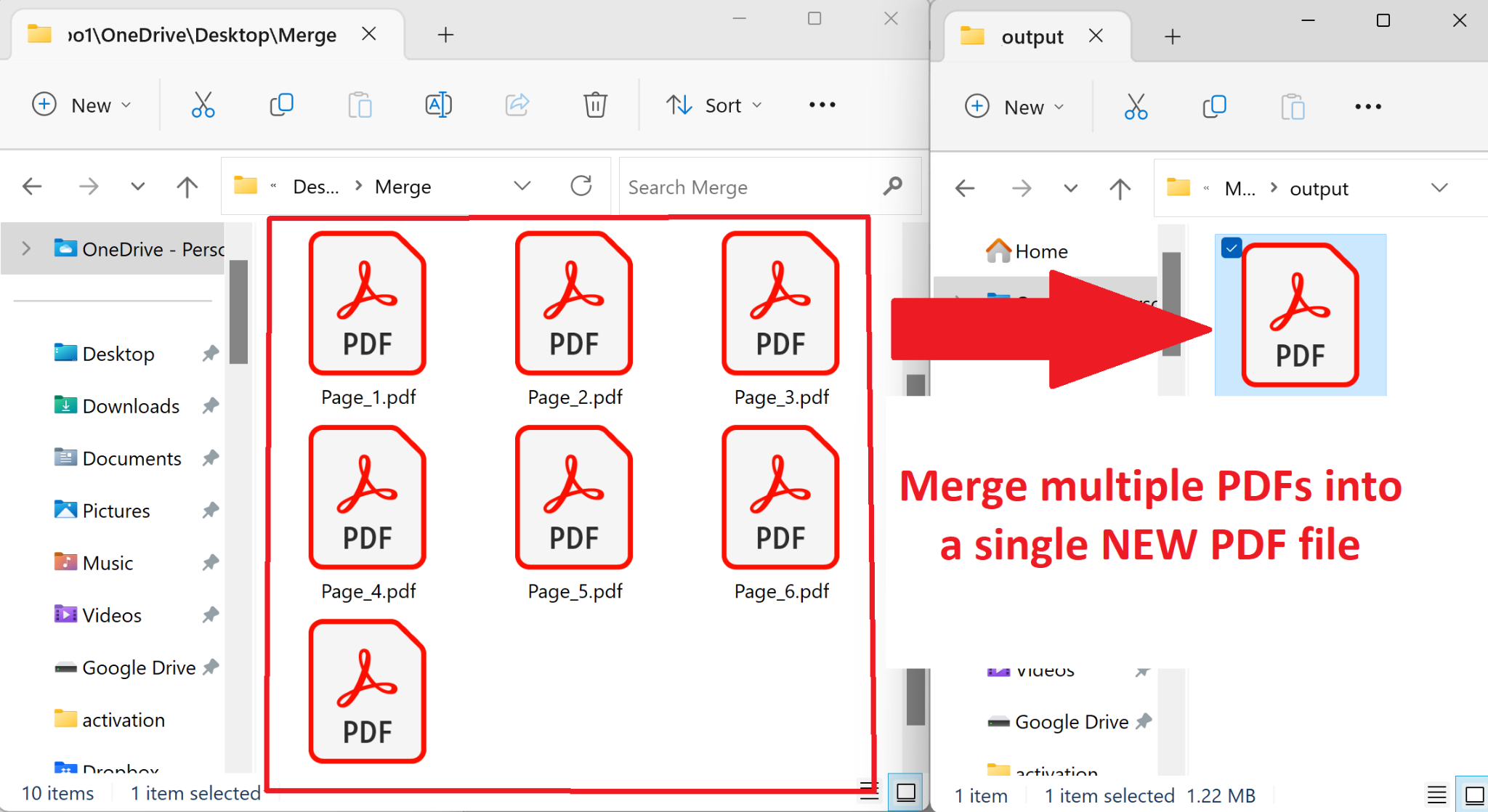
In addition to batch converting between formats, you can also batch merge folders of existing PDF files to a single merged PDF. You aren’t limited to only converting between files types, you can also merge multiple PDF files together.

It operates in the same way by opening the “Batch Convert…” window and then choosing a folder of PDF files as the input. Again, you can choose the order of merging based on the file names, or the dates of creation or modification of the files.

You can also combine multiple PDFs into a single merged PDF from the command line using the BATCHCONVERT command.

This has been a frequently requested feature. In prior releases, Win2PDF could only append one file at a time, and we’ve had many customers wanting to merge multiple PDFs together in a single operation. Now you can with one click!

If you want to try this feature please request a 30-day evaluation license for Win2PDF Pro.

Win2PDF Update Adds New Features for Batch Converting, Watch Folders, and Command Line Printing

The newest release of Win2PDF 10.0.154 is now available on the Win2PDF Download site.

New features in this update include the following.

For Win2PDF Pro only:

For Win2PDF Pro Terminal Server Edition (TSE) only:

For all versions of the Win2PDF command line:

  • Added a tray selection option to the command line PRINTPDF command.

For all versions of Win2PDF:

________

This Win2PDF 10 update is a free upgrade for Win2PDF 7 and Win2PDF 10 users. If you would like to evaluate one of the new Win2PDF Pro features (PDF watermark, PDF security, batch-convert, auto-rename, or watch folder), contact us for a free 30 day trial of Win2PDF Pro.

We’ll be providing a more detailed look at these new features in the subsequent blog posts.

Batch Convert Outlook Emails to PDF Files Using Win2PDF

We recently had the following question submitted to our Win2PDF support site:

I have a folder of Microsoft Outlook emails that I would like to convert to PDF. I want to convert just the one folder (the emails were filtered and sent to the folder by a rule when they were delivered to me). Is there a way to batch convert all emails? The batch convert tool doesn’t appear to include email messages but maybe I am missing something so I thought I should check. Thanks.

Nick

Great question. The Win2PDF Batch Convert feature doesn’t support Outlook emails directly, but it is possible to configure the Win2PDF Auto-name feature to make it easy to convert a folder of emails to PDF from Microsoft Outlook.

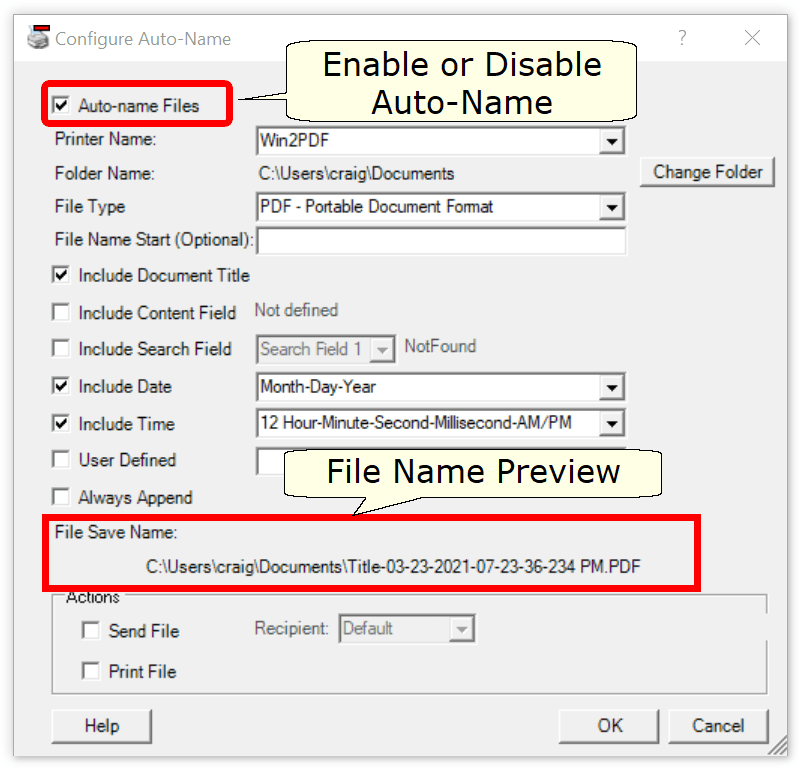
To do this, open the Configure Win2PDF Auto-name window and you’ll see the following options:

Enable the “Auto-name files” option, and set the folder name where you want the PDF file (or files) to be placed.

If you want all of the emails to be saved to a single PDF, you should set the following options:

  • (check) Include Document Title
  • (check) Include Date
  • (check) Always Append

If you want the emails saved to separate PDF files, you should set the following options:

  • (check) Include Time (to make each file name unique)
  • (uncheck) Always append

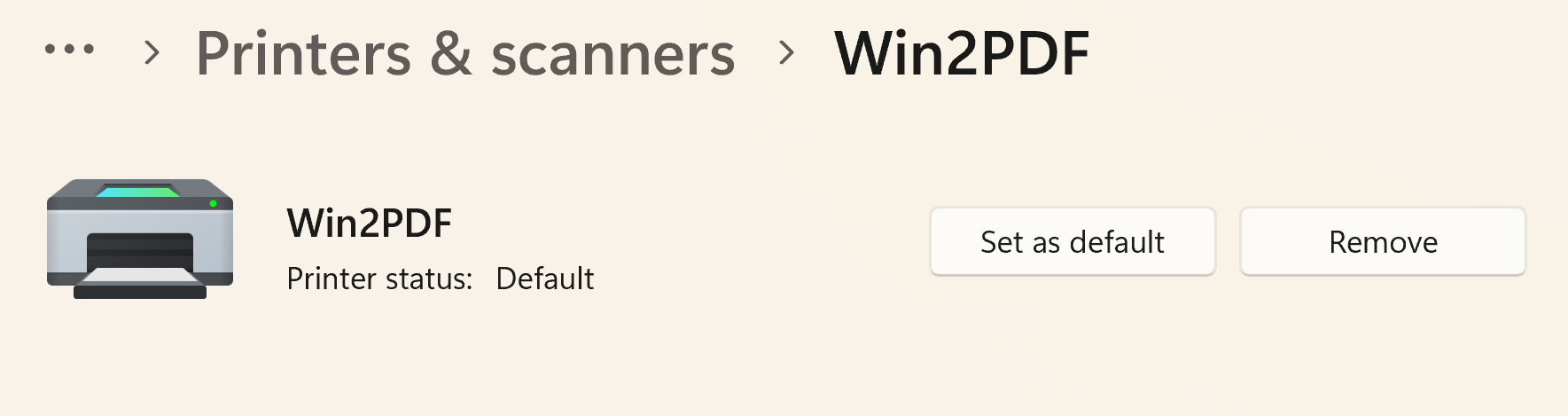
Next, you should make Win2PDF the default printer in the Windows Printers and Scanners folder. This is required because the Microsoft Outlook Quick Print feature only prints to the default printer.

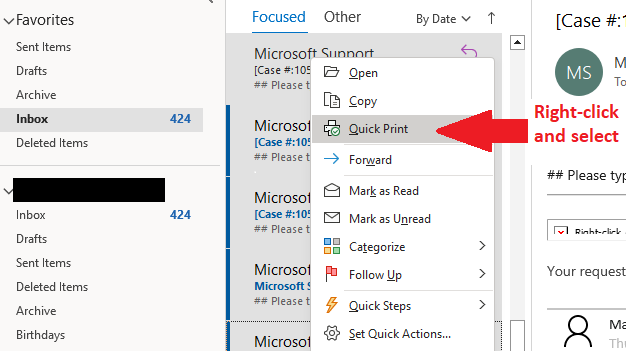
And finally, to create PDFs from the emails in your folder, select the emails in Outlook, right click, and select Quick Print.

Voila! The emails will be sent to the Win2PDF printer and will be automatically named with no user interaction.

This can be extremely useful if you want to archive or collect an email thread that is spread across many different messages, or a folder of messages related to a particular topic, person, or project.

If you have a tip like this for using Win2PDF, please let us know.

Print to JPG using Win2Image

This might not be news to some, but we still get questions asking about Win2PDF-like functionality to convert to other formats aside from PDF, such as the JPG image format (also referred to as JPEG).  One solution available in all versions of Win2PDF (at no additional cost) is the Win2Image printer**, which allows you to print to JPG, PNG, GIF, TIF, and BMP image formats.  It has the same interface as Win2PDF and is just as easy to use.

Why would you want to print to JPG instead of PDF?

There are advantages in using a JPG over a PDF file depending on the situation. JPG files are typically smaller in size and are easier to embed in web pages, emails, and other documents. PDF files, on the other hand, are much better suited to handling entire formatted and printable documents, where text and images, fonts and graphics, are all important to the presentation of the file as a whole.

There are also situations where someone may wish to extract certain pages, images, charts, graphs, etc. from an existing file (like a brochure, newsletter, eBook, spreadsheet, legal document, research paper, etc.) to repurpose or edit that image outside of the context of the original document.  Win2Image provides an easy way to do this.  

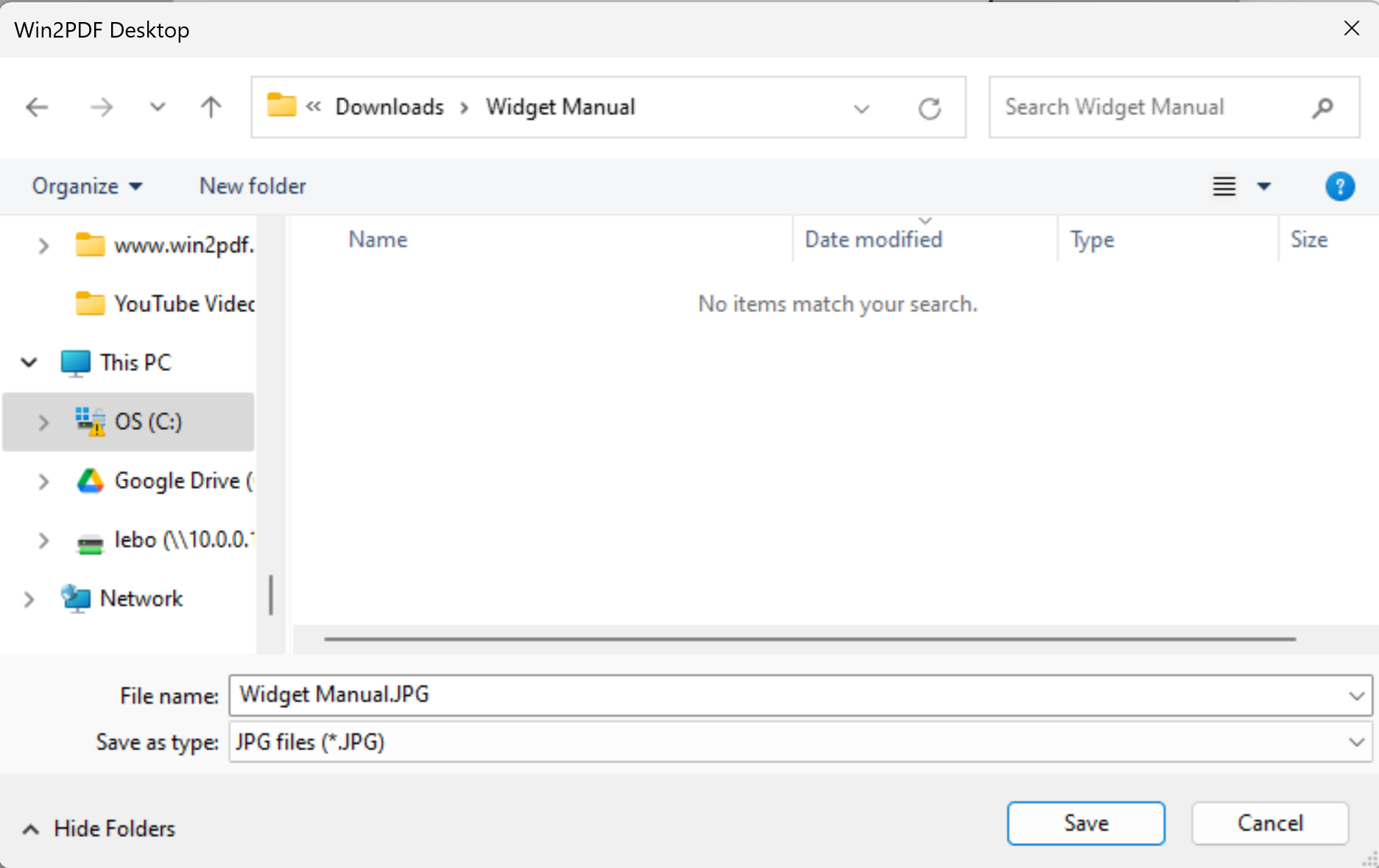
Just open the document in any application that supports printing, select a page (or range of pages), and then choose the printer named Win2Image.  In the file save window, choose whether you need color or only black and white versions of the JPG and then save.

Use Win2Image to print document pages to JPG files

If there are multiple pages in your selected document or print range, each page will be saved as an individual JPG file.  And once saved, you can further edit, compress, or modify any of these images for your new purpose.  You can use this method to print to PNG files as well.  (see JPEG vs. PNG for details about the differences between the two formats).

Whether you need the ability to print to PDF (for entire documents) or JPG (for individual image or graphic files), Win2PDF and Win2Image provide the same easy-to-use process for converting files.

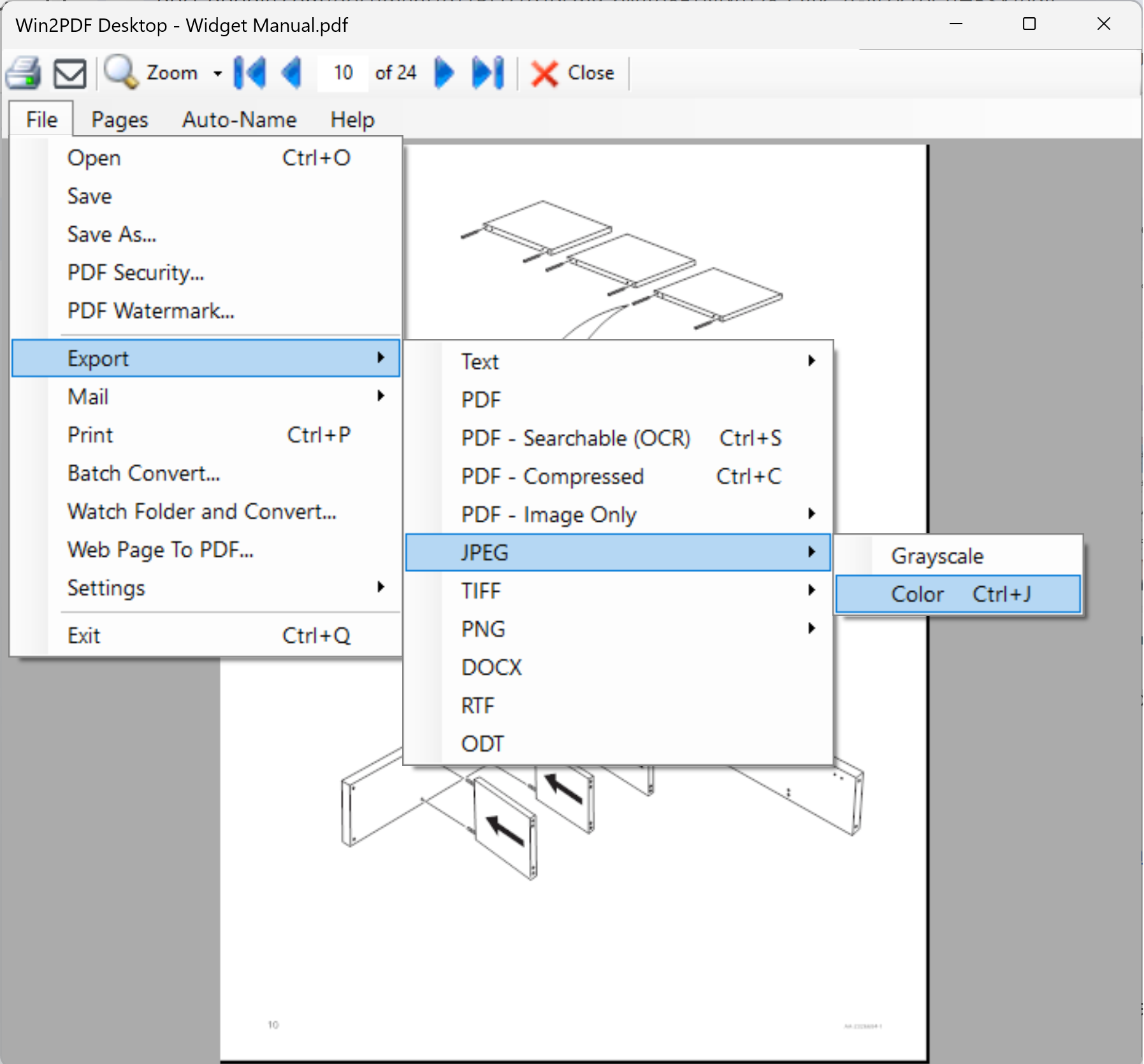
** Win2Image is included as a printer when you download and install the Win2PDF software.  In addition to creating image files by printing, you can also directly convert files to JPG using the Win2PDF Desktop Export options, Win2PDF command line, and Win2PDF Desktop Batch Convert feature.