New Outlook Support and Enhanced PDF Workflow in Win2PDF Version 11.0

We are pleased to announce the release of Win2PDF version 11.0, a free update that introduces several enhancements to expand the capabilities and features of Win2PDF. This update is designed to completely support Microsoft’s Windows 11 operating system, and to optimize your PDF workflows and provide greater efficiency.

Key features and improvements in this release include:

Enhanced Microsoft Outlook Integration: Microsoft is transitioning users from its older Windows Mail and Calendar apps to a new version of Outlook for Windows 11. The new Outlook is a move towards a more unified, modern, and feature-rich email client integrated with the Microsoft 365 ecosystem, but it does have some differences compared to both the old Mail app and the classic Outlook, including some that affect how Win2PDF attaches PDF files to email. Win2PDF now supports both the existing Outlook (classic), and provides the same seamless functionality to users moving to Outlook (new).

Automated Blank Page Removal: If you’ve ever received or generated a PDF that contains extra blank pages, you can now remove them using the new Delete Blank Pages feature.  It automatically identifies and removes empty pages from your PDFs, contributing to cleaner and more professional documents.  This feature also has an associated DELETEBLANKPAGES command line option.

Expanded Automation Customization Capabilities: Support for Batch Convert and Watch Folder and Convert plug-ins has been extended. You can customize batch convert processing by installing a Win2PDF Batch Convert Plug-in which can be very useful in many situations.  For example, suppose you wanted to batch convert a folder of documents and then perform a secondary process on those newly created files – a batch convert Plug-In would allow you to do that.  Current Plug-ins include the ability split pages, delete pages, append a PDF, apply watermarks, delete blank pages, digitally sign with a certificate, and more. When a batch convert plug-in is installed, an “Enable Plug-In” option is displayed in the Batch Convert Window.

Watch up to 20 folders with Watch Folder and Convert feature: The “CONFIGWATCHSERVICE” command line option now allows a single service to monitor up to 20 folders, enabling more robust automation for complex workflows. [Note:  Win2PDF Pro Terminal Server Edition only feature]

Refined Text and RTF Conversions: This update includes fixes to improve the conversion of text files containing smart quotes to PDF, ensuring accuracy. Additionally, formatting issues encountered during RTF to PDF conversion have been addressed, resulting in improved document fidelity.

Improved Command Line Printing: For users utilizing the “PRINTPDF” command line, paper size selection has been refined, offering enhanced control over printing options.

As a free upgrade for existing customers using Win2PDF 7 or higher, we encourage you to explore these new features and see how they can further enhance your productivity. And while this new Win2PDF 11.0 release fully supports Windows 11.0, it also continues to support Windows 10, Windows 8, Windows 8.1, Windows 7, Windows Vista, and Windows XP. Win2PDF Terminal Server Edition 11.0 continues to fully support Windows Server 2025, Server 2022, Server 2019, Server 2016, Server 2012, Server 2012 R2, Server 2008, Server 2008 R2, Server 2003, and Server 2003 R2 (including 64 bit editions).
New Win2PDF Pro TSE Feature: Run Watch Folder As A Service

Continuing our feature posts about the 10.0.154 Win2PDF Update, let’s now take a look at running the Watch Folder as a Windows Service.

Previously, the watch folder needed to be initiated by a user, and an open window needed to be running on the machine for the Watch Folder to work. Now, it can be set up as a Windows Service in the background. This feature is ONLY available in the Win2PDF Pro Terminal Server Edition (TSE) version of the software.

[Recommended: If you haven’t used the Watch Folder and Convert feature in the past, it’s recommended that you start by running the feature interactively by starting the “Watch Folder and Convert” shortcut from the Windows Start menu. This allows you to see any errors as you configure the folder and convert type options.]

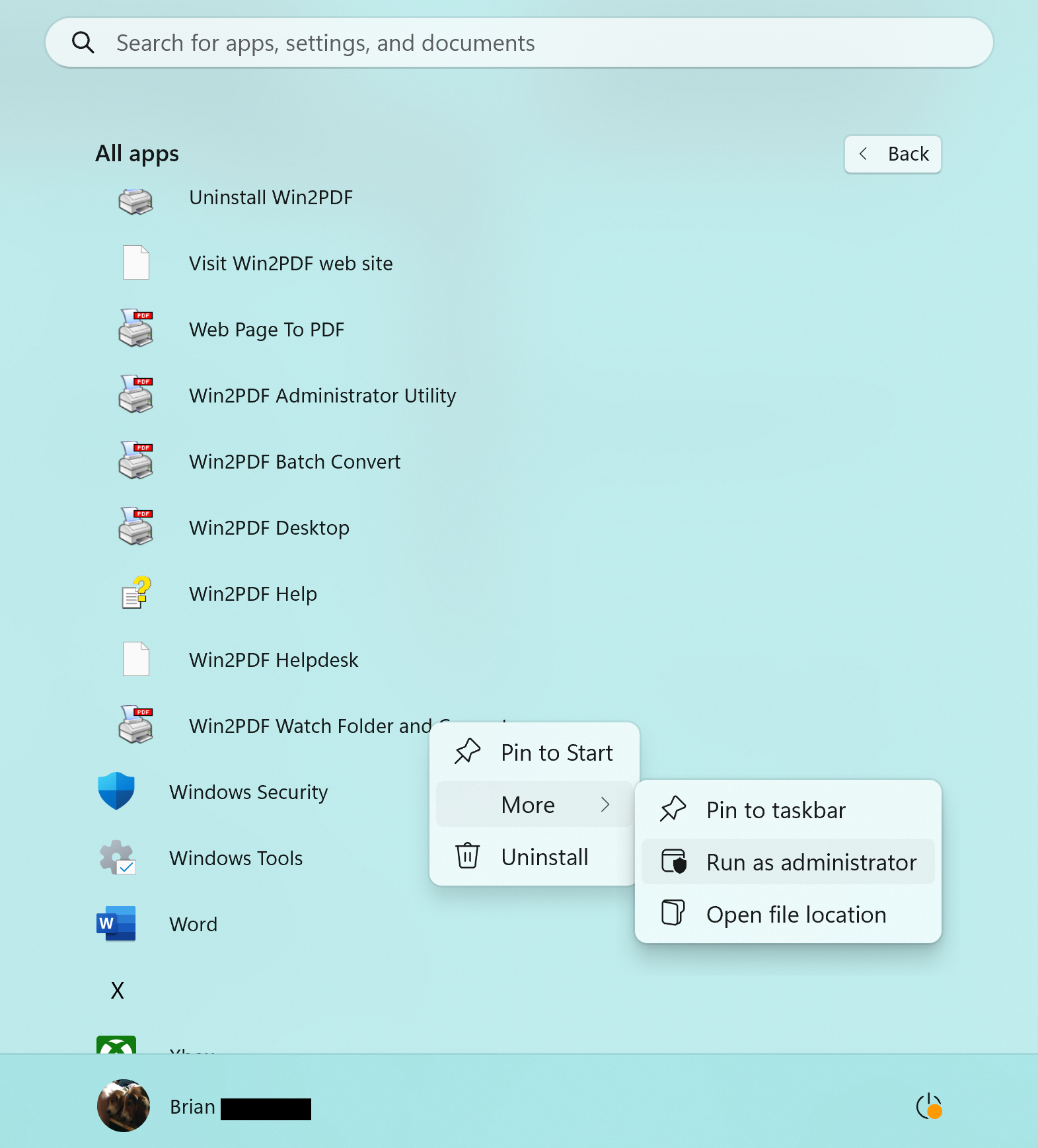
When everything is working correctly when running interactively and you’re ready to run the feature as a service, you should close the interactive Watch Folder window. Next, right click on the “Watch Folder and Convert” shortcut from the Windows Start menu, and choose “Run As Administrator…“.

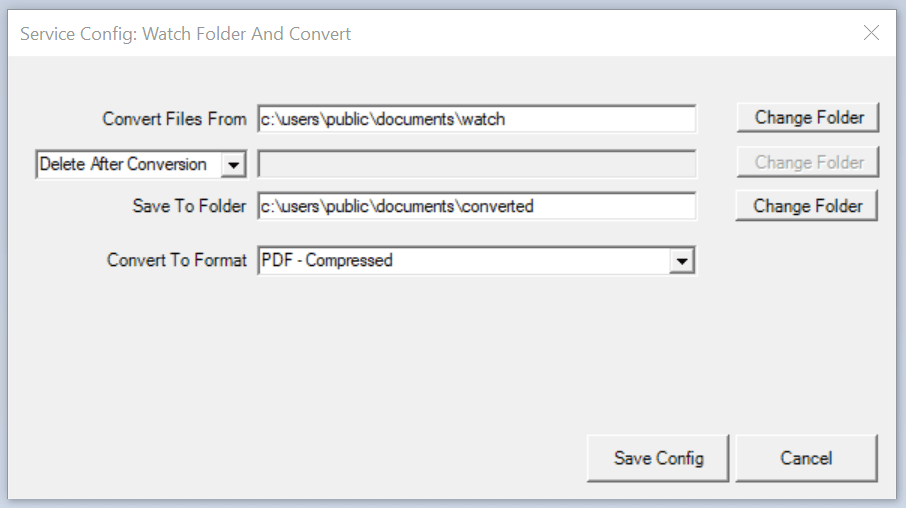
The title of the window will display “Service Config: Watch Folder and Convert“, and this is where you can select your watch folder and conversion format. The last used settings are restored in this Window.

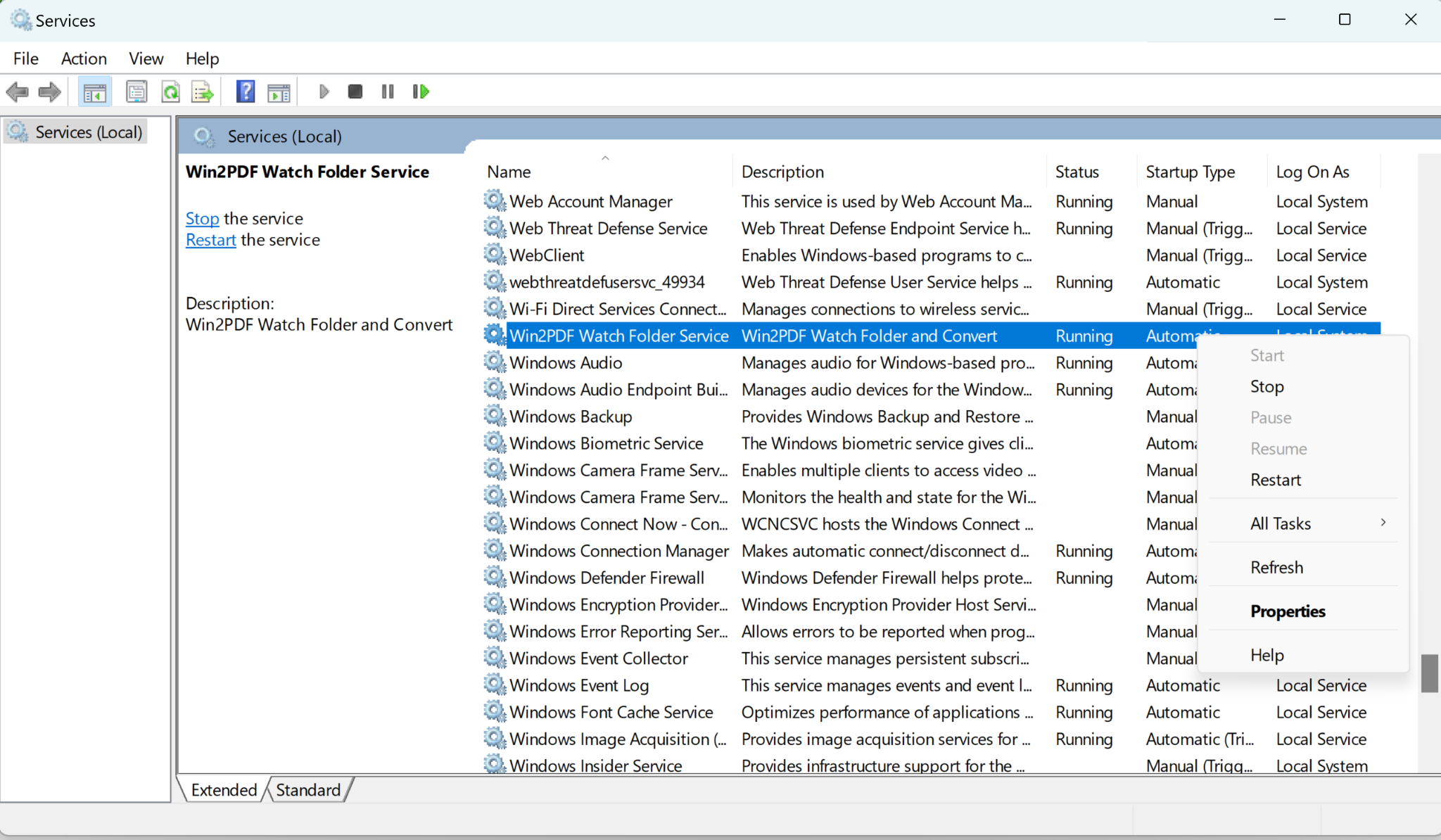
When you click on the Save Config button, Win2PDF installs and starts a Windows service using the settings in this window. The service will automatically start with Windows, and does not require that anyone is logged in to the server. You can verify the service is running by viewing the Services window from the Windows control panel.

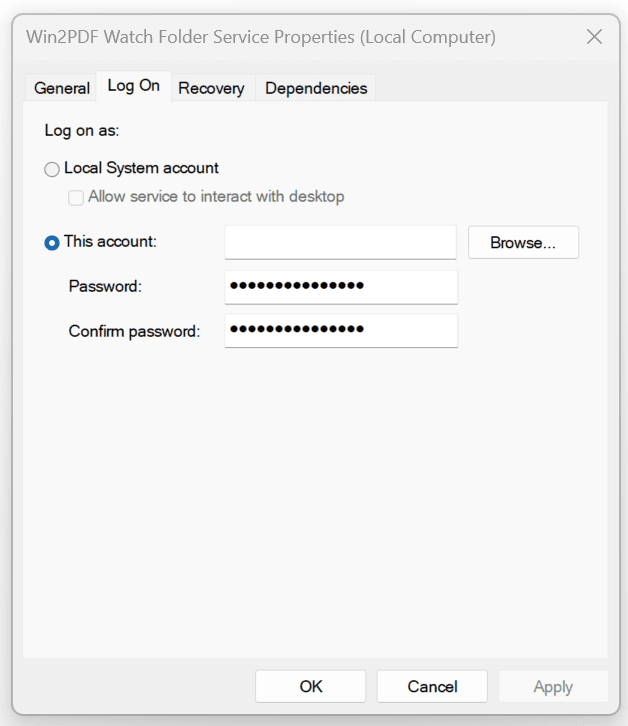
The service runs under the local system account by default. If the “Convert files from” or “Save To Folders” are not accessible from the local system account, you can configure the service to run under a different user using the “Log on” tab of the “Services” applet in the Control Panel Administrative Tools.

If you want to try this feature please request a 30-day evaluation license. Make sure to include that you need this specific feature in your request so we can send you the Win2PDF Pro TSE evaluation version.

Win2PDF “Watch Folder” Feature Continuously Monitors and Converts Files

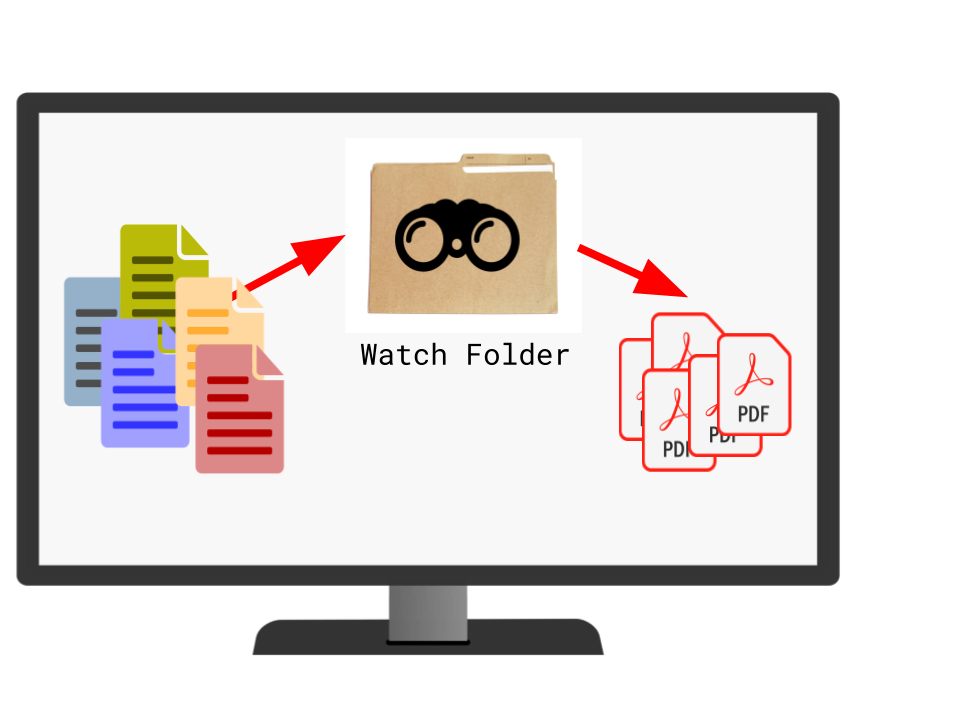
The latest Win2PDF automation tool is the new Watch Folder* feature. This feature allows you to select a local or shared folder to monitor or “watch”. Whenever a supported file type is added to this folder it will automatically be converted to an output file in a different format.

If the watch folder is a shared network folder, multiple users can convert files by copying files into the shared watch folder.

Note: This feature is only available in the Win2PDF Pro Terminal Server Edition (TSE) version.

For example, suppose you have fax software that allows you to save incoming faxes as .TIFF files. And what if you’d like to take all of your faxed image files and convert them into searchable PDF file

In this case, you’d simply set up a Watch Folder where you’d save your faxed .TIFF files, and whenever a .TIFF file appears in this folder it is automatically converted to a searchable PDF file.

There are two primary ways of setting up the Watch Folder.

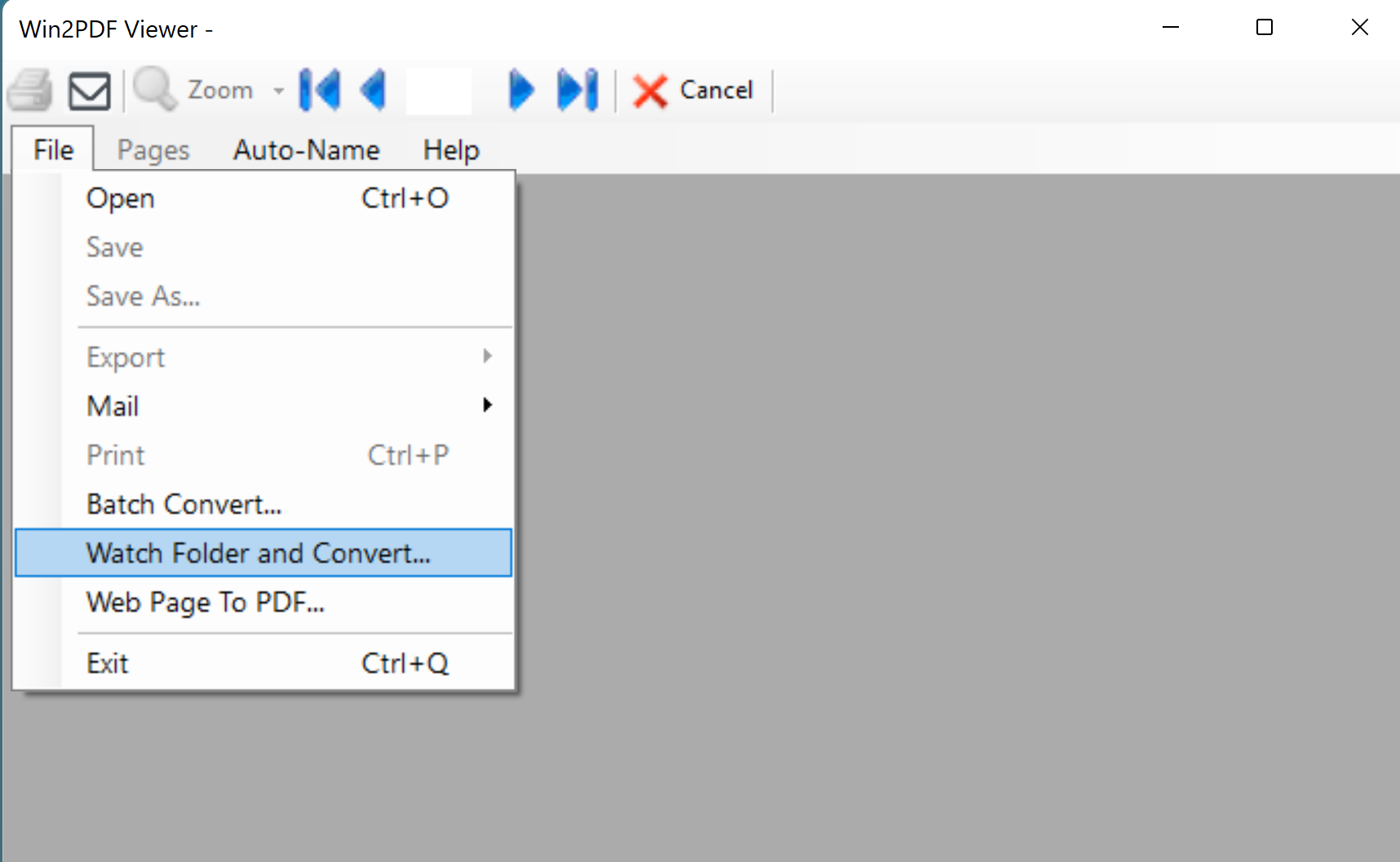
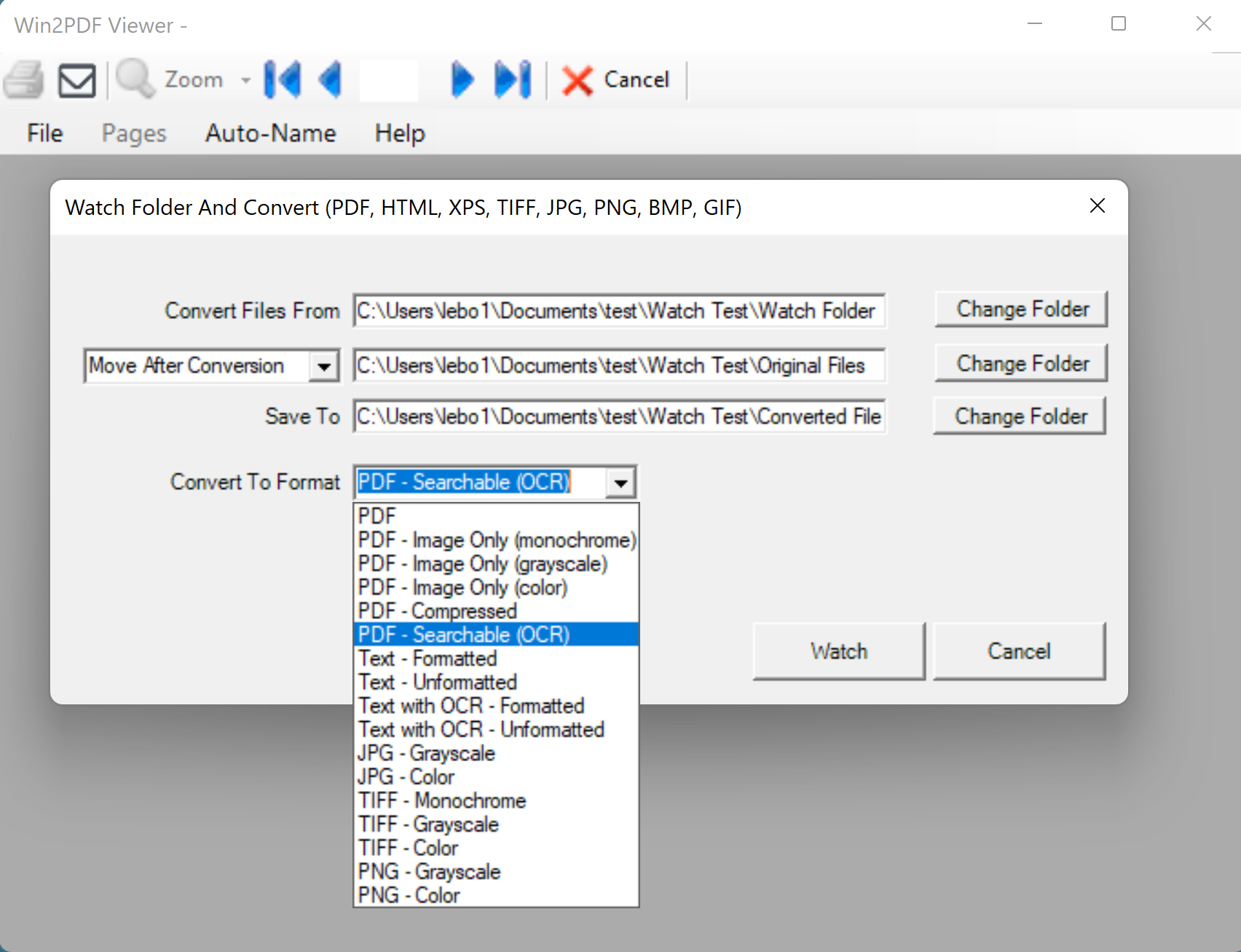
The first way of starting the Watch Folder is through the Win2PDF Desktop App. When you start the Win2PDF Desktop App, a new menu named “Watch Folder and Convert…” appears in the File menu. (You can also launch this directly by running “Win2PDF Watch Folder and Convert” from the Windows start menu.)

When Watch Folder and Convert… is selected, you’ll be able to select the folder to watch, the folder to save your output files to, and an option to either move or delete the original files. You’ll also be able to choose the format of the converted files.

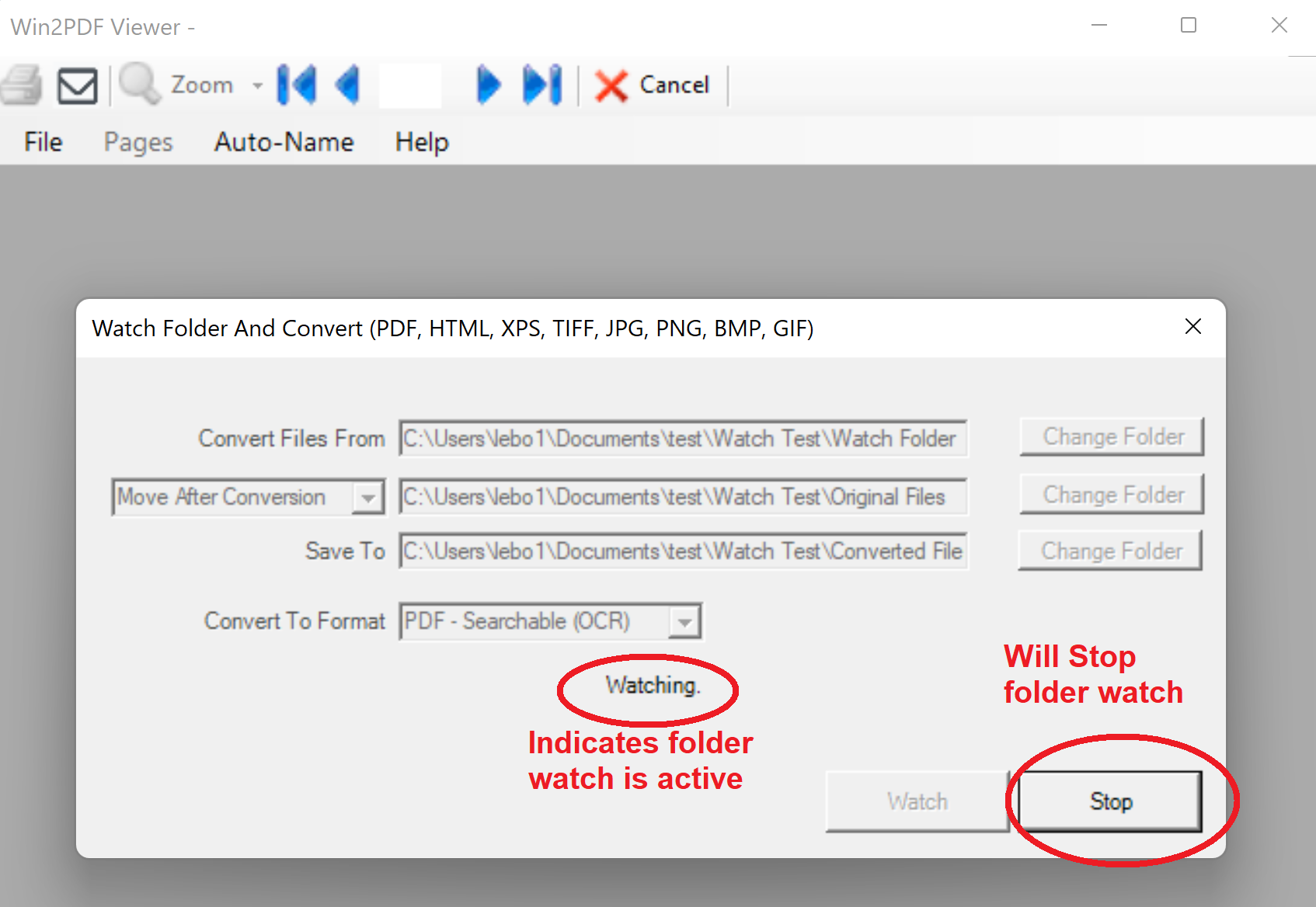
When the Watch button is selected, the Watch Folder actively monitors this folder for any new files that get added. You’ll know it’s active because the interface will be ‘grayed out’ and a ‘Watching…” indicator appears. If any files are added to the watch folder, they are automatically converted

You can turn off the Folder Watch feature by simply clicking on the Stop button.

The second way iis to open a command prompt and start the watch folder through the following command line.

win2pdfd.exe watchconvert "watchfolder" "completedfolder" "convertedfolder" destformat

This watches the folder specified by “watchfolder” and automatically converts all compatible files to the specified format, and saves the converted files using the same base filename to “convertedfolder“. Upon successful conversion, the source file is moved from the “watchfolder” to the folder specified by “completedfolder“. If the “completedfolder” is empty (“”), the source file is deleted after conversion.

Compatible file formats in the “watchfolder” can have the following file extensions:The “destformat” can be one of the following file types:
.PDF
.HTML
.HTM
.XPS
.TIF
.TIFF
.JPG
.JPEG
.JPE
.PNG
.BMP
.DIB
.GIF

(other file types will be ignored)
pdf
pdfimagemono
pdfimagegrayscale
pdfimagecolor
pdfcompressed
pdfsearchable
textformatted
textunformatted
jpggray
jpg
tiffmono
tiffgray
tiff
pnggray
png
ocrtextformatted
ocrtextunformatted

To stop the folder watching, simply enter CTRL-C in the command prompt window and it will stop watching the folder.

As noted earlier, this feature is only available in the Win2PDF Pro Terminal Server Edition (TSE) version of Win2PDF. If you want to try this feature, you can request a 30-day evaluation license.

Any questions or feedback? Let us know at [email protected].