Using Win2PDF as Part of a Business Continuity Plan

Santeri Viinamäki, CC BY-SA 4.0 https://creativecommons.org/licenses/by-sa/4.0, via Wikimedia Commons

The recent Crowdstrike incident and UnitedHealth ransomware attack highlights the importance of having a robust business continuity plan in place. One way to ensure that your business can continue to operate in the event of a system outage is to use Win2PDF to automatically save reports and business critical documents to a local shared network drive.

This solution is particularly valuable for businesses in the Electronic Health Record (EHR) space, where access to patient records is critical. For example, in the ChangeHealth (a subsidiary of UnitedHeath) ransomware attack, it is estimated the attack will cost the company over a billion dollars this year.

“…Change Healthcare provides technology used to submit and process billions of insurance claims a year. Hackers gained access in February and unleashed a ransomware attack that encrypted and froze large parts of the company’s system…”

By using Win2PDF with the Auto-name feature, EHR providers can ensure that reports are saved regularly and can be accessed as a backup solution if the EHR system goes down or is frozen.

Win2PDF customers have successfully implemented solutions that integrate with Veradigm (formerly Allscripts), EPIC, Meditech and many other EHR software platforms. In addition, businesses outside of the EHR space can also benefit from using Win2PDF to generate backup reports automatically. A recent security report lists healthcare, agriculture and government as the most targeted industries.

Here are some of the benefits of using Win2PDF as part of a business continuity plan:

  • Automatic report and document generation: Win2PDF can be used as part of an automated process that generates reports on a regular basis.
  • Accessibility through shared drive storage: Reports and documents are saved to a shared drive, which makes them accessible to authorized users on the local network.
  • Scalable and easy to use: Win2PDF is easy to set up and use, and can be deployed from very small to large enterprise organizations. It requires no special training or expertise.
  • Safe and secure: Win2PDF software is installed locally and is not dependent on the cloud or internet to function, unlike some subscription services that may be unavailable if the network is disrupted. The Win2PDF solution is always in the customer’s complete control.

Do you have backup document and report access as part of your business continuity plan? Consider using Win2PDF. This simple solution can help you keep your business running in the event of a system outage. Contact us for a 30 day trial to see how Win2PDF can fit into your plans.

FTC Action Highlights Problems With PDF Software Subscriptions

Over the past decade, there has been an increasing trend to move software licensing to a subscription-based model, with monthly fees replacing the previously common one-time cost for a perpetual license. While these software subscriptions can be beneficial to a software company’s bottom line, they can be detrimental for users. The high cost and the difficulty in terminating these subscriptions can be major pain points for consumers.

The recent actions taken by the Federal Trade Commission against Adobe and its executives highlight this issue. Adobe’s practices of obscuring early termination fees and making cancellation processes difficult have resulted in consumer confusion and frustration. Users complain they were tricked into year-long contracts hidden by fine print, and the company made it intentionally difficult to try to get out of the subscriptions.

Compounding this problem, moving PDF and other software services to the cloud (and your data into the hands of another company) can also represent significant concerns in terms of privacy or confidentiality of customer data. Adobe faced similar backlash when it recently updated its terms of service.

The new terms include provisions that grant Adobe extensive rights to access, use, and potentially monetize data uploaded to or processed by their software. This includes artwork, designs, and other creative works, which can be scanned and utilized for various purposes, including machine learning and other services under Adobe’s vast umbrella.

Consider the implications for customer’s working under non-disclosure agreements (NDAs), or customers working with legal documents or medical records that are protected under HIPAA. Allowing your PDF provider access to your data can be perilous for many reasons.

These issues serve as a reminder that software companies should prioritize transparency and user-friendly cancellation processes to ensure fair treatment of their customers.

Win2PDF has not changed its licensing, prices or terms of service in over two decades and we have no plans to do so. Our software is sold as a perpetual one-time license, comes with a simple 60-day return policy (for any reason) that we honor promptly, and your data is your data. It is never transferred, used or monetized by us. Just like Vegas, what happens on your computer, stays on your computer.

Microsoft Copilot+ PCs Arrive with Win2PDF Support

God Is My Co-Pilot

It’s not surprising that Microsoft didn’t borrow the slogan, ‘God Is My Co-Pilot’ for its release day. Although Qualcomm, maker of the Snapdragon X chips that power the first series of Copilot+ PCs, opted for Apple’s ‘I’m a Mac’ guy, so at least somebody’s having fun with Microsoft’s new product.

Nonetheless, today (June 18th) marks the official release for the first wave of Copilot+ with Qualcomm Snapdragon X PCs.

As we noted in our last blog post, starting today, as is the custom with new Windows related hardware and operating system releases, Win2PDF has a free update available with support for these PCs. This update is available on our helpdesk for now, but we’ll be updating our general release versions shortly once we complete more rigorous testing with the official release PCs. And again, it will install and operate just like Win2PDF on any other Windows computer.

While the first wave of Copilot+ PCs have the Qualcomm Snapdragon X processor, future PCs are set to include processors from the likes of AMD, Nvidia, and MediaTek. More PC options will abound, but since they’ll all be running on Windows 11 (specifically Windows for Arm), Win2PDF will support them all.

Stay tuned for future updates on Win2PDF and Copilot+ PCs now that they’ve hit the stores.

The Mobile Arms Race: Microsoft’s Copilot+ PCs Challenge Macbook for Edge Computing

Windows for ARM

Last year we announced limited support of Win2PDF for the next generation of Windows for Arm devices, which is Microsoft’s response to the growing popularity of lightweight, mobile friendly computers like the Apple MacBooks.

Now we’re back with an update featuring recent developments in this area.

First, let’s look at what’s new with Microsoft and Windows for Arm?

Microsoft Copilot

A little over a year ago, Microsoft introduced Microsoft Copilot, an AI assistant built into Microsoft 365 apps and Windows that uses large language models to help with writing, editing, and analyzing content across Word, Excel, PowerPoint, Outlook, and OneNote. It summarizes documents and emails, generates formulas and analyzes data, drafts replies and suggests follow-up actions, and even creates images.

Currently, most of these AI tasks are handled in the cloud because of the intensive processing required. While this is efficient in terms of performance, it comes at the expense of security risk and user control.

Copilot+ PCs

Now, Microsoft has announced a new class of computers called Copilot+ PCs that continue to expand the use of AI on the local hardware. The first batch of these new PCs, from PC manufacturers like HP, Acer, Lenovo, Samsung, and Dell, as well as Microsoft’s own Surface Laptops, feature a new Arm-based neural processing unit (NPU) powered by Snapdragon® X Series chips. Microsoft’s Satya Nadella talks about these Copilot+ PCs and how they align with Microsoft’s vision in this Wall Street Journal interview:

Interview with Microsoft CEO Satya Nadella

Essentially, Copilot+ PCs will bring AI processing closer to the “edge”– the local PC. With its ability to do more complex tasks at a greater speed and with less power, this finally positions Windows PCs on an even footing with Macbooks in the mobile computing market.

Win2PDF & Support for Windows for ARM

Will Win2PDF work on ARM based Copilot+ PCs just like existing PCs?

YES.

Many software applications can support ARM by simply emulating the Intel instruction set on Windows for ARM processors. While the compatibility (and performance) of existing applications under emulation is great, there is no emulation layer for print drivers like Win2PDF. These drivers still must be developed separately for ARM-based PCs, and many other printer-based products do not currently support them.

The new Win2PDF release will include a new printer driver for ARM based PCs. The setup program will automatically detect ARM based PCs and will install the correct version of the printer driver. As far as the end-user is concerned this will be completely transparent; there is no difference in how Win2PDF will install or work on the new PCs.

The History of Win2PDF OS and Hardware Support

How does Win2PDF fit into this new mobile landscape? Let’s look at our history.

Win2PDF was initially developed in 2000 for PCs running on x86 (Intel & AMD) chips on Windows NT. Since the introduction, we’ve continued to support new versions of Windows (Windows 2000, Vista, 7, 8, 10, 11) and new processor architectures.

With our upcoming releases, we’ll not only support Windows XP through Windows 11, but we’ll also support x86, x64, and ARM64 architectures. There are very few PDF software developers that still support this continuum of operating systems and architectures. Companies standardizing on Win2PDF will be able to use the same version of Win2PDF across the organization.

Stay tuned

Over the next several months you’ll see new release updates to Win2PDF that will continue to support this next generation of Copilot+ PCs.

Update to Win2PDF Includes new Text to PDF Options for Legacy Reports

The latest Win2PDF update includes an additional command line feature to convert reports and other specially formatted documents to PDF using a fixed width font. This feature is needed for some reports to be rendered and viewed correctly, since many applications (especially older ones) were designed to send reports to a line printer or a simple fixed width text file. The results only look correct if each character is equally spaced.

Previously, the Win2PDF txt2pdf command line option would create a PDF file with variable width text. With the new command line option – formattedtxt2pdf – users can output the file with a fixed width text font instead of variable width text.

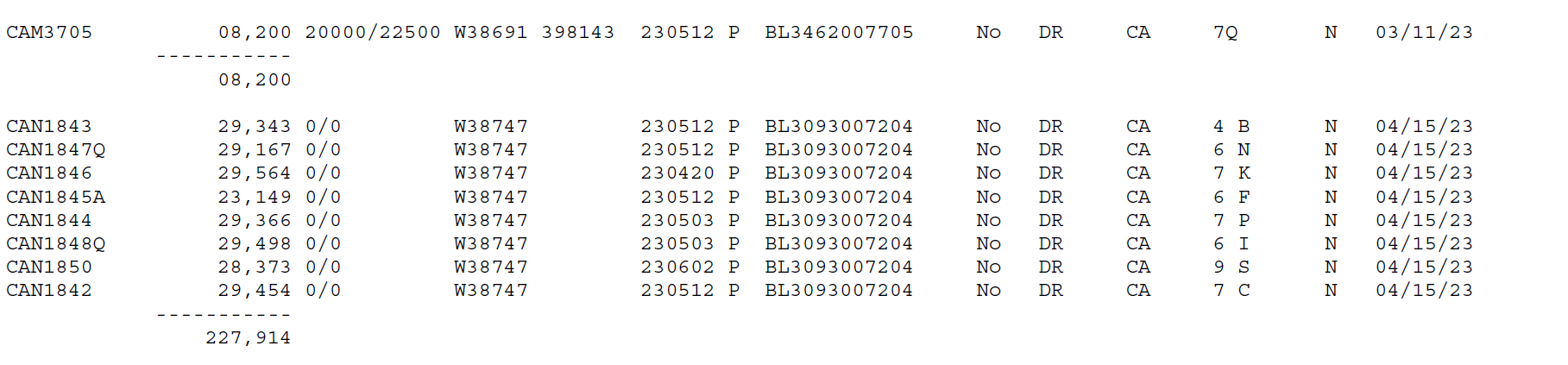
For example, here’s a portion of a report generated by a legacy application and saved to a PDF file using the original txt2pdf command.

Notice that the report doesn’t look right because the characters aren’t evenly spaced. However, here is the same report converted to a pdf file with the new formattedtxt2pdf command.

Now it looks correct, even though the text is exactly the same.

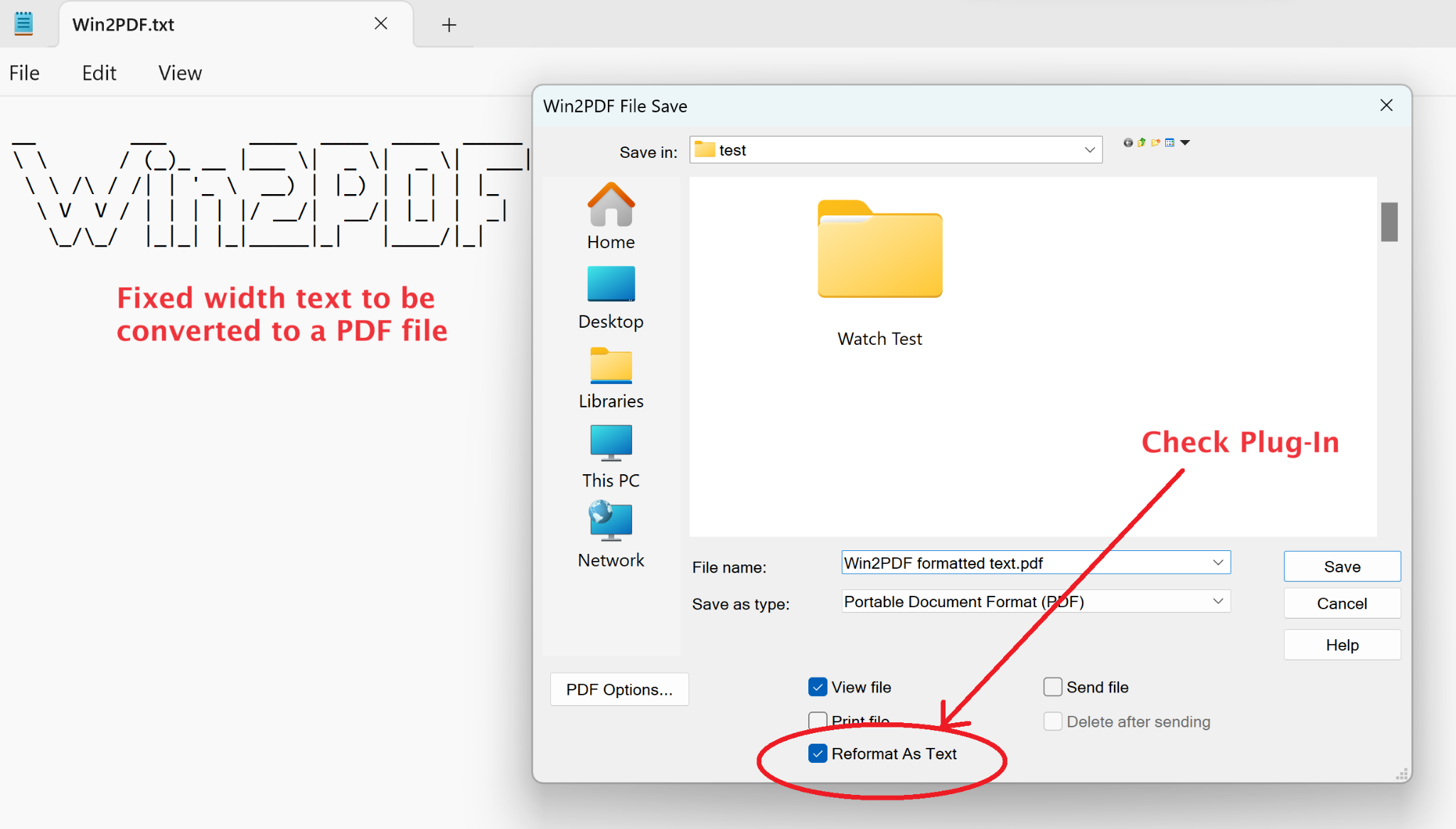
In addition to this command line feature, there’s a new Win2PDF Reformat As Text plug-in to simplify the creation of the files using this method.

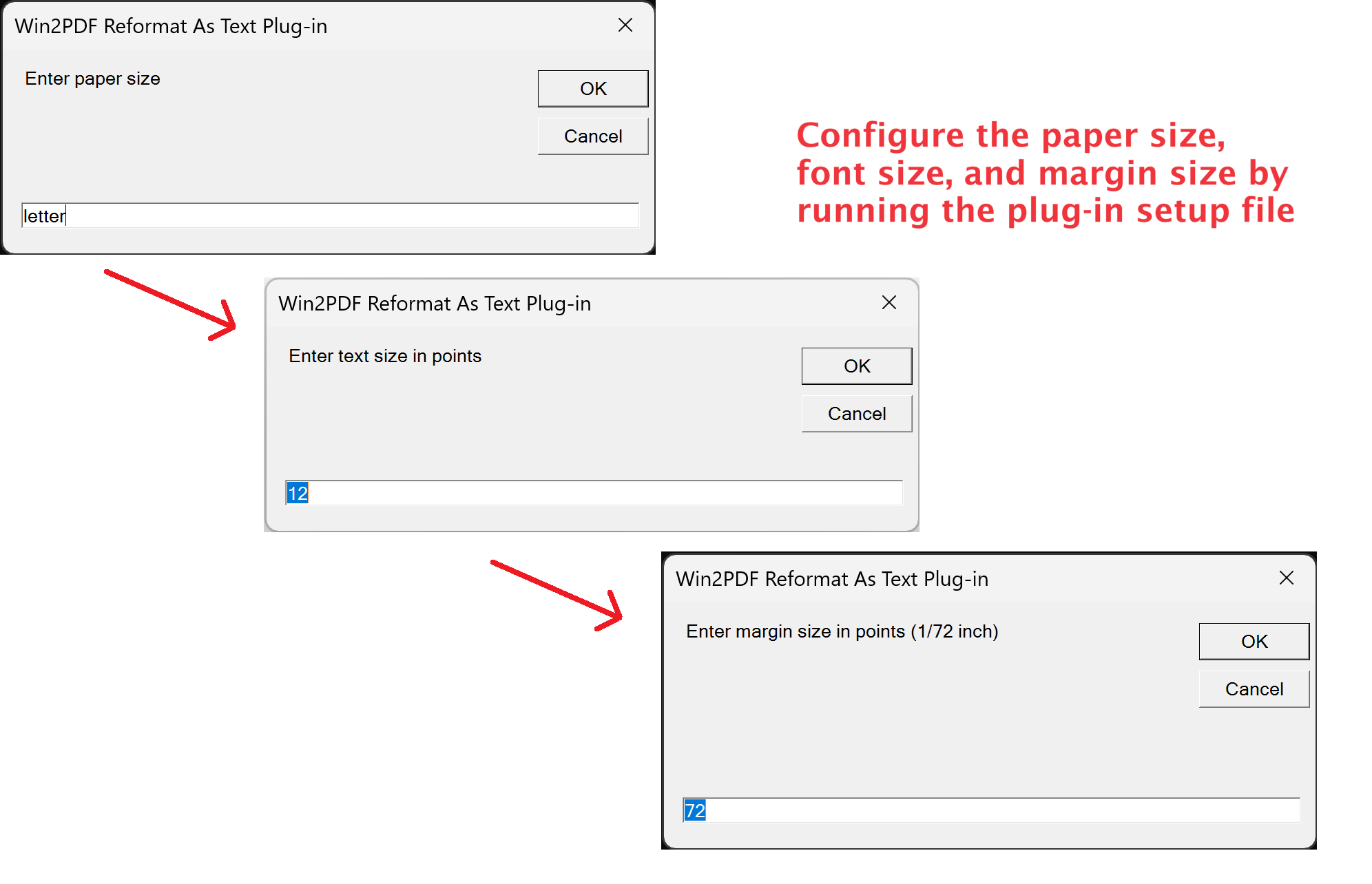
First, download the plug-in setup file and double-click on it to configure the Win2PDF Reformat As Text plug-in. You will be prompted to enter the paper size, font size, and margin size to configure the plug-in values as shown below.

You may need to adjust these options to allow all text to fit on a page. Then, after the plug-in has been installed and configured, you can check the new box on the Win2PDF file save window labeled Reformat As Text. When saved, the fixed width formatted PDF file will be created.

Give it a try and if you have any questions, let us know.

A Win2PDF Step-by-Step Guide: Reformatting File Names with Microsoft PowerRename

What do you do when you need to convert a PDF document into multiple images (1 per page), but with a very specific file name format? Consider this recent customer situation:

The customer had a PDF product manual (i.e., ‘Widget Manual.pdf’) and wanted to convert each page of the manual to a JPG image file. And, each JPG file needed to be named in a format that included its corresponding page number and with a uniform file name length (e.g., “Widget_Page001.jpg”).

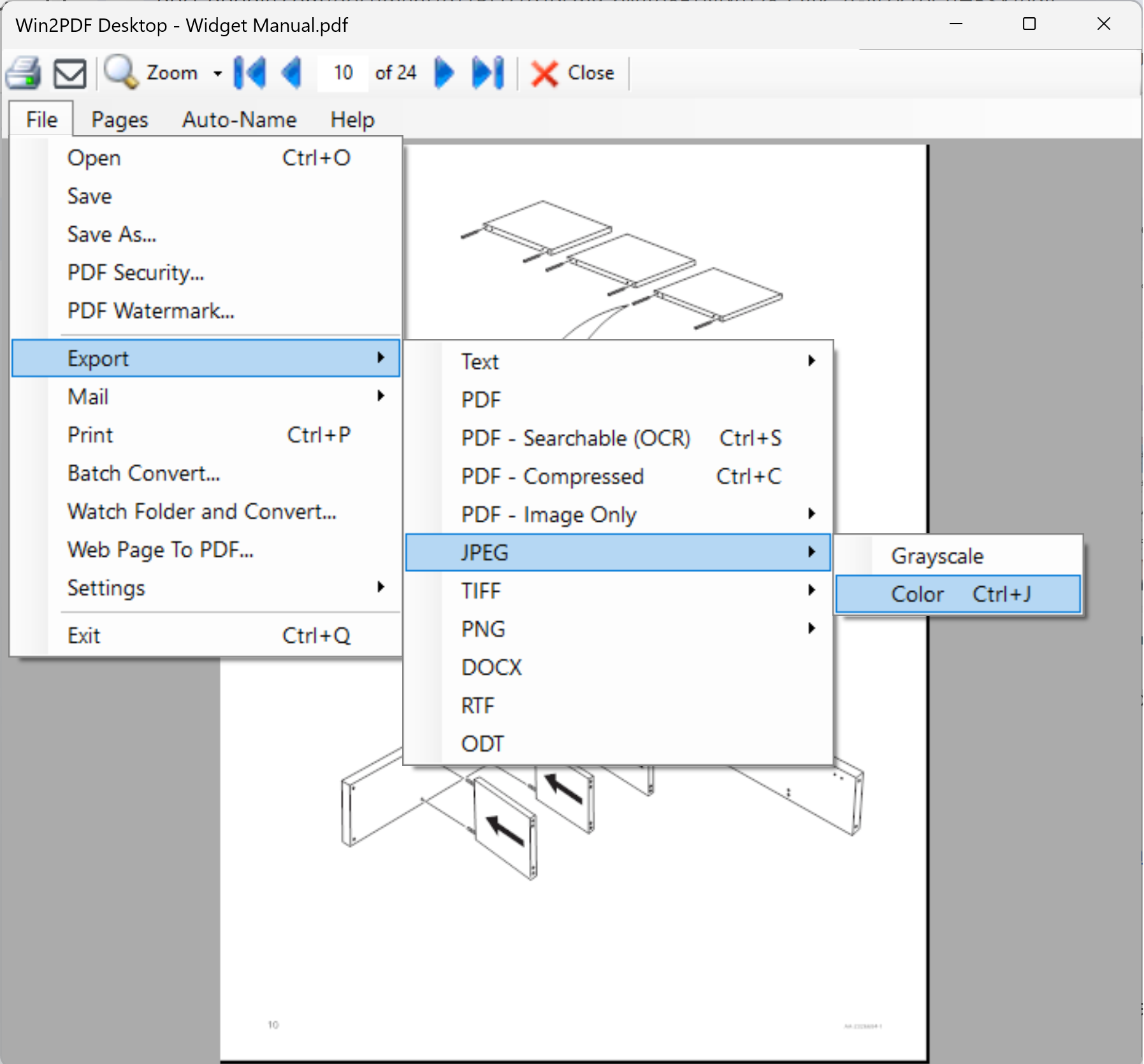
While they were able to convert the PDF file to JPG (using the File ➔ Export ➔ JPEG option in Win2PDF Desktop), they weren’t able to control how the resulting file names would be formatted.

Rather than add complexity to the Win2PDF Desktop interface, we suggested using the free Microsoft PowerRename utility.

You can use this same methodology for other situations as well, so we can generalize the procedure. Here’s how:

Step 1) Download and install Microsoft PowerToys.

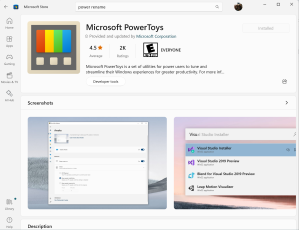
The easiest way is to just search for this app in the Microsoft Store and click Install.

Make sure you have the latest version of PowerToys installed, as older versions may not support regular expressions which will be necessary in our example.

Step 2) Save the multi page PDF file to a series of JPG files

The easiest way to convert the PDF to JPG is to use the Win2PDF Desktop Export feature, as shown here:

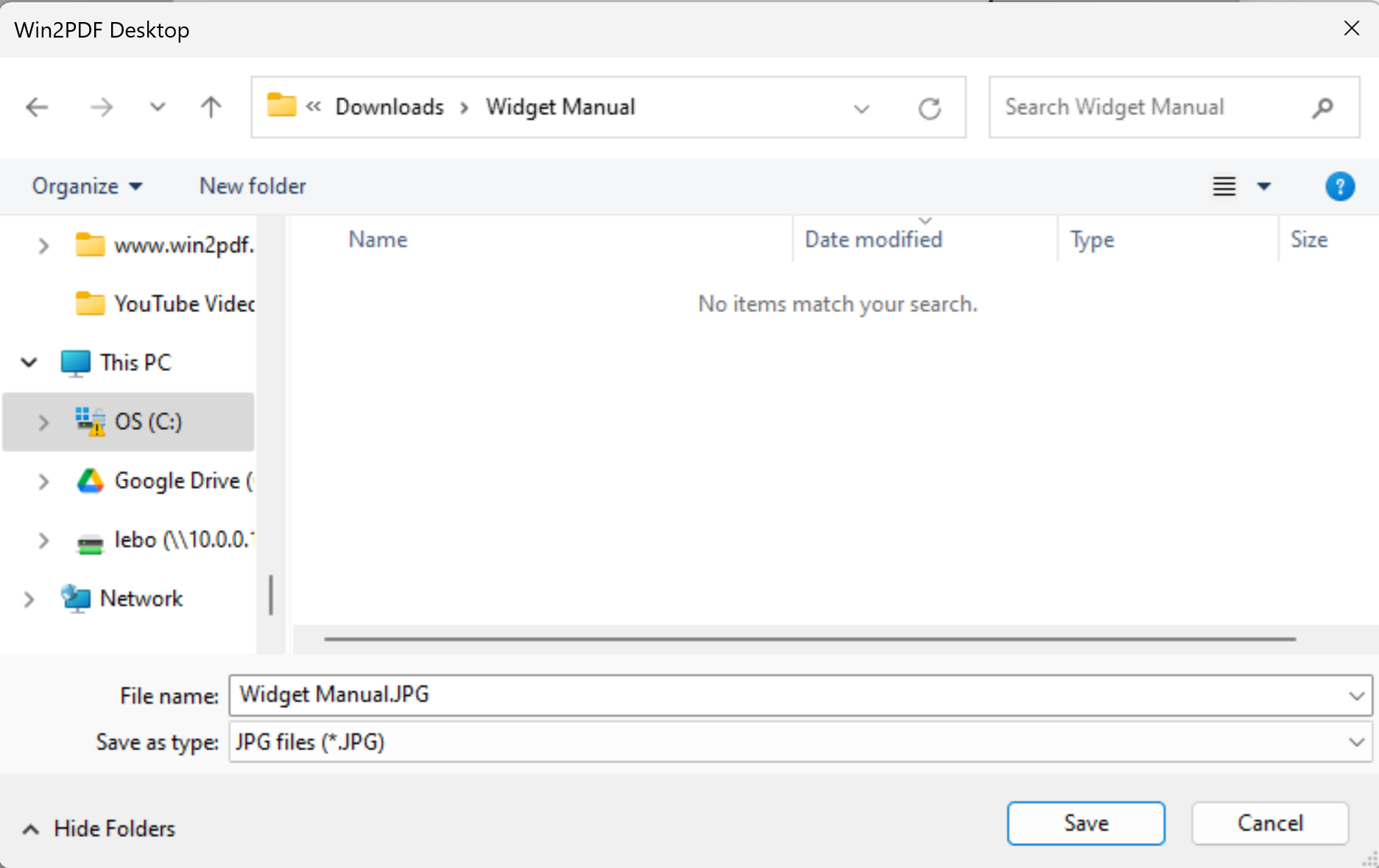
When exporting, the base file name defaults to the name of the PDF file, which can be changed if needed.

Upon file Save, multiple JPG files are created.

Win2PDF Desktop creates one JPG file for each page in the PDF and names them with the base name of the PDF file and increments of 1 (with preceding/following ‘.’characters). So, this is what you get:

Widget Manual.pdf ➔ Widget Manual.1.jpg, Widget Manual.2.jpg, Widget Manual.3.jpg, …

What you need, however, is to have it look like this:

Widget Manual.pdf ➔ Widget_Page001.jpg, Widget_Page002.jpg, Widget_Page003.jpg, …

Step 3) Select the JPG files and open PowerRename

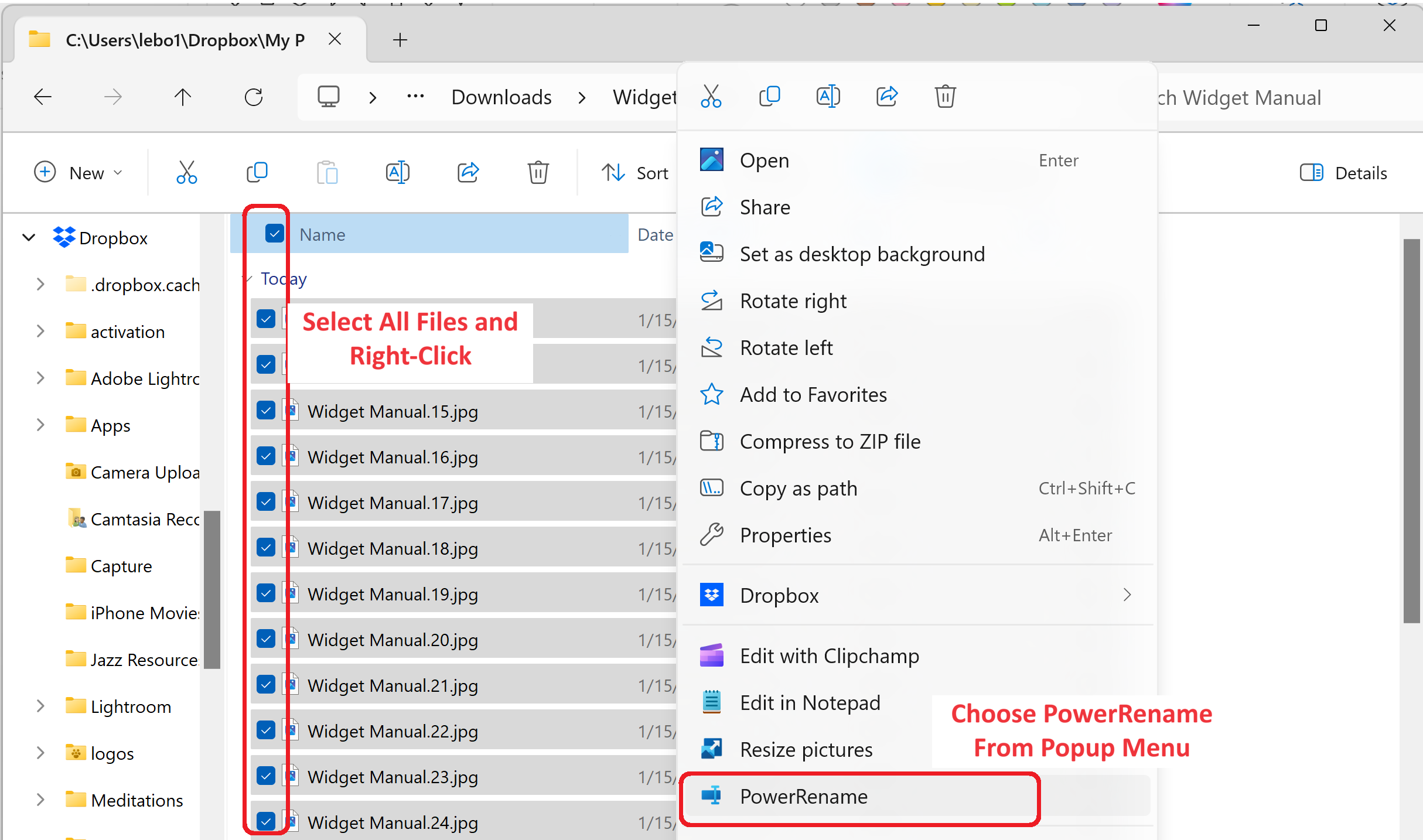
After the files have been converted to JPG, you can select all of them in Windows explorer and right-click to choose PowerRename.

Step 4) Search and replace text using a regular expression

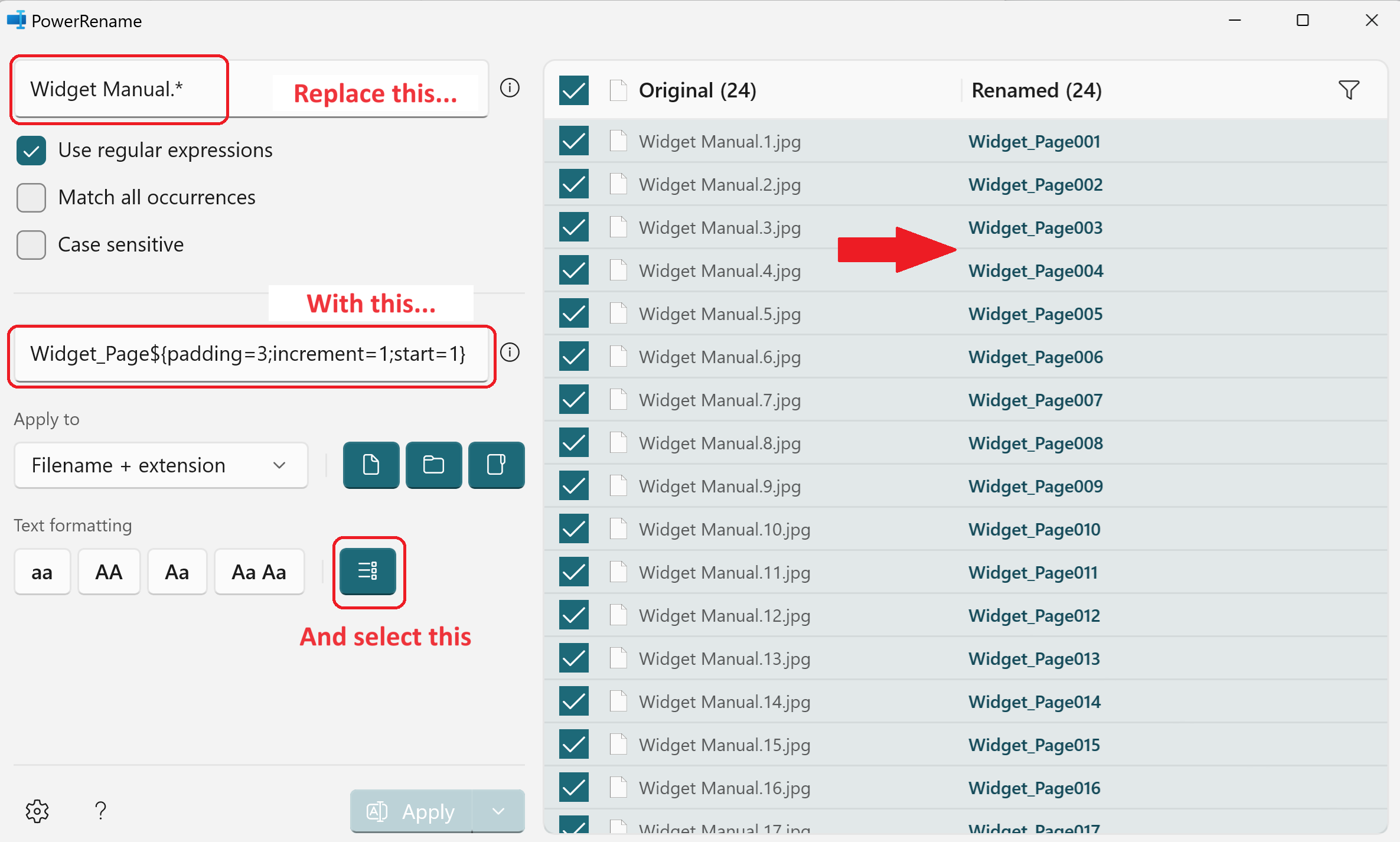
This step shows how regular expressions can be used to augment the file name. In many cases, a simple “search and replace” will be sufficient. But, since the customer in our example wants each JPG file to be a page number in a specific format (3 digits long padded with zeros), we can use the regular expression shown below to accomplish our goal.

Note: the icon for Enumerate items under Text formatting must be selected.

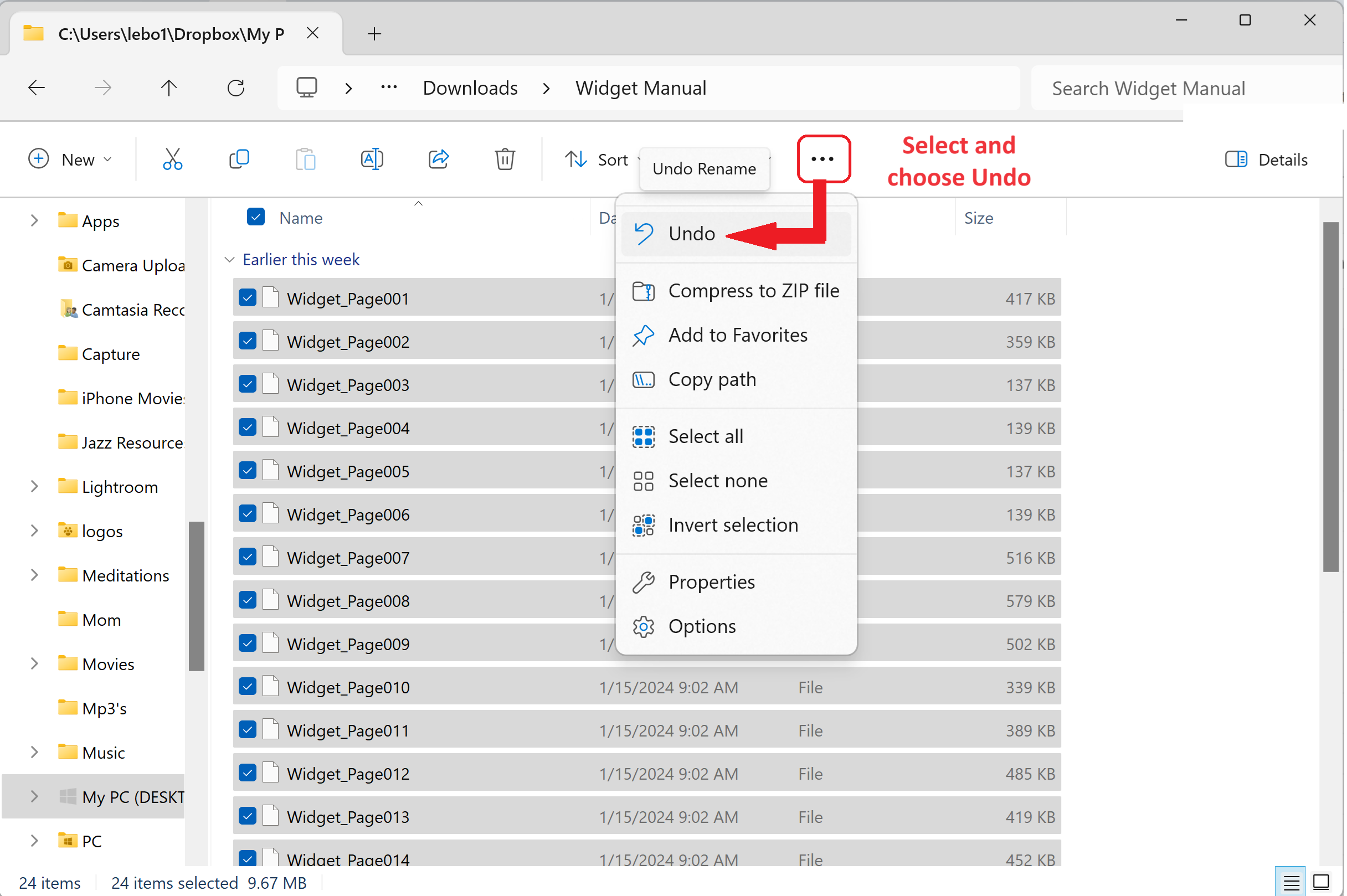
You’ll see a preview of the file name conversions on the screen, and when it looks correct you can select Apply. And that’s it! If you make a mistake after you’ve applied the rename, you can go back to Windows explorer and select the “” option shown below and choose Undo.

This is obviously a very specific example but it shows how it can be done. We highlighted this example using a regular expression because it is such a powerful and expansive tool that most programmers are familiar with.

If you’re renaming PDF files, the Win2PDF Pro Auto-rename feature is an easier to use solution that also supports renaming based on the content of the PDF.

If you need assistance with renaming files with specific criteria, let us know. Just as in the case of this customer, we can usually help, even if it requires finding a solution from another source.

Win2PDF on A Mac? Win2PDF Pro Now Works On Windows for Arm devices, Including Macs

For years (decades, actually), Win2PDF has been providing customers with software to create, convert, and modify PDF files on their Windows computers. Typically, these have been Intel-based PCs, servers, and even older Macs/Macbooks with Intel-based processors (running Windows virtualization software like Parallels or VMWare).

But now we’re starting to get requests for Windows on Arm-based devices, which are increasingly popular for light-weight notebooks, tablets and especially with the newer Apple Mac M1 and M2 computers.

Starting today, with our Win2PDF Pro 10.0.159 prerelease, we’re providing limited support for Windows on Arm in our Win2PDF Pro software.

What is Arm? If my computer is running Windows, why does it matter?

For most users, it doesn’t. It does matter, however, to software developers like us. Additional coding is required to make software compatible with Windows for Arm, and we’ve just started that process with this prerelease. Very simply put, historically Intel processors have been more powerful and versatile (requiring comparatively higher resources and power). Arm processors, on the other hand, are newer, more efficient, require less power, and are increasingly matching or exceeding performance compared to Intel chips.

That’s why Arm processors are popular right now. Their low power consumption makes them ideal for lightweight mobile products like Apple MacBooks and Microsoft Surface.

Will Win2PDF Pro fully support Windows on Arm?

The Win2PDF Pro software contains three primary components – a PDF printer (named “Win2PDF”), an Image printer (named “Win2Image”), and a Win2PDF Desktop App. The Win2PDF printer creates PDFs by printing from any application, the Win2Image printer creates image files by printing from any application, and the Win2PDF Desktop supports multiple format conversions to and from PDF, batch convert, advanced rename features, and email options.

Currently, the Win2PDF Pro for Windows on Arm prerelease only supports the Win2PDF Desktop App and command line functionality. The reasons for the limited support are lengthy and technical, but in a nutshell, the first two components – Win2PDF and Win2Image – are printers, and these printers are more difficult to adapt to work on different hardware. We’ll continue to evaluate and work on expanded support for Windows on Arm in the future, but for now, it’ll just work with the Win2PDF Desktop App and command line.

Ready to get started?

Head over to the Win2PDF website to download Win2PDF Pro for Windows on Arm now.

If you do not already have a Win2PDF Pro license, request a 30-day trial license and put “Win2PDF Pro for ARM” in the Subject field.

Streamline Your Batch PDF Conversions with Nested Folder Support in Latest Win2PDF Update

The latest Win2PDF 10 Build 158 update brings forth a series of new features that have been requested by our customers. Let’s take a closer look at the notable additions and improvements:

1. Subfolder Support in Batch Convert (Win2PDF Pro only)

One of the most frequently requested additions in this update is the inclusion of subfolder support in the Batch Convert feature (and Batch Convert command line option). Previously, you could only batch convert files in a single folder. With this enhancement, however, you can convert documents within multiple nested subfolders.

For example, suppose you wanted to convert many scanned image files to .PDF files in a folder called “Invoices”. And under the “Invoices” folder you had subfolders for years (e.g. “2021”, “2022”, “2023”, etc.). And under each year subfolder you had additional subfolders for months (e.g. “Jan”, “Feb”, “Mar”, etc.). Now you can convert all files with a single operation just by selecting the topmost parent folder and then checking the ‘Include Subfolders’ option.

When you enable the “Include Subfolders” option, the folder structure in the “Convert Files From” is mirrored in the “Save To Folder” location.

2. Optional Margin Parameters in HTML2PDF Command Line

With the integration of optional margin parameters in the HTML2PDF command line, users gain greater control over the layout and presentation of converted HTML files into PDF format. This feature allows for customized margin settings (for top, bottom, left and right margins), ensuring documents maintain their intended formatting in the converted PDF files.

3. New SIGNWITHSTAMP Command Line option for PDF Signing (Win2PDF Pro only)

This update also adds the SIGNWITHSTAMP command line feature, which enables users to sign PDF documents with a certificate AND include a signature bitmap. Users can specify the size and location of the signature bitmap using new command line parameters.

4. Optional Width and Height Parameters in Image-to-PDF Command Lines

The update brings optional width and height parameters to various command lines (“TIFF2PDF“, “JPG2PDF“, “PNG2PDF“, “BMP2PDF“, “GIF2PDF“, “IMAGE2PDF“). This enhancement allows for precise customization of the output PDF dimensions, offering flexibility in document size and layout.

5. Improved DOCX to PDF Conversion (Win2PDF Pro only)

Win2PDF 10 Build 158 significantly enhances the DOCX to PDF conversion process in both the DOCX2PDF command line and Batch Convert DOCX to PDF feature. These improvements ensure better accuracy and fidelity when converting Microsoft Word documents to PDF format.

Upgrade and Trial Information

Existing Win2PDF 7 and Win2PDF 10 users can enjoy this update as a free upgrade.

This latest update contains features that were all created based on customer requests and feedback. Do you have a feature you’d like to have added or modified? If so, let us know and we’ll look into it.

ChatGPT’s Latest Update: Analyzing PDFs for Powerful Insights

OpenAI’s ChatGPT has received a substantial update, allowing users to upload PDF documents and have the AI-powered chatbot analyze them. This newfound feature promises to be a game-changer in various scenarios where quick and efficient data extraction is required.

The power of this feature becomes evident when considering its real-world applications. Users can now feed ChatGPT specific PDF documents, enabling it to generate summaries, extract data points, and even create graphs and charts based on the provided information. What are the key points of this report? Can you summarize its conclusions? Can you help me write a slide show presentation for this document? Just think of the many ways that any type of PDF file can be analyzed.

“…you can now feed ChatGPT specific PDF documents and have it extract summaries, various data points, or even write graphs and charts based on that data.”

ChatGPT’s new ability to analyze PDFs is a remarkable advancement, expanding its utility beyond natural language understanding and generation. This update underscores the ever-evolving capabilities of AI-powered tools and their potential to transform the way we work with information.

We’ll continue to monitor the developments in the AI space to see how and where Win2PDF can be used to facilitate the PDF integrations. If you have any questions or specific use cases in this area, please let us know. We’re always interested in how our users may be incorporating or interfacing with this type of application.

Celebrating 15 Years of Excellence: Dane Prairie Systems, LLC and the BBB

In today’s rapidly evolving business landscape, it’s a remarkable feat for a company to not only survive but thrive for over two decades. Dane Prairie Systems, LLC has achieved this impressive milestone, marking 23 years of unwavering commitment to its customers and innovative solutions. Additionally, the company has proudly been a member of the Better Business Bureau (BBB) for 15 years, earning an A+ rating. This achievement speaks volumes about Dane Prairie Systems’ dedication to ethical business practices and outstanding customer service. This rating not only highlights Dane Prairie Systems’ integrity but also gives customers the confidence that they are dealing with a company that values their trust.

From all of us at Dane Prairie Systems, LLC, we thank our customers for their continued support! We appreciate your business and we look forward to serving you for many years to come. You can always reach out to us for customer support, feedback, or requests through the Win2PDF online support portal.