Enhanced Printing Options: Win2PDF’s Latest Command Line Features

And in our final feature post about the 10.0.154 Win2PDF Update, we’ll look at the remaining new features.

New Command Line Support To Print Document and Image Files to a Windows Printer

Another frequently requested feature is the ability to print files directly from the command line, typically to a paper printer. There is a generalized PRINT command, along with commands used for printing specifically formatted image and document files. These are:

  • PRINT General Print command line option
  • PRINTDOCX ** Print Microsoft Word .docx files
  • PRINTRTF ** Print RichText Format .rtf files
  • PRINTODT ** Print OpenDocument Format .odt files
  • PRINTTXT ** Print Text .txt files
  • PRINTHTML Print HTML files
  • PRINTSVG Print Scalable Vector Graphic .svg files
  • PRINTXPS Print XML Paper Specification .xps files
  • PRINTTIFF Print TIFF .tif image files
  • PRINTJPG Print JPG .jpg image files
  • PRINTPNG Print PNG .png image files
  • PRINTBMP Print Bitmap .bmp image files
  • PRINTGIF Print GIF .gif image files

** feature requires Win2PDF Pro version of the software

And a couple of other new command line features were added as well:

  • PRINTPDFACTUALSIZE – used to print a PDF with no scaling
  • PRINTPDF – Added the ability to make a tray selection option from this command

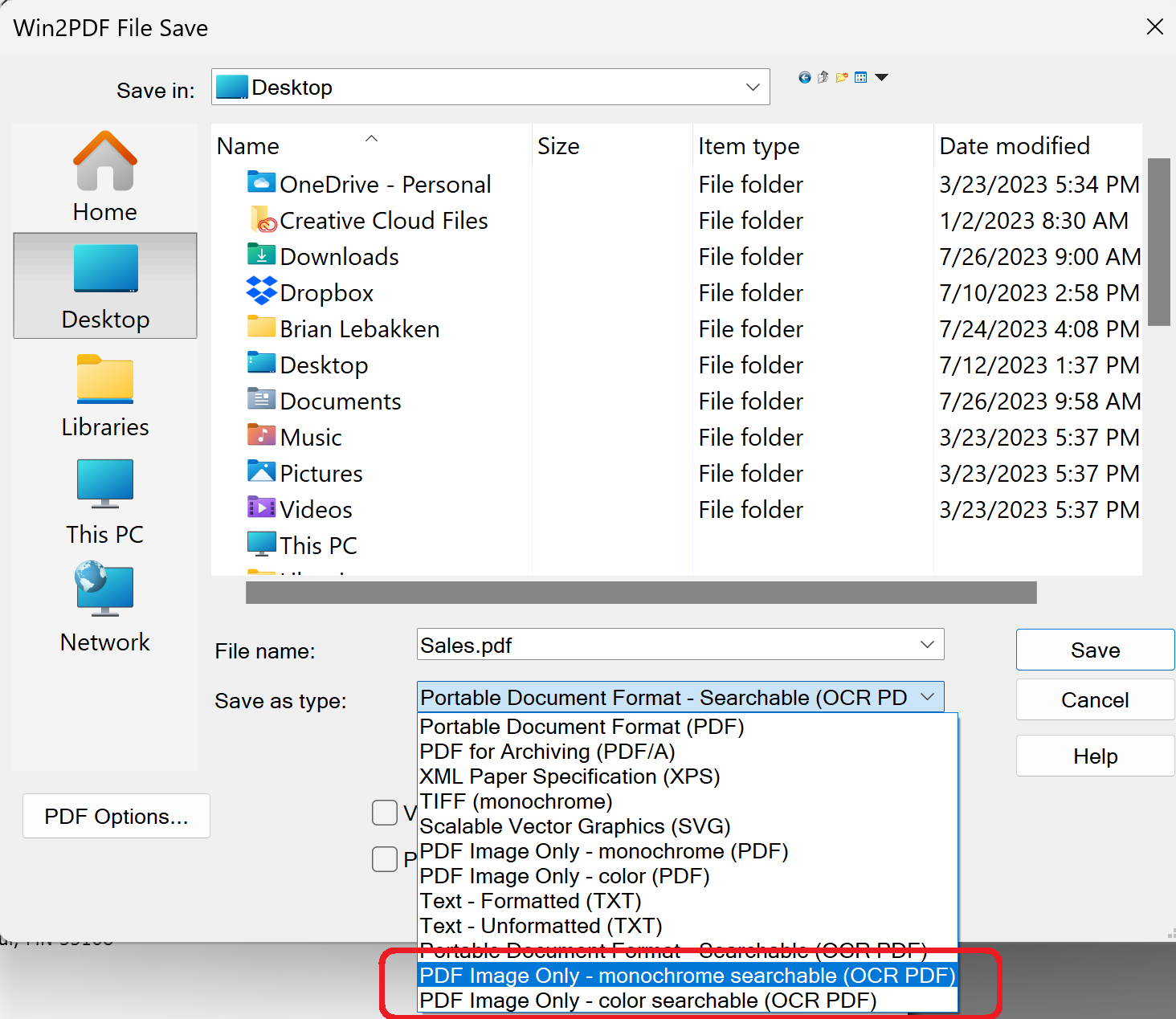
And finally, two new save as types and “Configure Auto-name” file types were added — PDF Image Only – monochrome searchable (OCR PDF) and PDF Image Only – color searchable (OCR PDF).

These formats can be useful when using Auto-name search fields. Some applications, like Crystal Reports, use encoded text to prevent searching. In this case, Win2PDF’s search fields and content fields can’t be found. These two new file types help work around this issue and are worth trying if the standard Portable Document Format – Searchable (OCR PDF) file type doesn’t work.

New Win2PDF Pro TSE Feature: Run Watch Folder As A Service

Continuing our feature posts about the 10.0.154 Win2PDF Update, let’s now take a look at running the Watch Folder as a Windows Service.

Previously, the watch folder needed to be initiated by a user, and an open window needed to be running on the machine for the Watch Folder to work. Now, it can be set up as a Windows Service in the background. This feature is ONLY available in the Win2PDF Pro Terminal Server Edition (TSE) version of the software.

[Recommended: If you haven’t used the Watch Folder and Convert feature in the past, it’s recommended that you start by running the feature interactively by starting the “Watch Folder and Convert” shortcut from the Windows Start menu. This allows you to see any errors as you configure the folder and convert type options.]

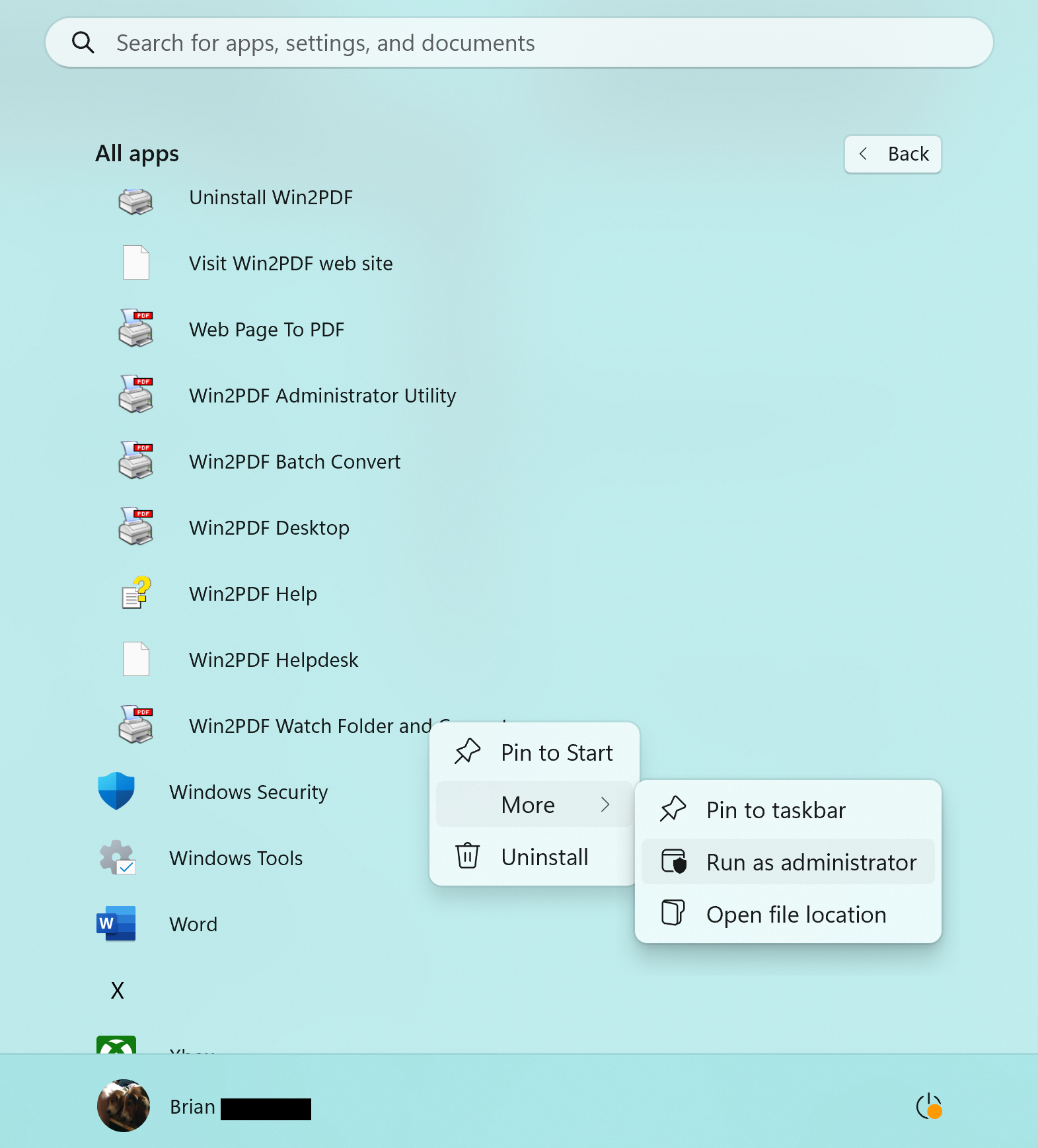
When everything is working correctly when running interactively and you’re ready to run the feature as a service, you should close the interactive Watch Folder window. Next, right click on the “Watch Folder and Convert” shortcut from the Windows Start menu, and choose “Run As Administrator…“.

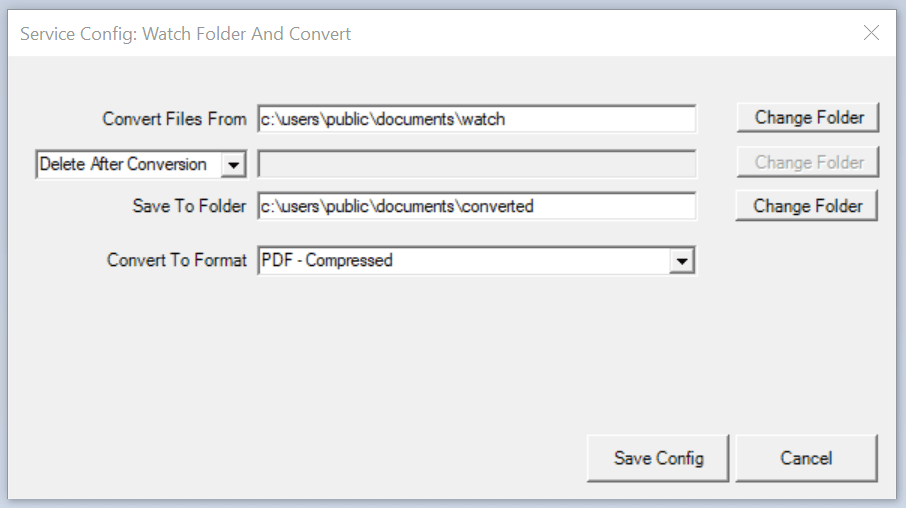
The title of the window will display “Service Config: Watch Folder and Convert“, and this is where you can select your watch folder and conversion format. The last used settings are restored in this Window.

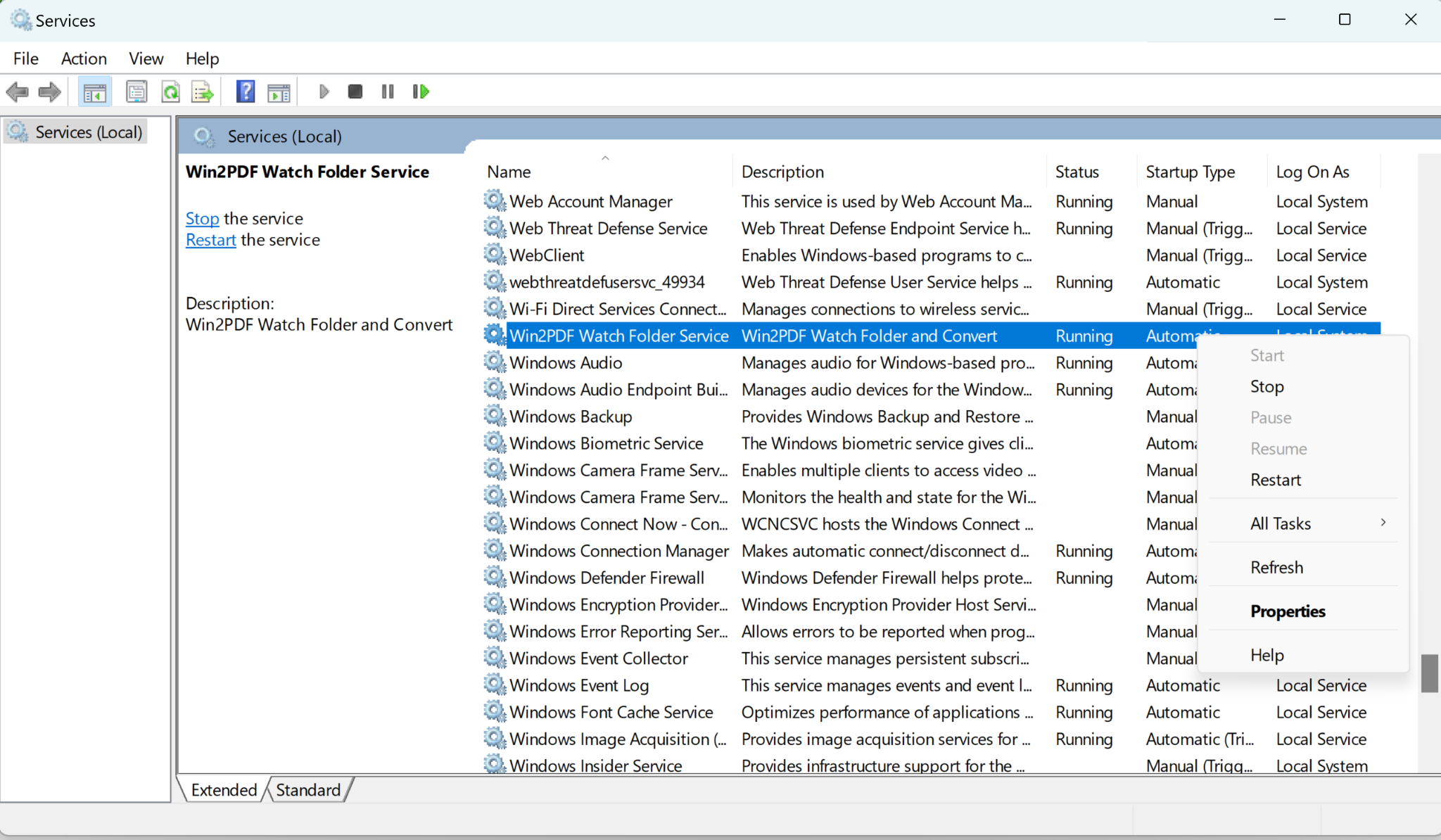
When you click on the Save Config button, Win2PDF installs and starts a Windows service using the settings in this window. The service will automatically start with Windows, and does not require that anyone is logged in to the server. You can verify the service is running by viewing the Services window from the Windows control panel.

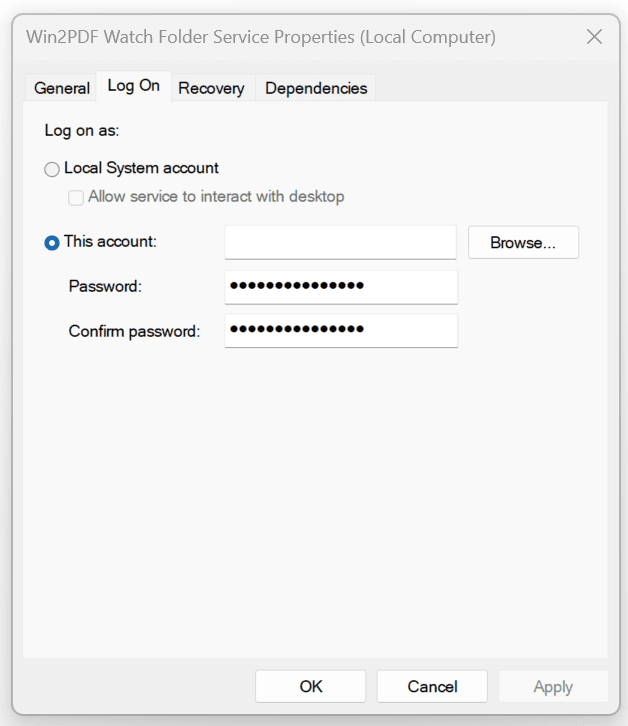
The service runs under the local system account by default. If the “Convert files from” or “Save To Folders” are not accessible from the local system account, you can configure the service to run under a different user using the “Log on” tab of the “Services” applet in the Control Panel Administrative Tools.

If you want to try this feature please request a 30-day evaluation license. Make sure to include that you need this specific feature in your request so we can send you the Win2PDF Pro TSE evaluation version.

New Win2PDF Pro Features: Batch Convert To A Single PDF File

In our previous blog post announcing the 10.0.154 Win2PDF Update, we mentioned a couple of new features that are specific to Win2PDF Pro. Let’s take a closer look at the first.

Batch Convert to a Single Merged PDF File

Previously, the batch convert feature in Win2PDF Desktop converted a folder of files in one format to another folder with a different format. If you had 10 .JPG files, for example, you could create 10 PDF files with batch convert.

However, suppose you had a folder of image files that were scanned pages of a book or document and you wanted to convert them all into a single PDF file, and one that had searchable text?

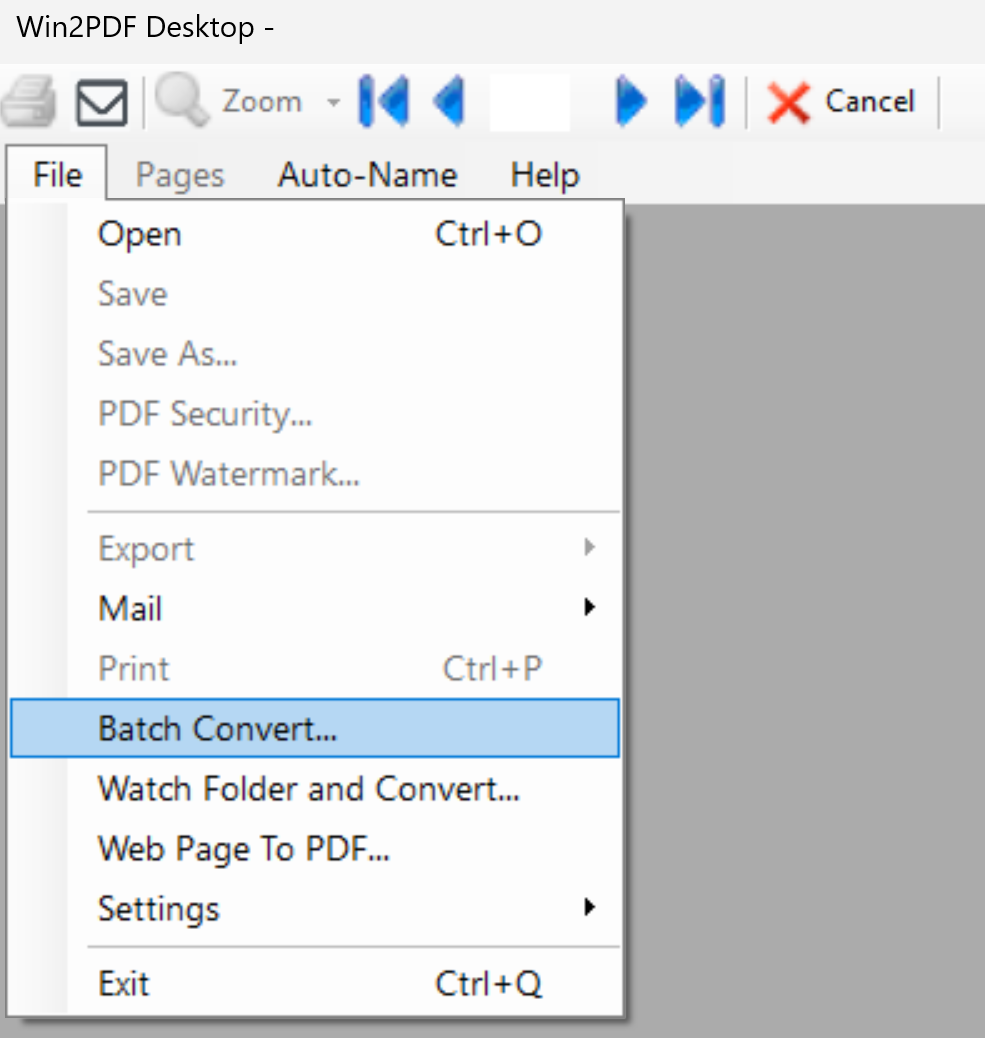
That’s where the new feature comes in. To use it, you just need to open the Win2PDF Desktop app and choose Batch Convert…

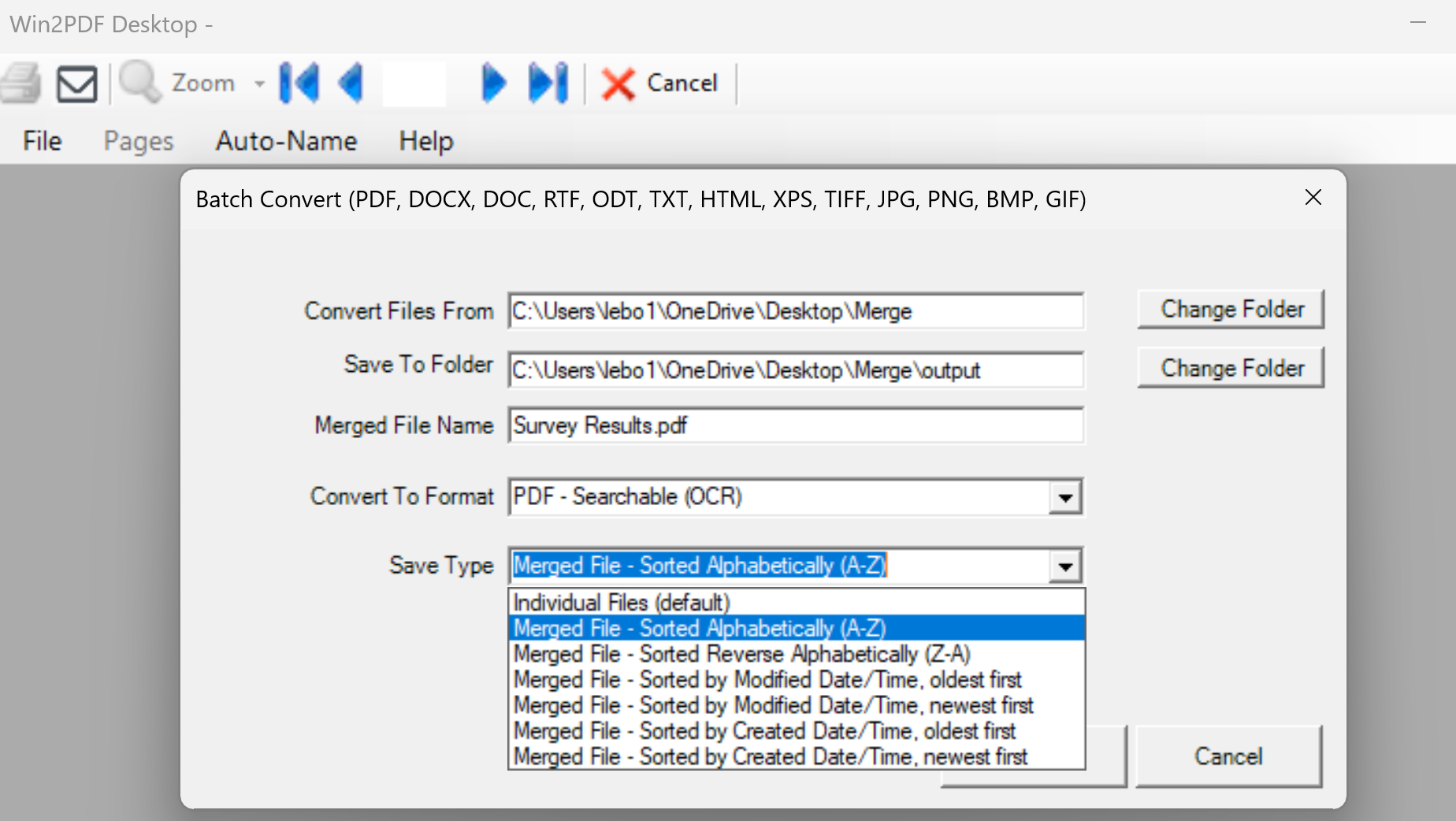
Select the folder that has your original files (Convert Files From). These can be PDF files, image files, or documents in various formats. And select the output folder (Save To Folder), and then choose the Save Type to be “Merged File…” When any of the “Merged File…” options are selected, you will be able to input a Merged File Name for the resulting file.

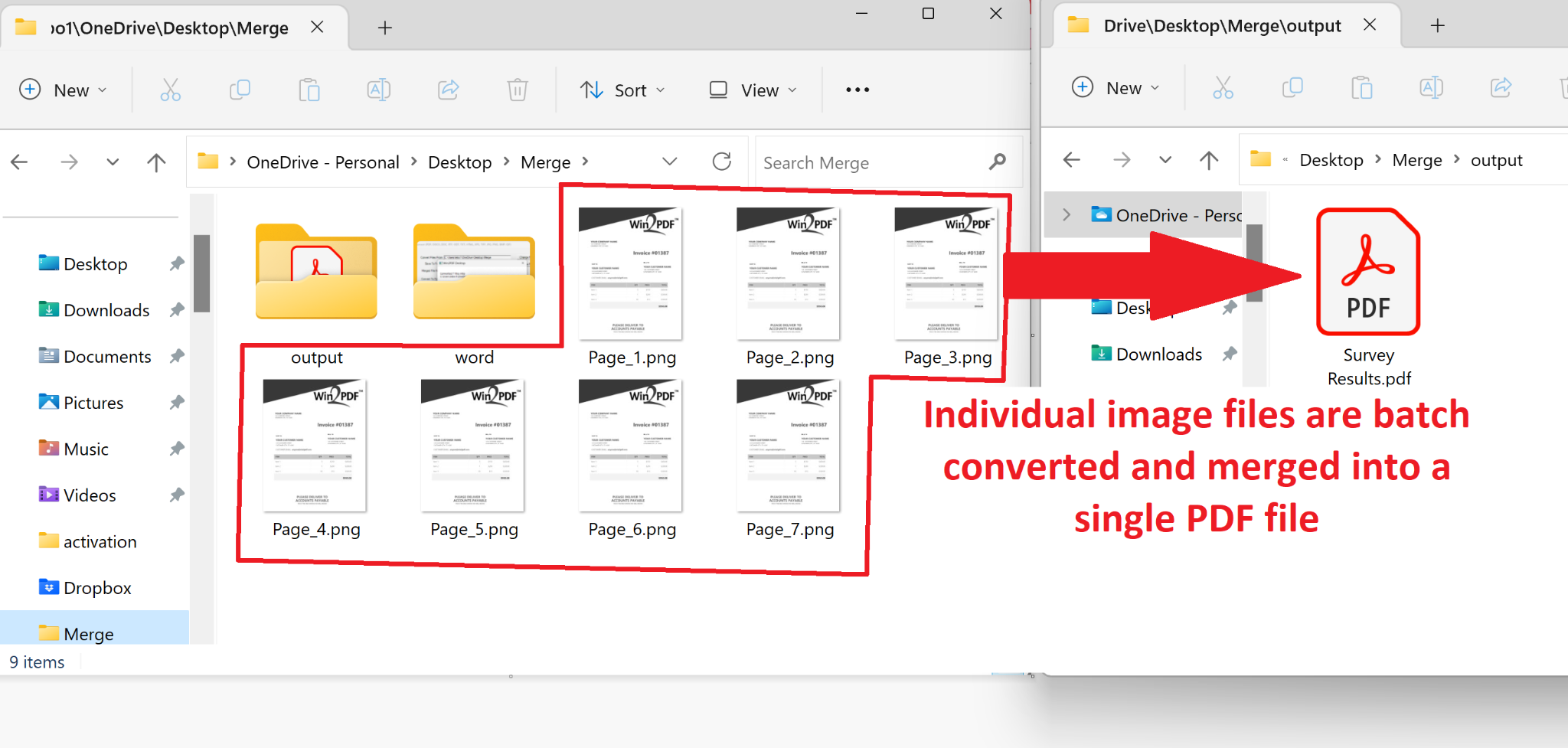
In our example, we’ll convert a folder of seven .PNG image files (each representing a scanned survey result), and store the results in as a Searchable (OCR) PDF file named ‘Survey Results.pdf’. Note: Any type of PDF output format can be used, but the OCR feature will make sure the results are searchable.

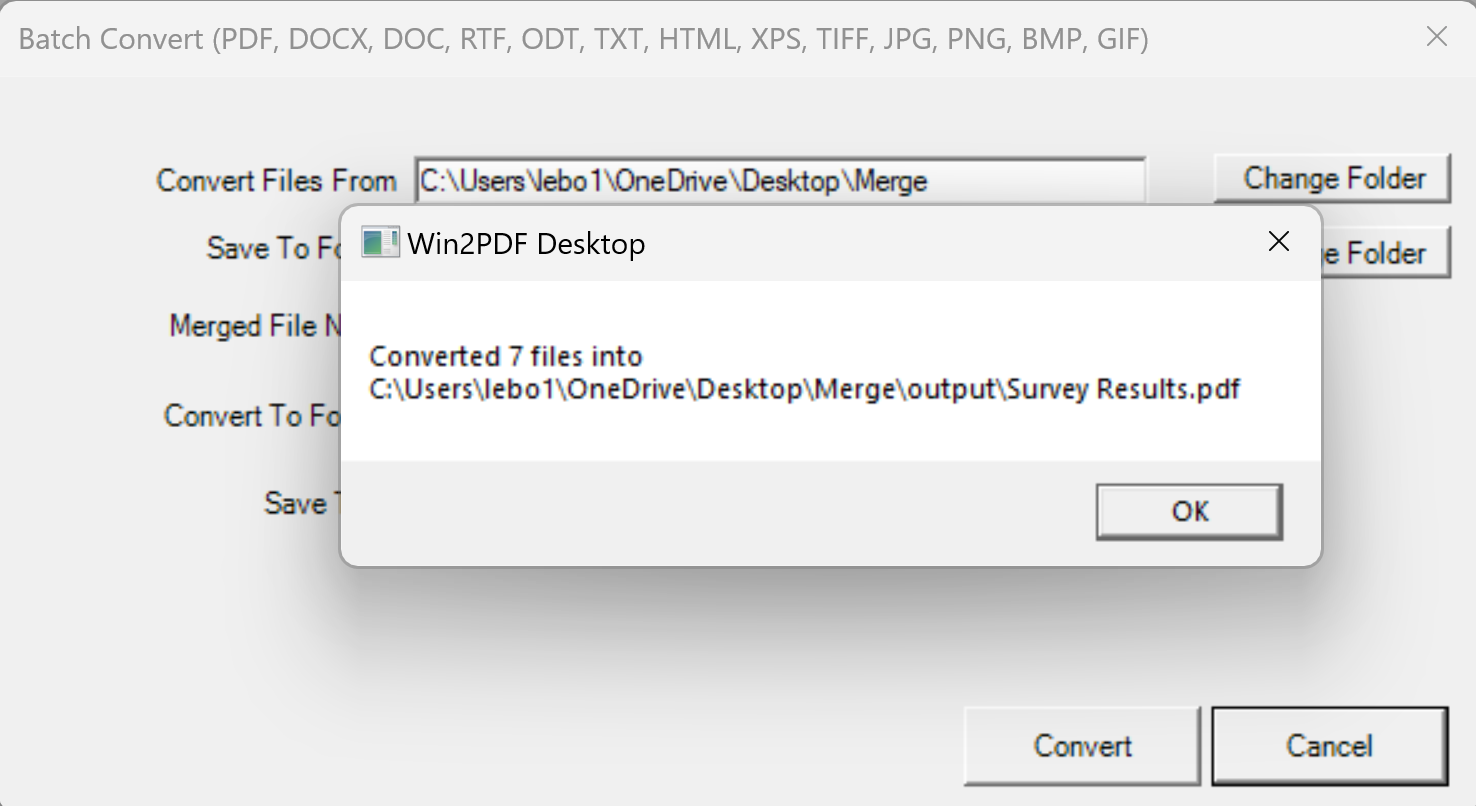
Notice that there are several Merged File options, which allows you to control the order in which the files are merged together. They can be sorted by alphabetical order (based on the original filename), or based on the time the original files were created or modified. When you press the Convert button, you’ll see the following pop-up.

And that’s really all there is to it. In this case, the seven individual image files (pages) in one folder have been saved to a single PDF file, and one that is searchable.

The Win2PDF BATCHCONVERT command line has also been updated to support merging to a single PDF.

Batch Merge PDFs To A Single PDF

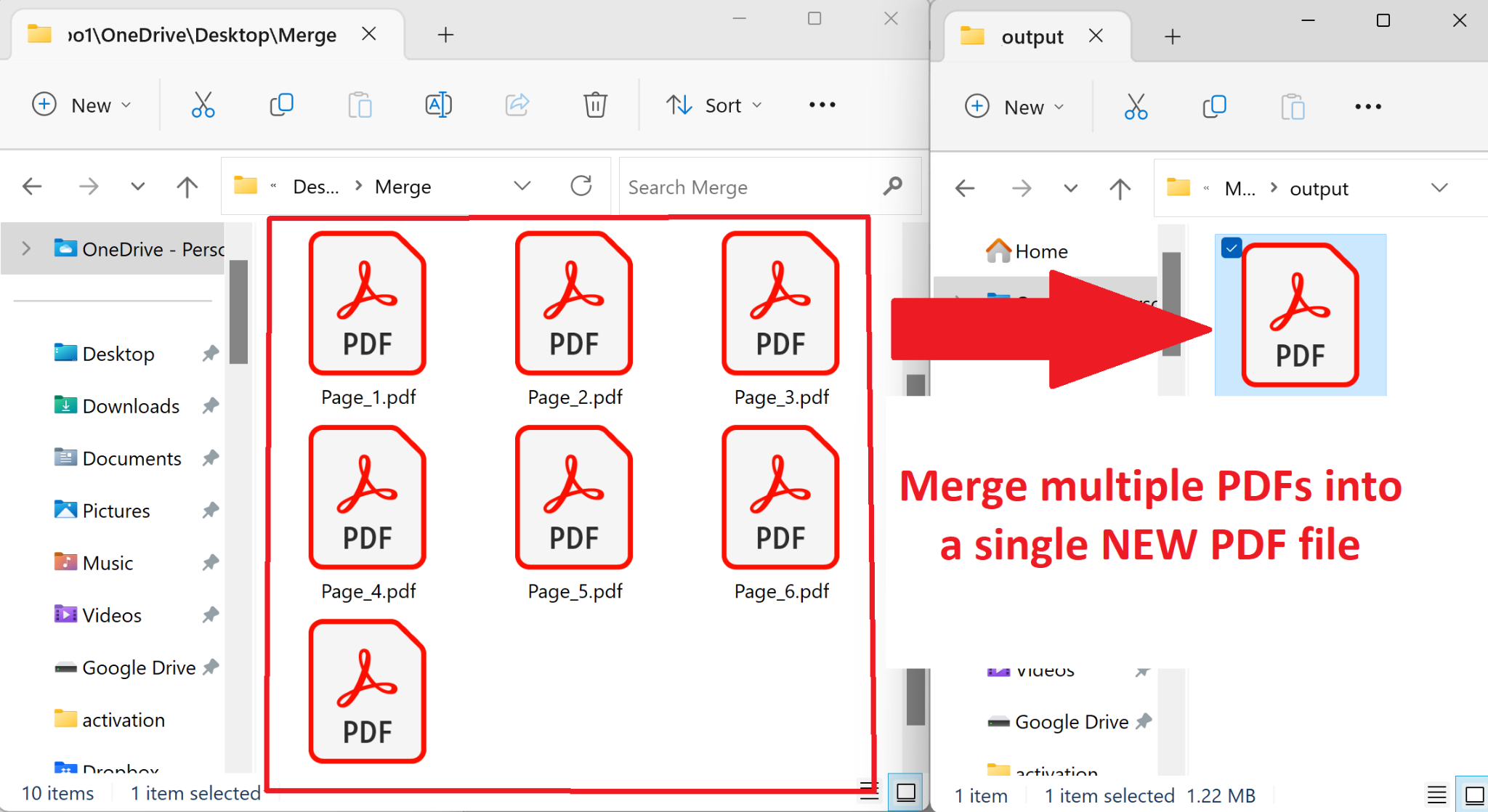
In addition to batch converting between formats, you can also batch merge folders of existing PDF files to a single merged PDF. You aren’t limited to only converting between files types, you can also merge multiple PDF files together.

It operates in the same way by opening the “Batch Convert…” window and then choosing a folder of PDF files as the input. Again, you can choose the order of merging based on the file names, or the dates of creation or modification of the files.

You can also combine multiple PDFs into a single merged PDF from the command line using the BATCHCONVERT command.

This has been a frequently requested feature. In prior releases, Win2PDF could only append one file at a time, and we’ve had many customers wanting to merge multiple PDFs together in a single operation. Now you can with one click!

If you want to try this feature please request a 30-day evaluation license for Win2PDF Pro.

Win2PDF Update Adds New Features for Batch Converting, Watch Folders, and Command Line Printing

The newest release of Win2PDF 10.0.154 is now available on the Win2PDF Download site.

New features in this update include the following.

For Win2PDF Pro only:

For Win2PDF Pro Terminal Server Edition (TSE) only:

For all versions of the Win2PDF command line:

  • Added a tray selection option to the command line PRINTPDF command.

For all versions of Win2PDF:

________

This Win2PDF 10 update is a free upgrade for Win2PDF 7 and Win2PDF 10 users. If you would like to evaluate one of the new Win2PDF Pro features (PDF watermark, PDF security, batch-convert, auto-rename, or watch folder), contact us for a free 30 day trial of Win2PDF Pro.

We’ll be providing a more detailed look at these new features in the subsequent blog posts.

Batch Convert Outlook Emails to PDF Files Using Win2PDF

We recently had the following question submitted to our Win2PDF support site:

I have a folder of Microsoft Outlook emails that I would like to convert to PDF. I want to convert just the one folder (the emails were filtered and sent to the folder by a rule when they were delivered to me). Is there a way to batch convert all emails? The batch convert tool doesn’t appear to include email messages but maybe I am missing something so I thought I should check. Thanks.

Nick

Great question. The Win2PDF Batch Convert feature doesn’t support Outlook emails directly, but it is possible to configure the Win2PDF Auto-name feature to make it easy to convert a folder of emails to PDF from Microsoft Outlook.

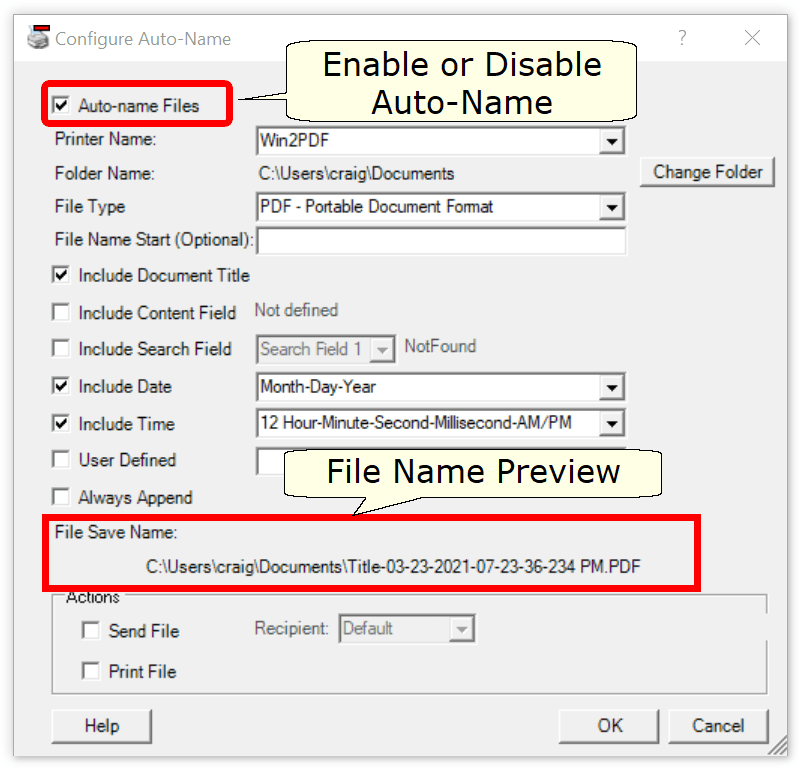
To do this, open the Configure Win2PDF Auto-name window and you’ll see the following options:

Enable the “Auto-name files” option, and set the folder name where you want the PDF file (or files) to be placed.

If you want all of the emails to be saved to a single PDF, you should set the following options:

  • (check) Include Document Title
  • (check) Include Date
  • (check) Always Append

If you want the emails saved to separate PDF files, you should set the following options:

  • (check) Include Time (to make each file name unique)
  • (uncheck) Always append

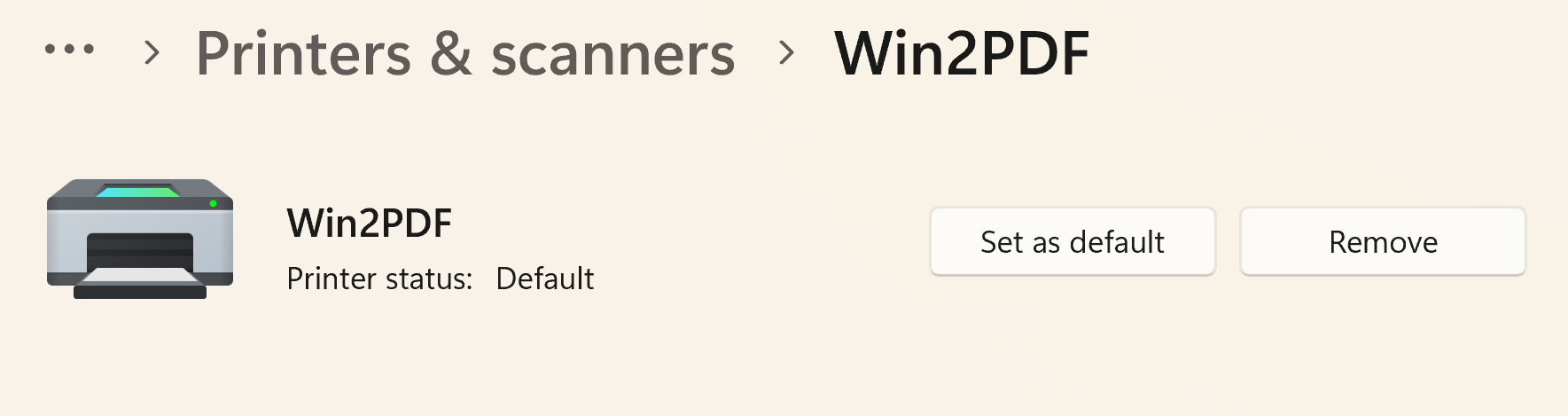
Next, you should make Win2PDF the default printer in the Windows Printers and Scanners folder. This is required because the Microsoft Outlook Quick Print feature only prints to the default printer.

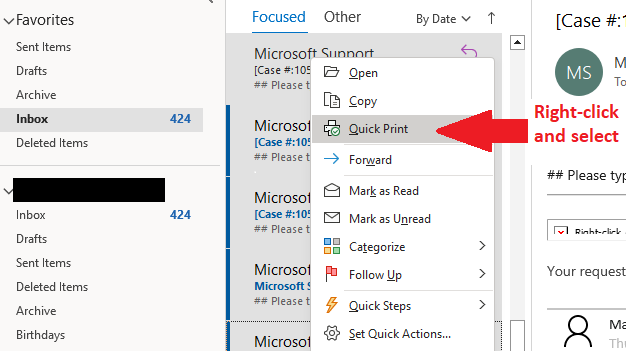
And finally, to create PDFs from the emails in your folder, select the emails in Outlook, right click, and select Quick Print.

Voila! The emails will be sent to the Win2PDF printer and will be automatically named with no user interaction.

This can be extremely useful if you want to archive or collect an email thread that is spread across many different messages, or a folder of messages related to a particular topic, person, or project.

If you have a tip like this for using Win2PDF, please let us know.

Print to JPG using Win2Image

This might not be news to some, but we still get questions asking about Win2PDF-like functionality to convert to other formats aside from PDF, such as the JPG image format (also referred to as JPEG).  One solution available in all versions of Win2PDF (at no additional cost) is the Win2Image printer**, which allows you to print to JPG, PNG, GIF, TIF, and BMP image formats.  It has the same interface as Win2PDF and is just as easy to use.

Why would you want to print to JPG instead of PDF?

There are advantages in using a JPG over a PDF file depending on the situation. JPG files are typically smaller in size and are easier to embed in web pages, emails, and other documents. PDF files, on the other hand, are much better suited to handling entire formatted and printable documents, where text and images, fonts and graphics, are all important to the presentation of the file as a whole.

There are also situations where someone may wish to extract certain pages, images, charts, graphs, etc. from an existing file (like a brochure, newsletter, eBook, spreadsheet, legal document, research paper, etc.) to repurpose or edit that image outside of the context of the original document.  Win2Image provides an easy way to do this.  

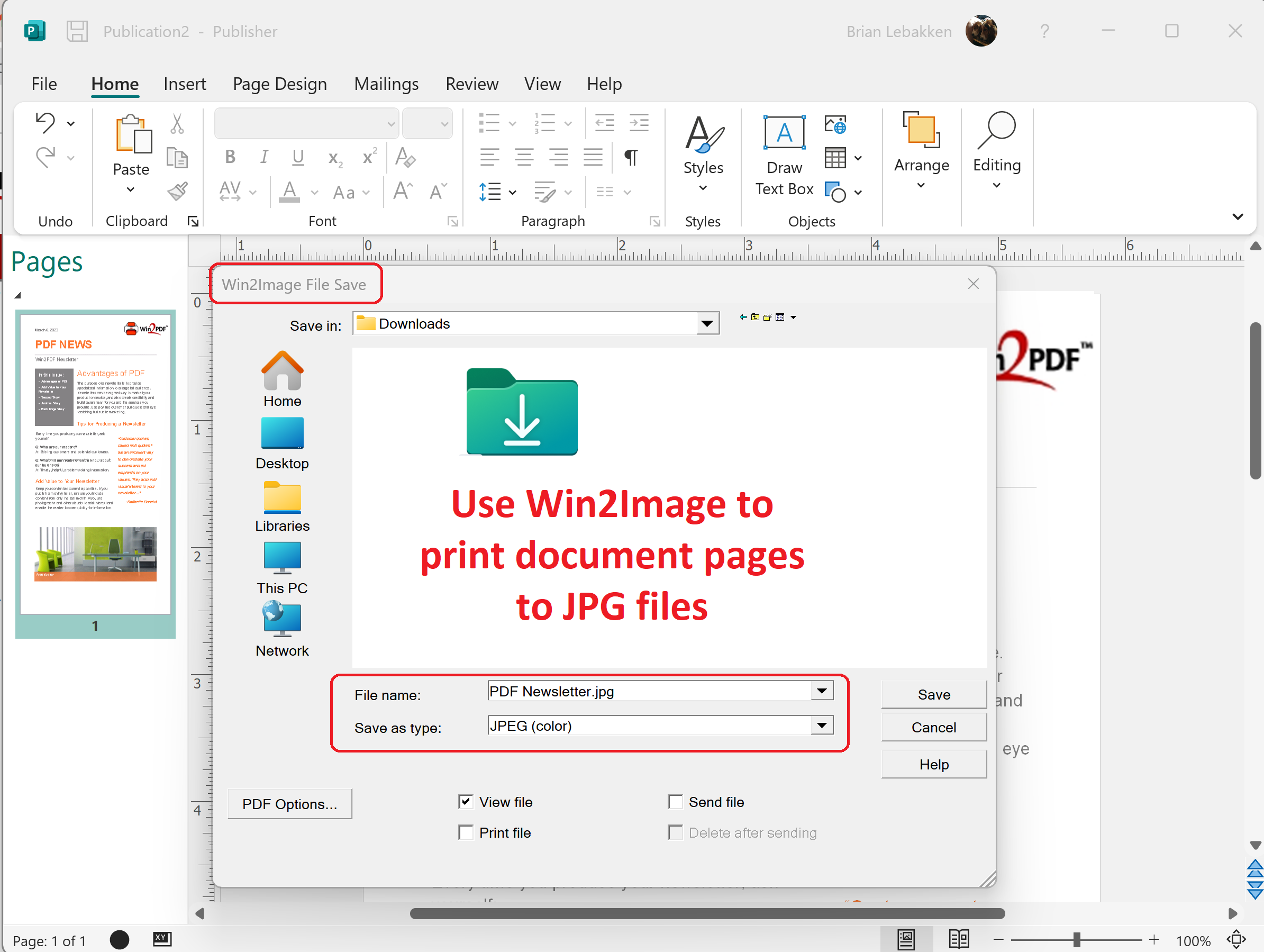
Just open the document in any application that supports printing, select a page (or range of pages), and then choose the printer named Win2Image.  In the file save window, choose whether you need color or only black and white versions of the JPG and then save.

Use Win2Image to print document pages to JPG files

If there are multiple pages in your selected document or print range, each page will be saved as an individual JPG file.  And once saved, you can further edit, compress, or modify any of these images for your new purpose.  You can use this method to print to PNG files as well.  (see JPEG vs. PNG for details about the differences between the two formats).

Whether you need the ability to print to PDF (for entire documents) or JPG (for individual image or graphic files), Win2PDF and Win2Image provide the same easy-to-use process for converting files.

** Win2Image is included as a printer when you download and install the Win2PDF software.  In addition to creating image files by printing, you can also directly convert files to JPG using the Win2PDF Desktop Export options, Win2PDF command line, and Win2PDF Desktop Batch Convert feature.

New Microsoft Edge Browser To Use Adobe Reader As Default PDF Viewer

Microsoft and Adobe recently announced the inclusion of Adobe Reader as the default PDF reader in its newest Edge web browser. Basically, Microsoft will swap out its own PDF reader with Adobe’s. The result will be “higher fidelity for more accurate colors and graphics, improved performance, strong security for PDF handling, and greater accessibility, including better text selection and read-aloud narration,” Microsoft claims.

This move is expected to streamline the PDF reading experience for Edge users, and make it easier to access and view PDF files directly within the browser.

“This addition will only be available in Edge for Windows 10 and 11 at first, and it will arrive in the form of a browser update that’s delivered next month, in March 2023.”

For years, Adobe Reader has been the go-to PDF reader for most users, but with the inclusion of Adobe Reader in Edge, users will have a more seamless experience reading PDF files without having to download and install a separate application. This integration is expected to benefit users who work with PDF files regularly, such as those in business or education.

Microsoft’s decision to include Adobe Reader in Edge is part of its ongoing efforts to enhance the browser’s functionality and user experience. Having a more reliable and feature-rich native PDF viewer in the Edge browser is positive development for all users of PDF technology, including Win2PDF customers.

Batch Converting Folders of OpenDocument Text (.odt) Files to PDF Using Win2PDF

In last week’s post, we announced details on the latest Win2PDF support of various Word Processing formats like Microsoft Word (.doc, .docx), OpenDocument Text (.odt), and Rich Text Format (.rtf).

While MS-Office files have always been an important format for documents, there is an increasing need to support OpenDocument (ODF) files as well, mostly due to its increasing adoption within government and international organizations.  The reason for this is simple:  they’re open and not dependent on changes imposed by a single company.

Microsoft Office Documents (.doc) were originally binary files used by Microsoft as a proprietary format.  Microsoft adapted the format to an standards-based format based on Open Office XML in 2007, and this became the (.docx) format.  Today, both (.doc) and (.docx) formats are maintained by Microsoft.  The OpenDocument format, on the other hand, is an open format that is documented and maintained by an independent non-profit consortium known as OASIS.  

[If you’re interested in more details, here’s Microsoft’s list of differences between (.docx) and (.odt) files].

For these reasons and more, Win2PDF now supports more conversion options with .odt files. 

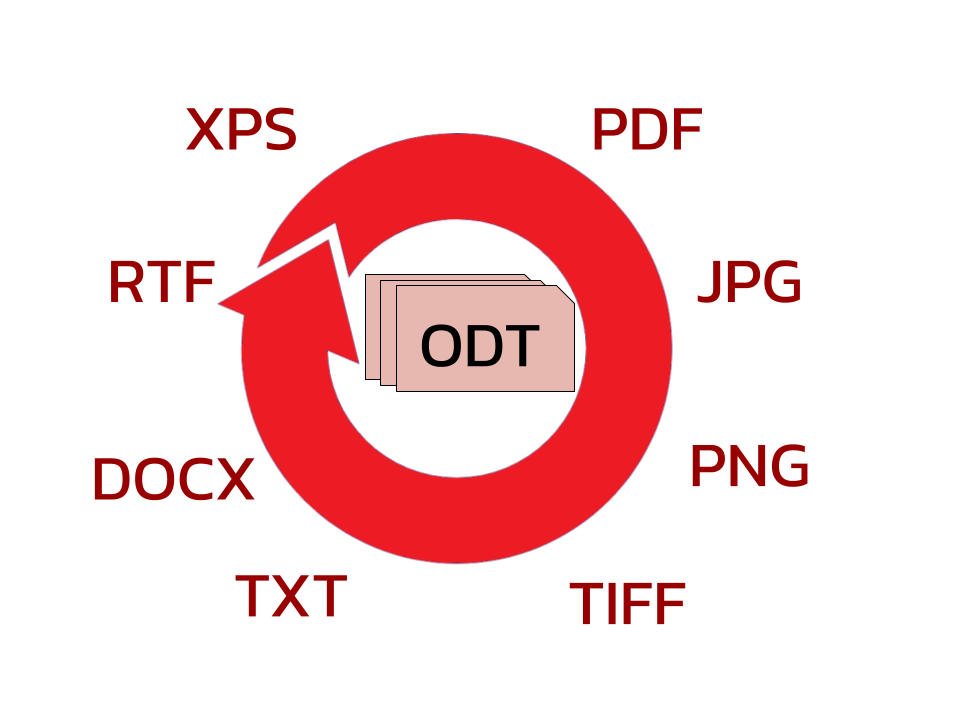
You can now read .odt files in the Win2PDF Desktop App, and batch convert folders of .odt files into the following formats:

If you want to convert individual files instead of batch converting folders of documents, you can either use the “export to ODT” feature or the “convertto” command line with the source or destination set to an .odt file.

Whether you’re looking to share these documents with others by email or the web, or simply preserve their formatting in another format, Win2PDF can help you batch convert folders of .odt documents to PDF quickly and easily.  If your organization is using OpenDocument Formats and there’s something else you’d like to see in terms of conversion, let us know.  We’re always interested in making the conversion process between different file formats easier and more flexible.

New Win2PDF Features for Converting Word (.docx), Open Document Text (.odt), and Rich Text Format (.rtf) to PDF

Win2PDF has always been able to convert Microsoft Word (.docx), Open Document Text (.odt), and Rich Text Format (.rtf) files by printing from the programs that can view/print these types of documents. With the most recent 10.0.144 release, however, it is now possible to natively view and export in the Win2PDF Desktop App, do batch conversions, use command line options, and use the watch folder with these standard word processing documents. This native support does not depend on any external programs such as Microsoft Word, and requires Win2PDF Pro.

Here’s a summary of the new capabilities:

  • Open .doc, .docx, .rtf, .odt, and .txt files in the Win2PDF Desktop App

When you open the Win2PDF Desktop App, you can now open .doc, .docx, .odt, .rtf, and .txt files. This allows you to export these files to PDF, searchable PDF, image files, or other formats.

  • Export to .docx, .odt, and .rtf from the Win2PDF Desktop App (Win2PDF Pro feature only)

  • Batch convert .docx, .odt, .rtf, and .xps files in the Win2PDF Desktop App (Win2PDF Pro feature only)

The Win2PDF Desktop App’s batch conversion feature now supports the additional input formats:

.docx, .doc, .rtf, .odt, .txt

And supports the following output formats

.docx, .rtf, .odt, .xps
  • New Command Line Options for .docx, .odt, .rtf, and .txt  (Win2PDF Pro feature only)

DOCX2PDF

DOC2PDF

RTF2PDF

ODT2PDF

TXT2PDF

  • Enhanced ‘convertto’ command line option for other formats

There are new input and output formats in the convertto command.

This allows for more unusual combinations such as “TXT to JPG” or “DOCX to PNG”.

  • Use Win2PDF Watch Folder to dynamically convert .docx, .odt, .rtf, and .xps files that are added to a folder. (Win2PDF Pro TSE feature only)

The current version of Win2PDF can be installed from the Win2PDF download page, and this update is available at no charge for registered Win2PDF 7 and higher version users. If you have the standard Win2PDF and want to use the new Pro only features, you can upgrade to Win2PDF Pro.

Win2PDF 10.0.144 is now available

The latest release of Win2PDF (10.0.144) is now available on the Win2PDF Download site.

The biggest additions to this release are specific to the Win2PDF Pro version of the software, which now supports the ability to batch convert standard word processing documents (Microsoft Word, Open Document Text, and Rich Text Format) to PDF.

Here’s a summary of changes in this new version:

This Win2PDF 10 update is a free upgrade for all Win2PDF 7 and Win2PDF 10 users. If you have an existing Win2PDF standard edition license and wish to use any of the new Win2PDF Pro features, you can purchase a Win2PDF Pro Upgrade.

We’ll be posting more specific information on some of these features next week, with more details on changes to the interface and how these new features can be used. In the meantime, if you would like to evaluate one of the new Win2PDF Pro features (PDF watermark, PDF security, batch-convert, auto-rename, or watch folder), contact us for a free 30 day trial of Win2PDF Pro.