New Win2PDF Update Boosts Productivity with Parallel Processing

We’re pleased to announce the latest release of Win2PDF version 10.0.169.1 This free update brings a significant enhancement to our Batch Convert feature—parallel processing. Along with this update, we’ve included fixes for handling improperly formatted PDF files and addressed installation issues that were causing missing file errors.

Parallel Processing in Batch Convert

Most of today’s modern CPUs come with multiple cores, allowing them to perform several tasks simultaneously (provided that your software programs support them). This is where parallel processing shines—by dividing tasks into smaller chunks that can be executed concurrently, it dramatically speeds up processing times. With the release of Win2PDF 10.0.169.1, we’ve integrated parallel processing into Win2PDF’s Batch Convert feature, specifically for users who choose “individual files” as the output.

How Does It Work?

When converting a large batch of files, Win2PDF will now process multiple files simultaneously, utilizing the full power of your multi-core CPU. This means that instead of processing one file after another in a linear fashion (serial processing), Win2PDF can handle several files at once (parallel processing), significantly reducing the time needed to complete large conversion tasks.
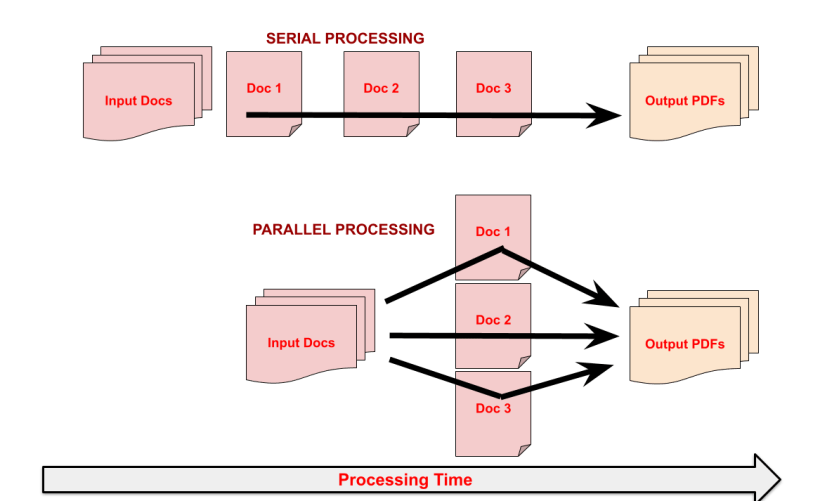
Win2PDF Parallel Processing for Batch Convert

However, it’s important to note that this performance boost applies only when the output is set to “individual files.” If you choose to merge your files into a single PDF, the conversion must occur sequentially to ensure the correct order of pages. Despite this, you can still get a rough idea of the performance improvement by comparing the processing time for both individual and merged outputs. The new Batch Convert interface (shown below) now shows the time it took to complete the task, making it easier to gauge the impact of parallel processing.
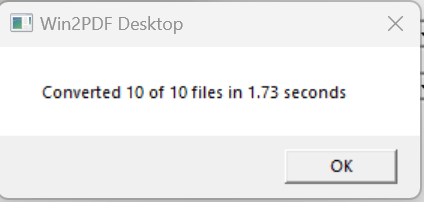
Win2PDF Batch Convert Time Windows
Why Is This Important?

This enhancement is especially beneficial for customers who need to make large folders of scanned documents searchable using OCR (Optical Character Recognition). With the ability to process multiple files at once, the time it takes to convert and prepare documents for OCR is drastically reduced, allowing for a more efficient workflow.

It’s also important to note that this conversion process takes place entirely on your machine, using your hardware. Your files are never uploaded to the cloud or leave your computer.

Additional Fixes and Improvements
  • Handling Improperly Formatted PDF Files: We’ve improved how Win2PDF handles improperly formatted PDF files, reducing errors and ensuring smoother conversion processes.
  • Installation Fixes: This update also addresses issues related to missing files during installation, providing a more seamless setup experience.

Upgrade to Win2PDF 10.0.169.1 Today!

With the introduction of parallel processing, Win2PDF continues to evolve, offering enhanced performance and reliability for your PDF conversion tasks. Download the latest version today and experience the power of parallel processing.


Streamline Your Batch PDF Conversions with Nested Folder Support in Latest Win2PDF Update

The latest Win2PDF 10 Build 158 update brings forth a series of new features that have been requested by our customers. Let’s take a closer look at the notable additions and improvements:

1. Subfolder Support in Batch Convert (Win2PDF Pro only)

One of the most frequently requested additions in this update is the inclusion of subfolder support in the Batch Convert feature (and Batch Convert command line option). Previously, you could only batch convert files in a single folder. With this enhancement, however, you can convert documents within multiple nested subfolders.

For example, suppose you wanted to convert many scanned image files to .PDF files in a folder called “Invoices”. And under the “Invoices” folder you had subfolders for years (e.g. “2021”, “2022”, “2023”, etc.). And under each year subfolder you had additional subfolders for months (e.g. “Jan”, “Feb”, “Mar”, etc.). Now you can convert all files with a single operation just by selecting the topmost parent folder and then checking the ‘Include Subfolders’ option.

When you enable the “Include Subfolders” option, the folder structure in the “Convert Files From” is mirrored in the “Save To Folder” location.

2. Optional Margin Parameters in HTML2PDF Command Line

With the integration of optional margin parameters in the HTML2PDF command line, users gain greater control over the layout and presentation of converted HTML files into PDF format. This feature allows for customized margin settings (for top, bottom, left and right margins), ensuring documents maintain their intended formatting in the converted PDF files.

3. New SIGNWITHSTAMP Command Line option for PDF Signing (Win2PDF Pro only)

This update also adds the SIGNWITHSTAMP command line feature, which enables users to sign PDF documents with a certificate AND include a signature bitmap. Users can specify the size and location of the signature bitmap using new command line parameters.

4. Optional Width and Height Parameters in Image-to-PDF Command Lines

The update brings optional width and height parameters to various command lines (“TIFF2PDF“, “JPG2PDF“, “PNG2PDF“, “BMP2PDF“, “GIF2PDF“, “IMAGE2PDF“). This enhancement allows for precise customization of the output PDF dimensions, offering flexibility in document size and layout.

5. Improved DOCX to PDF Conversion (Win2PDF Pro only)

Win2PDF 10 Build 158 significantly enhances the DOCX to PDF conversion process in both the DOCX2PDF command line and Batch Convert DOCX to PDF feature. These improvements ensure better accuracy and fidelity when converting Microsoft Word documents to PDF format.

Upgrade and Trial Information

Existing Win2PDF 7 and Win2PDF 10 users can enjoy this update as a free upgrade.

This latest update contains features that were all created based on customer requests and feedback. Do you have a feature you’d like to have added or modified? If so, let us know and we’ll look into it.

ChatGPT’s Latest Update: Analyzing PDFs for Powerful Insights

OpenAI’s ChatGPT has received a substantial update, allowing users to upload PDF documents and have the AI-powered chatbot analyze them. This newfound feature promises to be a game-changer in various scenarios where quick and efficient data extraction is required.

The power of this feature becomes evident when considering its real-world applications. Users can now feed ChatGPT specific PDF documents, enabling it to generate summaries, extract data points, and even create graphs and charts based on the provided information. What are the key points of this report? Can you summarize its conclusions? Can you help me write a slide show presentation for this document? Just think of the many ways that any type of PDF file can be analyzed.

“…you can now feed ChatGPT specific PDF documents and have it extract summaries, various data points, or even write graphs and charts based on that data.”

ChatGPT’s new ability to analyze PDFs is a remarkable advancement, expanding its utility beyond natural language understanding and generation. This update underscores the ever-evolving capabilities of AI-powered tools and their potential to transform the way we work with information.

We’ll continue to monitor the developments in the AI space to see how and where Win2PDF can be used to facilitate the PDF integrations. If you have any questions or specific use cases in this area, please let us know. We’re always interested in how our users may be incorporating or interfacing with this type of application.

Enhanced Printing Options: Win2PDF’s Latest Command Line Features

And in our final feature post about the 10.0.154 Win2PDF Update, we’ll look at the remaining new features.

New Command Line Support To Print Document and Image Files to a Windows Printer

Another frequently requested feature is the ability to print files directly from the command line, typically to a paper printer. There is a generalized PRINT command, along with commands used for printing specifically formatted image and document files. These are:

  • PRINT General Print command line option
  • PRINTDOCX ** Print Microsoft Word .docx files
  • PRINTRTF ** Print RichText Format .rtf files
  • PRINTODT ** Print OpenDocument Format .odt files
  • PRINTTXT ** Print Text .txt files
  • PRINTHTML Print HTML files
  • PRINTSVG Print Scalable Vector Graphic .svg files
  • PRINTXPS Print XML Paper Specification .xps files
  • PRINTTIFF Print TIFF .tif image files
  • PRINTJPG Print JPG .jpg image files
  • PRINTPNG Print PNG .png image files
  • PRINTBMP Print Bitmap .bmp image files
  • PRINTGIF Print GIF .gif image files

** feature requires Win2PDF Pro version of the software

And a couple of other new command line features were added as well:

  • PRINTPDFACTUALSIZE – used to print a PDF with no scaling
  • PRINTPDF – Added the ability to make a tray selection option from this command

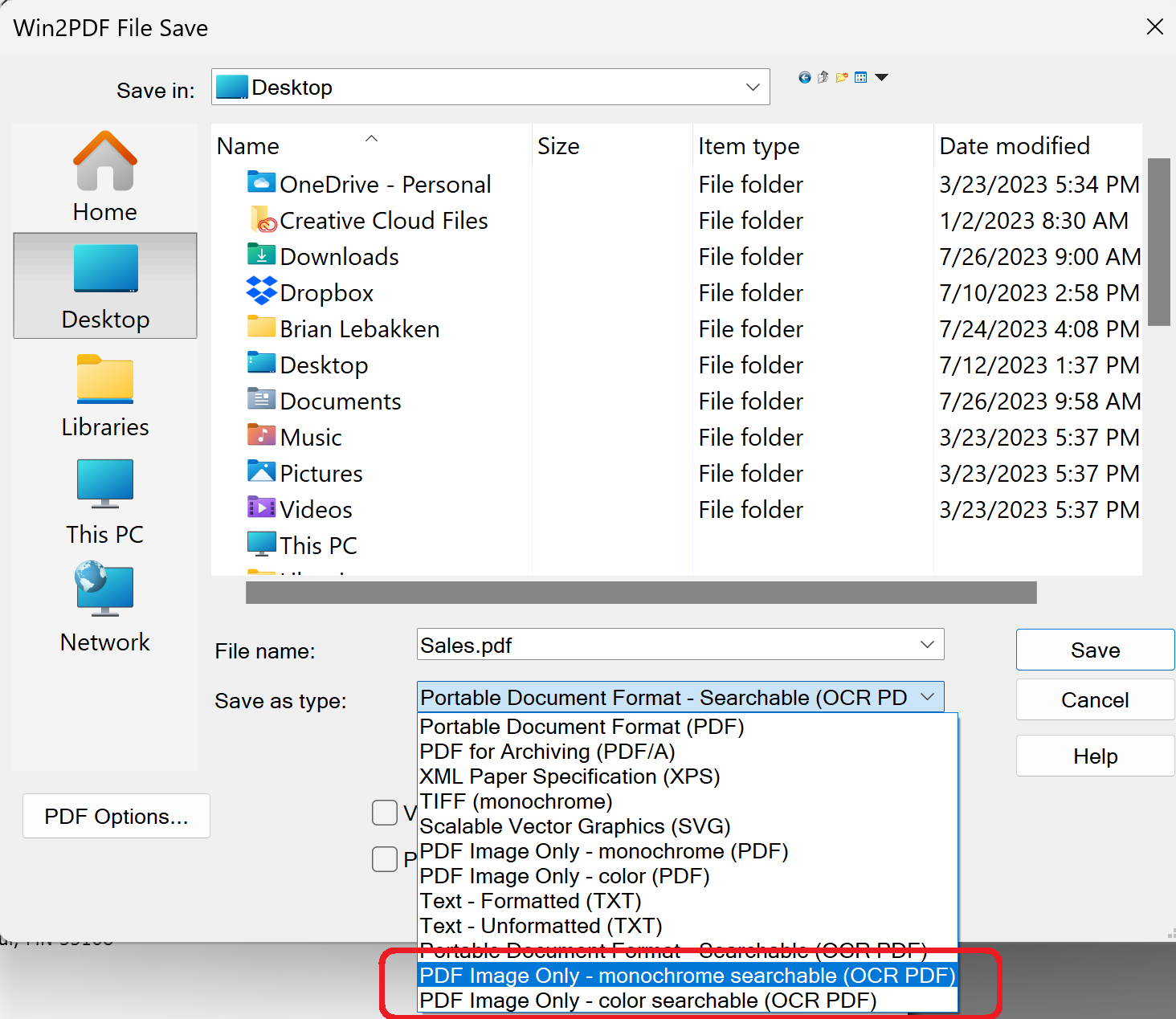
And finally, two new save as types and “Configure Auto-name” file types were added — PDF Image Only – monochrome searchable (OCR PDF) and PDF Image Only – color searchable (OCR PDF).

These formats can be useful when using Auto-name search fields. Some applications, like Crystal Reports, use encoded text to prevent searching. In this case, Win2PDF’s search fields and content fields can’t be found. These two new file types help work around this issue and are worth trying if the standard Portable Document Format – Searchable (OCR PDF) file type doesn’t work.

New Win2PDF Pro Features: Batch Convert To A Single PDF File

In our previous blog post announcing the 10.0.154 Win2PDF Update, we mentioned a couple of new features that are specific to Win2PDF Pro. Let’s take a closer look at the first.

Batch Convert to a Single Merged PDF File

Previously, the batch convert feature in Win2PDF Desktop converted a folder of files in one format to another folder with a different format. If you had 10 .JPG files, for example, you could create 10 PDF files with batch convert.

However, suppose you had a folder of image files that were scanned pages of a book or document and you wanted to convert them all into a single PDF file, and one that had searchable text?

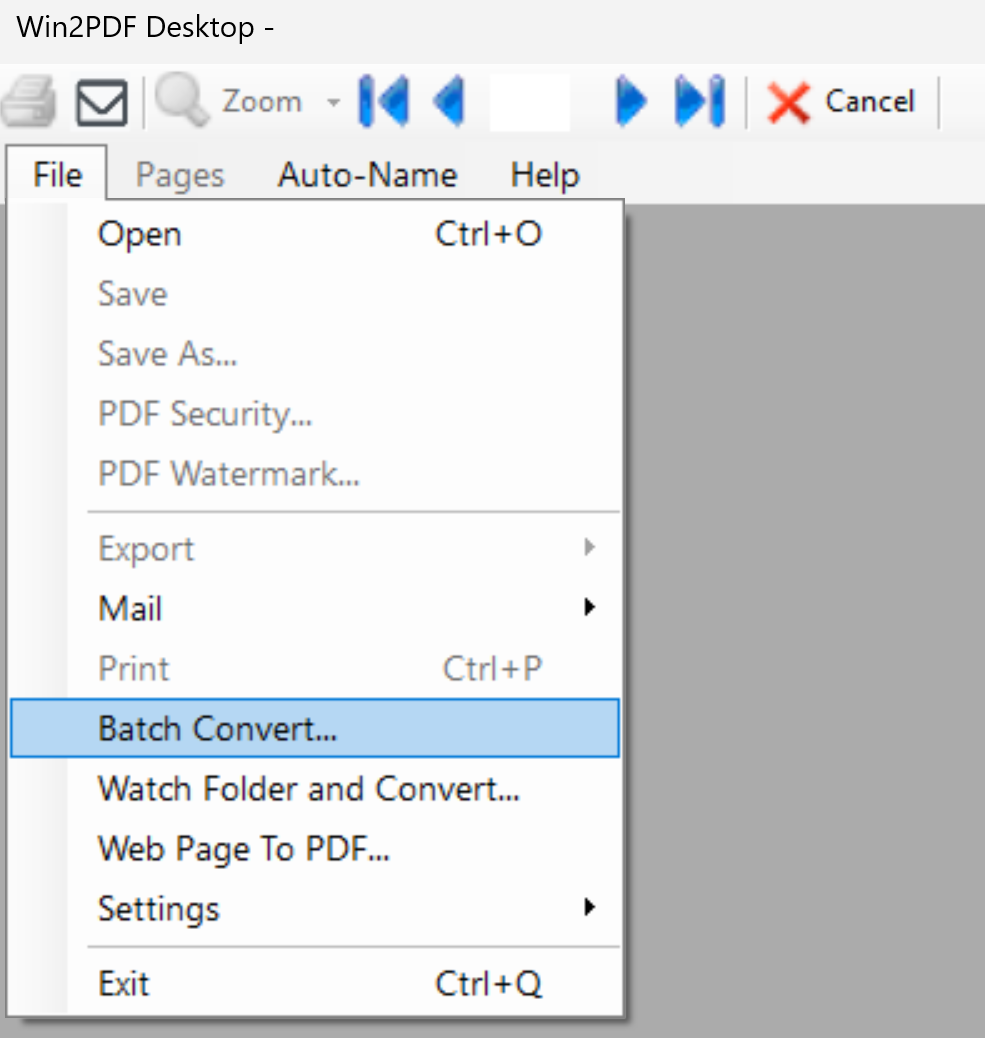
That’s where the new feature comes in. To use it, you just need to open the Win2PDF Desktop app and choose Batch Convert…

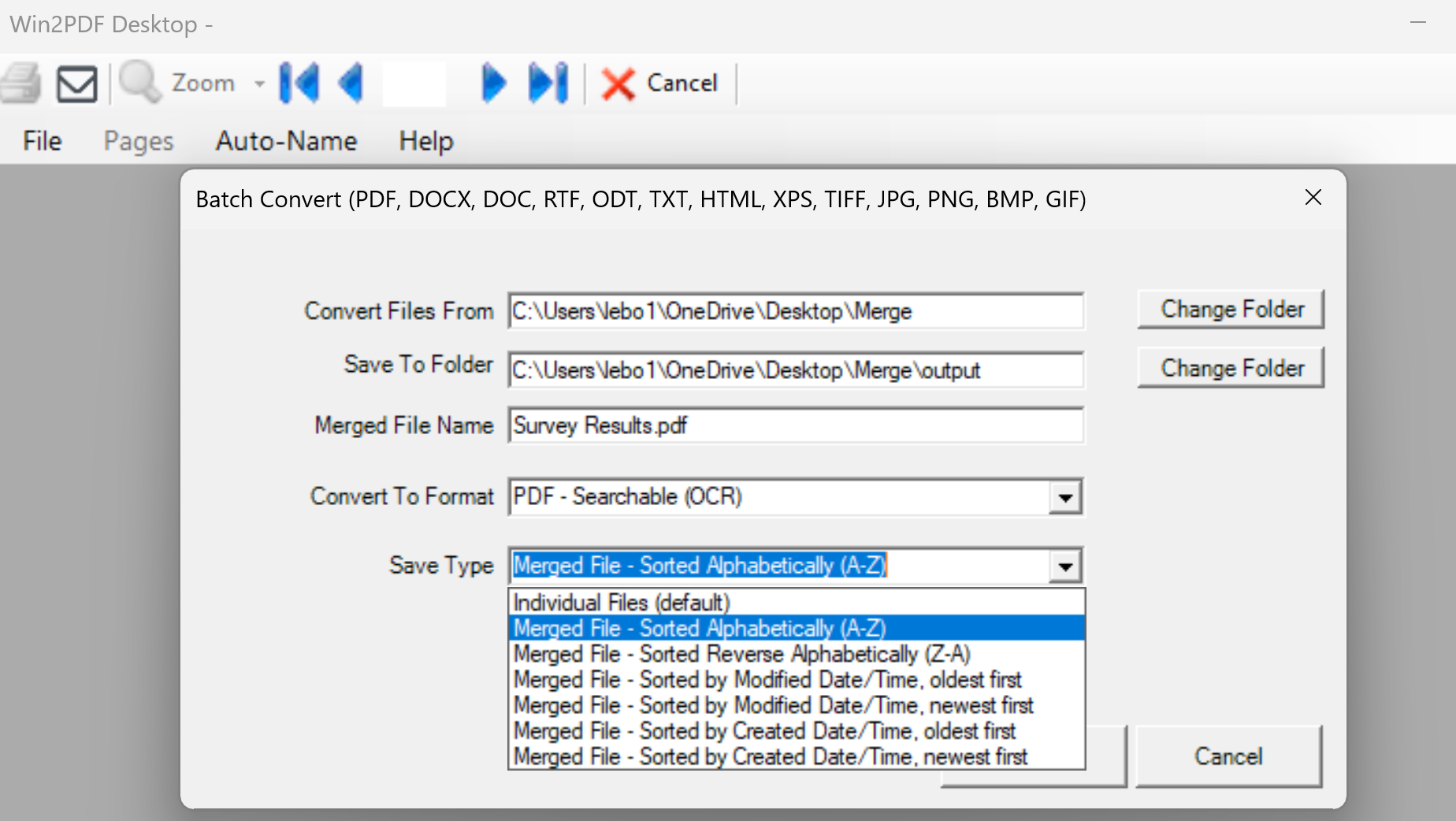
Select the folder that has your original files (Convert Files From). These can be PDF files, image files, or documents in various formats. And select the output folder (Save To Folder), and then choose the Save Type to be “Merged File…” When any of the “Merged File…” options are selected, you will be able to input a Merged File Name for the resulting file.

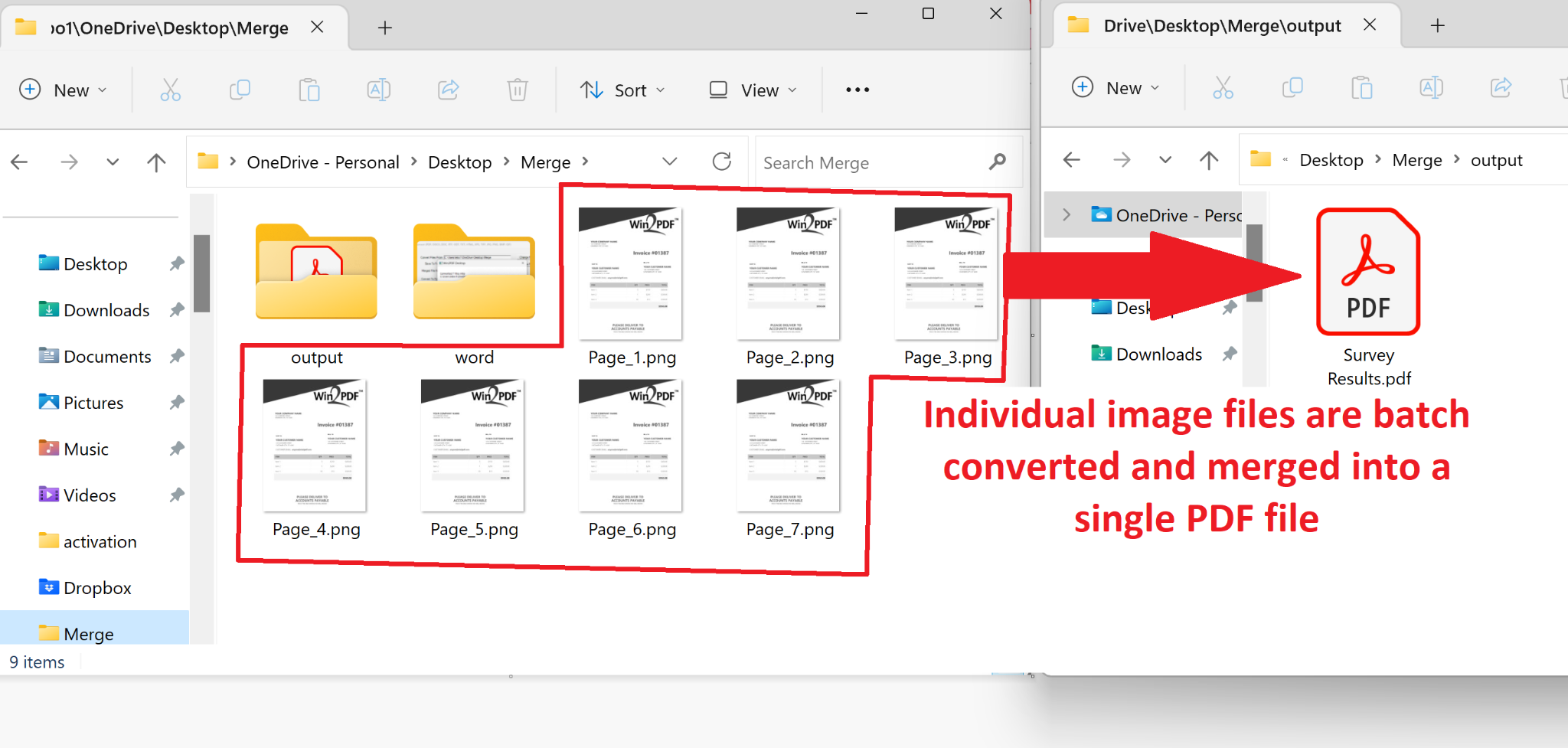
In our example, we’ll convert a folder of seven .PNG image files (each representing a scanned survey result), and store the results in as a Searchable (OCR) PDF file named ‘Survey Results.pdf’. Note: Any type of PDF output format can be used, but the OCR feature will make sure the results are searchable.

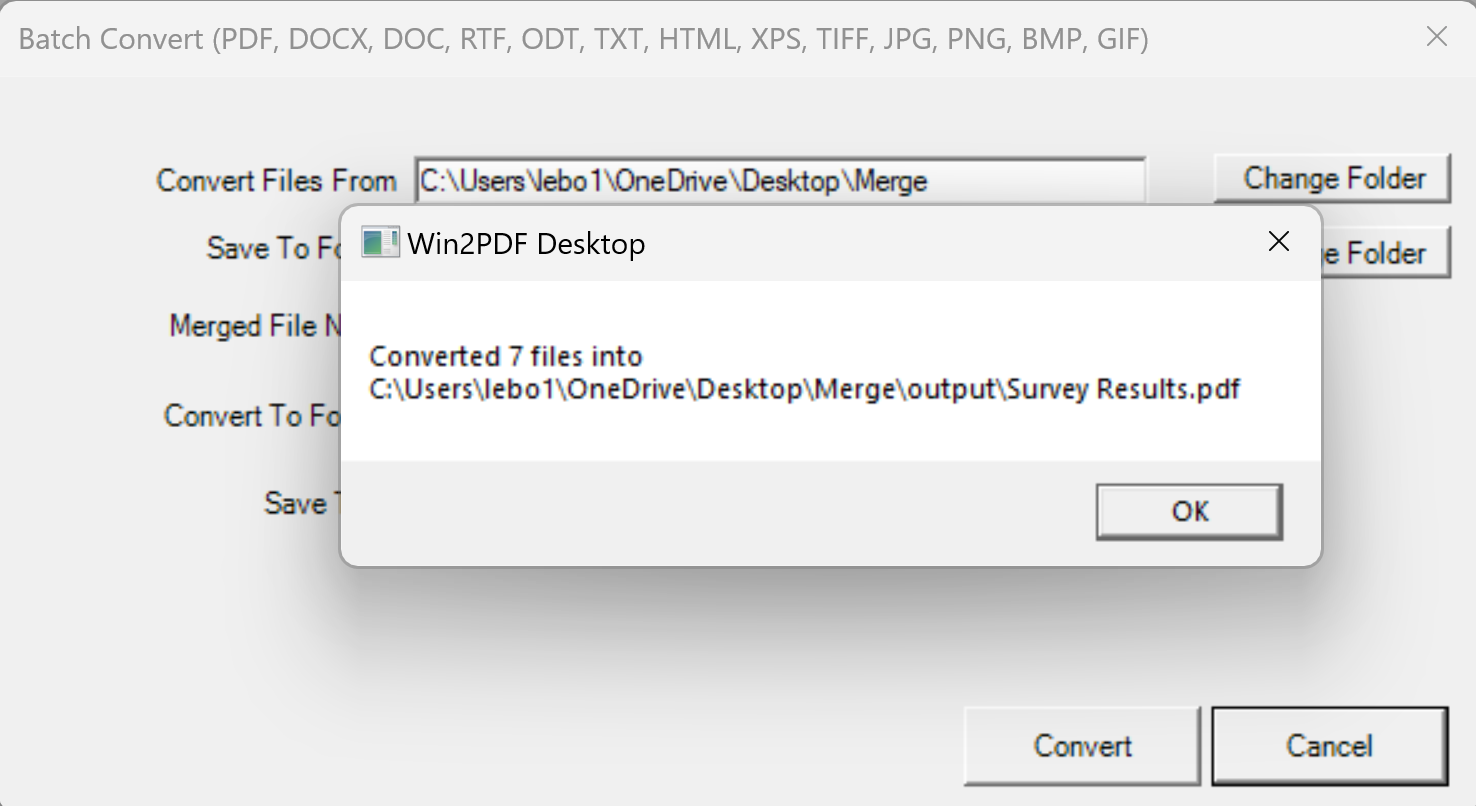
Notice that there are several Merged File options, which allows you to control the order in which the files are merged together. They can be sorted by alphabetical order (based on the original filename), or based on the time the original files were created or modified. When you press the Convert button, you’ll see the following pop-up.

And that’s really all there is to it. In this case, the seven individual image files (pages) in one folder have been saved to a single PDF file, and one that is searchable.

The Win2PDF BATCHCONVERT command line has also been updated to support merging to a single PDF.

Batch Merge PDFs To A Single PDF

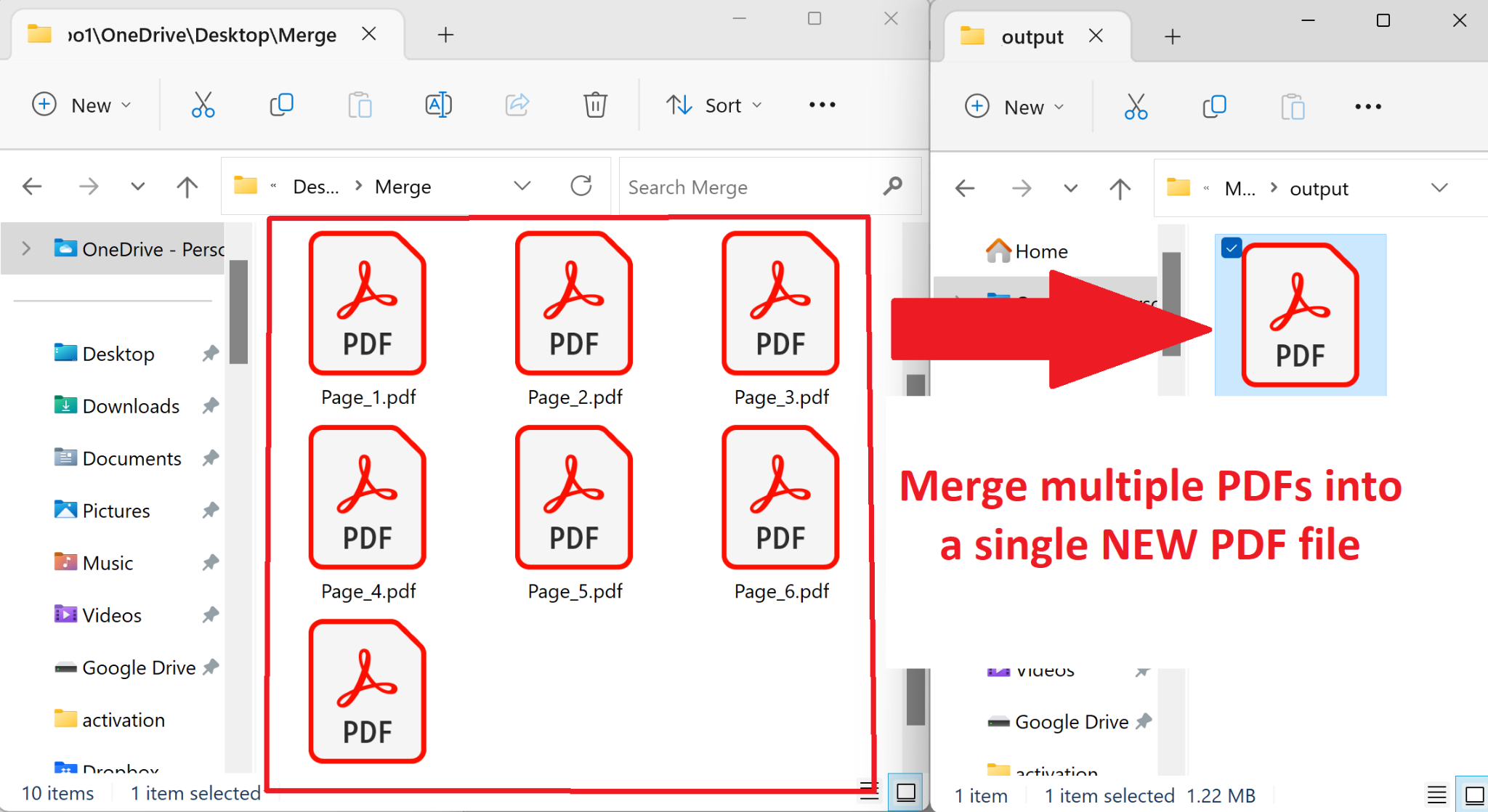
In addition to batch converting between formats, you can also batch merge folders of existing PDF files to a single merged PDF. You aren’t limited to only converting between files types, you can also merge multiple PDF files together.

It operates in the same way by opening the “Batch Convert…” window and then choosing a folder of PDF files as the input. Again, you can choose the order of merging based on the file names, or the dates of creation or modification of the files.

You can also combine multiple PDFs into a single merged PDF from the command line using the BATCHCONVERT command.

This has been a frequently requested feature. In prior releases, Win2PDF could only append one file at a time, and we’ve had many customers wanting to merge multiple PDFs together in a single operation. Now you can with one click!

If you want to try this feature please request a 30-day evaluation license for Win2PDF Pro.

Win2PDF Update Adds New Features for Batch Converting, Watch Folders, and Command Line Printing

The newest release of Win2PDF 10.0.154 is now available on the Win2PDF Download site.

New features in this update include the following.

For Win2PDF Pro only:

For Win2PDF Pro Terminal Server Edition (TSE) only:

For all versions of the Win2PDF command line:

  • Added a tray selection option to the command line PRINTPDF command.

For all versions of Win2PDF:

________

This Win2PDF 10 update is a free upgrade for Win2PDF 7 and Win2PDF 10 users. If you would like to evaluate one of the new Win2PDF Pro features (PDF watermark, PDF security, batch-convert, auto-rename, or watch folder), contact us for a free 30 day trial of Win2PDF Pro.

We’ll be providing a more detailed look at these new features in the subsequent blog posts.

Batch Convert Outlook Emails to PDF Files Using Win2PDF

We recently had the following question submitted to our Win2PDF support site:

I have a folder of Microsoft Outlook emails that I would like to convert to PDF. I want to convert just the one folder (the emails were filtered and sent to the folder by a rule when they were delivered to me). Is there a way to batch convert all emails? The batch convert tool doesn’t appear to include email messages but maybe I am missing something so I thought I should check. Thanks.

Nick

Great question. The Win2PDF Batch Convert feature doesn’t support Outlook emails directly, but it is possible to configure the Win2PDF Auto-name feature to make it easy to convert a folder of emails to PDF from Microsoft Outlook.

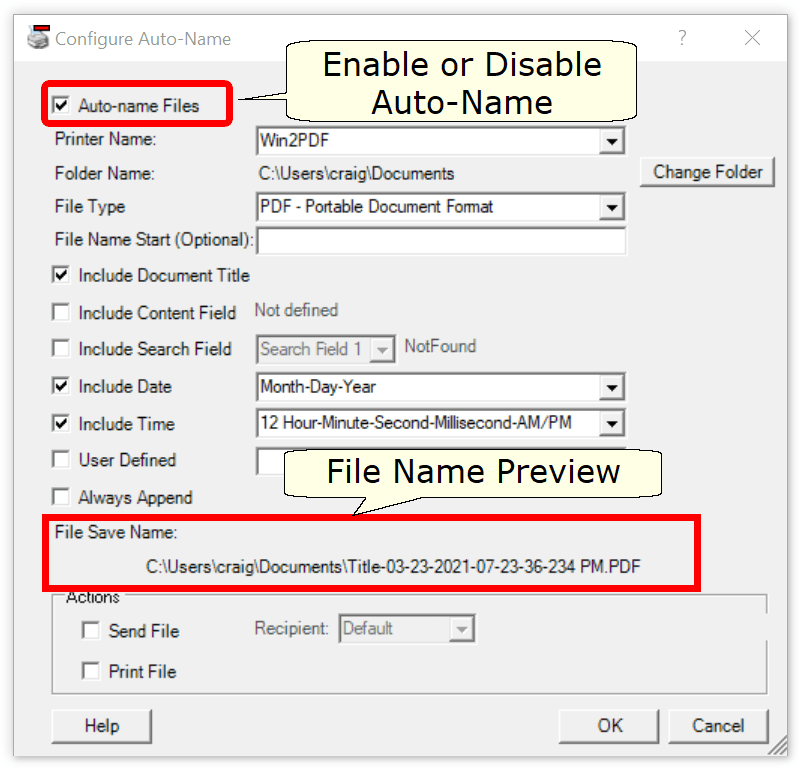
To do this, open the Configure Win2PDF Auto-name window and you’ll see the following options:

Enable the “Auto-name files” option, and set the folder name where you want the PDF file (or files) to be placed.

If you want all of the emails to be saved to a single PDF, you should set the following options:

  • (check) Include Document Title
  • (check) Include Date
  • (check) Always Append

If you want the emails saved to separate PDF files, you should set the following options:

  • (check) Include Time (to make each file name unique)
  • (uncheck) Always append

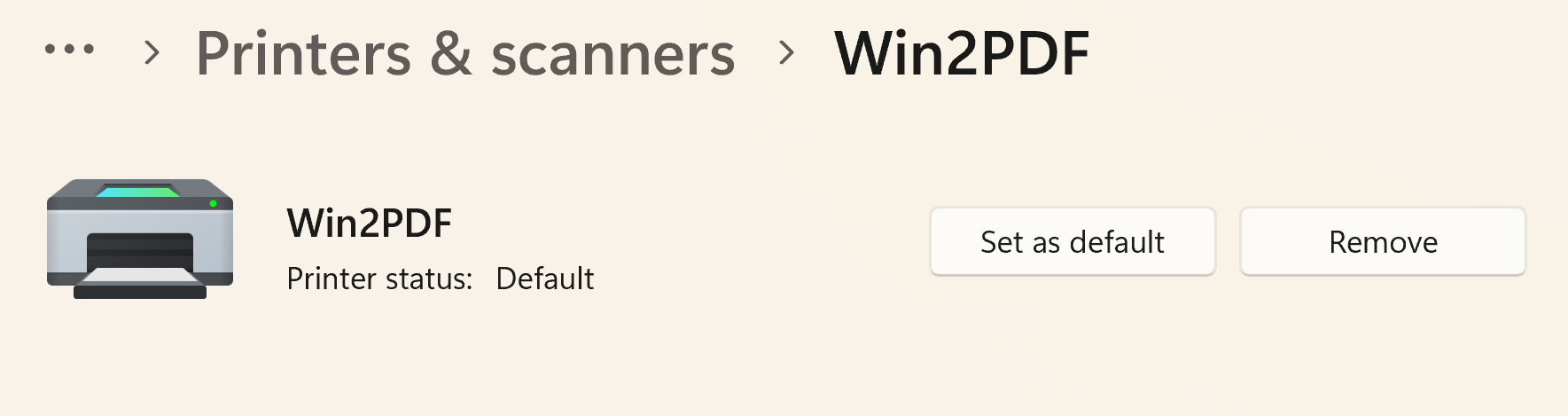
Next, you should make Win2PDF the default printer in the Windows Printers and Scanners folder. This is required because the Microsoft Outlook Quick Print feature only prints to the default printer.

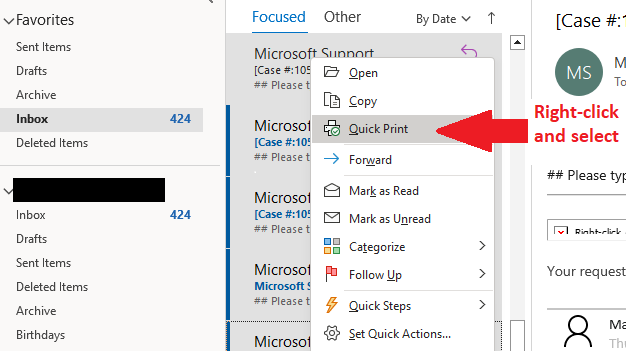
And finally, to create PDFs from the emails in your folder, select the emails in Outlook, right click, and select Quick Print.

Voila! The emails will be sent to the Win2PDF printer and will be automatically named with no user interaction.

This can be extremely useful if you want to archive or collect an email thread that is spread across many different messages, or a folder of messages related to a particular topic, person, or project.

If you have a tip like this for using Win2PDF, please let us know.

Win2PDF 10.0.144 is now available

The latest release of Win2PDF (10.0.144) is now available on the Win2PDF Download site.

The biggest additions to this release are specific to the Win2PDF Pro version of the software, which now supports the ability to batch convert standard word processing documents (Microsoft Word, Open Document Text, and Rich Text Format) to PDF.

Here’s a summary of changes in this new version:

This Win2PDF 10 update is a free upgrade for all Win2PDF 7 and Win2PDF 10 users. If you have an existing Win2PDF standard edition license and wish to use any of the new Win2PDF Pro features, you can purchase a Win2PDF Pro Upgrade.

We’ll be posting more specific information on some of these features next week, with more details on changes to the interface and how these new features can be used. In the meantime, if you would like to evaluate one of the new Win2PDF Pro features (PDF watermark, PDF security, batch-convert, auto-rename, or watch folder), contact us for a free 30 day trial of Win2PDF Pro.

Creating A Custom Paper Size For PDF Files Using Win2PDF

Most paper printers can support a limited number of standard paper sizes. In the United States, the 8.5” x 11” letter paper size is used most commonly, while the 8.5” x 14” legal paper size is used less frequently. In Europe and other countries, a slightly different sized A4 (297 x 210 mm) paper size is used most commonly, along with other metric based sizes.

Even though they aren’t printing to paper, virtual printers like Win2PDF and Win2Image support a large number of standard paper sizes. In addition, Win2PDF and Win2Image also support custom paper sizes. Suppose you are printing a large spreadsheet and don’t want to “shrink” the table to fit on a standard paper size, and also don’t want to see the table spill over and get broken up onto multiple pages in the PDF file. This is easy to do using a custom paper size.

Here is a short video that shows how to create a custom paper size for Win2PDF.

How to Create A Custom Paper Size for Win2PDF

Custom paper sizes are available and work the same for all versions of Win2PDF and Win2Image.

Win2PDF Pro and Command Line Enhancements Available Now

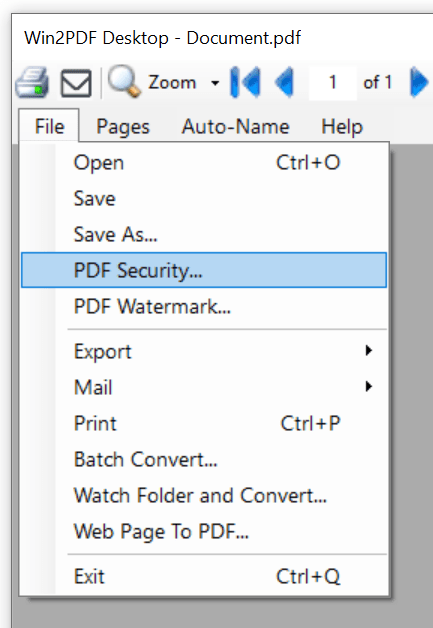
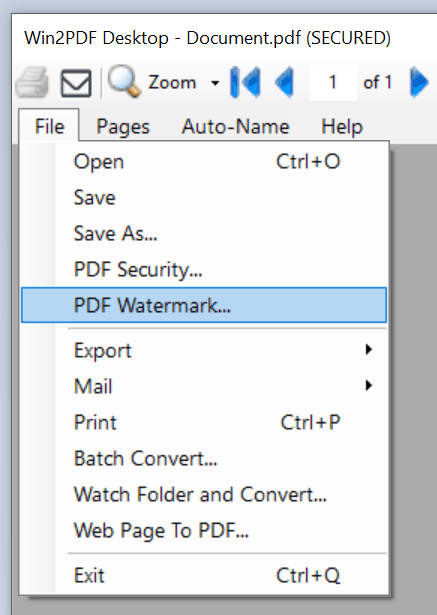
The latest release of Win2PDF 10.0.136 is now available on the Win2PDF Download site. The biggest feature additions are for Win2PDF Pro. You can now add PDF security and watermarks directly to an existing PDF file (without having to recreate it) in the Win2PDF Desktop App. In addition, there have been multiple enhancements to the Win2PDF command line options (based on customer feedback) and bug fixes.

Here is a summary of the enhancements in Win2PDF 10.0.136:

  • Customer reported bug fixes

This Win2PDF 10 update is a free upgrade for Win2PDF 7 and Win2PDF 10 users. If you would like to evaluate one of the new Win2PDF Pro features (PDF watermark, PDF security, batch-convert, auto-rename, or watch folder), contact us for a free 30 day trial of Win2PDF Pro.

Questions or comments? Contact at [email protected] or through the online Win2PDF HelpDesk.