Easily Organize Your PDF Files! Introducing “Reorder Pages” for Win2PDF Desktop

The latest Win2PDF Desktop now includes a Reorder Pages feature that makes it easy to manipulate an existing PDF’s page order—without needing a separate PDF editor.

Here’s what you need to know:

🧩 What It Does

After opening a PDF into Win2PDF Desktop, choose Pages → Reorder Pages… to launch a thumbnail-based preview.
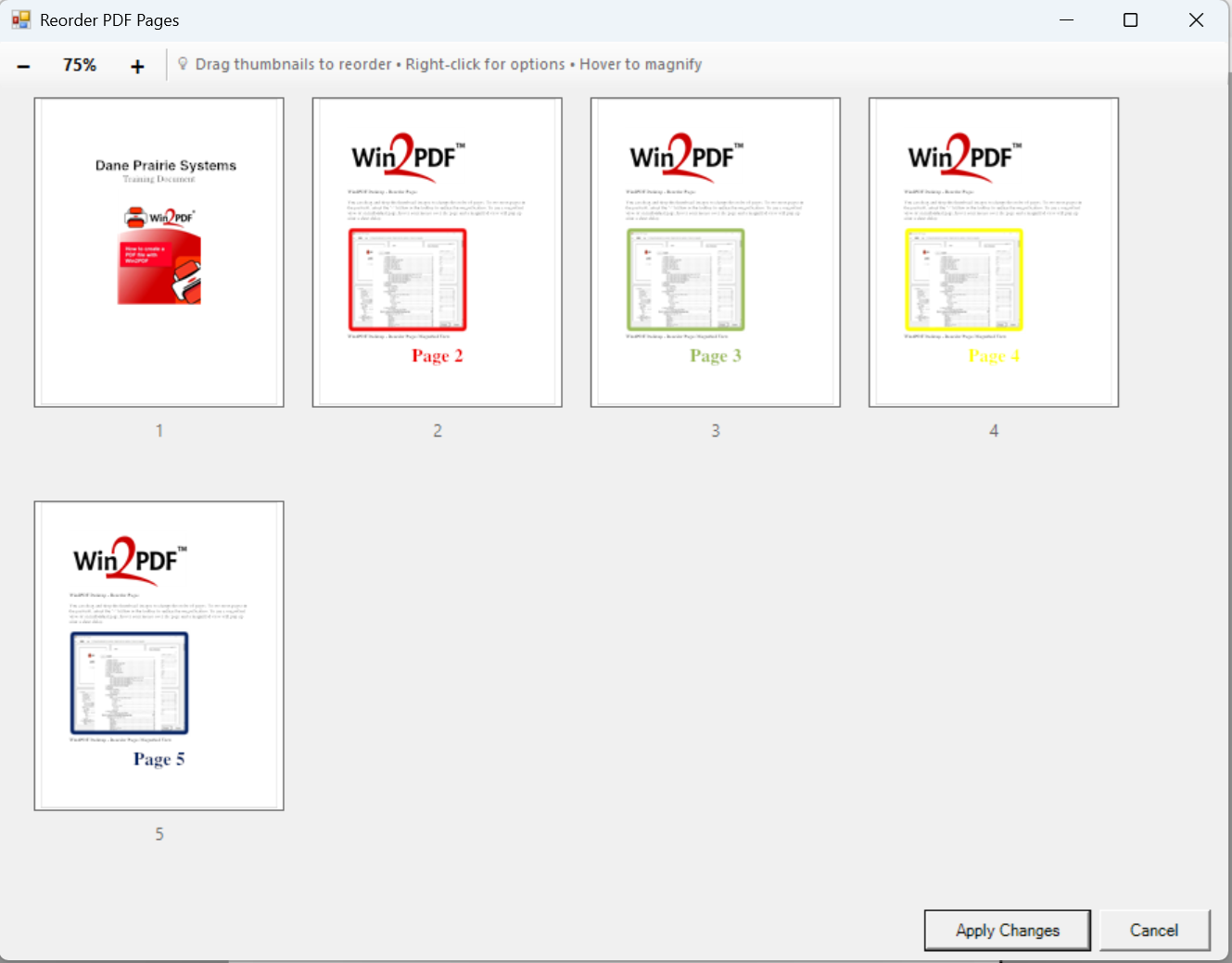


You can drag and drop individual pages to rearrange their order.

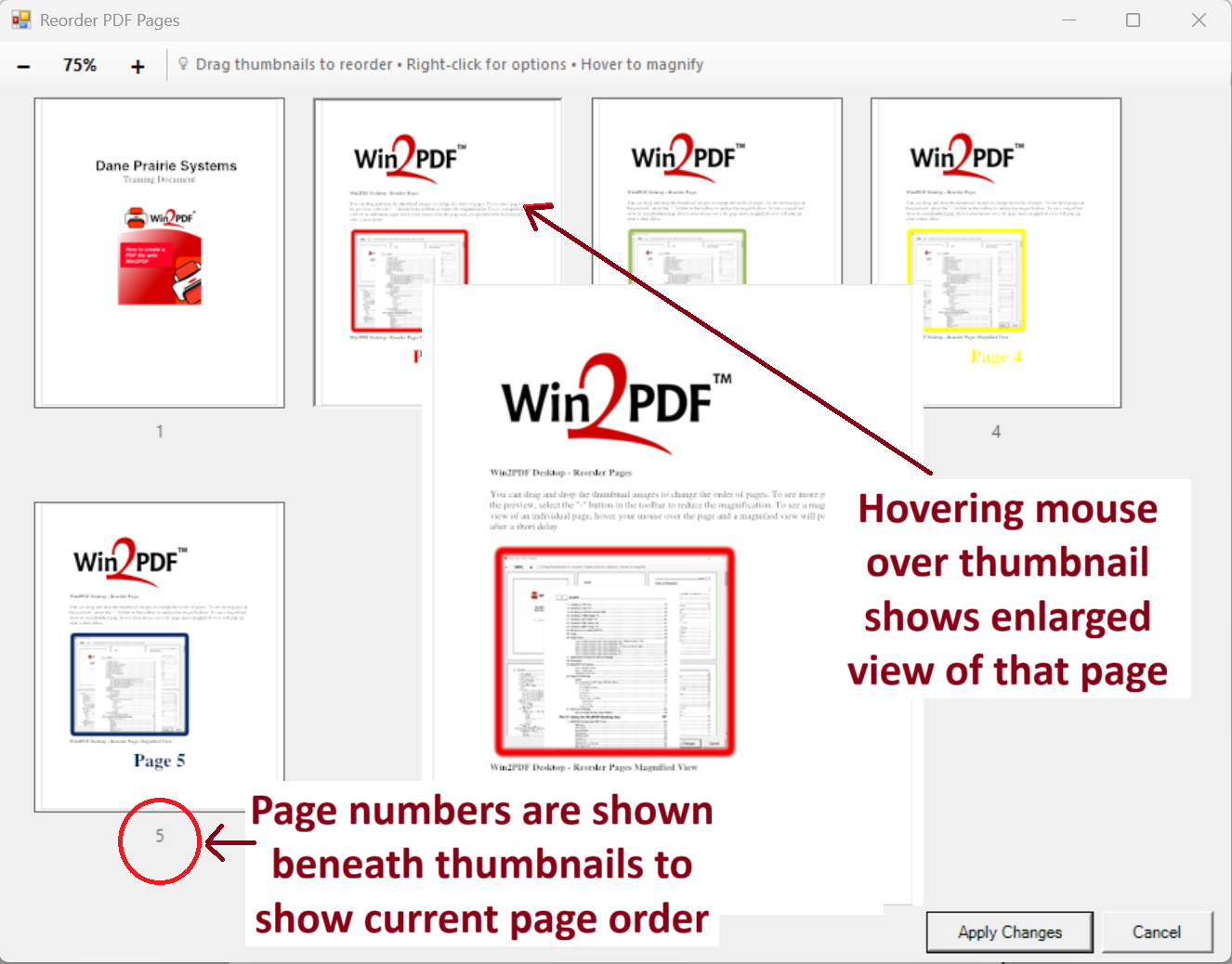
Hovering over a thumbnail shows a magnified preview to help you identify the page before reordering.  Small pages numbers are shown beneath each thumbnail to show the current page position in the document.


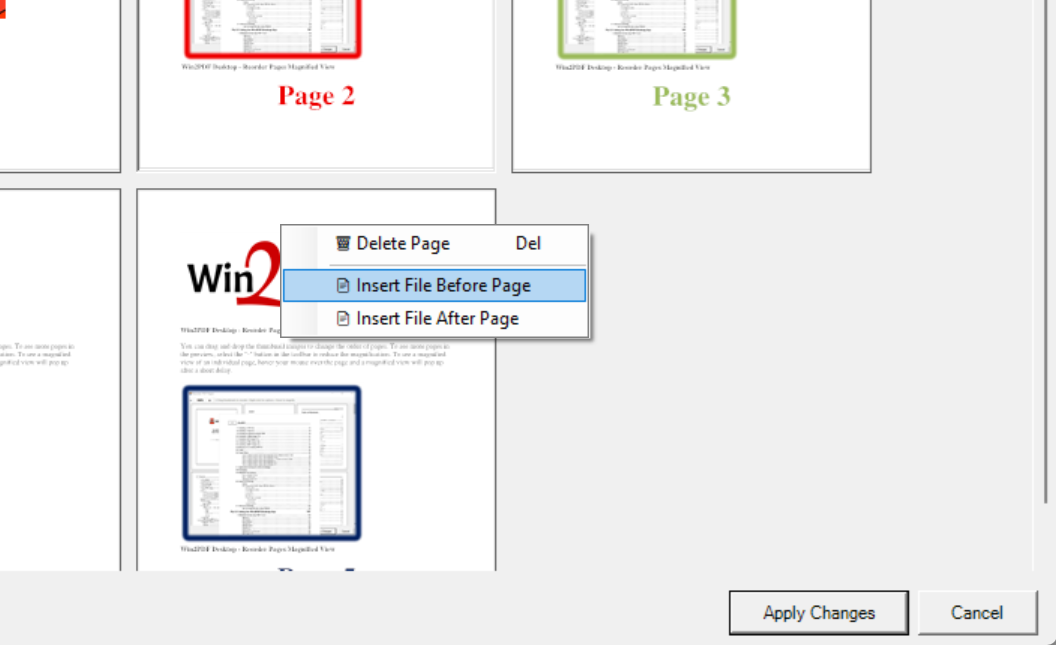
A right-click menu on any page offers extra options:

  • Delete Page
  • Insert File Before Page / After Page — you can insert documents in formats supported by Win2PDF (e.g. JPG, PNG, TIFF) or, with Win2PDF Pro, even DOCX, XLSX, HTML, TXT, ODT, etc.

When you’re done, click Apply Changes and Win2PDF returns you to the modified preview.

You can see a short video showing how this feature works here:

💡 Why It’s Useful

  • No third-party PDF editor needed — this gives users more flexibility to reorganize pages from within the existing Win2PDF Desktop App.
  • Speed and simplicity — drag/drop interface and live preview make it fast to reorder pages.
  • Mixed document assembly — you can splice in compatible documents right in the flow of your existing PDF, or delete unneeded pages. The inserted file can be in any format supported by Win2PDF (XPS, JPG, TIFF, PNG, GIF, BMP) or Win2PDF Pro (DOCX, RTF, XLSX, HTML, TXT, ODT).
  • Secure processing on your computer — all of the editing is done local to your computer, so nothing is ever uploaded to the cloud.
  • Great for multipage reports, manuals, proposals or presentations — any time you need to reshuffle chapters or sections.

🔐 Licensing & Availability

This feature is available in licensed versions of Win2PDF Desktop. Contact us for 30-day trial license to try it.

New Outlook Support and Enhanced PDF Workflow in Win2PDF Version 11.0

We are pleased to announce the release of Win2PDF version 11.0, a free update that introduces several enhancements to expand the capabilities and features of Win2PDF. This update is designed to completely support Microsoft’s Windows 11 operating system, and to optimize your PDF workflows and provide greater efficiency.

Key features and improvements in this release include:

Enhanced Microsoft Outlook Integration: Microsoft is transitioning users from its older Windows Mail and Calendar apps to a new version of Outlook for Windows 11. The new Outlook is a move towards a more unified, modern, and feature-rich email client integrated with the Microsoft 365 ecosystem, but it does have some differences compared to both the old Mail app and the classic Outlook, including some that affect how Win2PDF attaches PDF files to email. Win2PDF now supports both the existing Outlook (classic), and provides the same seamless functionality to users moving to Outlook (new).

Automated Blank Page Removal: If you’ve ever received or generated a PDF that contains extra blank pages, you can now remove them using the new Delete Blank Pages feature.  It automatically identifies and removes empty pages from your PDFs, contributing to cleaner and more professional documents.  This feature also has an associated DELETEBLANKPAGES command line option.

Expanded Automation Customization Capabilities: Support for Batch Convert and Watch Folder and Convert plug-ins has been extended. You can customize batch convert processing by installing a Win2PDF Batch Convert Plug-in which can be very useful in many situations.  For example, suppose you wanted to batch convert a folder of documents and then perform a secondary process on those newly created files – a batch convert Plug-In would allow you to do that.  Current Plug-ins include the ability split pages, delete pages, append a PDF, apply watermarks, delete blank pages, digitally sign with a certificate, and more. When a batch convert plug-in is installed, an “Enable Plug-In” option is displayed in the Batch Convert Window.

Watch up to 20 folders with Watch Folder and Convert feature: The “CONFIGWATCHSERVICE” command line option now allows a single service to monitor up to 20 folders, enabling more robust automation for complex workflows. [Note:  Win2PDF Pro Terminal Server Edition only feature]

Refined Text and RTF Conversions: This update includes fixes to improve the conversion of text files containing smart quotes to PDF, ensuring accuracy. Additionally, formatting issues encountered during RTF to PDF conversion have been addressed, resulting in improved document fidelity.

Improved Command Line Printing: For users utilizing the “PRINTPDF” command line, paper size selection has been refined, offering enhanced control over printing options.

As a free upgrade for existing customers using Win2PDF 7 or higher, we encourage you to explore these new features and see how they can further enhance your productivity. And while this new Win2PDF 11.0 release fully supports Windows 11.0, it also continues to support Windows 10, Windows 8, Windows 8.1, Windows 7, Windows Vista, and Windows XP. Win2PDF Terminal Server Edition 11.0 continues to fully support Windows Server 2025, Server 2022, Server 2019, Server 2016, Server 2012, Server 2012 R2, Server 2008, Server 2008 R2, Server 2003, and Server 2003 R2 (including 64 bit editions).

Navigating the New Outlook in Windows: How Win2PDF is Keeping Up with Changes

Your Outlook looks… (new)…

Microsoft recently replaced its built-in Windows 11 Mail app with a new version of Outlook in a February 2025 security update. After the update, the new app is installed as Outlook (new). If you previously had Outlook 365 or an older version of Outlook, it’s named Outlook (classic).

Haven’t we been here before?

Despite the similar appearance and name, the new Outlook is a complete rewrite of Outlook with many advanced features intentionally removed. One of the features that is not included is the interface that Win2PDF uses to attach a PDF to an email when the Use Microsoft Outlook option is configured.

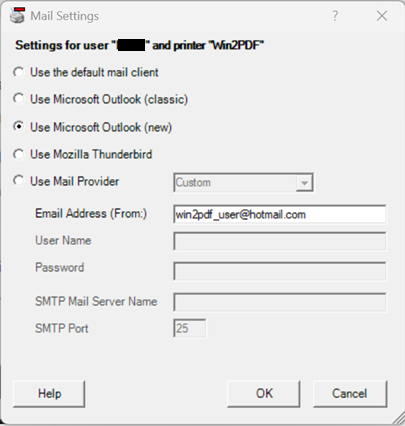
As you may have guessed, we’ve now updated our Configure Win2PDF Mail Settings interface to include both the Outlook (new) and Outlook (classic) configuration options (the latter has not changed).

When Use Microsoft Outlook (new) is selected, you’ll first need to specify the “Email Address (From:)“, and this address must match the configured address in Outlook (new). This is a new requirement compared to Use Microsoft Outlook (classic).

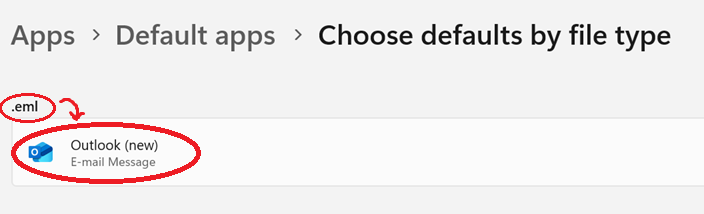
Also, Outlook (new) must be set as the default program for “.eml” files for this support to work correctly, but that should be the default handler already. (If needed, here are instructions for changing the default app in Windows 11).

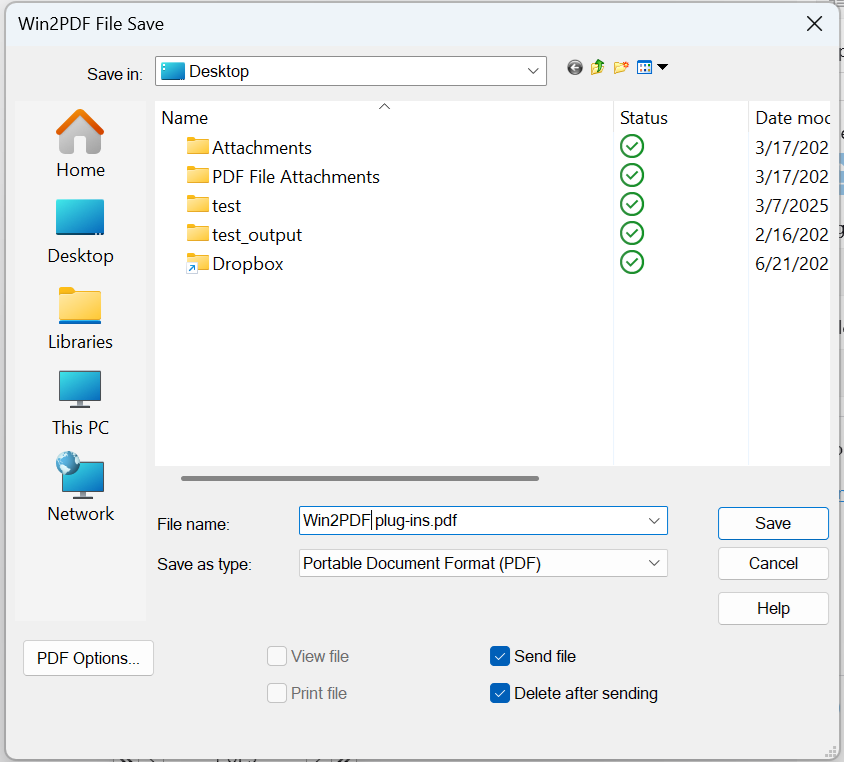
Once the Outlook (new) mail is configured, it will be available for Win2PDF to use when sending a PDF by email.

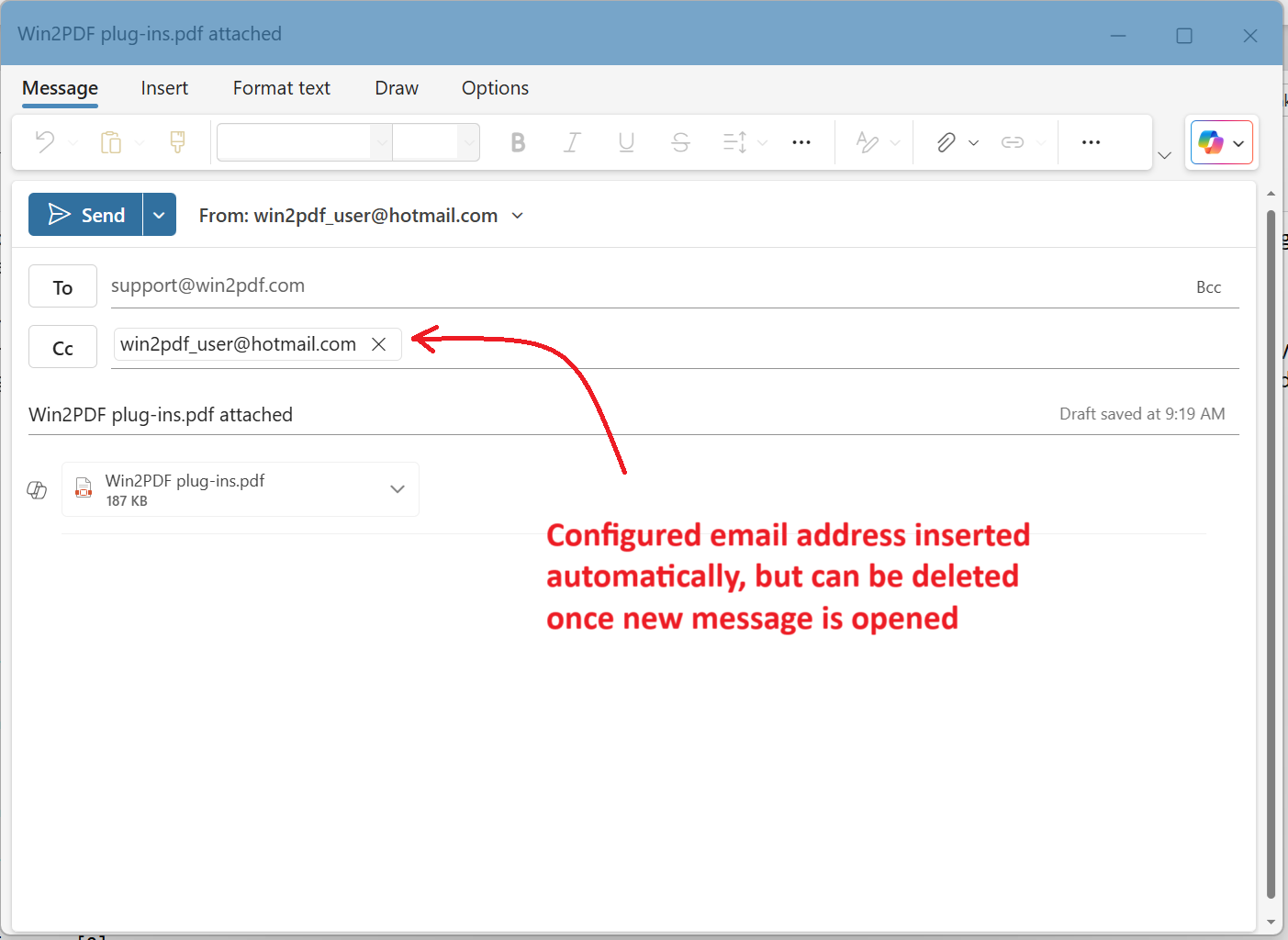
When a new mail message is created, the new Outlook requires a destination email address to be provided. Currently Win2PDF populates the Cc address with the From address (set in Configure Win2PDF Mail). Once the new mail message is created, the user can delete the Cc address after specifying a new To address if desired.

These changes are included in the updated Win2PDF Desktop 10.0.175. This is a free update to all current Win2PDF 10 users.

Win2PDF on A Mac? Win2PDF Pro Now Works On Windows for Arm devices, Including Macs

For years (decades, actually), Win2PDF has been providing customers with software to create, convert, and modify PDF files on their Windows computers. Typically, these have been Intel-based PCs, servers, and even older Macs/Macbooks with Intel-based processors (running Windows virtualization software like Parallels or VMWare).

But now we’re starting to get requests for Windows on Arm-based devices, which are increasingly popular for light-weight notebooks, tablets and especially with the newer Apple Mac M1 and M2 computers.

Starting today, with our Win2PDF Pro 10.0.159 prerelease, we’re providing limited support for Windows on Arm in our Win2PDF Pro software.

What is Arm? If my computer is running Windows, why does it matter?

For most users, it doesn’t. It does matter, however, to software developers like us. Additional coding is required to make software compatible with Windows for Arm, and we’ve just started that process with this prerelease. Very simply put, historically Intel processors have been more powerful and versatile (requiring comparatively higher resources and power). Arm processors, on the other hand, are newer, more efficient, require less power, and are increasingly matching or exceeding performance compared to Intel chips.

That’s why Arm processors are popular right now. Their low power consumption makes them ideal for lightweight mobile products like Apple MacBooks and Microsoft Surface.

Will Win2PDF Pro fully support Windows on Arm?

The Win2PDF Pro software contains three primary components – a PDF printer (named “Win2PDF”), an Image printer (named “Win2Image”), and a Win2PDF Desktop App. The Win2PDF printer creates PDFs by printing from any application, the Win2Image printer creates image files by printing from any application, and the Win2PDF Desktop supports multiple format conversions to and from PDF, batch convert, advanced rename features, and email options.

Currently, the Win2PDF Pro for Windows on Arm prerelease only supports the Win2PDF Desktop App and command line functionality. The reasons for the limited support are lengthy and technical, but in a nutshell, the first two components – Win2PDF and Win2Image – are printers, and these printers are more difficult to adapt to work on different hardware. We’ll continue to evaluate and work on expanded support for Windows on Arm in the future, but for now, it’ll just work with the Win2PDF Desktop App and command line.

Ready to get started?

Head over to the Win2PDF website to download Win2PDF Pro for Windows on Arm now.

If you do not already have a Win2PDF Pro license, request a 30-day trial license and put “Win2PDF Pro for ARM” in the Subject field.

Batch Converting Folders of OpenDocument Text (.odt) Files to PDF Using Win2PDF

In last week’s post, we announced details on the latest Win2PDF support of various Word Processing formats like Microsoft Word (.doc, .docx), OpenDocument Text (.odt), and Rich Text Format (.rtf).

While MS-Office files have always been an important format for documents, there is an increasing need to support OpenDocument (ODF) files as well, mostly due to its increasing adoption within government and international organizations.  The reason for this is simple:  they’re open and not dependent on changes imposed by a single company.

Microsoft Office Documents (.doc) were originally binary files used by Microsoft as a proprietary format.  Microsoft adapted the format to an standards-based format based on Open Office XML in 2007, and this became the (.docx) format.  Today, both (.doc) and (.docx) formats are maintained by Microsoft.  The OpenDocument format, on the other hand, is an open format that is documented and maintained by an independent non-profit consortium known as OASIS.  

[If you’re interested in more details, here’s Microsoft’s list of differences between (.docx) and (.odt) files].

For these reasons and more, Win2PDF now supports more conversion options with .odt files. 

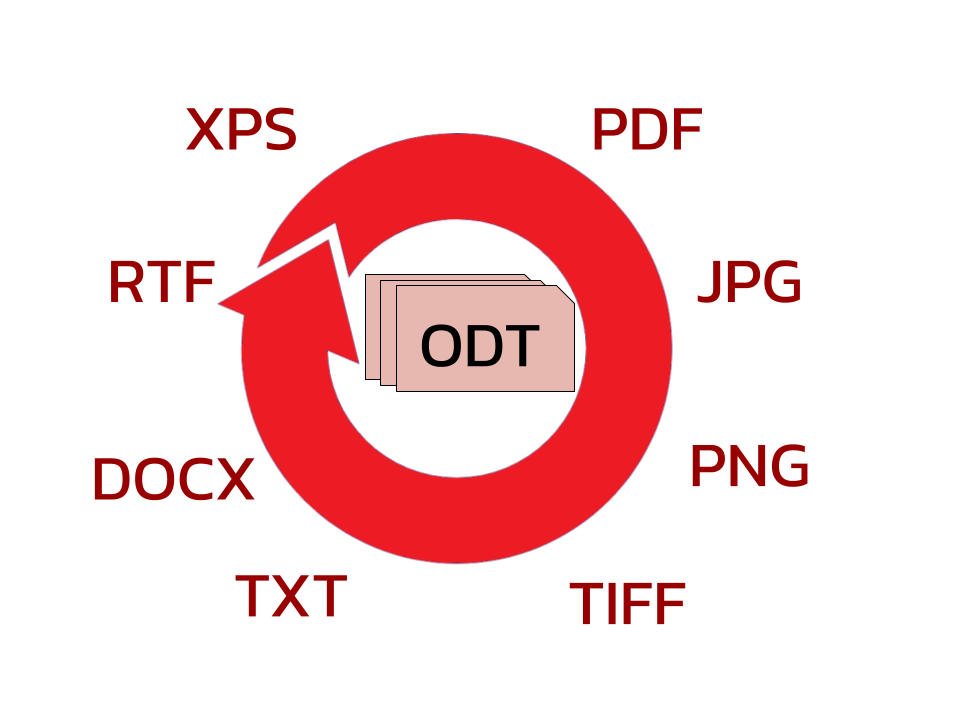
You can now read .odt files in the Win2PDF Desktop App, and batch convert folders of .odt files into the following formats:

If you want to convert individual files instead of batch converting folders of documents, you can either use the “export to ODT” feature or the “convertto” command line with the source or destination set to an .odt file.

Whether you’re looking to share these documents with others by email or the web, or simply preserve their formatting in another format, Win2PDF can help you batch convert folders of .odt documents to PDF quickly and easily.  If your organization is using OpenDocument Formats and there’s something else you’d like to see in terms of conversion, let us know.  We’re always interested in making the conversion process between different file formats easier and more flexible.

PDF Bookmarks, Import/Export Win2PDF Settings & More in Latest Win2PDF Update

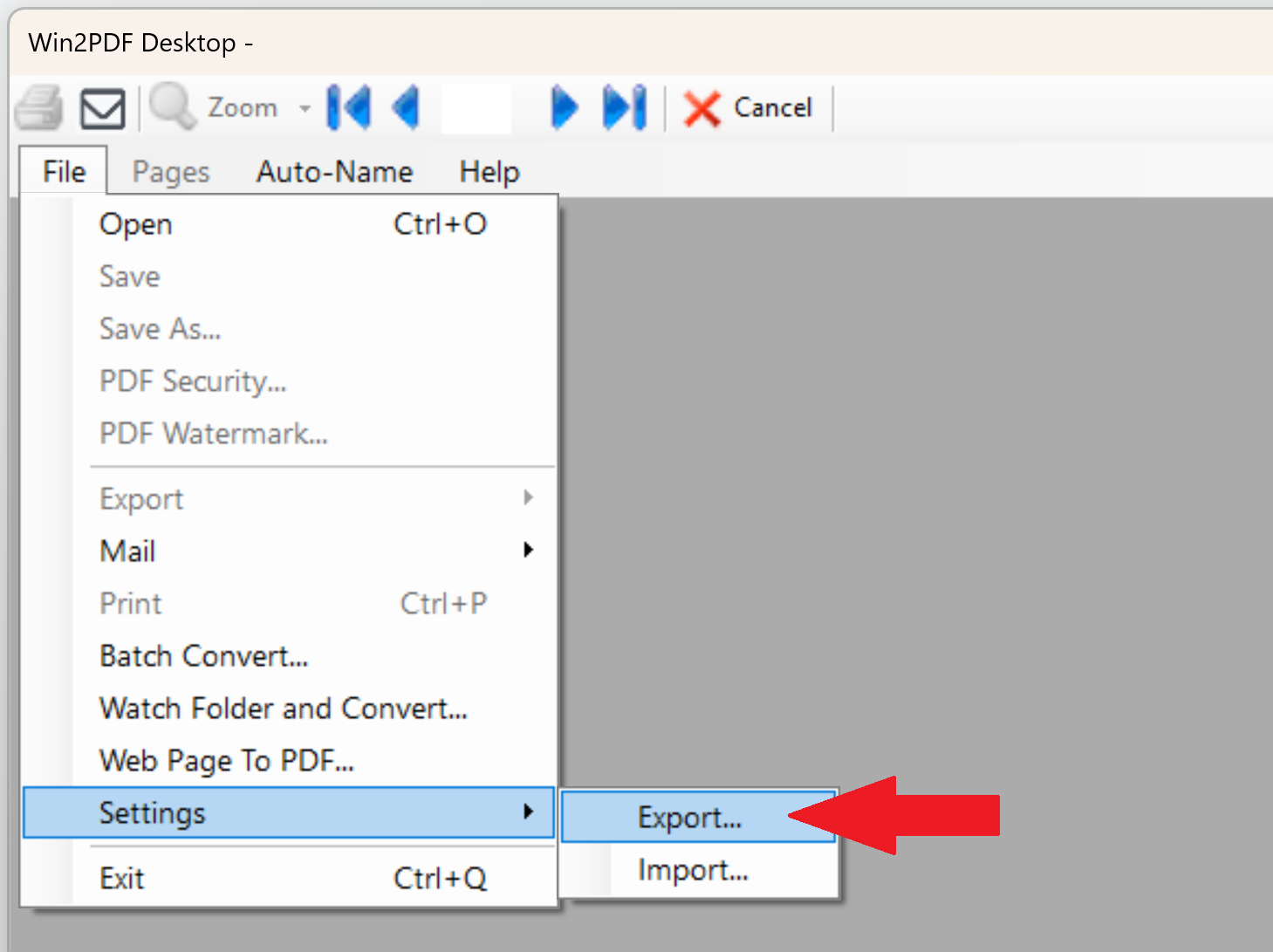
If you have changed Win2PDF from the default settings and want to preserve them when you move to a new computer (or group of computers), there is a new feature in our most recent Win2PDF 10.0.140 release that will help. You can now export your Win2PDF settings to a file, and then import that file on a new machine once you have reinstalled Win2PDF.

Win2PDF Desktop Settings Export/Import

This is accomplished through the Win2PDF Desktop Application (shown above). It can also be used from the Win2PDF command line with the EXPORTSETTINGS and IMPORTSETTINGS commands.

The ability to export/import settings can be very useful if you use Win2PDF with multiple printers with different settings; this feature will export/import multiple Win2PDF printers if they are configured.

It is also useful if you have configured Win2PDF with the Auto-name feature, or have made numerous other changes to the standard Win2PDF settings. Once you’ve established your desired settings, you can use this feature to backup your configuration settings, or use it to copy to a group of other machines using Win2PDF (if you wanted all users to Auto-name files in the exact same way, for example).

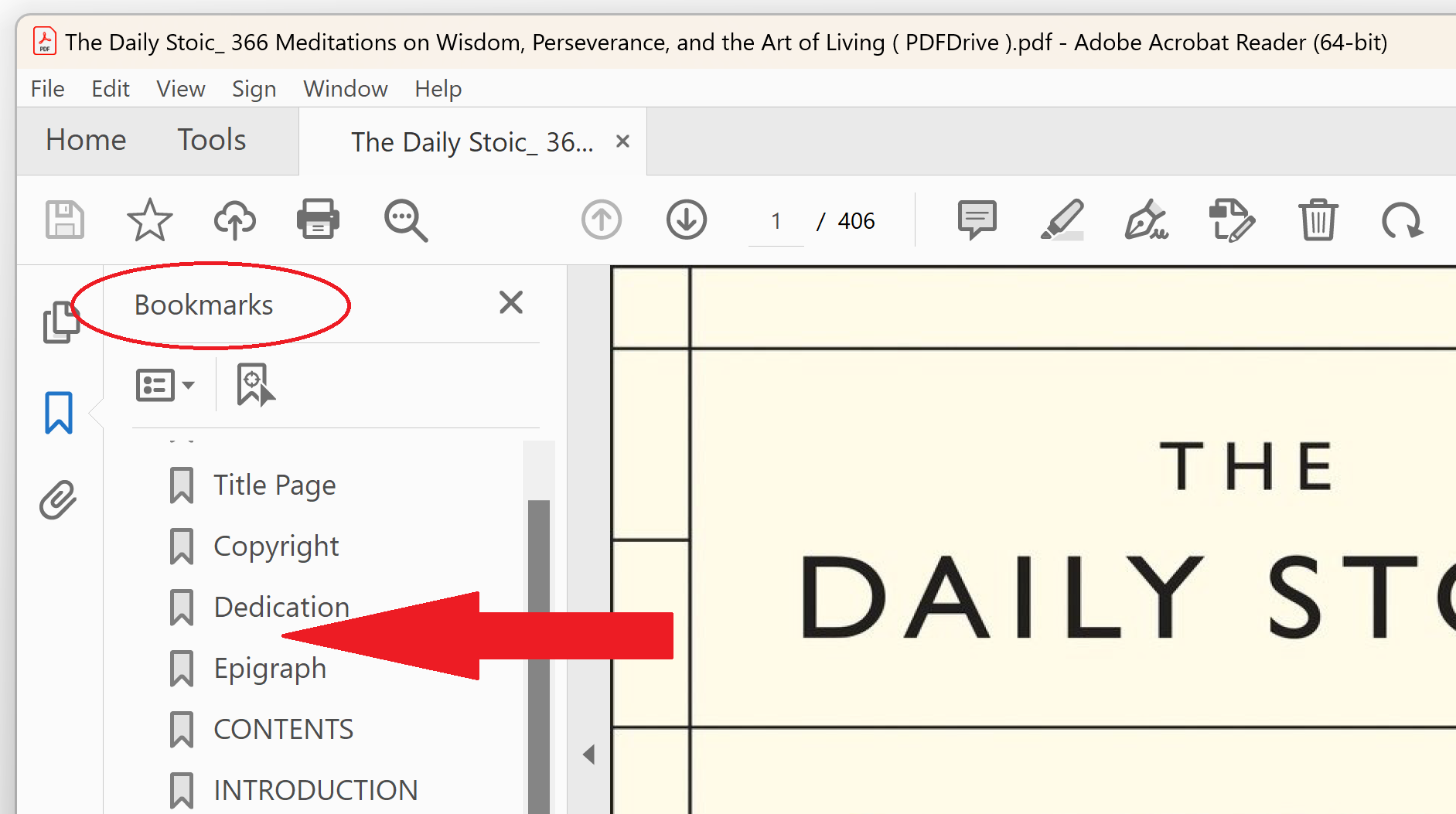
Also included in this release is support for PDF bookmarks. Bookmarks are a quick and easy way to jump to a certain section of a PDF file with a single click from a bookmarked word or phrase. You can see an example of a PDF file with bookmarks in the following image (using Adobe Reader).

Bookmarks in PDF – Shown in Adobe Reader

You can now add or delete bookmarks using the following command line options:

  • The ADDBOOKMARK command line allows you to specify a title and page number to insert into a PDF file.
  • The ADDBOOKMARKAFTERSEARCH command line allows you to search through a PDF document for a keyword (like “Chapter” or “Invoice”, for example), and then add a bookmark to that section of the PDF file. This is probably the most useful bookmark command because it lets you add bookmarks without knowing what page the anchor text resides on. It makes it easy to create bookmarks on dynamically generated reports with anchor text that may vary when each report is generated.
  • The DELETEBOOKMARKS command line can be used to remove bookmarks from any PDF file.

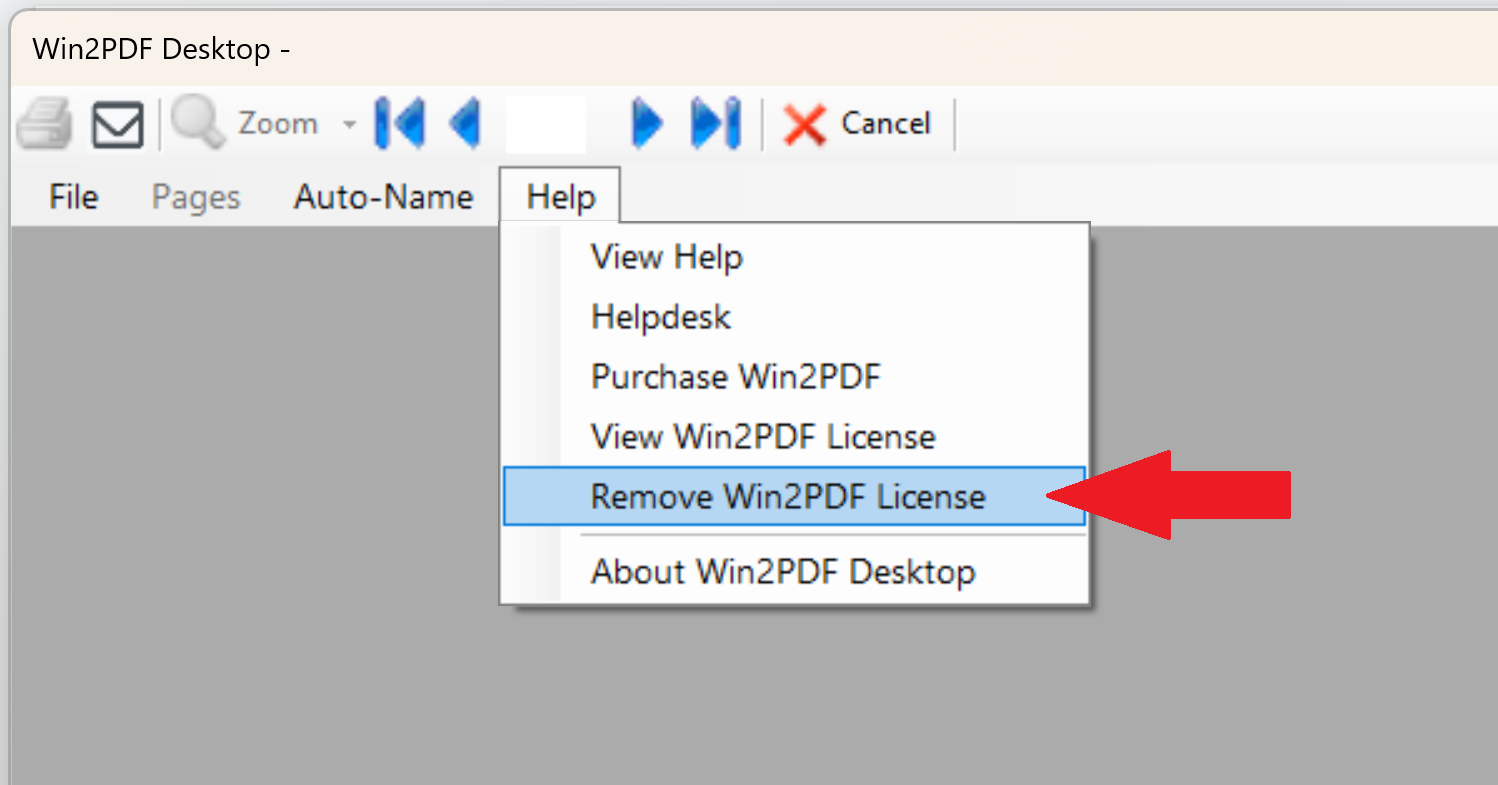
Lastly, we added the ability to remove a trial license to the Win2PDF Desktop Application through the Help menu.

Win2PDF Desktop – Remove Win2PDF License

This makes it easy to enter a purchased license without having to uninstall and reinstall the software after the evaluation period.

If you would like to evaluate Win2PDF or Win2PDF Pro, contact us for a free 30 day trial.

This Win2PDF 10.0.140 update is a free upgrade for Win2PDF 7 and Win2PDF 10 users.

Win2PDF Pro and Command Line Enhancements Available Now

The latest release of Win2PDF 10.0.136 is now available on the Win2PDF Download site. The biggest feature additions are for Win2PDF Pro. You can now add PDF security and watermarks directly to an existing PDF file (without having to recreate it) in the Win2PDF Desktop App. In addition, there have been multiple enhancements to the Win2PDF command line options (based on customer feedback) and bug fixes.

Here is a summary of the enhancements in Win2PDF 10.0.136:

  • Customer reported bug fixes

This Win2PDF 10 update is a free upgrade for Win2PDF 7 and Win2PDF 10 users. If you would like to evaluate one of the new Win2PDF Pro features (PDF watermark, PDF security, batch-convert, auto-rename, or watch folder), contact us for a free 30 day trial of Win2PDF Pro.

Questions or comments? Contact at [email protected] or through the online Win2PDF HelpDesk.

Win2PDF Pro Enhancements for Adding Watermarks and Security Changes to Existing PDFs

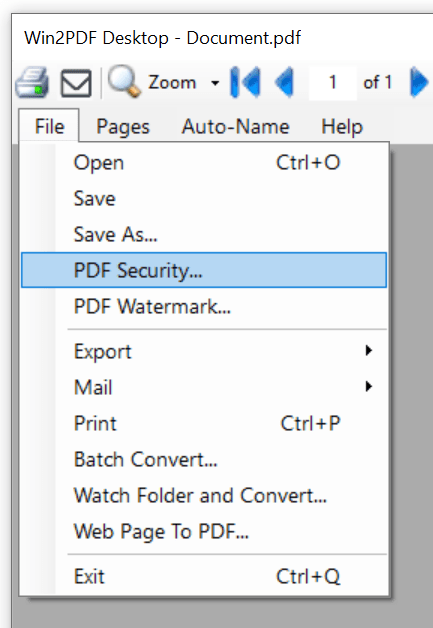
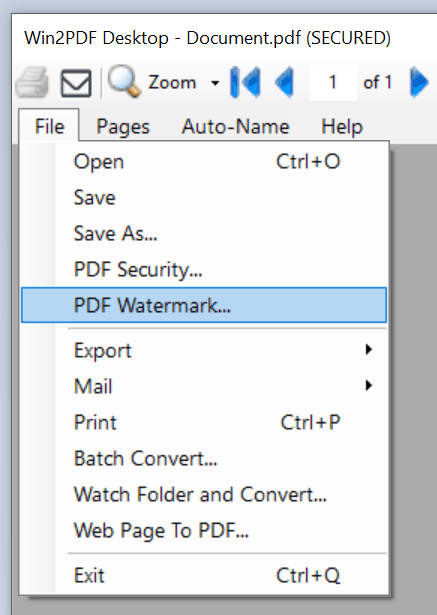
Our latest 10.0.132 update to Win2PDF Pro adds two new features to the Win2PDF Desktop app – the ability to modify an existing PDF file to either set (or change) security settings, and the ability to apply a background or watermark to an existing PDF.

Win2PDF Desktop File Menu Options
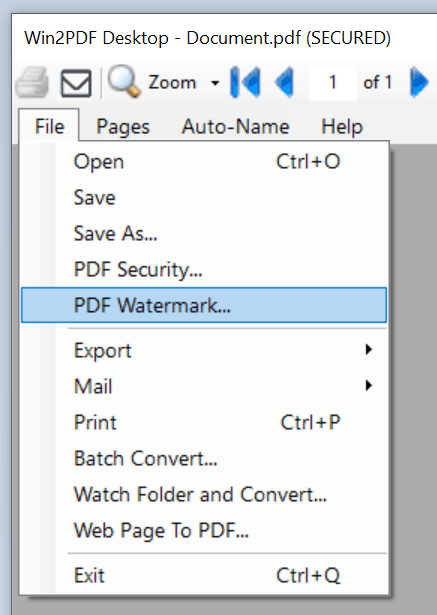
Win2PDF Desktop PDF Security & PDF Watermark File Menu Options

PDF Security…

The first added feature allows you to apply or change security options to an existing PDF file. Previously, if a user wanted to add encryption to a PDF file, set a password, or change security options to limit printing or copying text and images, they would have to re-print the PDF and make these changes in the Win2PDF Pro Options. Now, they can simply open the existing PDF file in Win2PDF Desktop and make these changes directly without having to reprint.

PDF Watermark…

The second added feature allows you to add a watermark or background to an existing PDF file. Again, instead of having to re-print the existing PDF, you can now just open the file in Win2PDF Desktop and apply the watermark or background directly to the existing file.

The Win2PDF Desktop interface and available options for setting security and watermarks are the same options that are available in the Win2PDF Pro printer options.

Both of these features are only available in the Win2PDF Pro version of the software. If you do not currently have Win2PDF Pro but would like to trial these features, please request a Win2PDF Pro trial license. (Make sure you specify you want the Win2PDF Pro trial license in your request).

A Better XPS Viewer for Windows 10 & Windows 11

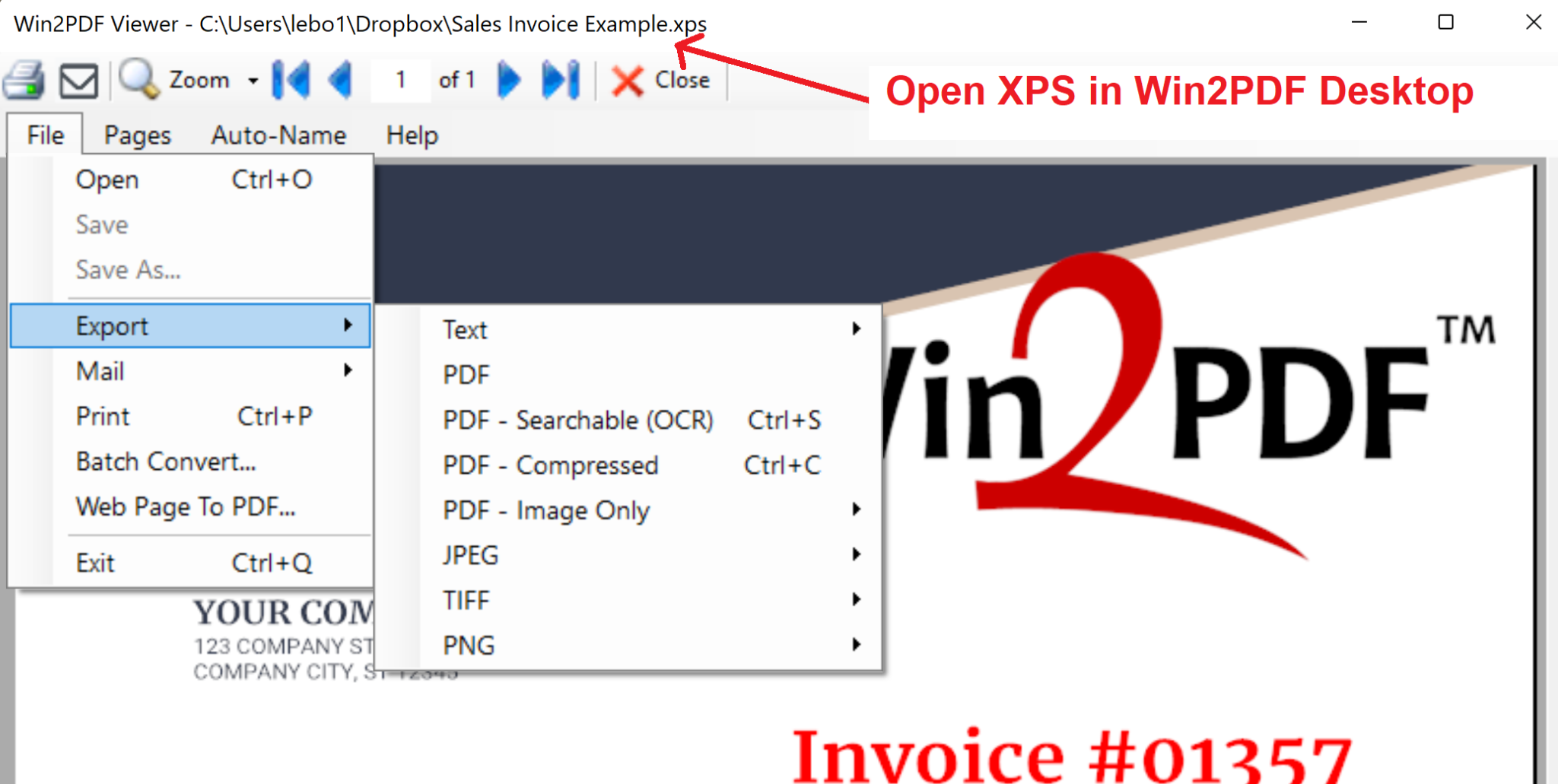
Though Microsoft’s XPS Viewer is still available in Windows 10 and Windows 11, it is no longer enabled by default. Users who still need an XPS viewer, however, can now use the most recent update to the Win2PDF Desktop app which supports viewing (and manipulating) XPS files directly. You can even directly convert XPS to PDF for better long term archiving. This is more useful than having to install the Microsoft XPS Viewer manually (by adding it via the optional features in Windows settings) and be limited to only viewing XPS files.

By using Win2PDF Desktop as an XPS Viewer, You can open and view an XPS file, extract or split pages, and export to a different file format like PDF, text or image formats.

XPS Viewer support is included as a free update to our 10.0.124 Win2PDF download.

* For more details on the XPS (XML Paper Specification) file format definition, you can read the subject article on Wikipedia.

Win2PDF Pro Adds New Batch Convert Files Feature

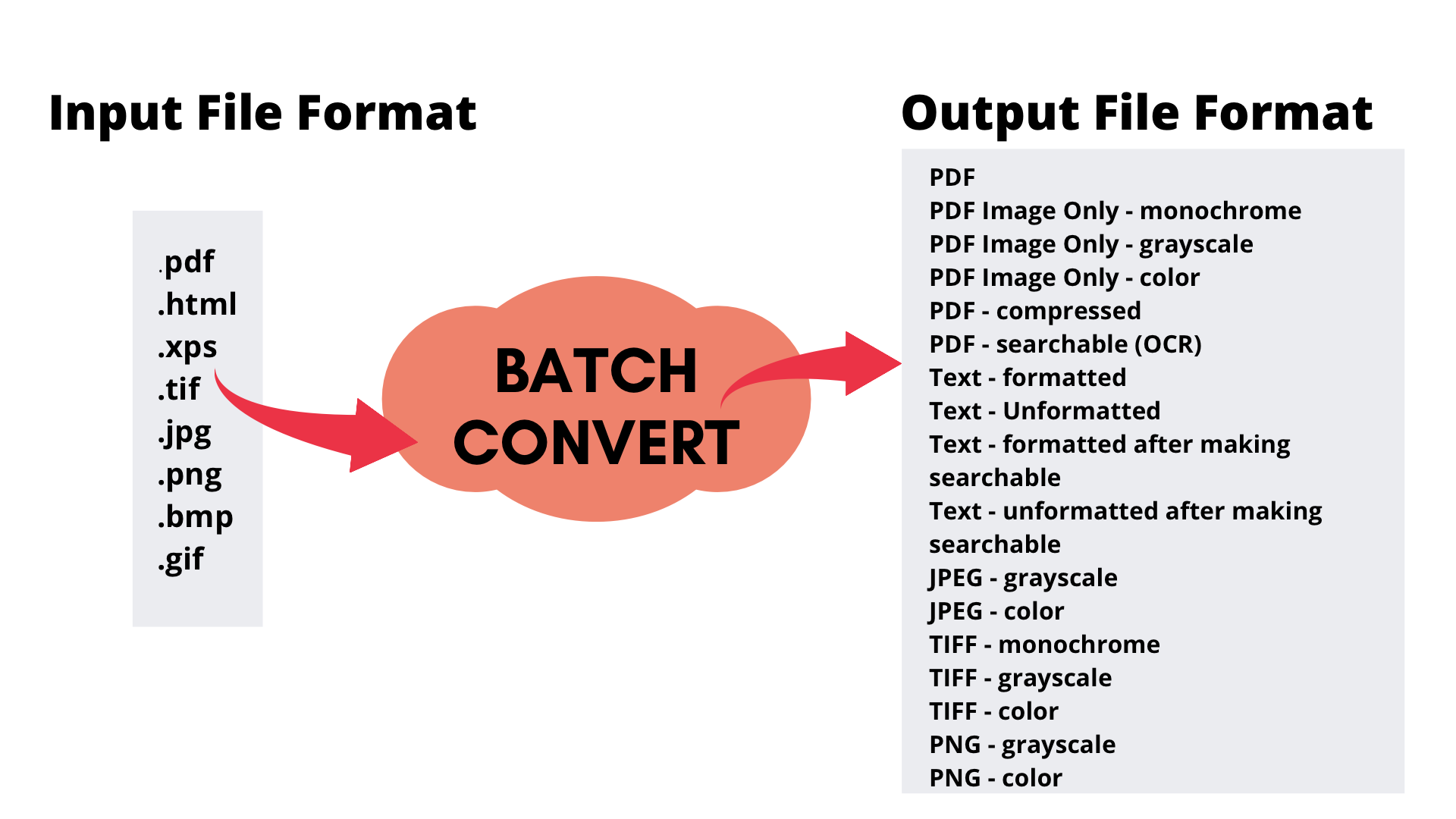
Our latest update to Win2PDF Pro (V10.0.122) adds a new capability to batch convert certain types of files directly into PDF (or another image/text format). The types of files that can be converted are:

[Note: This feature is only available in the Win2PDF Pro version of the software. If you do not have Win2PDF Pro but would like to try this feature, you can request a 30-day trial license.]

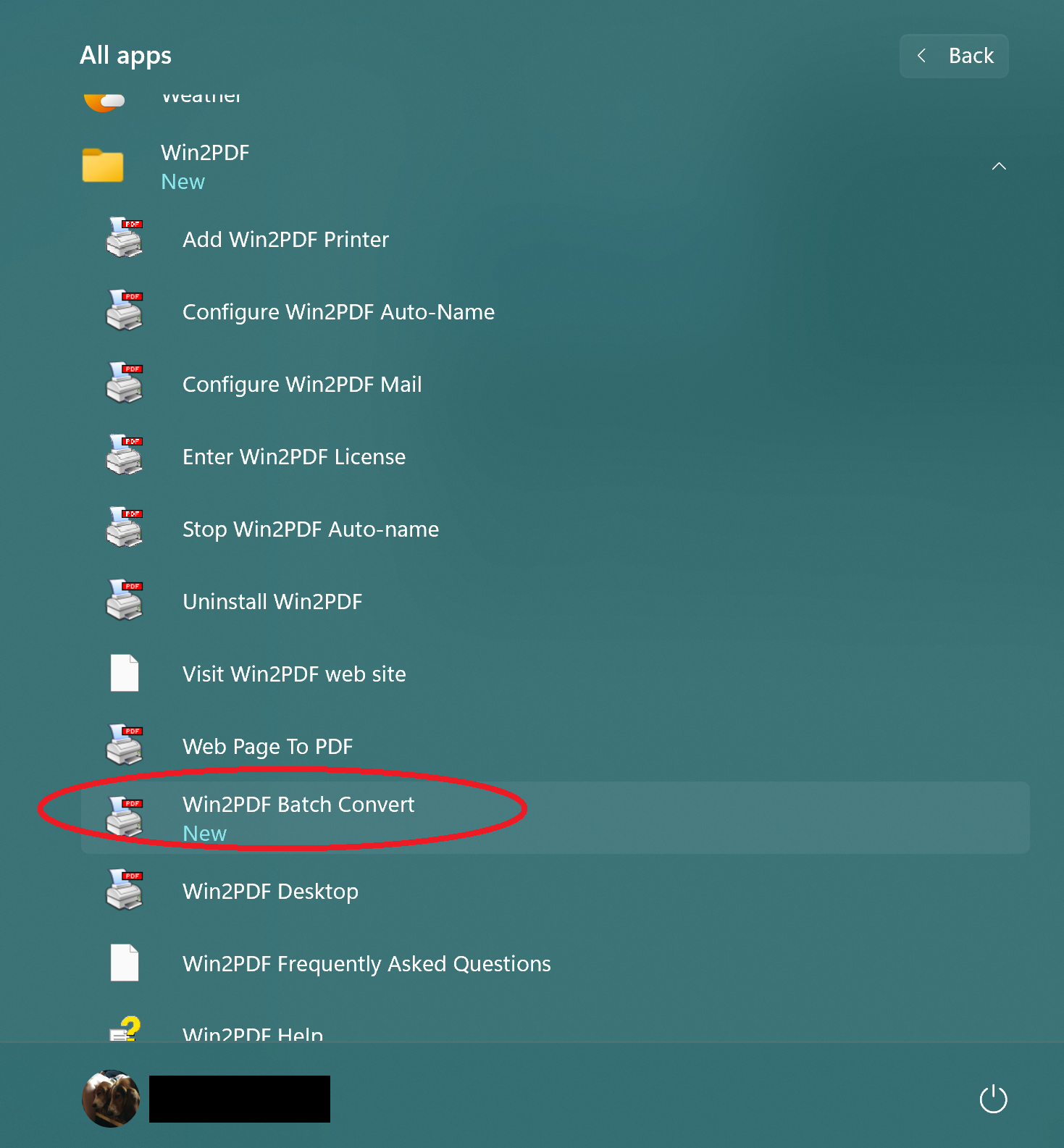
Win2PDF Batch Convert can be accessed in 2 different ways. First, it can be accessed from the Windows Start menu under the Win2PDF program group.

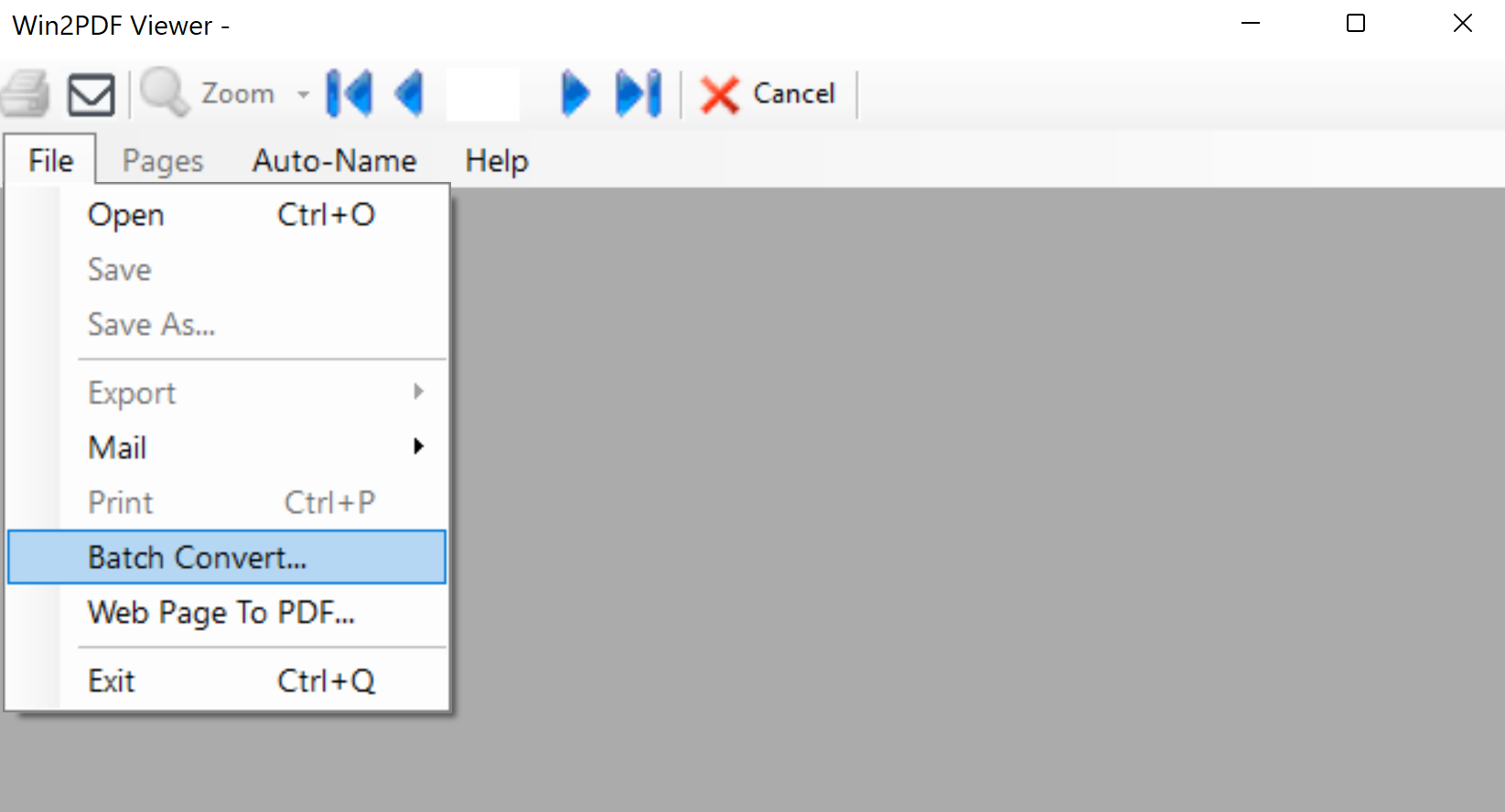
Second, Batch convert… can be accessed from the File menu of the Win2PDF Desktop app, as shown below:

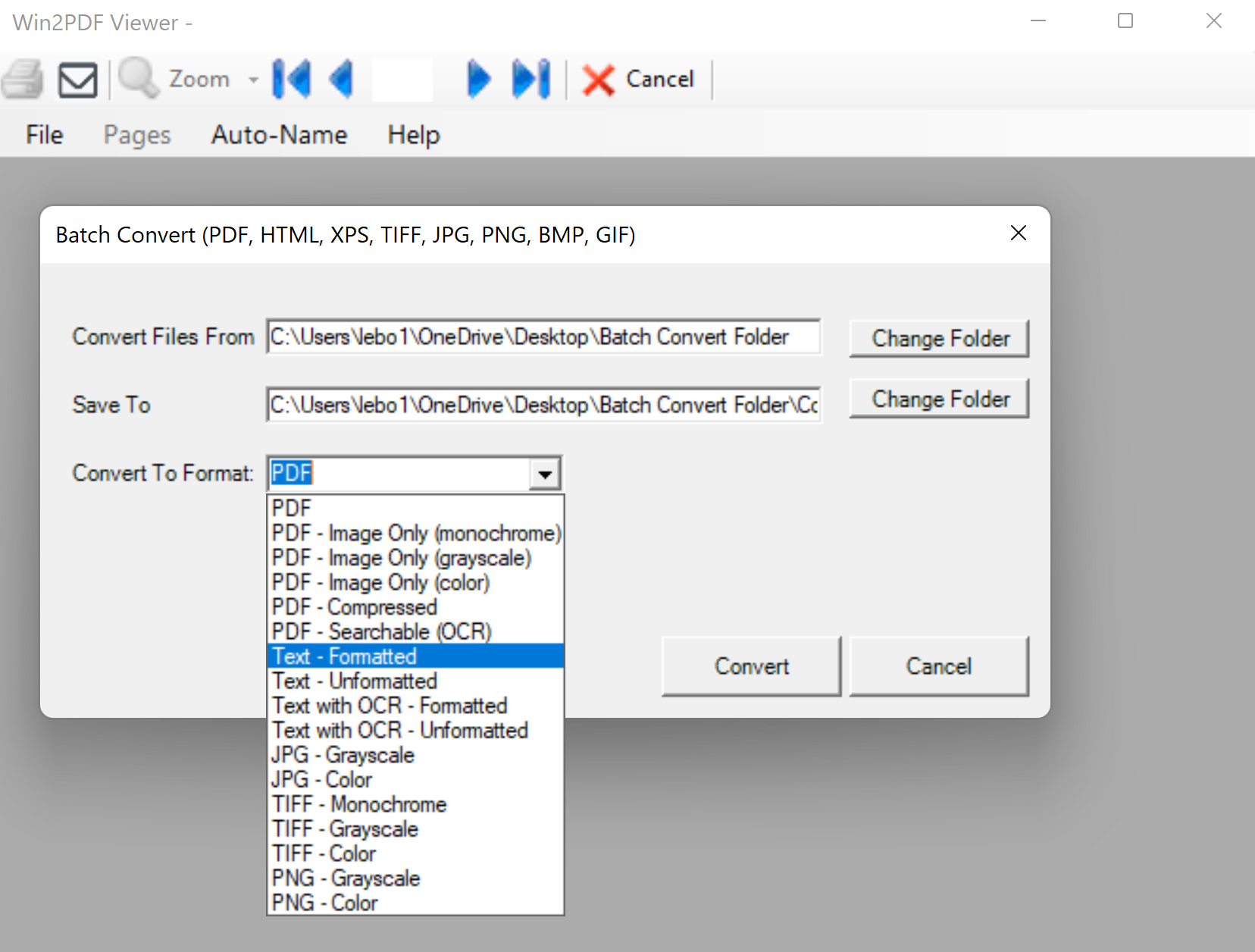
Once selected, the user will be able to select 3 options: 1) The input folder containing the files to convert, 2) the output folder where the converted files will be placed, and 3) the file type format for the converted files. The output folder must be different from the input folder.

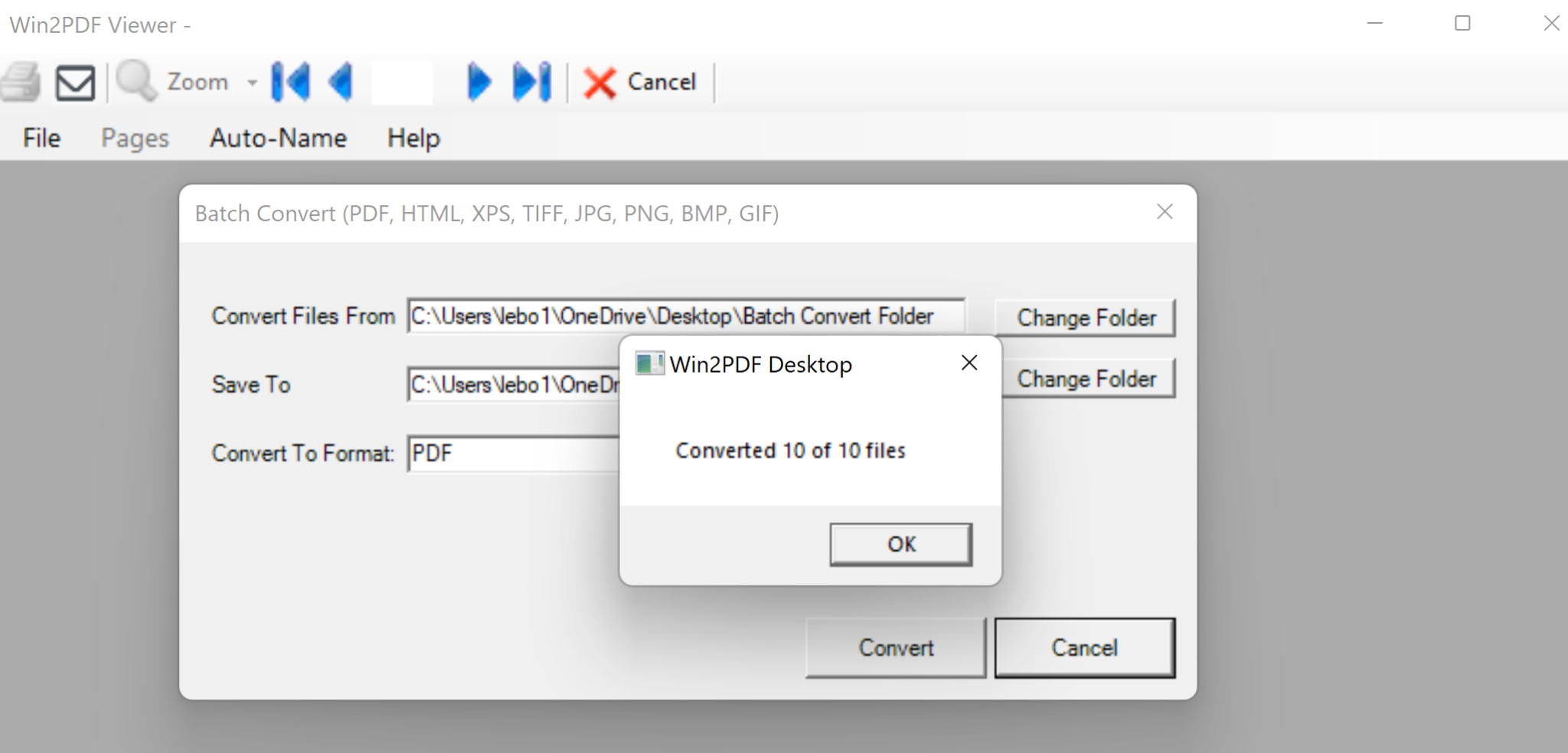
The conversion process can be canceled if you have a large number of files and wish to abort the operation, or it will convert all files and notify the user when finished.

Only files with supported extensions will be converted (PDF, HTML, XPS, TIFF, JPG, PNG, BMP, GIF). Other file types will be ignored.

Here’s an example: Suppose you had a folder of logo samples in different image formats, and you wanted to convert all of them to grayscale PDF files. You could do so very easily by choosing the input and output folders and then choosing the output file format as “PDF Image Only (Grayscale)”.

You can read more at the Batch Convert section of our online user guide, or try it out for yourself. And finally, the Batch Convert feature can be accessed from a command line interface.