
A new version of Win2PDF (a free update to existing Win2PDF 7 or Win2PDF 10 users) is available now at the Win2PDF download page. In addition to bug fixes and stability improvements, it adds several new features to Auto-Naming PDF files, command-line options, and the Win2PDF Desktop App. Win2PDF 10.0.72 includes the following new features:
- Adds support for configuring search words and content fields for content based file naming from within the Win2PDF Desktop application.
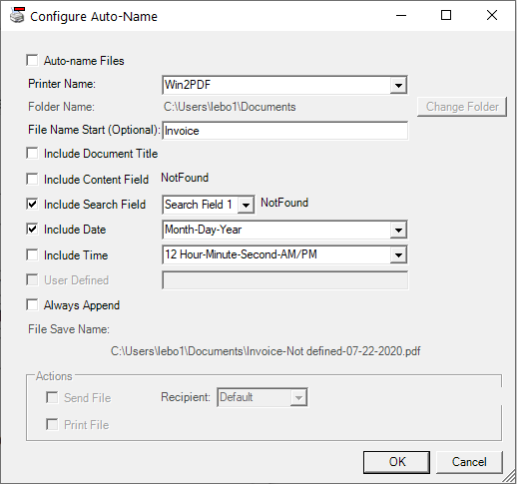
- Adds a Configure Win2PDF Auto-Name shortcut to the start menu to make configuring the Auto-name features easier.
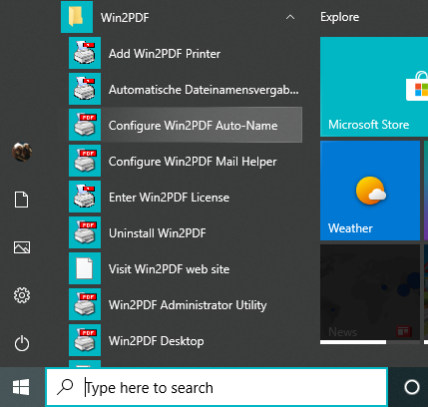
- Adds Send File and Print File actions to the Configure Win2PDF Auto-Name menu to automatically email or print a PDF. See How to Automatically name and send PDF files by email for an example of automatically naming and sending invoices to email recipients based on the contents of the PDF.
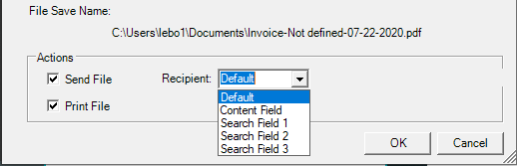
- Adds support for the Win2PDF Report Server for converting PCL print streams to PDF.
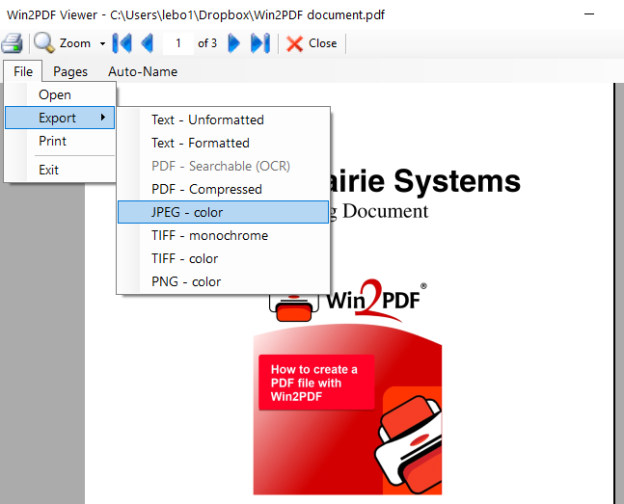
- Adds new Export options to the Win2PDF Desktop App to export a PDF to PDF – Compressed, JPEG – Color, TIFF – Monochrome, TIFF – Color, and PNG – Color.
- Adds a new menu option to the Win2PDF Desktop App to split pages from an existing PDF.
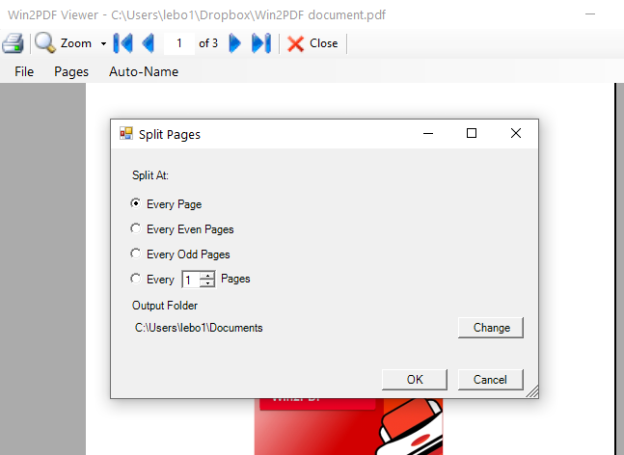
- Adds new command line options to split pages, rotate pages, convert PDF to JPG, convert PDF to PNG, and to convert PDF to TIFF.
- Performance and stability improvements
Again, if you have a license for Win2PDF 7 or Win2PDF 10, you can download this new version at no charge.
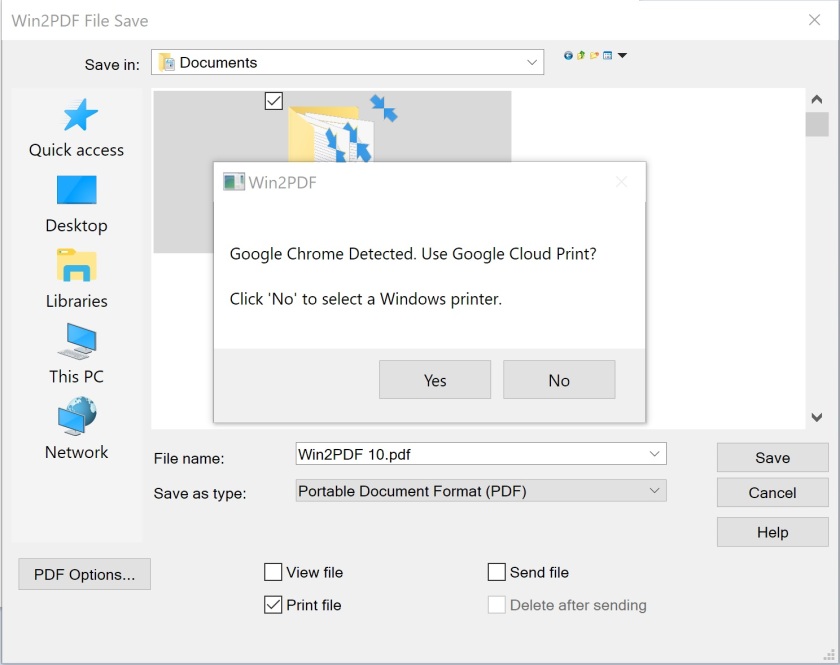
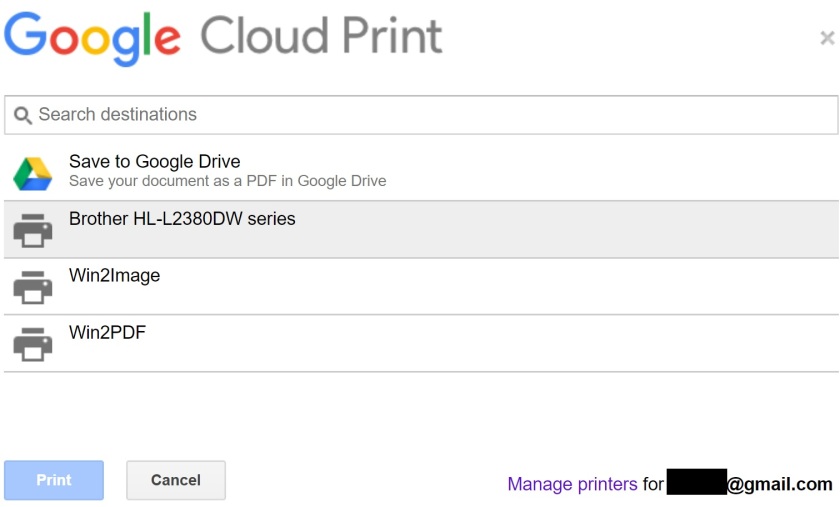 The user can select a cloud printer, and the print job will be submitted to the cloud print queue. The Chrome printer selection also contains a “Save to Google Drive” option. This can be used to save the PDF directly to the cloud even if Google Drive is not installed on the PC.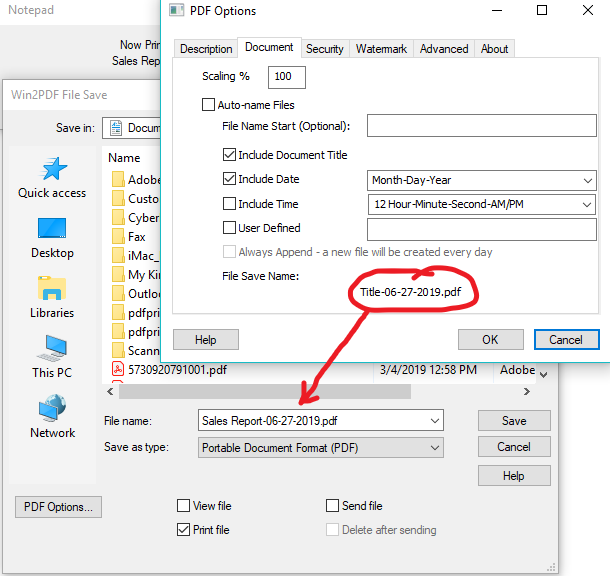
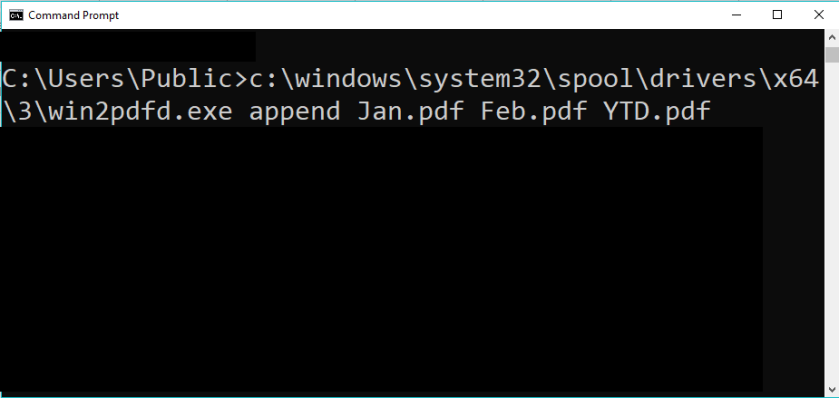 What can you do with PDF command line options? Lots of things, including:
 PDF Blog - Topics from the makers of Win2PDF