New Outlook Support and Enhanced PDF Workflow in Win2PDF Version 11.0

We are pleased to announce the release of Win2PDF version 11.0, a free update that introduces several enhancements to expand the capabilities and features of Win2PDF. This update is designed to completely support Microsoft’s Windows 11 operating system, and to optimize your PDF workflows and provide greater efficiency.

Key features and improvements in this release include:

Enhanced Microsoft Outlook Integration: Microsoft is transitioning users from its older Windows Mail and Calendar apps to a new version of Outlook for Windows 11. The new Outlook is a move towards a more unified, modern, and feature-rich email client integrated with the Microsoft 365 ecosystem, but it does have some differences compared to both the old Mail app and the classic Outlook, including some that affect how Win2PDF attaches PDF files to email. Win2PDF now supports both the existing Outlook (classic), and provides the same seamless functionality to users moving to Outlook (new).

Automated Blank Page Removal: If you’ve ever received or generated a PDF that contains extra blank pages, you can now remove them using the new Delete Blank Pages feature.  It automatically identifies and removes empty pages from your PDFs, contributing to cleaner and more professional documents.  This feature also has an associated DELETEBLANKPAGES command line option.

Expanded Automation Customization Capabilities: Support for Batch Convert and Watch Folder and Convert plug-ins has been extended. You can customize batch convert processing by installing a Win2PDF Batch Convert Plug-in which can be very useful in many situations.  For example, suppose you wanted to batch convert a folder of documents and then perform a secondary process on those newly created files – a batch convert Plug-In would allow you to do that.  Current Plug-ins include the ability split pages, delete pages, append a PDF, apply watermarks, delete blank pages, digitally sign with a certificate, and more. When a batch convert plug-in is installed, an “Enable Plug-In” option is displayed in the Batch Convert Window.

Watch up to 20 folders with Watch Folder and Convert feature: The “CONFIGWATCHSERVICE” command line option now allows a single service to monitor up to 20 folders, enabling more robust automation for complex workflows. [Note:  Win2PDF Pro Terminal Server Edition only feature]

Refined Text and RTF Conversions: This update includes fixes to improve the conversion of text files containing smart quotes to PDF, ensuring accuracy. Additionally, formatting issues encountered during RTF to PDF conversion have been addressed, resulting in improved document fidelity.

Improved Command Line Printing: For users utilizing the “PRINTPDF” command line, paper size selection has been refined, offering enhanced control over printing options.

As a free upgrade for existing customers using Win2PDF 7 or higher, we encourage you to explore these new features and see how they can further enhance your productivity. And while this new Win2PDF 11.0 release fully supports Windows 11.0, it also continues to support Windows 10, Windows 8, Windows 8.1, Windows 7, Windows Vista, and Windows XP. Win2PDF Terminal Server Edition 11.0 continues to fully support Windows Server 2025, Server 2022, Server 2019, Server 2016, Server 2012, Server 2012 R2, Server 2008, Server 2008 R2, Server 2003, and Server 2003 R2 (including 64 bit editions).
New Win2PDF Update Boosts Productivity with Parallel Processing

We’re pleased to announce the latest release of Win2PDF version 10.0.169.1 This free update brings a significant enhancement to our Batch Convert feature—parallel processing. Along with this update, we’ve included fixes for handling improperly formatted PDF files and addressed installation issues that were causing missing file errors.

Parallel Processing in Batch Convert

Most of today’s modern CPUs come with multiple cores, allowing them to perform several tasks simultaneously (provided that your software programs support them). This is where parallel processing shines—by dividing tasks into smaller chunks that can be executed concurrently, it dramatically speeds up processing times. With the release of Win2PDF 10.0.169.1, we’ve integrated parallel processing into Win2PDF’s Batch Convert feature, specifically for users who choose “individual files” as the output.

How Does It Work?

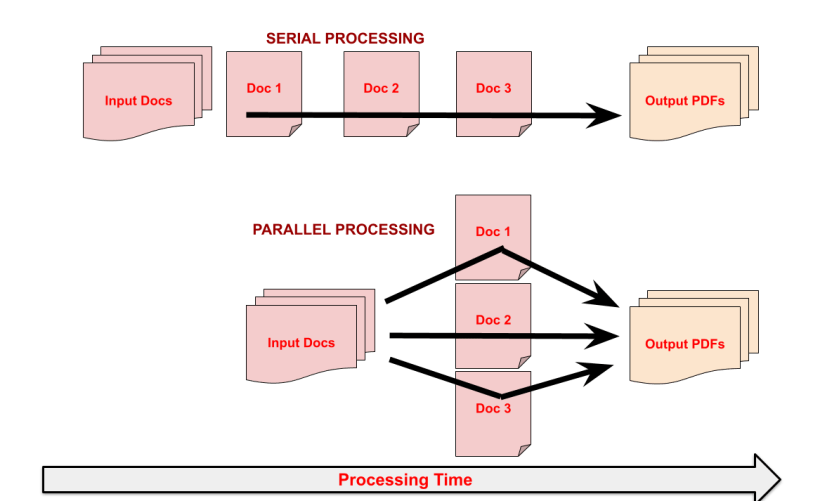
When converting a large batch of files, Win2PDF will now process multiple files simultaneously, utilizing the full power of your multi-core CPU. This means that instead of processing one file after another in a linear fashion (serial processing), Win2PDF can handle several files at once (parallel processing), significantly reducing the time needed to complete large conversion tasks.

Win2PDF Parallel Processing for Batch Convert

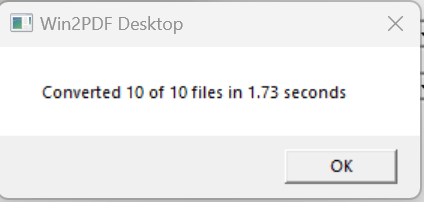
However, it’s important to note that this performance boost applies only when the output is set to “individual files.” If you choose to merge your files into a single PDF, the conversion must occur sequentially to ensure the correct order of pages. Despite this, you can still get a rough idea of the performance improvement by comparing the processing time for both individual and merged outputs. The new Batch Convert interface (shown below) now shows the time it took to complete the task, making it easier to gauge the impact of parallel processing.

Win2PDF Batch Convert Time Windows
Why Is This Important?

This enhancement is especially beneficial for customers who need to make large folders of scanned documents searchable using OCR (Optical Character Recognition). With the ability to process multiple files at once, the time it takes to convert and prepare documents for OCR is drastically reduced, allowing for a more efficient workflow.

It’s also important to note that this conversion process takes place entirely on your machine, using your hardware. Your files are never uploaded to the cloud or leave your computer.

Additional Fixes and Improvements
  • Handling Improperly Formatted PDF Files: We’ve improved how Win2PDF handles improperly formatted PDF files, reducing errors and ensuring smoother conversion processes.
  • Installation Fixes: This update also addresses issues related to missing files during installation, providing a more seamless setup experience.

Upgrade to Win2PDF 10.0.169.1 Today!

With the introduction of parallel processing, Win2PDF continues to evolve, offering enhanced performance and reliability for your PDF conversion tasks. Download the latest version today and experience the power of parallel processing.

New Win2PDF Features for Converting Word (.docx), Open Document Text (.odt), and Rich Text Format (.rtf) to PDF

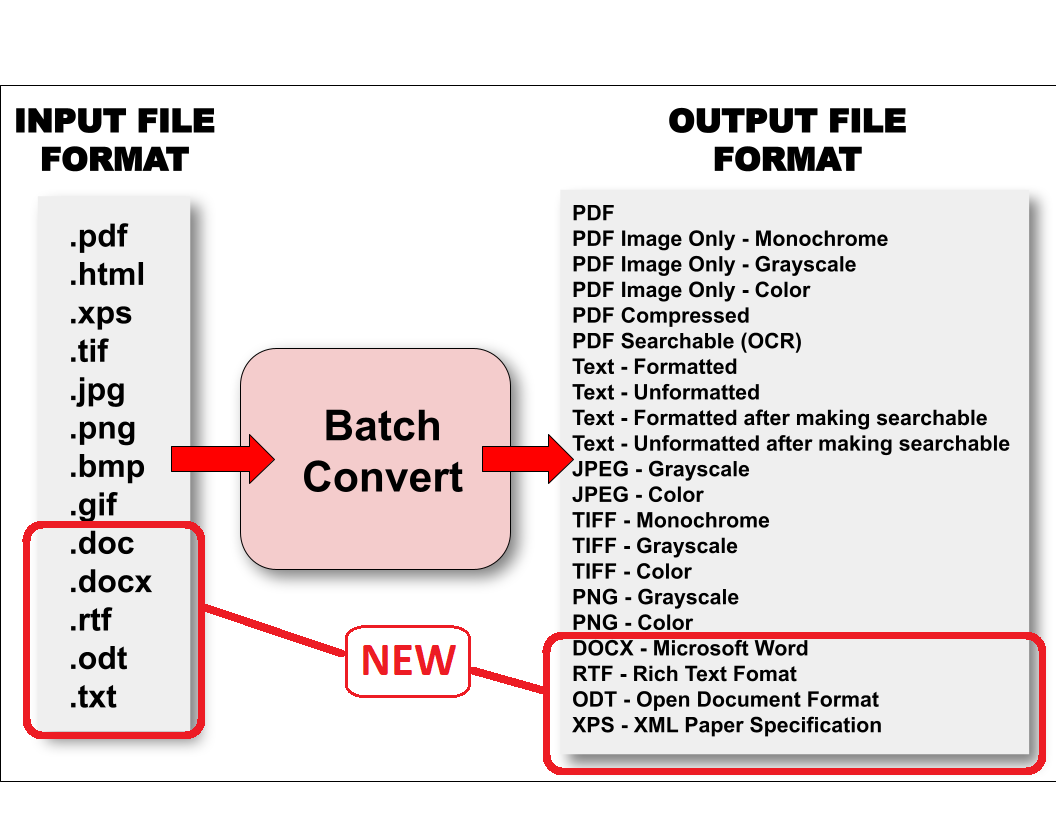
Win2PDF has always been able to convert Microsoft Word (.docx), Open Document Text (.odt), and Rich Text Format (.rtf) files by printing from the programs that can view/print these types of documents. With the most recent 10.0.144 release, however, it is now possible to natively view and export in the Win2PDF Desktop App, do batch conversions, use command line options, and use the watch folder with these standard word processing documents. This native support does not depend on any external programs such as Microsoft Word, and requires Win2PDF Pro.

Here’s a summary of the new capabilities:

  • Open .doc, .docx, .rtf, .odt, and .txt files in the Win2PDF Desktop App

When you open the Win2PDF Desktop App, you can now open .doc, .docx, .odt, .rtf, and .txt files. This allows you to export these files to PDF, searchable PDF, image files, or other formats.

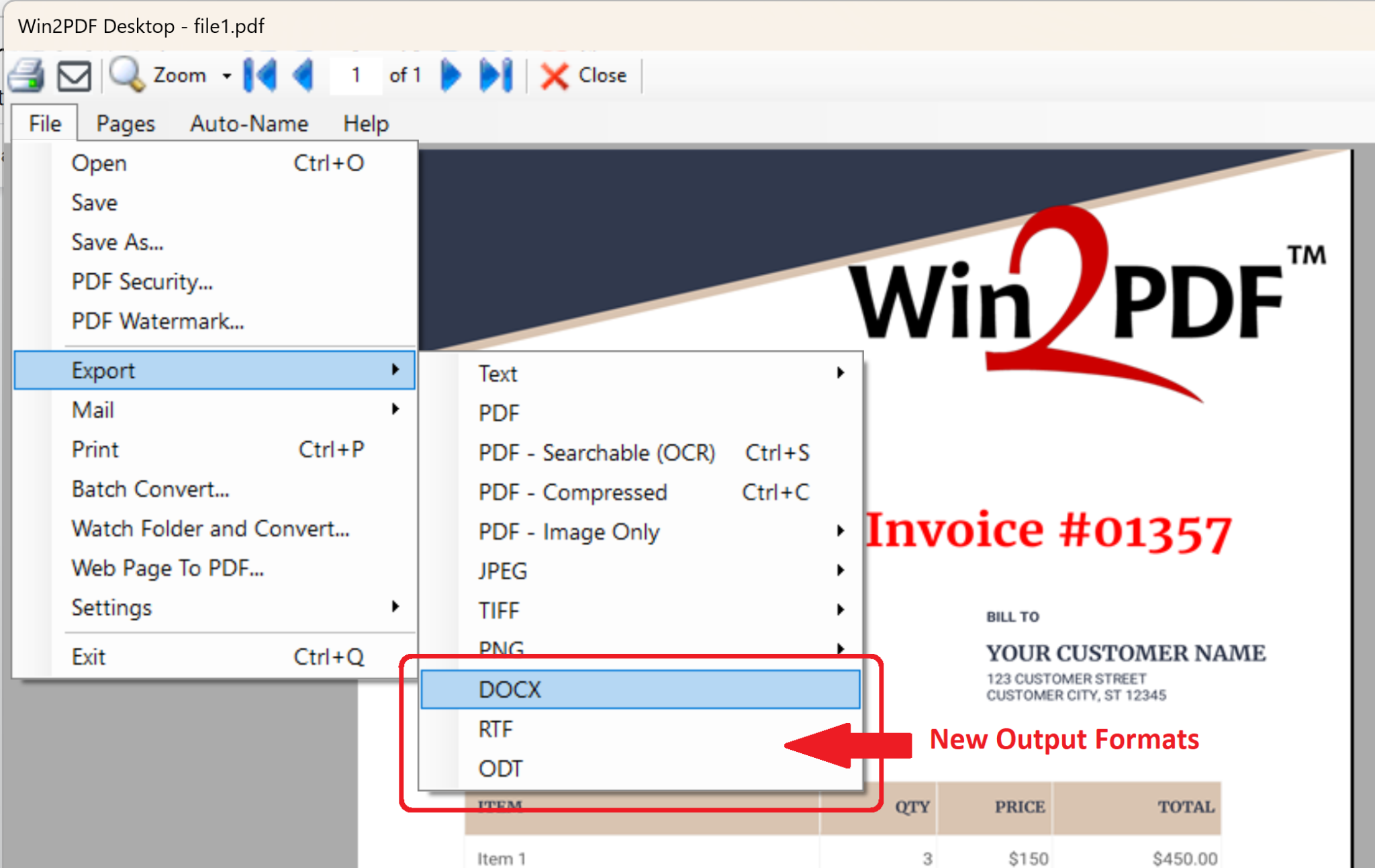
  • Export to .docx, .odt, and .rtf from the Win2PDF Desktop App (Win2PDF Pro feature only)

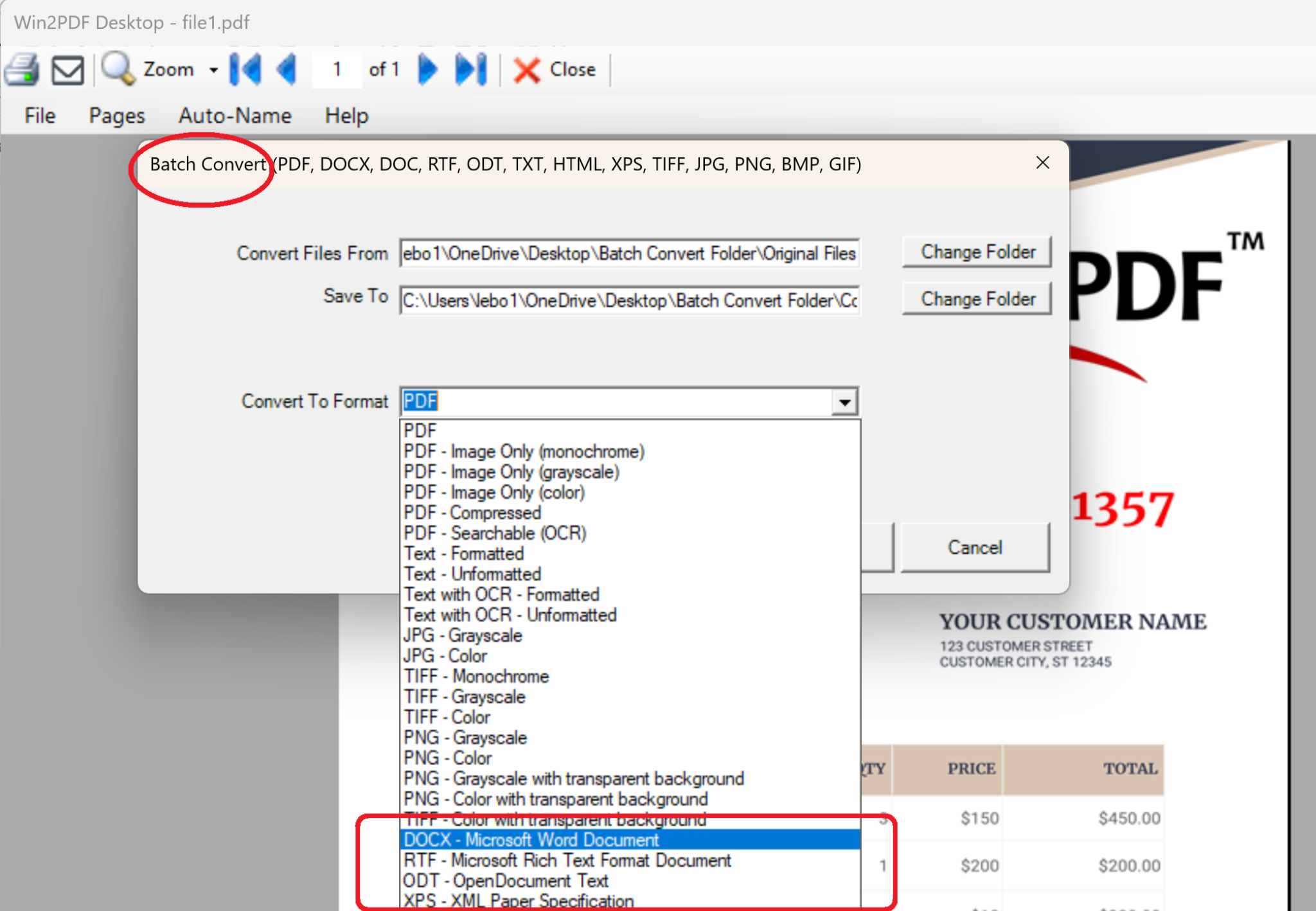
  • Batch convert .docx, .odt, .rtf, and .xps files in the Win2PDF Desktop App (Win2PDF Pro feature only)

The Win2PDF Desktop App’s batch conversion feature now supports the additional input formats:

.docx, .doc, .rtf, .odt, .txt

And supports the following output formats

.docx, .rtf, .odt, .xps
  • New Command Line Options for .docx, .odt, .rtf, and .txt  (Win2PDF Pro feature only)

DOCX2PDF

DOC2PDF

RTF2PDF

ODT2PDF

TXT2PDF

  • Enhanced ‘convertto’ command line option for other formats

There are new input and output formats in the convertto command.

This allows for more unusual combinations such as “TXT to JPG” or “DOCX to PNG”.

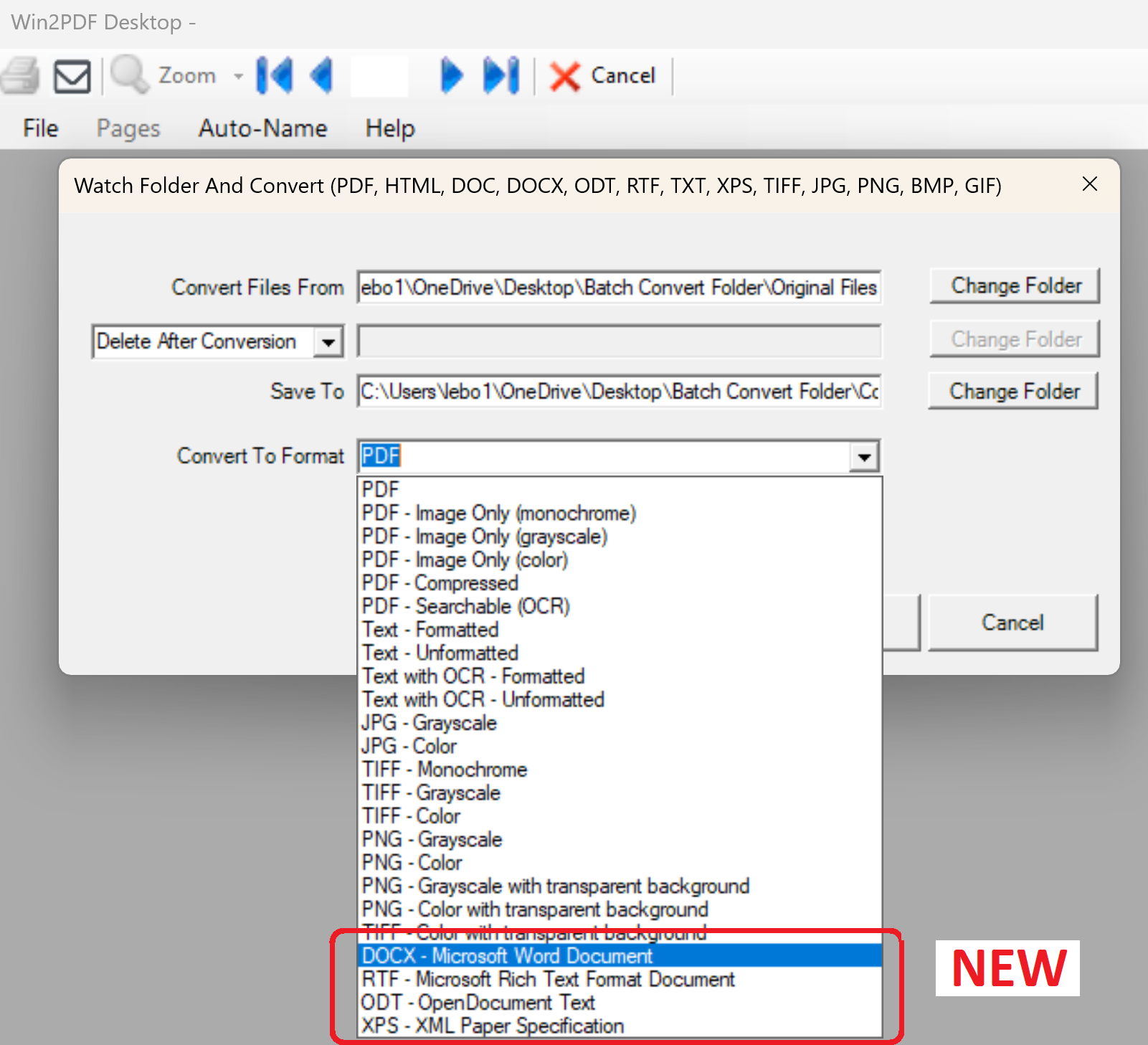
  • Use Win2PDF Watch Folder to dynamically convert .docx, .odt, .rtf, and .xps files that are added to a folder. (Win2PDF Pro TSE feature only)

The current version of Win2PDF can be installed from the Win2PDF download page, and this update is available at no charge for registered Win2PDF 7 and higher version users. If you have the standard Win2PDF and want to use the new Pro only features, you can upgrade to Win2PDF Pro.

Win2PDF 10.0.144 is now available

The latest release of Win2PDF (10.0.144) is now available on the Win2PDF Download site.

The biggest additions to this release are specific to the Win2PDF Pro version of the software, which now supports the ability to batch convert standard word processing documents (Microsoft Word, Open Document Text, and Rich Text Format) to PDF.

Here’s a summary of changes in this new version:

This Win2PDF 10 update is a free upgrade for all Win2PDF 7 and Win2PDF 10 users. If you have an existing Win2PDF standard edition license and wish to use any of the new Win2PDF Pro features, you can purchase a Win2PDF Pro Upgrade.

We’ll be posting more specific information on some of these features next week, with more details on changes to the interface and how these new features can be used. In the meantime, if you would like to evaluate one of the new Win2PDF Pro features (PDF watermark, PDF security, batch-convert, auto-rename, or watch folder), contact us for a free 30 day trial of Win2PDF Pro.

Win2PDF Pro Adds New Batch Convert Files Feature

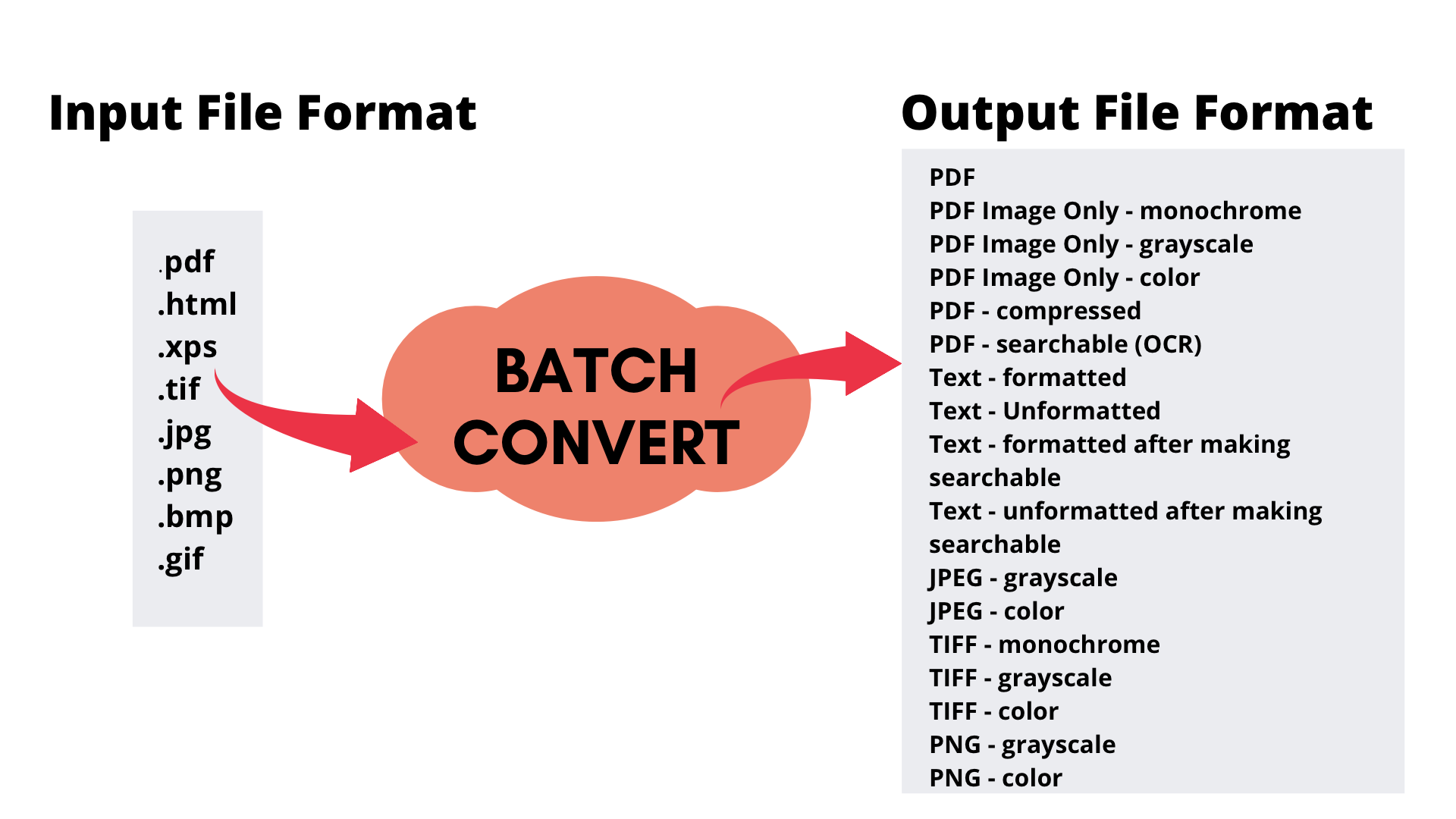
Our latest update to Win2PDF Pro (V10.0.122) adds a new capability to batch convert certain types of files directly into PDF (or another image/text format). The types of files that can be converted are:

[Note: This feature is only available in the Win2PDF Pro version of the software. If you do not have Win2PDF Pro but would like to try this feature, you can request a 30-day trial license.]

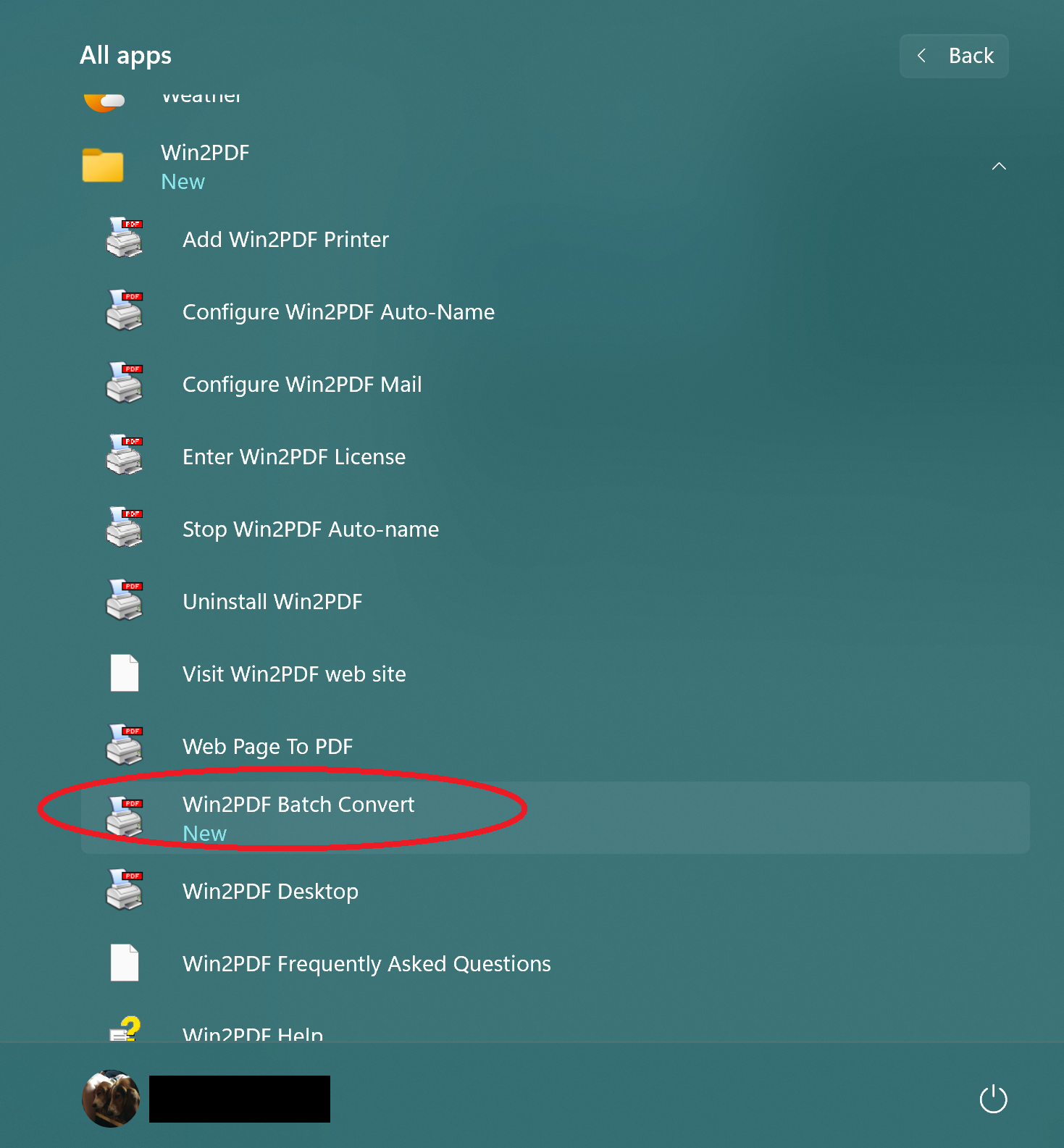
Win2PDF Batch Convert can be accessed in 2 different ways. First, it can be accessed from the Windows Start menu under the Win2PDF program group.

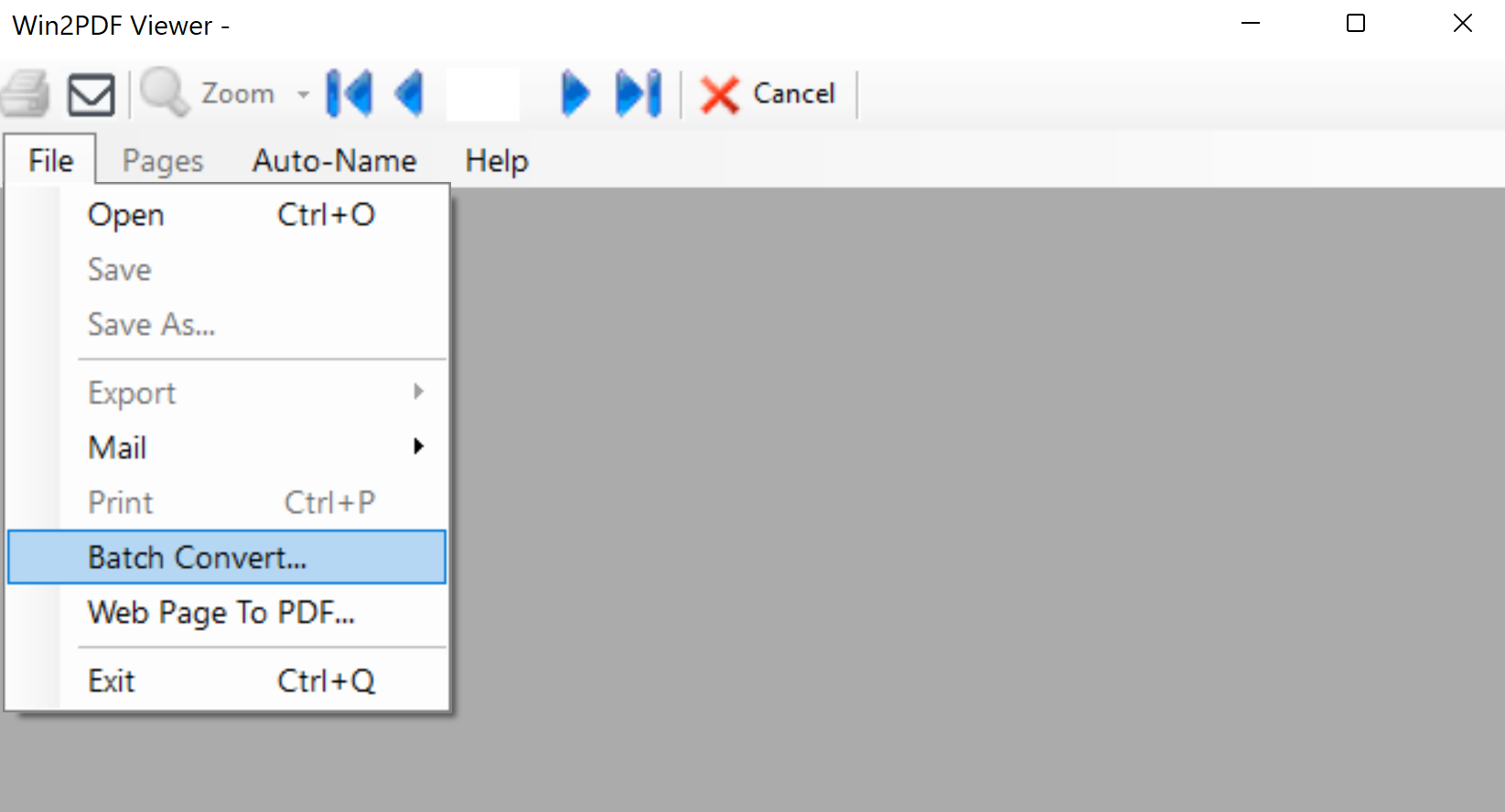
Second, Batch convert… can be accessed from the File menu of the Win2PDF Desktop app, as shown below:

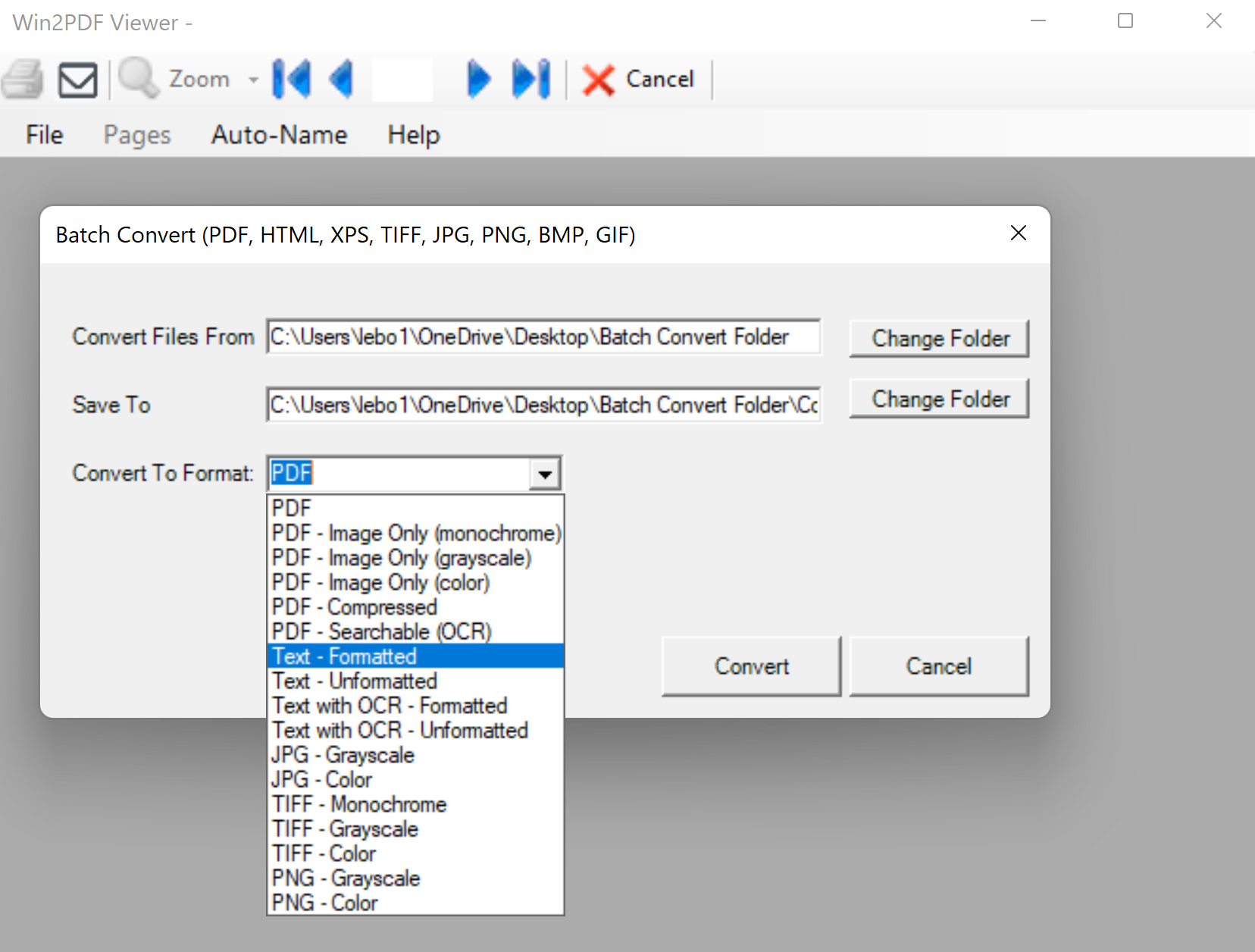
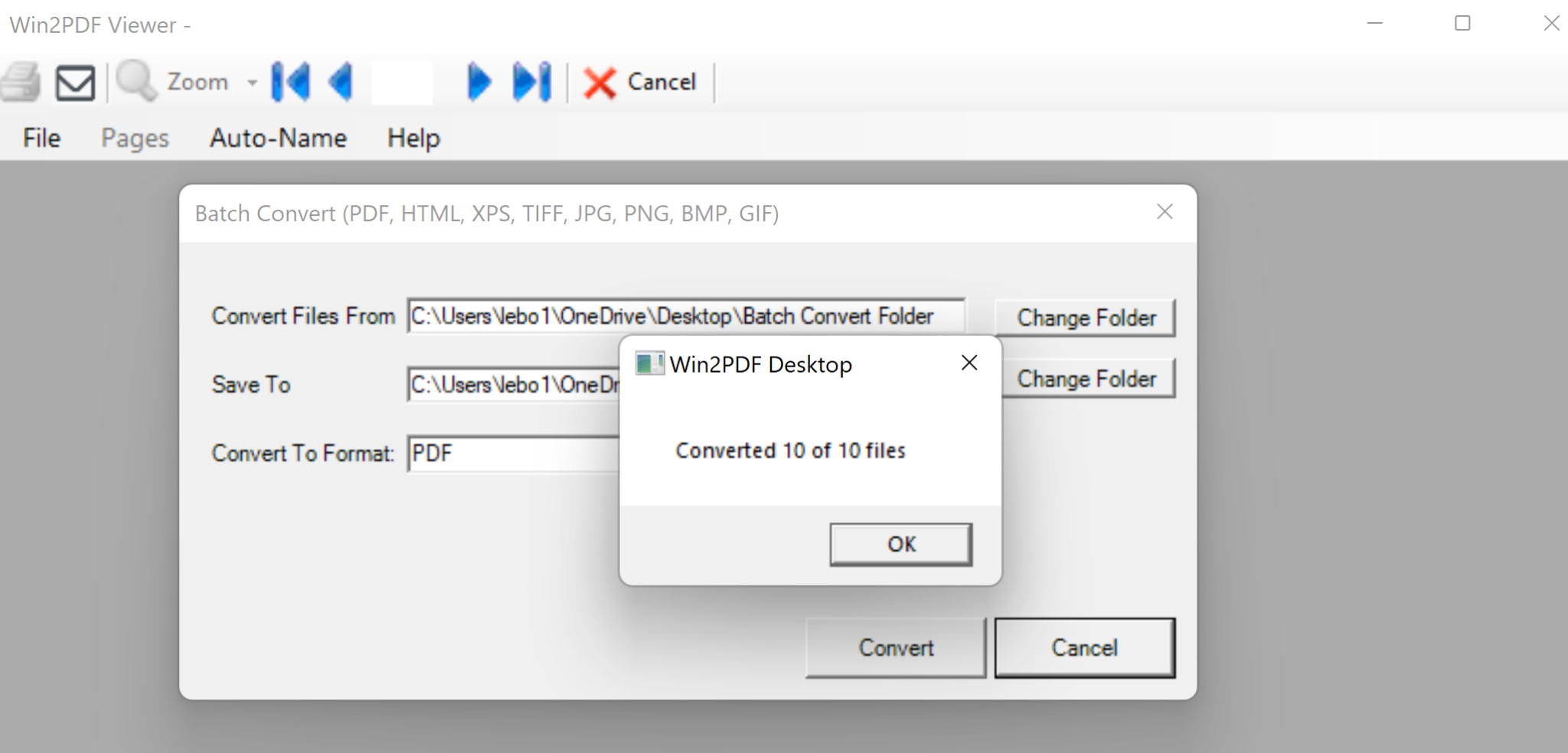
Once selected, the user will be able to select 3 options: 1) The input folder containing the files to convert, 2) the output folder where the converted files will be placed, and 3) the file type format for the converted files. The output folder must be different from the input folder.

The conversion process can be canceled if you have a large number of files and wish to abort the operation, or it will convert all files and notify the user when finished.

Only files with supported extensions will be converted (PDF, HTML, XPS, TIFF, JPG, PNG, BMP, GIF). Other file types will be ignored.

Here’s an example: Suppose you had a folder of logo samples in different image formats, and you wanted to convert all of them to grayscale PDF files. You could do so very easily by choosing the input and output folders and then choosing the output file format as “PDF Image Only (Grayscale)”.

You can read more at the Batch Convert section of our online user guide, or try it out for yourself. And finally, the Batch Convert feature can be accessed from a command line interface.