We are pleased to announce the release of Win2PDF version 11.0, a free update that introduces several enhancements to expand the capabilities and features of Win2PDF. This update is designed to completely support Microsoft’s Windows 11 operating system, and to optimize your PDF workflows and provide greater efficiency.
Key features and improvements in this release include:
Enhanced Microsoft Outlook Integration:Microsoft is transitioning users from its older Windows Mail and Calendar apps to a new version of Outlook for Windows 11. The new Outlook is a move towards a more unified, modern, and feature-rich email client integrated with the Microsoft 365 ecosystem, but it does have some differences compared to both the old Mail app and the classic Outlook, including some that affect how Win2PDF attaches PDF files to email. Win2PDF now supports both the existing Outlook (classic), and provides the same seamless functionality to users moving to Outlook (new).
Automated Blank Page Removal: If you’ve ever received or generated a PDF that contains extra blank pages, you can now remove them using the new Delete Blank Pages feature. It automatically identifies and removes empty pages from your PDFs, contributing to cleaner and more professional documents. This feature also has an associated DELETEBLANKPAGES command line option.
Expanded Automation Customization Capabilities: Support for Batch Convert and Watch Folder and Convert plug-ins has been extended. You can customize batch convert processing by installing a Win2PDF Batch Convert Plug-in which can be very useful in many situations. For example, suppose you wanted to batch convert a folder of documents and then perform a secondary process on those newly created files – a batch convert Plug-In would allow you to do that. Current Plug-ins include the ability split pages, delete pages, append a PDF, apply watermarks, delete blank pages, digitally sign with a certificate, and more. When a batch convert plug-in is installed, an “Enable Plug-In” option is displayed in the Batch Convert Window.
Watch up to 20 folders with Watch Folder and Convert feature: The “CONFIGWATCHSERVICE” command line option now allows a single service to monitor up to 20 folders, enabling more robust automation for complex workflows. [Note: Win2PDF Pro Terminal Server Edition only feature]
Refined Text and RTF Conversions: This update includes fixes to improve the conversion of text files containing smart quotes to PDF, ensuring accuracy. Additionally, formatting issues encountered during RTF to PDF conversion have been addressed, resulting in improved document fidelity.
Improved Command Line Printing: For users utilizing the “PRINTPDF” command line, paper size selection has been refined, offering enhanced control over printing options.
As a free upgrade for existing customers using Win2PDF 7 or higher, we encourage you to explore these new features and see how they can further enhance your productivity. And while this new Win2PDF 11.0 release fully supports Windows 11.0, it also continues to support Windows 10, Windows 8, Windows 8.1, Windows 7, Windows Vista, and Windows XP. Win2PDF Terminal Server Edition 11.0 continues to fully support Windows Server 2025, Server 2022, Server 2019, Server 2016, Server 2012, Server 2012 R2, Server 2008, Server 2008 R2, Server 2003, and Server 2003 R2 (including 64 bit editions).
In our previous blog post, we explored how effective prompts can be used to create Win2PDF Plug-Ins with AI chatbots. Today, let’s examine a specific customer solution we developed.
Customer Requirement: Every time a Technical Bulletin is saved as a PDF, the customer needs the first page—containing a summary description—saved as a JPG image. This allows them to display the summary image on their website, linking it to the full PDF bulletin for download.
Solution: There are multiple ways to automate this process. One efficient method involved creating a Win2PDF Plug-In with minimal effort using Microsoft Copilot. Here’s how we achieved it.
1. Use AI to generate a Powershell program for the Plug-In
In our example, we’re using Microsoft Copilot but you can try using any AI chatbot.
For the first prompt, copy ALL of the documentation text for the Win2PDF PDF to JPG Command Line and paste it into the chatbot.
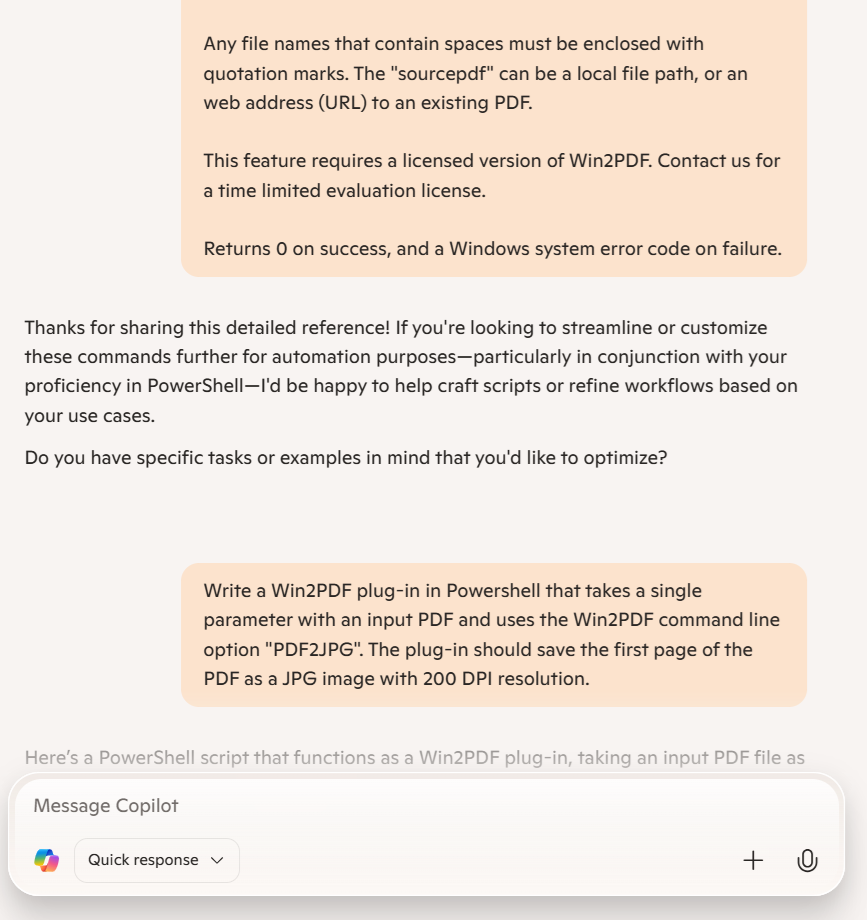
Copilot acknowledges the input of reference documentation and asks if we have a specific task using this information. Since we do, we’ll enter our prompt for the customer requirement, including the programming language, the Win2PDF command required for the Plug-In, and the desired JPG resolution.
Write a Win2PDF plug-in in Powershell that takes a single parameter with an input PDF and uses the Win2PDF command line option “PDF2JPG”. The plug-in should save the first page of the PDF as a JPG image with 200 DPI resolution.
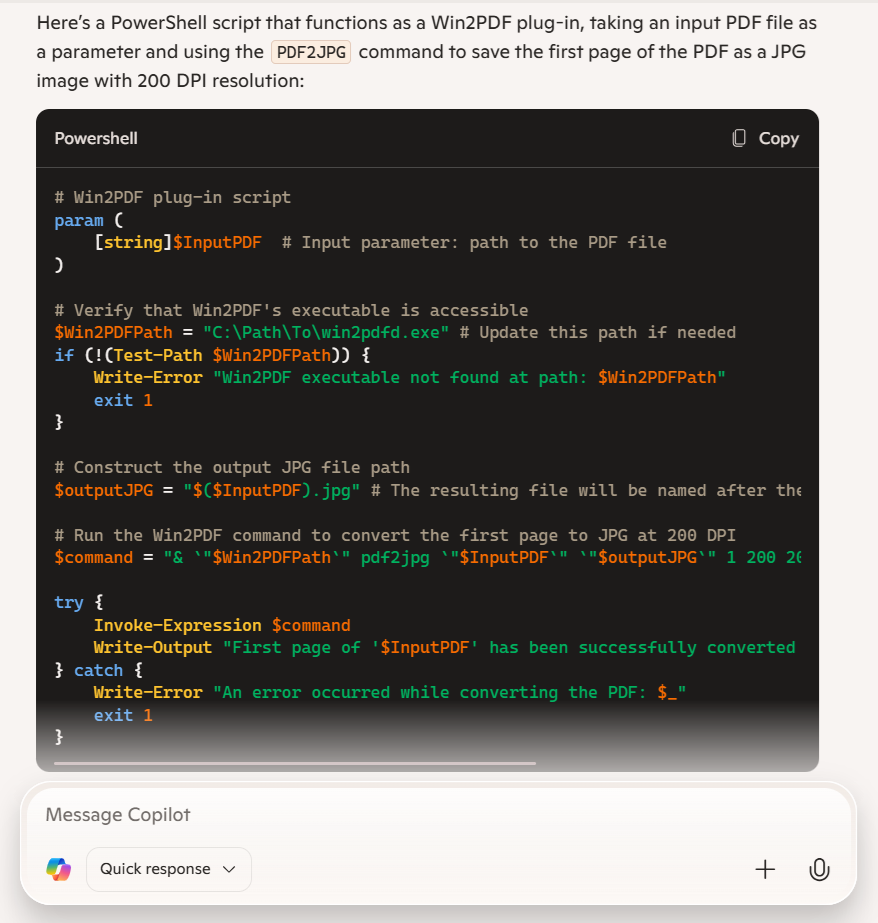
Here are the results returned by Copilot:
We’ll then save this Powershell code as a text file located somewhere on the hard drive where it is accessible, such as:
c:\users\test_ai\SaveFirstPageAsJPG.ps1
There was one small edit required, which was for the path for the Win2PDF Desktop program ($Win2PDFPath). Since we’re using a 64-bit bit version of Windows, the Win2PDF Desktop program on my PC is located here:
C:\windows\system32\spool\drivers\x64\3\
In this example, we used PowerShell because it’s easy to use and doesn’t require compilation. Alternatively, you can adapt your prompt to use C#, VB.NET, or any other programming language if you prefer a different approach.
2. Change the default execution policy on your PC.
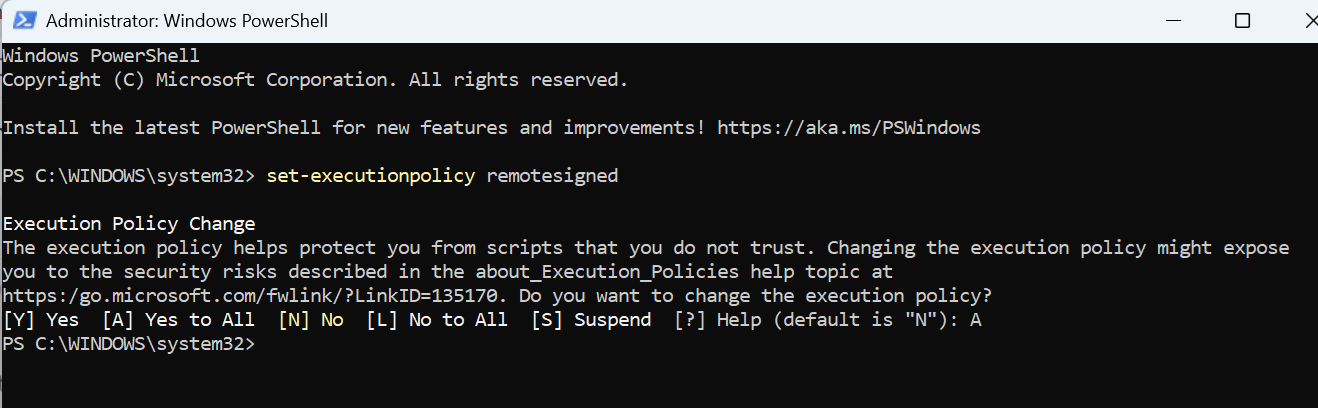
Start Windows PowerShell with the “Run as Administrator” option. Only members of the Administrators group on the computer can change the execution policy.
Enable running unsigned scripts by entering the following and choosing [A] Yes to All:
set-executionpolicy remotesigned
This will allow running unsigned scripts on your local computer and signed scripts from the Internet. This will change the policy permanently.
We can test our script by opening a command prompt and typing
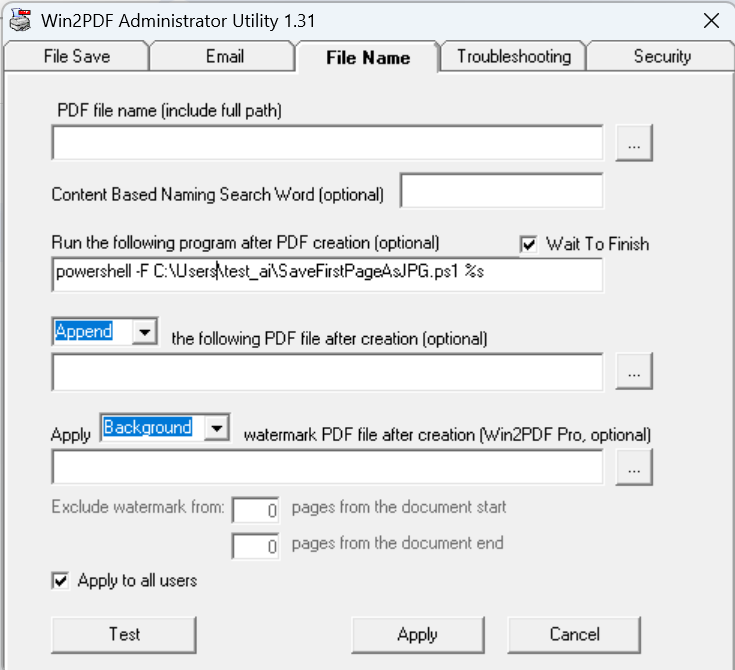
To use this as a Plug-In, open the Win2PDF Administrator Utility and enter the following command under “Run this program after PDF creation (optional)” on the File Name tab:
powershell -F c:\users\tmp\SaveFirstPageAsJPG.ps1
Then click the “Apply” button to save this command a Plug-In. [Note: The Win2PDF Administrator Utility will automatically add a “%s” argument to the end of the command when saved, so Win2PDF will automatically pass the PDF file name to the Plug-In.]
If you’re not familiar with Powershell programming, check out Microsoft’s online documentation for assistance or better yet, ask your AI chatbot for help.
4. Test the Results
Create a new technical bulletin and print it using the Win2PDF TechBulletin printer. Once complete, confirm that both the PDF file and a JPG copy of the first page are saved in the same location.
This simple example demonstrates how quickly and easily you can automate a workflow when an out-of-the-box solution isn’t available. You could expand this process further—for instance, by resizing the JPG or moving it to another folder—but this provides a clear idea of the steps to create your own Plug-In.
Vibe coding is a novel approach to software development that leverages artificial intelligence (AI) to generate code based on desired functionality or “vibe.” It allows developers to express their intentions in a more abstract and intuitive way, rather than writing explicit, line-by-line instructions. This methodology is particularly useful for creating Win2PDF Plug-Ins, enabling faster development and innovative solutions for specific customer applications.
Vibe coding utilizes AI models trained on vast amounts of code and natural language. Developers provide high-level descriptions of what they want the Plug-In to achieve, and the AI interprets these descriptions to generate the corresponding code. Since Win2PDF has extensive online documentation with syntax descriptions and code examples, most AI programs can already generate Win2PDF Plug-Ins.
And while creating a custom Win2PDF Plug-In with the help of AI can be powerful, its success relies heavily on the quality and specificity of your prompts. We’ve been experimenting with a variety of different AI chatbots to see how they can handle generating code for Win2PDF Plug-Ins, and the results can vary widely depending on how the prompts are structured. We’ve tried this with Google Gemini, Microsoft Copilot, OpenAI ChatGPT, GitHub Copilot, Anthropic Claude, and others.
Based on our experience, here are some tips to help you write successful AI prompts.
Be Specific and Detailed
The more details you provide, the better the AI can understand your requirements. Avoid vague statements and instead, describe exactly what you want the Plug-In to do. For example:
Instead of: “Make a Win2PDF Plug-In for PDF watermarks.“
Try: “Create a Win2PDF Plug-In in C# that adds a custom watermark file to all pages of a PDF document except for the first page. Name the new file with the same name as the input file, but add “_watermarked” to the file name.“
Break Down Complex Tasks
If your Plug-In needs to perform multiple functions, break them down into separate prompts. This makes it easier for the AI to understand each part and generate the corresponding code. For example:
Instead of: “Write a PDF Plug-In to extract pages in different files with watermarks.“
Try:
“Write a Win2PDF Plug-In in C# to export pages 2-4 and 5-6 in separate files and add a watermark to both. “
“Use the Win2PDF command line “extractpages” and Win2PDF command line “watermark” commands.”
“The watermark should use the existing “confidential.pdf” file as the watermark.”
Specify the Programming Language
If you have a preference for a specific programming language (e.g., VB.NET, C#, Powershell), mention it in your prompt. This will help the AI generate code that is compatible with your existing setup.
Example: “Generate a program using C# that extracts text from the last page of the PDF and saves it to a text file using Win2PDF.“
Provide Context and Examples
Give the AI context about the existing Win2PDF environment and provide examples of the desired output. This can help the AI understand your needs better.
Example: “Write a Powershell program that will save the first page of a PDF file as a JPG image with a user-definable resolution. It should use the following command syntax: “win2pdfd.exe pdf2jpg “sourcepdf” “destjpg” pagenumber xresolution yresolution”, where the xresolution and yresolution are set to be 200. The output JPG files should be the same name as the input file name, but with a “_page1.jpg” added to the input file name.”
Iterate and Refine
Don’t expect perfect results from the first prompt. Review the generated code and provide feedback to the AI. You may need to refine your prompts and ask for modifications several times to achieve the desired outcome.
Example: “The generated code is close, but the encryption is not using AES-256. Please modify the code to use AES-256 encryption instead of the current algorithm.“
Also, to improve results, tailor your prompts for the AI you are working with. For Github Copilot, for example, browse to the Win2PDF.Samples repository before asking it to generate a Plug-In. Github Copilot will use the Win2PDF.Samples repository to produce better code that is more likely to work as expected.
If a generated Plug-In doesn’t work, try copying the Win2PDF documentation into the prompt and ask it again. For example:
Instead of: “Write a Win2PDF Plug-In in Windows Powershell that takes a single parameter with an input PDF and exports pages 2-4 and 5-6 in separate files and adds a watermark to both.”
Try: “Write a Win2PDF Plug-In in Windows Powershell that takes a single parameter with an input PDF and exports pages 2-4 and 5-6 in separate files and adds a watermark to both. The new files should be placed in the same folder as the source file. Use the Win2PDF command line win2pdfd.exe “extractpages” and Win2PDF command line “watermark” commands . The watermark should use the existing “confidential.pdf” file as the watermark. The documentation for the watermark command is: win2pdfd.exe watermark “sourcefile” “watermarkfile” “destfile” mode excludepre excludepost Where: “mode” is either “watermark”, “background”, “watermarklink”, or “backgroundlink” If mode is “watermark” or ““watermarklink”, the watermarkfile PDF is overlaid on top of all existing graphics on the page. If mode is “background” or “backgroundlink”, the watermarkfile PDF is placed underneath all existing graphics on the page. If the watermark file has click-able links, you can use the “watermarklink” or “backgroundlink” variation to keep these links active in the final PDF file. “excludepre” is the number of pages from the beginning of the document to skip applying the watermark. Set to 0 apply watermarkfile to all pages including the first page. Set to a negative value to include the watermark to the absolute value of the number of pages from the beginning of the document. “excludepost” is the number of pages from the end of the document to skip applying the watermark. Set to 0 to apply the watermarkfile to all pages including the last page. Set to a negative value to include the watermark to the absolute value of the number of pages from the end of the document. The documentation for the “extractpages” command is: win2pdfd.exe extractpages “sourcefile” startpage endpage “destfile” Extract pages from “sourcefile” starting at “startpage” to “endpage”, and save extracted pages in “destfile”. Any file names that contain spaces must be enclosed with quotation marks. The “sourcefile” can be a local file path, or an web address (URL) to an existing PDF. Returns 0 on success, and a Windows system error code on failure. If “sourcefile” and “destfile” are the same file, the file is modified in place. Any file names that contain spaces must be enclosed with quotation marks. The “sourcefile” can be a local file path, or an web address (URL) to an existing PDF. Returns 0 on success, and a Windows system error code on failure.”
While that looks complicated, it’s essentially the same prompt WITH copied documentation on how to use each of the commands we know the Plug-In will need to use, and the steps the Plug-In will need to perform. AI will understand this better than you or I, and the results are much improved.
Test Thoroughly
Always test the generated Plug-In thoroughly to ensure it works as expected. Pay attention to error handling and edge cases. Using AI to generate code is still not fool-proof, and in our experiments the code results frequently need to be tweaked to make them work as desired. Over time and with the rate of AI advancement, we expect this to be less of a problem in the future.
By following these tips, you can effectively communicate your needs to the AI and create custom Win2PDF Plug-Ins that meet your specific requirements.
If AI can’t get you the results you need, contact us with your specific requests and customizations for Win2PDF.
PDF Direct is a feature available on many printers that allows PDF files to be sent straight to the printer without being processed through any software first. There may be slightly different names used by each printer company, but it’s typically referred to as PDF Direct Print or Direct PDF printing.
This feature is useful because it is a much faster way for printers to print PDF files since there is no intermediate conversion process needed by software.
Most business class printers from HP, OKI, Kyocera, Ricoh, Canon, and Xerox support PDFDirect printing, but most consumer inkjet printers do not support it. Look up your printer’s documentation for the specific model to see if it supports PDF Direct printing or not. If you aren’t sure, it’s safer to use the Win2PDF Print PDF command line. This is slower but will work for all printers.
One important caveat: If you attempt to use this feature on a paper printer that does not support PDF Direct printing, many pages of garbled text will be printed instead of the PDF.
This feature is available in the Win2PDF 10.0.142 version or higher, and it is a free update to all Win2PDF 10 users.
There are 2 ways to use the latest Win2PDF software to print PDF files directly.
Use the command line option for Win2PDF PDF Print Direct[link goes to documentation for this feature].
This is probably most useful for larger organizations that are batching many PDF files to the printers, perhaps along with other Win2PDF command line options.
This is probably most useful for users interactively generating PDF files.
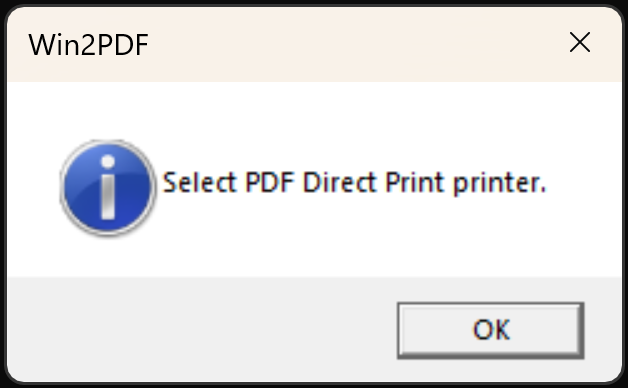
When you install the plug-in setup, you will be prompted to select a PDF Direct Printer.
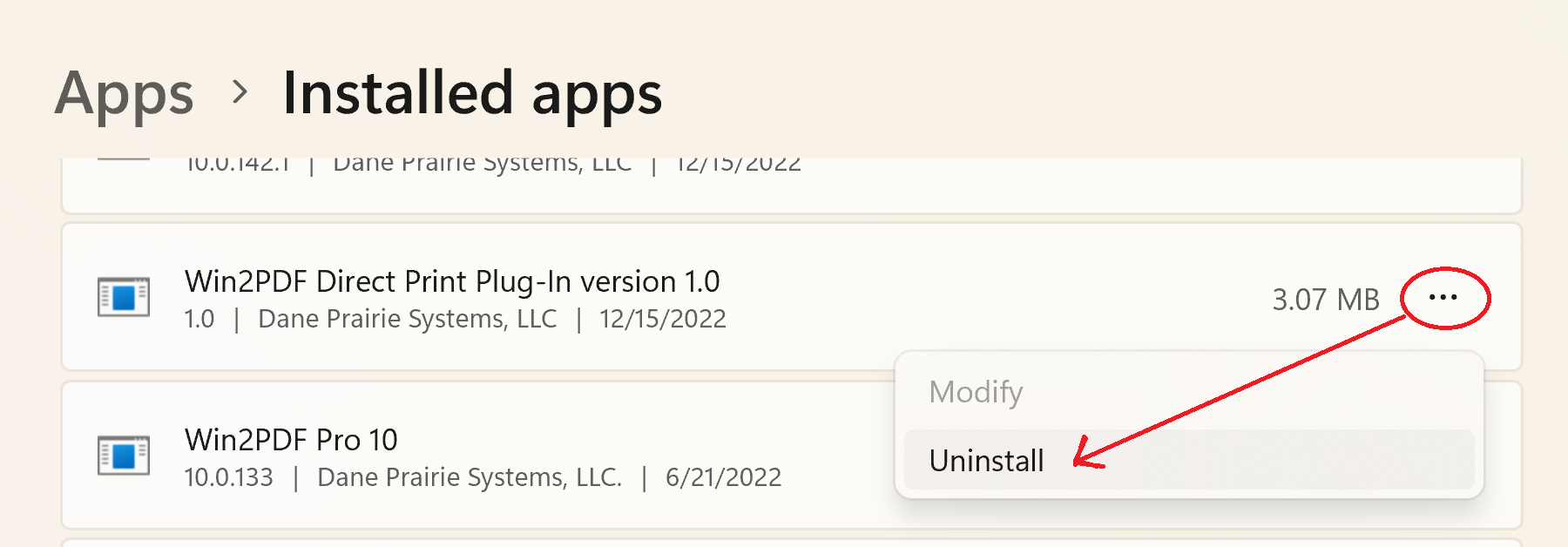
After this is selected and saved, a copy of each printed Win2PDF PDF file will be sent automatically to this PDF Direct Printer until disabled. To disable this feature, you can remove the Win2PDF Direct Print Plug-In using the Windows control panel.
This feature may not be useful to all PDF users, but for organizations that are processing large volumes of PDF files it can dramatically reduce the time needed for printing.
When we presented this for testing to a customer who wanted this feature, he replied:
There is no question why I highly recommend Win2PDF to all my clients and will continue to do so! Unbelievable service for an outstanding product!
We recently created a new Win2PDF Plug-In for a customer and it’s useful enough to share with all Win2PDF users. The Win2PDF Append File Plug-In allows you to append a standard file to any new PDF created using Win2PDF. While this Plug-In can be used for a variety of situations, here’s what the customer wanted:
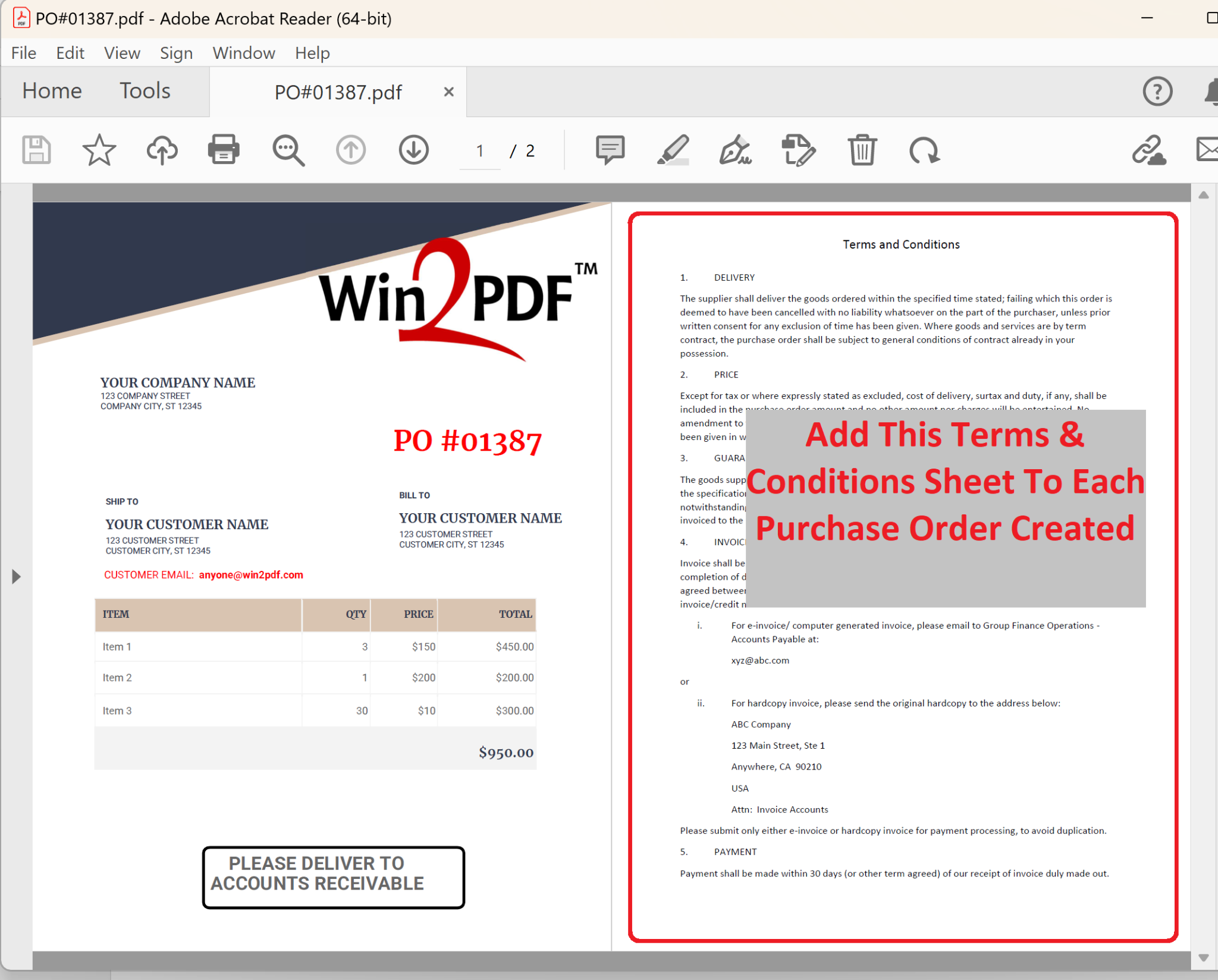
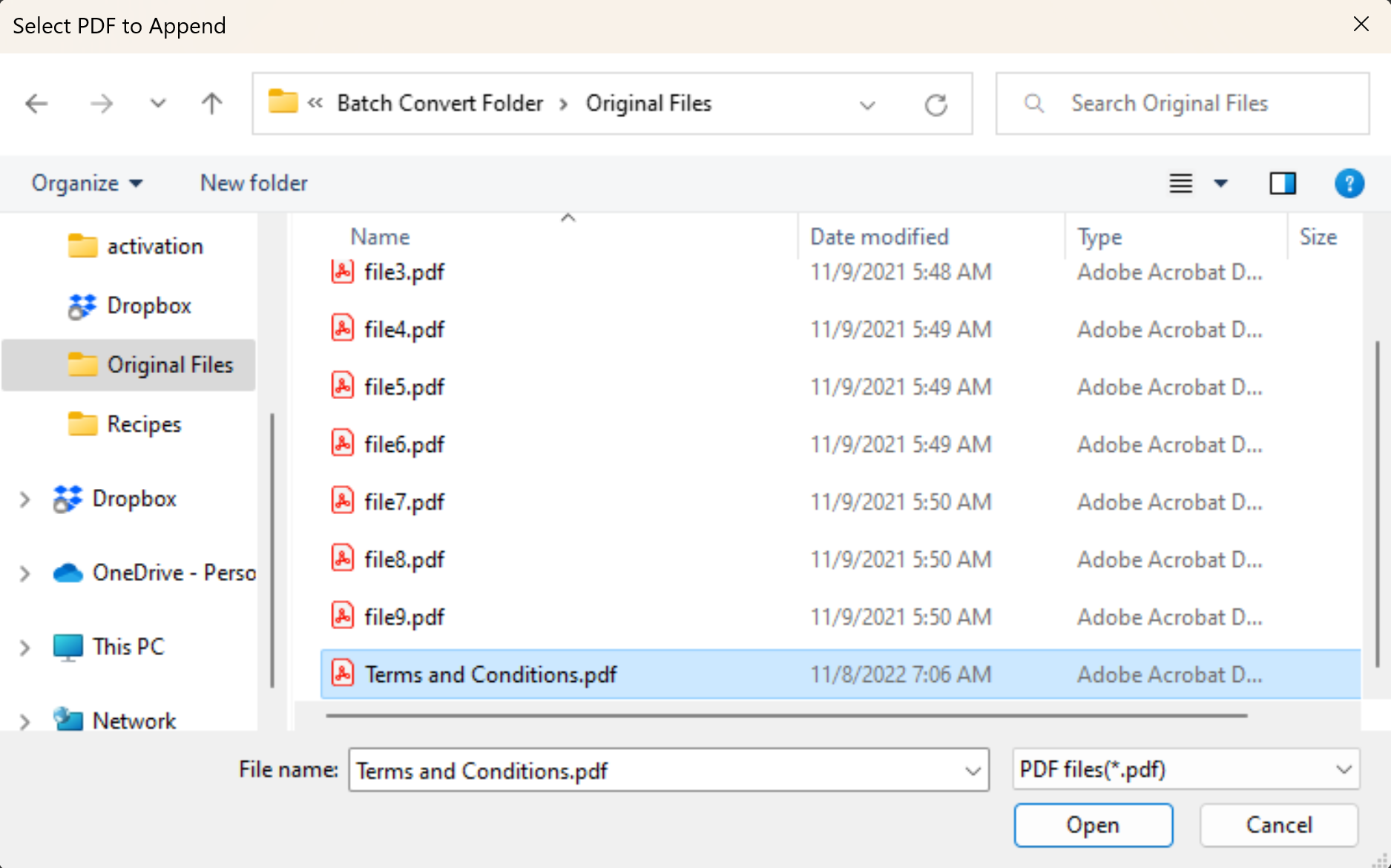
When members of their accounting team printed a new purchase order (PO), they wanted to easily attach a standard company-specific Terms and Conditions sheet to each PO, like this:
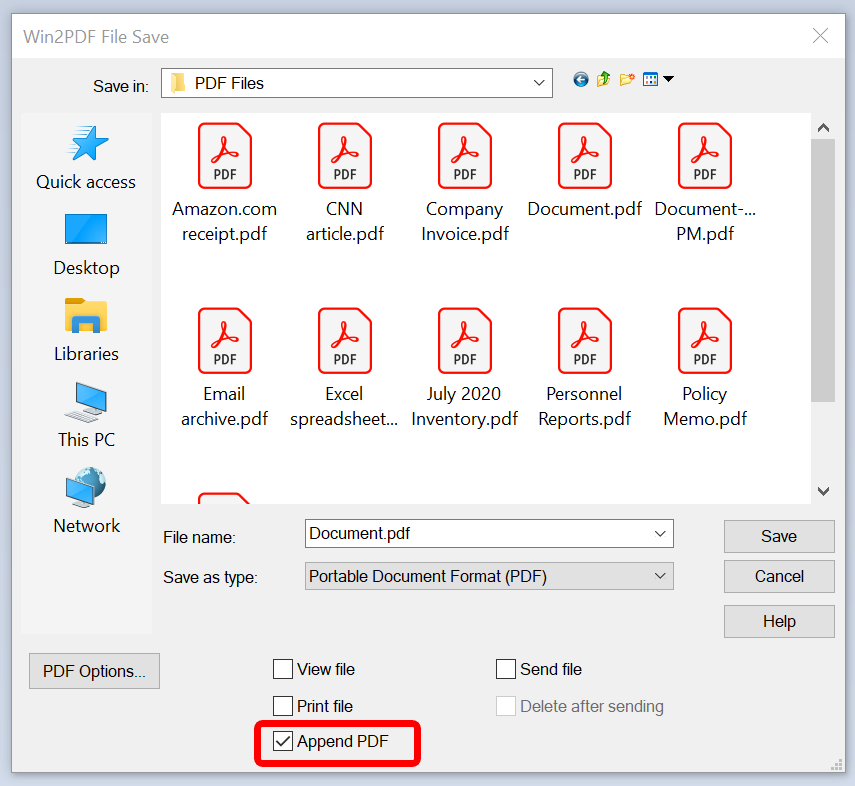
While the Win2PDF Append feature has always been available, the new Plug-In streamlines the process to just a simple check-box. When the Plug-In is installed, a check-box for Append PDF appears on the main Win2PDF File Save Window, as shown here:
By simply checking this Append PDF checkbox on the main screen, the customer can add their Terms and Conditions sheet to POs without having to go through any extra steps. When printing other types of documents that do not need this extra sheet, they just uncheck this box.
To activate this Plug-In, download the Win2PDF Append File Plug-In setup file. Then run the compiled setup program and choose your pre-set file to append (e.g., “Terms and Conditions.pdf”).
While this particular customer had a Terms and Conditions sheet they needed to add to POs, the same Plug-In could be used for a variety of other applications, like:
Add a customer contact sheet to certain documents,
Add instructions to a specific form that is generated for clients,
Add a tax-exemption form to purchase orders,
Add payment options, bank details, etc. to invoices, or
Add any type of legal certificate or contract or addendum that may be commonly attached.
Do you have something in your PDF workflow that could be improved? If so, let us know.
Win2PDF has a new Plug-In available to automatically upload PDF (or image) files to an Amazon Simple Storage Service (S3) bucket. Amazon S3 is a scalable, cloud-based object storage service that is part of Amazon Web Services (AWS). While Win2PDF itself is not cloud-based, it can save files to cloud-based services like Amazon S3, Dropbox, Slack, etc. This S3 Plug-In is a free optional extension to Win2PDF and must be installed separately from the main Win2PDF software.
With the new Configure Amazon S3 Plug-in, users can upload PDF or image files directly to their Amazon S3 buckets after the file has been created without any additional steps. This can be useful for distributing PDFs, modifying on PDFs using cloud based software, or integrating with 3rd party software such as Zapier.com.
To use this new feature, download and install the free Plug-In from our web site here:
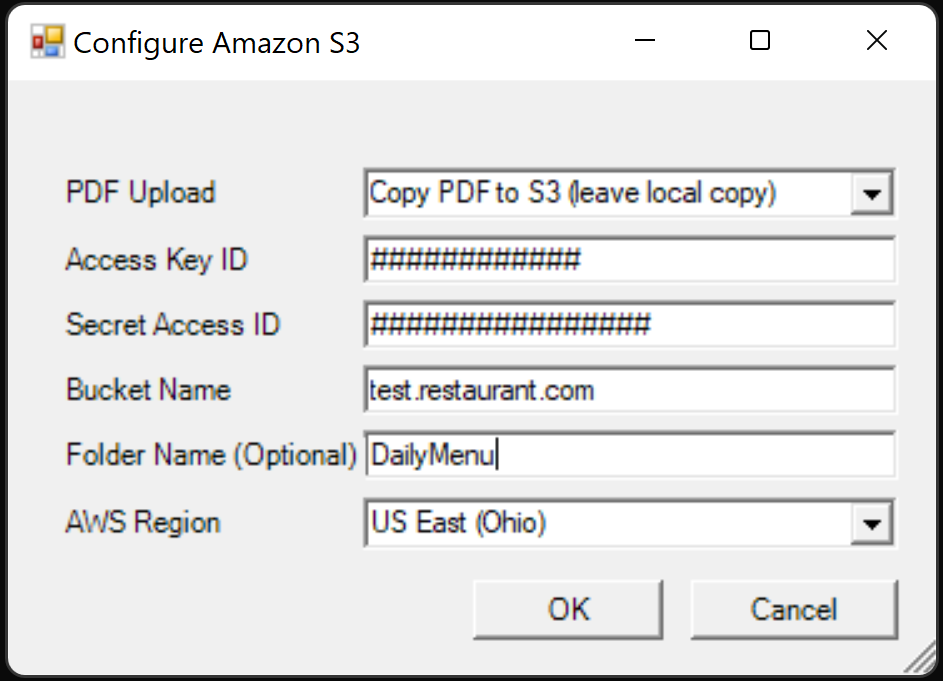
When you run the Configure Amazon S3 Plug-In setup program, you will be presented with the following configuration window:
Configure Amazon S3 Upload Settings
The configuration options available are:
PDF Upload: Allows you to either Move or Copy the PDF file to S3, depending on whether or not you wish to keep a local copy.
Access Key ID & Secret Access ID: Your access Key ID and Secret Access ID are part of Amazon’s security credentials to verify who you are and whether you have permission to access the resources that you are requesting. AWS uses the security credentials to authenticate and authorize your requests.
Bucket Name: A bucket is a container for objects stored in Amazon S3, and needs to exist in your Amazon S3 account.
Folder Name (Optional): If you wish to upload the PDF file to a specific folder in the bucket, it can be specified here.
AWS Region: Amazon Web Services (AWS) has the concept of a Region, which is a physical location around the world where data centers are clustered. This setting must match the location of the specified bucket.
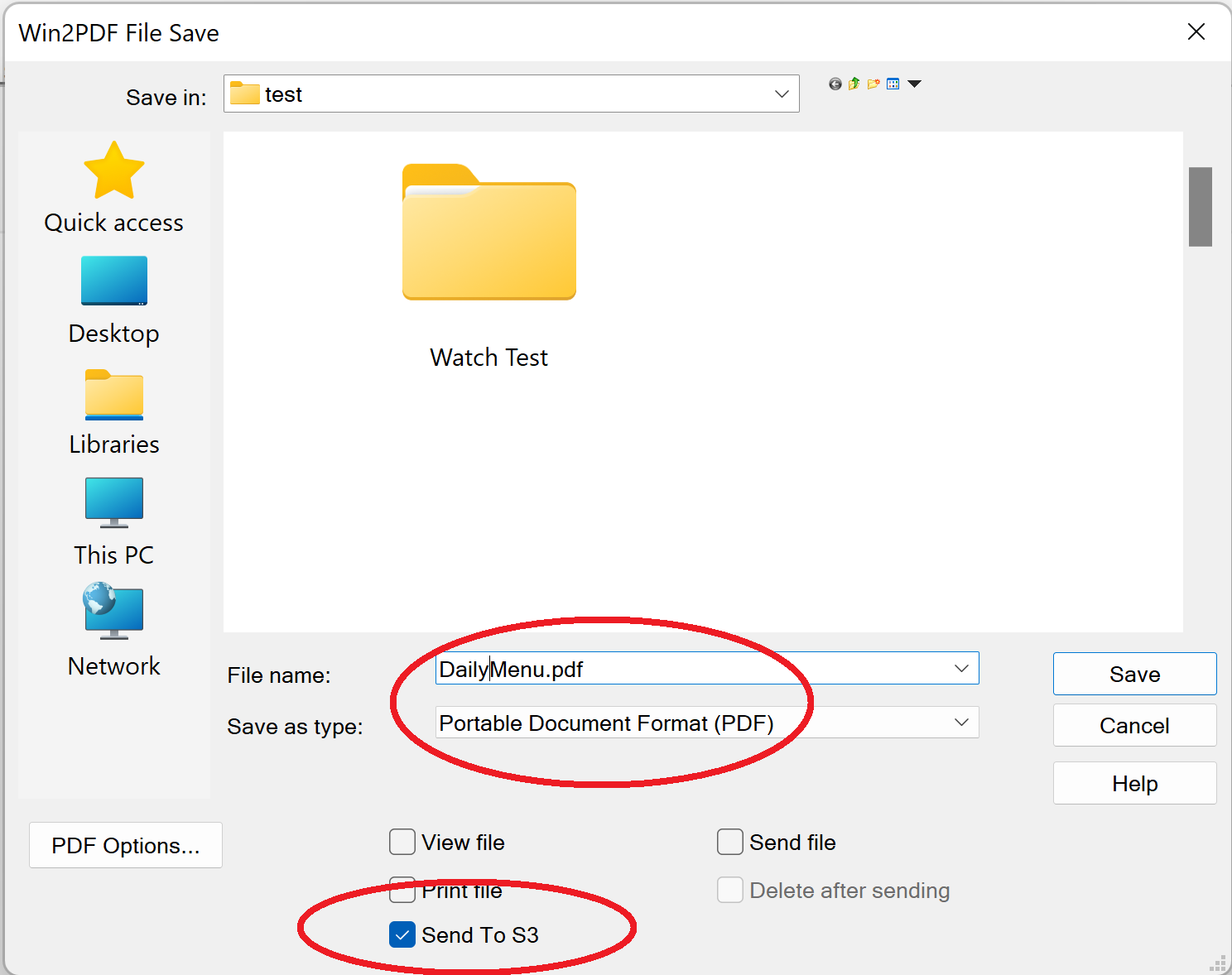
Once the Configure Amazon S3 Plug-In has been installed, you’ll have the option to select Send to S3 on the main Win2PDF file save window.
Win2PDF file save window with S3 Plug-In enabled
When this option is checked, the file will automatically be uploaded to your S3 bucket (using your configuration settings and access keys) without any further user interaction. If unchecked, it will only create a local PDF file and will not upload the file to your S3 bucket.
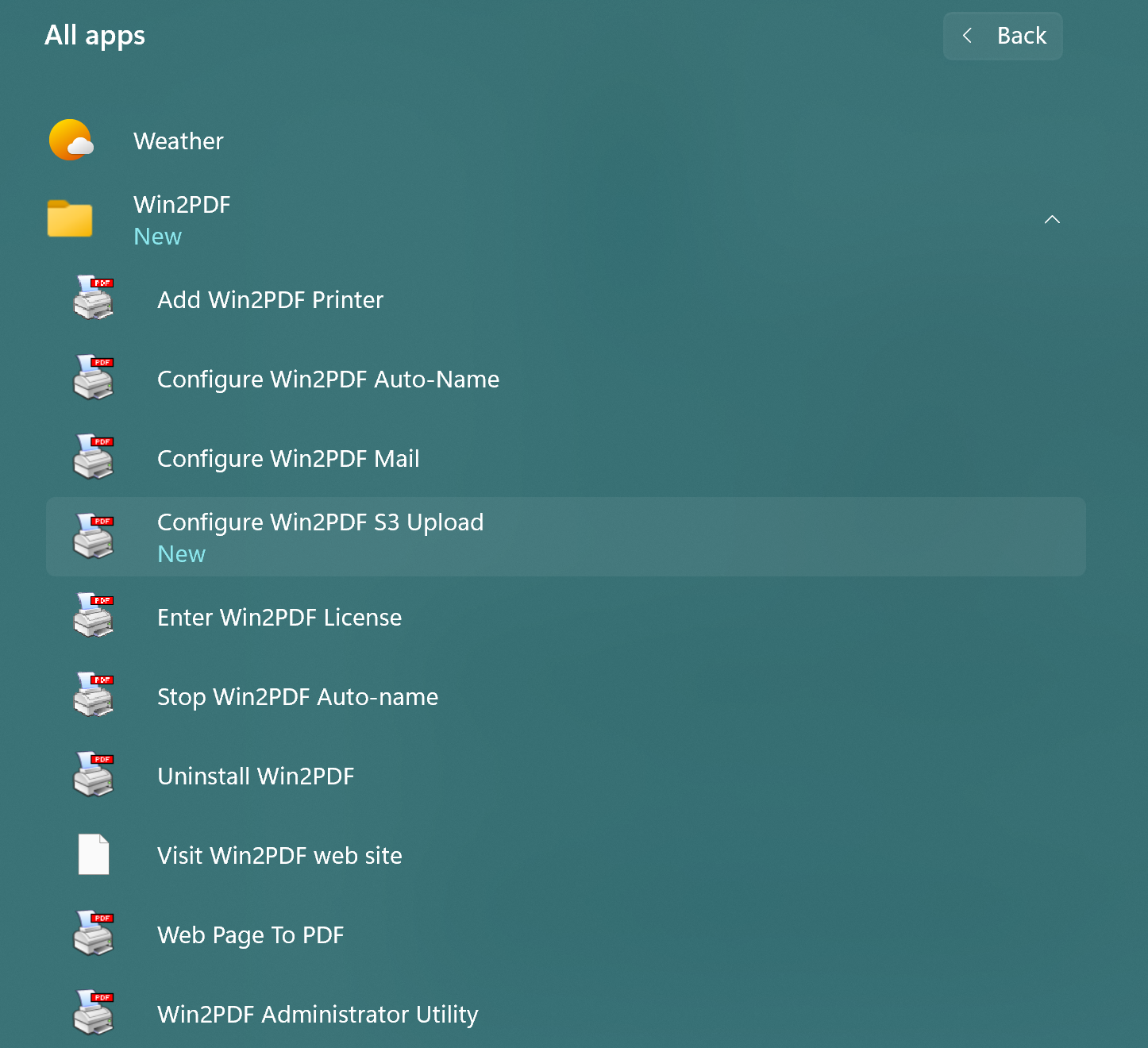
If you need to change your configuration settings in the future, you can return the Configure Amazon S3 Plug-In setup screen by selecting it from the Win2PDF Windows Start program group. (Please note you will need to re-enter your security access keys when you return to this screen. This is for security reasons, as the access keys will not be visible once saved.)
Configure Win2PDF S3 Upload Plug-In in Windows Start Menu
Also, we’ve had several blog posts previously that covered the Win2PDF Plug-In capabilities and how it can be used to extend the functionality of Win2PDF to do customer specific tasks or interface with other applications and services. Other Win2PDF Plug-Ins are available on our GitHub repository here:
“I wish there was an easy way to convert all of these text files to PDF automatically.”
“Why can’t I just save an entire series of web pages as searchable PDF files?”
“How can I consolidate weekly reports from different applications and formats to a single PDF file without spending my whole afternoon doing so?”
These and other questions arrive in our email inbox daily. It seems everybody has some level of repetitive PDF processing that they do and are looking for an easier way to get it done. And since many of these issues are specific to a particular application or to your own business process, it’s not easy to find a one-size-fits-all solution that gives you the type of “push button” solution you really want.
Now, there’s something that combines all of these Win2PDF “tools” into a single problem-solving toolkit that works with all of your files and other applications. And best yet, it won’t cost you a penny!
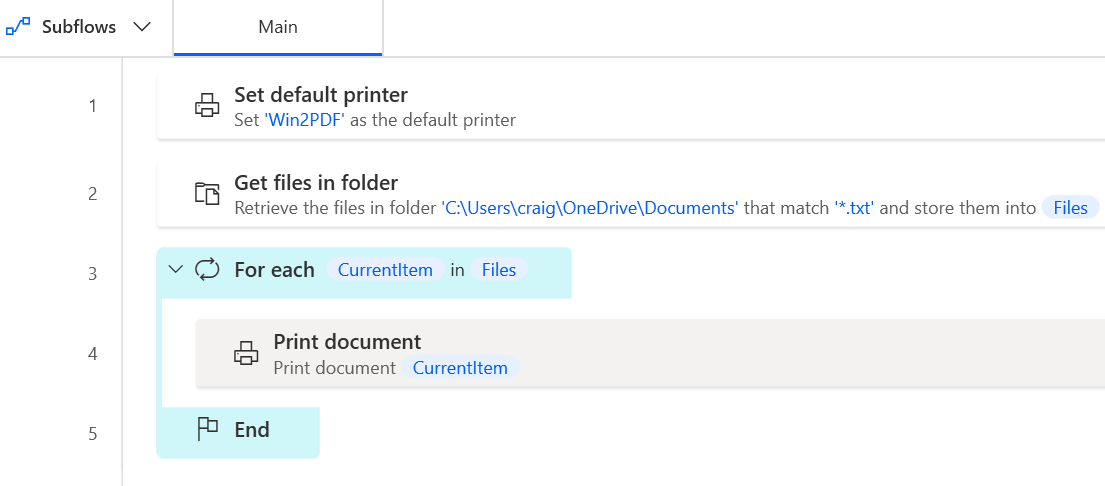
Microsoft’s new Power Automate Desktop software is a free download for Windows 10 users that allows you to easily automate any repetitive tasks from your desktop, including the creation or manipulation of PDF files using Win2PDF. Once installed, you just need to create a desktop flow (the series of steps that automate a specific action or task). And no, you don’t need to be a coder to use it. Microsoft has a simple interface that most anyone can use.
It’s quite easy to build your first desktop flow using either pre-built drag-and-drop actions or by recording your own desktop flows to run later. For this latter method, it works similar to macros in Microsoft Office, by recording repetitive actions from your desktop across multiple applications—like your web browser, Microsoft Excel, Microsoft Outlook, Win2PDF, etc.—and then lets you replay the automation whenever needed.
For example, a quick desktop flow to convert all TXT files in a folder to PDF using Win2PDF (using the Win2PDF Auto-name feature) might look something like this:
A very simple recipe like this could save you a lot of time if you are currently working with PDF files regularly and in the same manner.
We’ll be diving into this topic in a bit more detail in future posts, including some more detailed examples where this might be useful. In the meantime, get into the flow and download the Power Automate Desktop software today and look at the Win2PDF Power Automate documentation to see what it can do for you.
Last month we introduced a new Win2PDF Plug-In for Slack, and this month we’re back with several new Win2PDF Plug-Ins.
A Win2PDF Plug-In is simply a small customizable program that can be created, modified, or installed that will give the user an option to automatically take some action with the PDF file after it has been created. It allows Win2PDF’s functionality to be extended to address specific customer needs or workflow integrations. For example, it has already been used by customers to upload PDF files to a content management system, automatically make archival copies of PDFs, store PDF in cloud-based services, delete blank pages, split PDF files into single page documents, use multiple watermarks, and send a PDF file to a specific email program.
Why use Plug-Ins? Why not just add these features directly to Win2PDF?
The Win2PDF Plug-Ins were created specifically to add capabilities that might be unique to each customer. Most of the new Plug-Ins were unique or very specific to a customer request, so they may not be useful to the user base at large. Rather than clutter the main Win2PDF program with these types of unique features, we allow them to be created, customized and added as needed for each customer.
As of today, there are 8 additional Plug-Ins available for download at our GitHub page. [GitHub is a central code repository for our Plug-In samples — you can download compiled Plug-Ins that are ready to use, or, if you are a developer, you can download and modify the source code to build your own Plug-Ins specific to your needs. These examples show what can be done with Win2PDF, and provide a template for future solutions.]
The new Plug-Ins are:
PDF Send To Outlook – Add a “Send To Outlook” option to Win2PDF File Save window to automatically attach a PDF to an Outlook email message.
PDF Duplicate File – Automatically make a duplicate copy of the newly created PDF file in a designated duplicate file folder which may reside on a shared network location or in a cloud based folder (OneDrive, DropBox, Google Drive).
PDF Print Logger – Automatically log files created by Win2PDF to the Windows Event Log.
PDF Archive File – Automatically archive newly created PDF files created by Win2PDF in a designated archive file folder which may reside on a shared network location or in a cloud based folder (OneDrive, DropBox, Google Drive). Files are appended to an archive PDF named based on the current date.
PDF Delete Pages – Automatically deletes extra pages from a newly created PDF.
PDF Split Pages – Automatically splits a multi-page PDF into separate one page PDFs.
PDF Apply Multiple Watermarks – Automatically apply different watermarks to separate sections of a PDF [Requires Win2PDF Pro].
PDF Image Only Flattener – Automatically merge watermark layers into a single layer Image Only PDF [Requires Win2PDF Pro].
A few other notes:
The samples only allow one Win2PDF Plug-In used for each instance of the Win2PDF printer.
If you wish to remove a particular Win2PDF Plug-In, you can use the Windows Add/Remove Programs feature to uninstall.
All of the Win2PDF Plug-Ins hosted on this page can be used at no charge. Some only work with licensed versions of Win2PDF. Contact [email protected] for a 30 day evaluation license.
If you have any requests for Plug-Ins, let us know. We’re interested in building out this capability with more examples, so if you have a particular integration or special need, send an email to [email protected] and tell us about your requirements. If it’s something we can assist with, we’ll be happy to help.




 PDF Blog - Topics from the makers of Win2PDF