
In our last post, we talked about how Win2PDF can be customized for the enterprise. In this post, we’ll continue the theme of enterprise users but focus on how Win2PDF can be integrated with other applications or business processes.
 First, all of the Win2PDF products make use of the standard Windows API for printers. This means other applications can print to Win2PDF automatically, without any user interaction. It does require some level of technical proficiency in programming, but there are a variety of programming environments we have documentation for, including Visual Basic (VB), Visual C for Crystal Reports, .NET, and Microsoft Access. For a broader perspective all all features, just visit the Developer Information section of the Win2PDF user guide.
This in and of itself is a powerful tool that allows enterprises to create PDF files with specific naming conventions, file locations, and output options automatically.
Other useful features for incorporating Win2PDF with enterprise processes are:
- Post-action setting: This is a registry setting that can be set to allow the PDF created by Win2PDF to be passed to another program. This can be useful for doing a secondary step with the PDF file, like processing it into a document management, email, printing, or reporting application.
- Command-Line interface: This was something we recently added and dedicated a blog post to it earlier this year. It supports simple command line access to Win2PDF for merging, compressing, extracting pages, encrypting, and a variety of other PDF functions.
- Win2PDF Mail Helper: This free utility provides a SMTP mail client that can be used to send PDF files via email without user interaction.
Basically, if you have the ability to modify the application you are using to generate PDF files, using the integration options described here will give you the most powerful and flexible options to link PDF files into your workflow processes. If you do not have the ability to modify the application, then the customization options for the enterprise would be the best option.
Let us know if you have questions about these or any other integration issues. Again, if you can think of a situation where your PDF files can be incorporated into an enterprise process, there’s a good chance we’ve already figured out a way to make it happen.
 Based on the support requests we receive, many of these enterprise users don’t realize the extent to which Win2PDF can be customized for their specific organization’s needs. “I didn’t know Win2PDF could do that?” is something we hear all too frequently.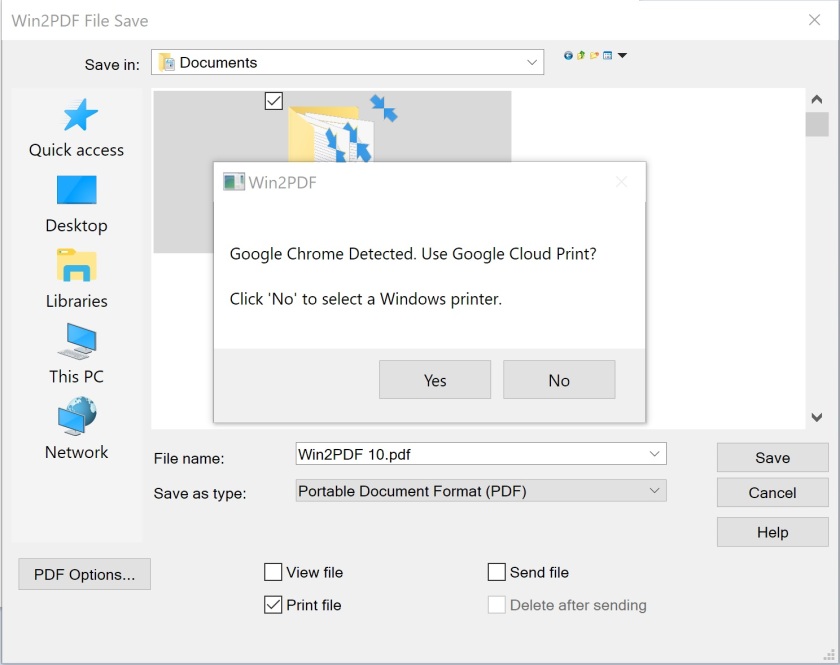
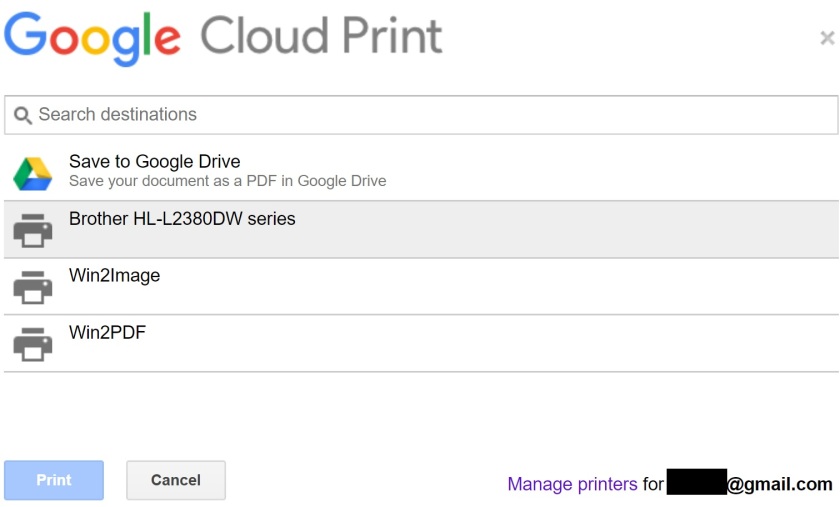 The user can select a cloud printer, and the print job will be submitted to the cloud print queue. The Chrome printer selection also contains a “Save to Google Drive” option. This can be used to save the PDF directly to the cloud even if Google Drive is not installed on the PC.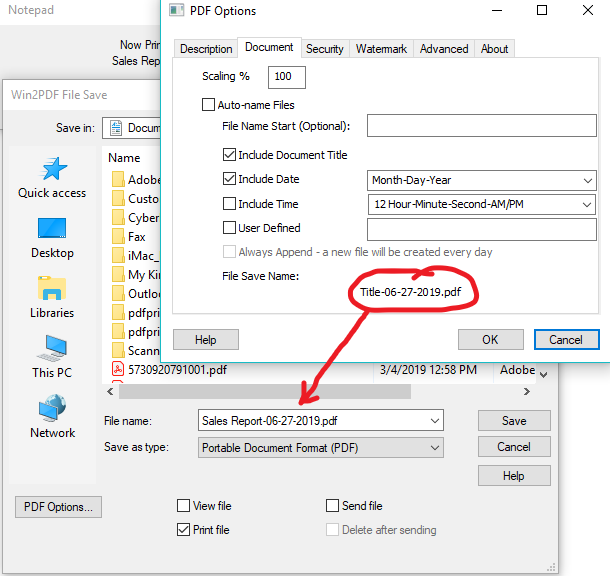

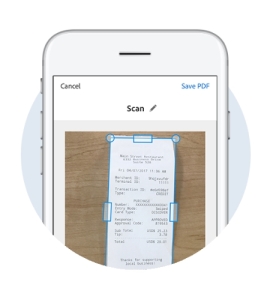 Second, I’ve really come to rely on the very handy Adobe Scan app on my phone (it’s available both through the
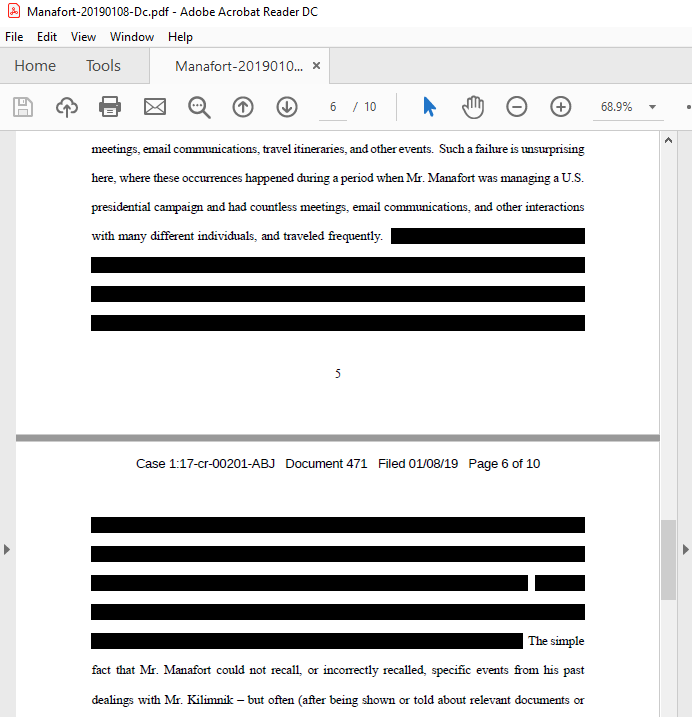
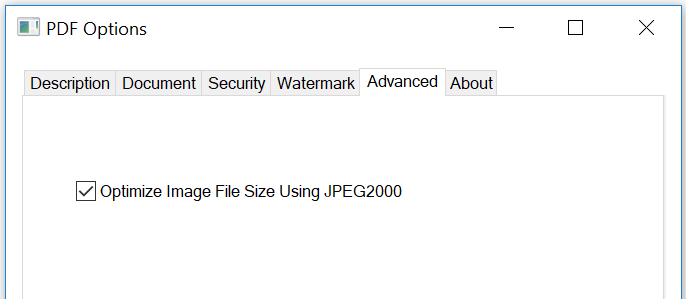
 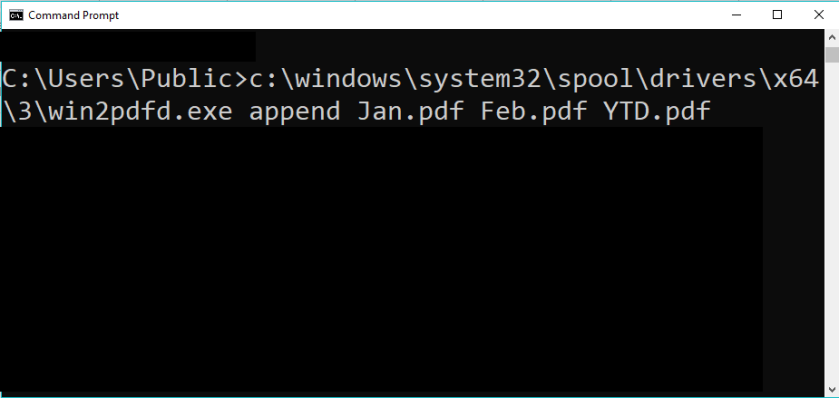 What can you do with PDF command line options? Lots of things, including: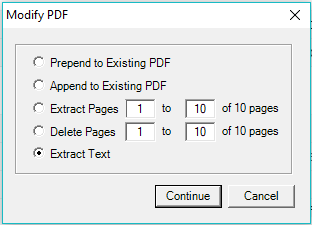

 PDF Blog - Topics from the makers of Win2PDF