Master Win2PDF Faster with AI Chatbot Prompts

As AI chatbots – like Google’s Gemini, Microsoft’s Copilot, OpenAI’s ChatGPT and Anthropic’s Claude – have become more capable, they’re increasingly helpful for learning how to use software tools like Win2PDF, especially when tasks involve multiple steps or lesser-known features. Win2PDF users can take advantage of this by using well-crafted prompts to quickly identify the right feature, command, or workflow for their PDF tasks.

Whether you’re trying to convert a document, reorder pages, automate a workflow, or use one of Win2PDF’s command line options, a clear AI prompt can help you get to the answer faster.


Why AI Prompts Help

Win2PDF has a wide range of features, and the online user guide at http://win2pdf.com/doc and https://pdfblog.com offer extensive how‑to material. But when you’re in the middle of a task, it’s often easier to describe what you’re trying to accomplish and let an AI assistant point you to the right feature or steps.

Just open the Chatbot of your choice (or try several) and feed it prompts using the following guidelines.


How to Write an Effective AI Prompt

The key is to be specific about your goal and the context.

  1. Describe the task you want to accomplish

Instead of “How do I edit a PDF?”, try something like:

“I want to delete a page from a PDF using Win2PDF Desktop, and then save the results as a TIFF file.”

“How do I convert a folder of PDF files to text using Win2PDF Pro?”

  1. Include the source and output formats

This helps the AI narrow down the correct feature.

“I have a Microsoft Excel document and want to create a PDF/A version of the file for our database archive. How can I do this using Win2PDF?”

“I need to convert a PDF into a JPG image at a resolution of 300 DPI.”

  1. Direct the Chatbot to the online documentation for Win2PDF, and be as specific as possible

Directing the chatbot to documentation allows it to scan and integrate the information already available

“I want to convert a single HTML file using the Win2PDF “convertto” command, which is documented here at https://www.win2pdf.com/doc/command-line-convert-to-format.html”

  1. Add any constraints or preferences

“I need a command line example that works in a command line batch script that can be run from another application.”

“I want to automatically rename PDFs using a Win2PDF plug‑in, but I need assistance creating this with my specific format requirements.”

  1. Ask for examples

AI tools excel at generating sample commands or workflows.

“Give me an example of a EXTRACTTEXT command line that outputs formatted text.”

“Provide a sample registry setting for Default Rename Action.”


Bringing It All Together

AI tools don’t replace the Win2PDF user guide or the detailed articles on pdfblog.com, but they can act as a fast, conversational shortcut. When you describe your task clearly, an AI assistant can point you to the right feature, summarize the steps, and even generate command line examples tailored to your workflow.

Here’s a final example that brings all 5 guidelines together in a single prompt:

“I’m using Win2PDF on Windows 11 and want to automatically rename the PDFs I create. My source files are Word (.docx) documents that I print to Win2PDF, and I want the output PDFs to be renamed using a pattern that includes today’s date and the original filename.

Please use the Win2PDF documentation—especially the Auto‑Rename section at https://www.win2pdf.com/doc/auto-rename.html—to show me which settings I need to change.

I’d like simple steps I can follow, plus an example of a rename format that adds today’s date before the filename. If there are multiple ways to do this, please explain the easiest one.”

This prompt demonstrates all five guidelines:

  • Task: automatically rename PDFs
  • Formats: .docx document → PDF
  • Documentation reference: specific Auto‑Rename page
  • Constraints: Windows 11, date‑based naming pattern
  • Examples: asks for a sample rename format

If you regularly work with PDFs, combining Win2PDF’s capabilities with well‑crafted AI prompts can save time and help you discover features you might not have known existed.

New Outlook Support and Enhanced PDF Workflow in Win2PDF Version 11.0

We are pleased to announce the release of Win2PDF version 11.0, a free update that introduces several enhancements to expand the capabilities and features of Win2PDF. This update is designed to completely support Microsoft’s Windows 11 operating system, and to optimize your PDF workflows and provide greater efficiency.

Key features and improvements in this release include:

Enhanced Microsoft Outlook Integration: Microsoft is transitioning users from its older Windows Mail and Calendar apps to a new version of Outlook for Windows 11. The new Outlook is a move towards a more unified, modern, and feature-rich email client integrated with the Microsoft 365 ecosystem, but it does have some differences compared to both the old Mail app and the classic Outlook, including some that affect how Win2PDF attaches PDF files to email. Win2PDF now supports both the existing Outlook (classic), and provides the same seamless functionality to users moving to Outlook (new).

Automated Blank Page Removal: If you’ve ever received or generated a PDF that contains extra blank pages, you can now remove them using the new Delete Blank Pages feature.  It automatically identifies and removes empty pages from your PDFs, contributing to cleaner and more professional documents.  This feature also has an associated DELETEBLANKPAGES command line option.

Expanded Automation Customization Capabilities: Support for Batch Convert and Watch Folder and Convert plug-ins has been extended. You can customize batch convert processing by installing a Win2PDF Batch Convert Plug-in which can be very useful in many situations.  For example, suppose you wanted to batch convert a folder of documents and then perform a secondary process on those newly created files – a batch convert Plug-In would allow you to do that.  Current Plug-ins include the ability split pages, delete pages, append a PDF, apply watermarks, delete blank pages, digitally sign with a certificate, and more. When a batch convert plug-in is installed, an “Enable Plug-In” option is displayed in the Batch Convert Window.

Watch up to 20 folders with Watch Folder and Convert feature: The “CONFIGWATCHSERVICE” command line option now allows a single service to monitor up to 20 folders, enabling more robust automation for complex workflows. [Note:  Win2PDF Pro Terminal Server Edition only feature]

Refined Text and RTF Conversions: This update includes fixes to improve the conversion of text files containing smart quotes to PDF, ensuring accuracy. Additionally, formatting issues encountered during RTF to PDF conversion have been addressed, resulting in improved document fidelity.

Improved Command Line Printing: For users utilizing the “PRINTPDF” command line, paper size selection has been refined, offering enhanced control over printing options.

As a free upgrade for existing customers using Win2PDF 7 or higher, we encourage you to explore these new features and see how they can further enhance your productivity. And while this new Win2PDF 11.0 release fully supports Windows 11.0, it also continues to support Windows 10, Windows 8, Windows 8.1, Windows 7, Windows Vista, and Windows XP. Win2PDF Terminal Server Edition 11.0 continues to fully support Windows Server 2025, Server 2022, Server 2019, Server 2016, Server 2012, Server 2012 R2, Server 2008, Server 2008 R2, Server 2003, and Server 2003 R2 (including 64 bit editions).

Update to Win2PDF Includes new Text to PDF Options for Legacy Reports

The latest Win2PDF update includes an additional command line feature to convert reports and other specially formatted documents to PDF using a fixed width font. This feature is needed for some reports to be rendered and viewed correctly, since many applications (especially older ones) were designed to send reports to a line printer or a simple fixed width text file. The results only look correct if each character is equally spaced.

Previously, the Win2PDF txt2pdf command line option would create a PDF file with variable width text. With the new command line option – formattedtxt2pdf – users can output the file with a fixed width text font instead of variable width text.

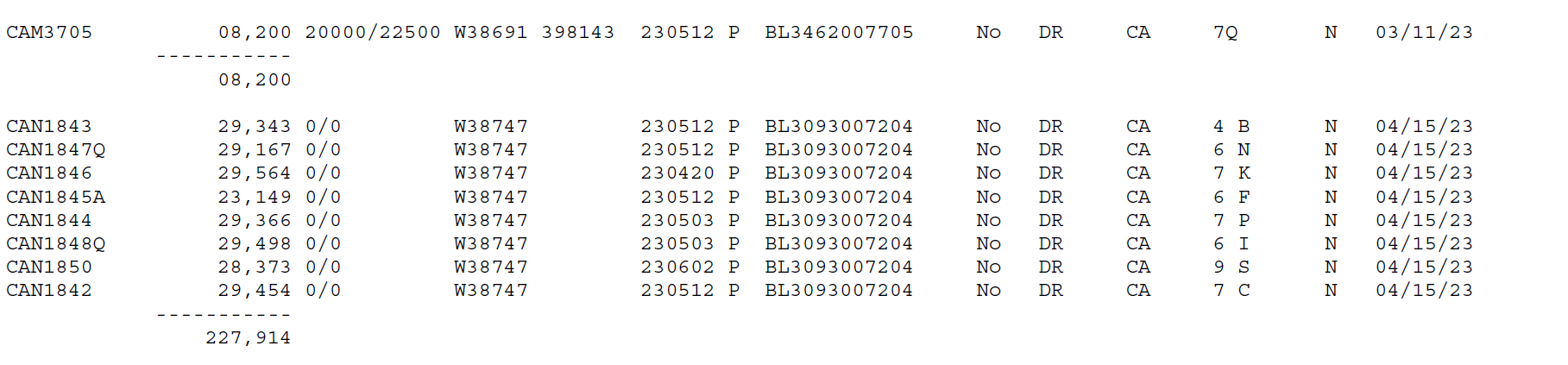
For example, here’s a portion of a report generated by a legacy application and saved to a PDF file using the original txt2pdf command.

Notice that the report doesn’t look right because the characters aren’t evenly spaced. However, here is the same report converted to a pdf file with the new formattedtxt2pdf command.

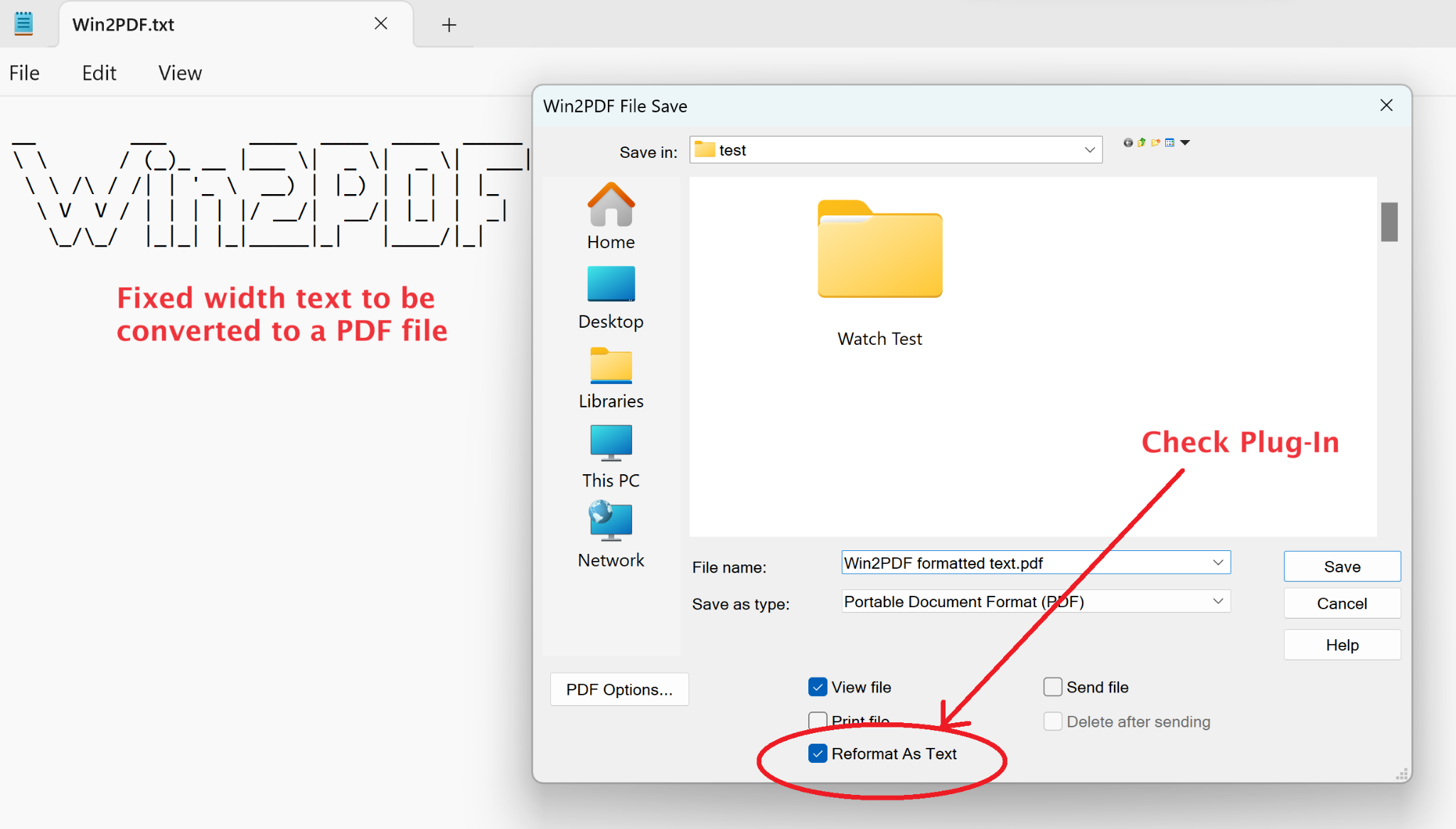
Now it looks correct, even though the text is exactly the same.

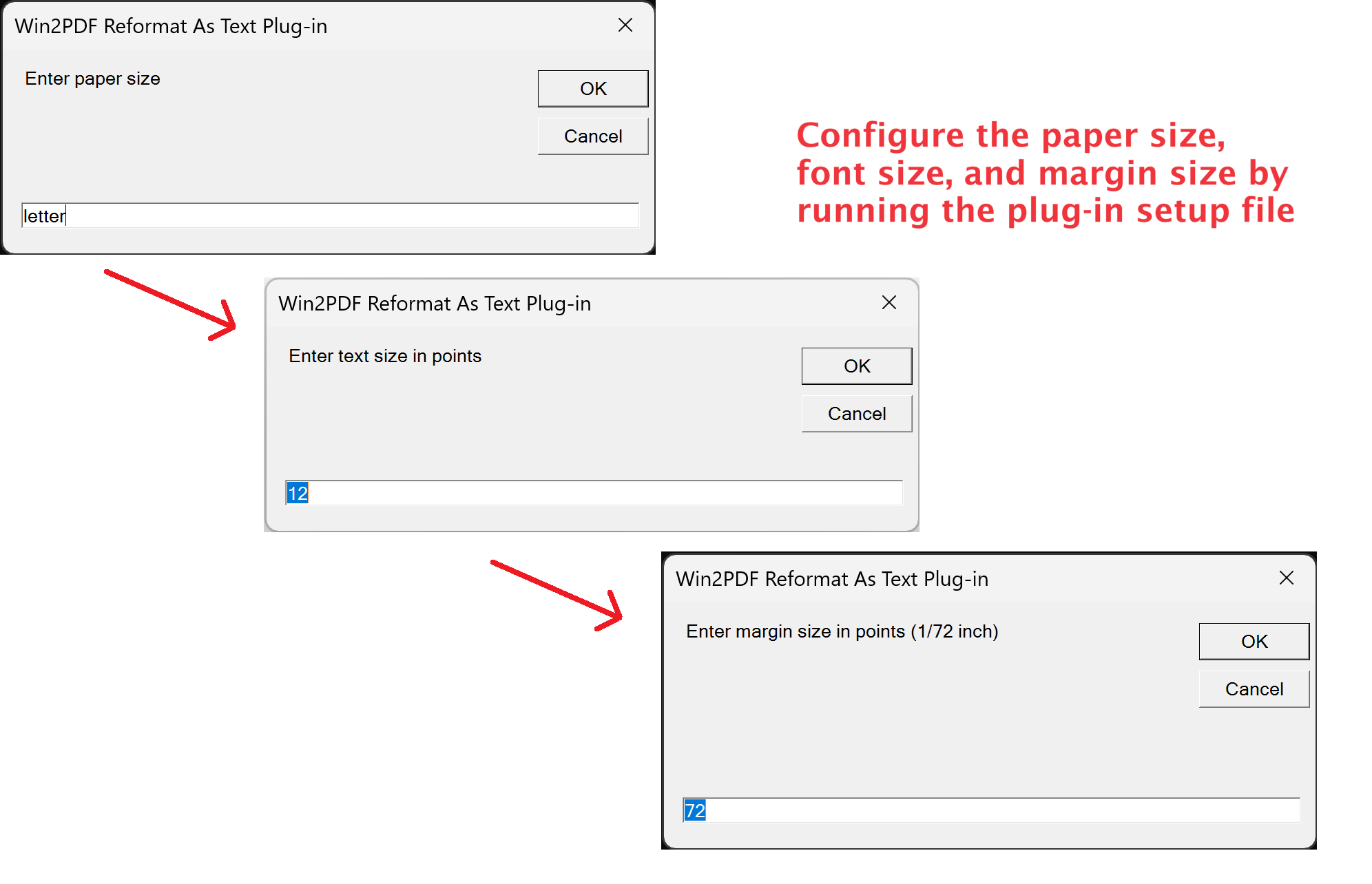
In addition to this command line feature, there’s a new Win2PDF Reformat As Text plug-in to simplify the creation of the files using this method.

First, download the plug-in setup file and double-click on it to configure the Win2PDF Reformat As Text plug-in. You will be prompted to enter the paper size, font size, and margin size to configure the plug-in values as shown below.

You may need to adjust these options to allow all text to fit on a page. Then, after the plug-in has been installed and configured, you can check the new box on the Win2PDF file save window labeled Reformat As Text. When saved, the fixed width formatted PDF file will be created.

Give it a try and if you have any questions, let us know.

Streamline Your Batch PDF Conversions with Nested Folder Support in Latest Win2PDF Update

The latest Win2PDF 10 Build 158 update brings forth a series of new features that have been requested by our customers. Let’s take a closer look at the notable additions and improvements:

1. Subfolder Support in Batch Convert (Win2PDF Pro only)

One of the most frequently requested additions in this update is the inclusion of subfolder support in the Batch Convert feature (and Batch Convert command line option). Previously, you could only batch convert files in a single folder. With this enhancement, however, you can convert documents within multiple nested subfolders.

For example, suppose you wanted to convert many scanned image files to .PDF files in a folder called “Invoices”. And under the “Invoices” folder you had subfolders for years (e.g. “2021”, “2022”, “2023”, etc.). And under each year subfolder you had additional subfolders for months (e.g. “Jan”, “Feb”, “Mar”, etc.). Now you can convert all files with a single operation just by selecting the topmost parent folder and then checking the ‘Include Subfolders’ option.

When you enable the “Include Subfolders” option, the folder structure in the “Convert Files From” is mirrored in the “Save To Folder” location.

2. Optional Margin Parameters in HTML2PDF Command Line

With the integration of optional margin parameters in the HTML2PDF command line, users gain greater control over the layout and presentation of converted HTML files into PDF format. This feature allows for customized margin settings (for top, bottom, left and right margins), ensuring documents maintain their intended formatting in the converted PDF files.

3. New SIGNWITHSTAMP Command Line option for PDF Signing (Win2PDF Pro only)

This update also adds the SIGNWITHSTAMP command line feature, which enables users to sign PDF documents with a certificate AND include a signature bitmap. Users can specify the size and location of the signature bitmap using new command line parameters.

4. Optional Width and Height Parameters in Image-to-PDF Command Lines

The update brings optional width and height parameters to various command lines (“TIFF2PDF“, “JPG2PDF“, “PNG2PDF“, “BMP2PDF“, “GIF2PDF“, “IMAGE2PDF“). This enhancement allows for precise customization of the output PDF dimensions, offering flexibility in document size and layout.

5. Improved DOCX to PDF Conversion (Win2PDF Pro only)

Win2PDF 10 Build 158 significantly enhances the DOCX to PDF conversion process in both the DOCX2PDF command line and Batch Convert DOCX to PDF feature. These improvements ensure better accuracy and fidelity when converting Microsoft Word documents to PDF format.

Upgrade and Trial Information

Existing Win2PDF 7 and Win2PDF 10 users can enjoy this update as a free upgrade.

This latest update contains features that were all created based on customer requests and feedback. Do you have a feature you’d like to have added or modified? If so, let us know and we’ll look into it.

Enhanced Printing Options: Win2PDF’s Latest Command Line Features

And in our final feature post about the 10.0.154 Win2PDF Update, we’ll look at the remaining new features.

New Command Line Support To Print Document and Image Files to a Windows Printer

Another frequently requested feature is the ability to print files directly from the command line, typically to a paper printer. There is a generalized PRINT command, along with commands used for printing specifically formatted image and document files. These are:

  • PRINT General Print command line option
  • PRINTDOCX ** Print Microsoft Word .docx files
  • PRINTRTF ** Print RichText Format .rtf files
  • PRINTODT ** Print OpenDocument Format .odt files
  • PRINTTXT ** Print Text .txt files
  • PRINTHTML Print HTML files
  • PRINTSVG Print Scalable Vector Graphic .svg files
  • PRINTXPS Print XML Paper Specification .xps files
  • PRINTTIFF Print TIFF .tif image files
  • PRINTJPG Print JPG .jpg image files
  • PRINTPNG Print PNG .png image files
  • PRINTBMP Print Bitmap .bmp image files
  • PRINTGIF Print GIF .gif image files

** feature requires Win2PDF Pro version of the software

And a couple of other new command line features were added as well:

  • PRINTPDFACTUALSIZE – used to print a PDF with no scaling
  • PRINTPDF – Added the ability to make a tray selection option from this command

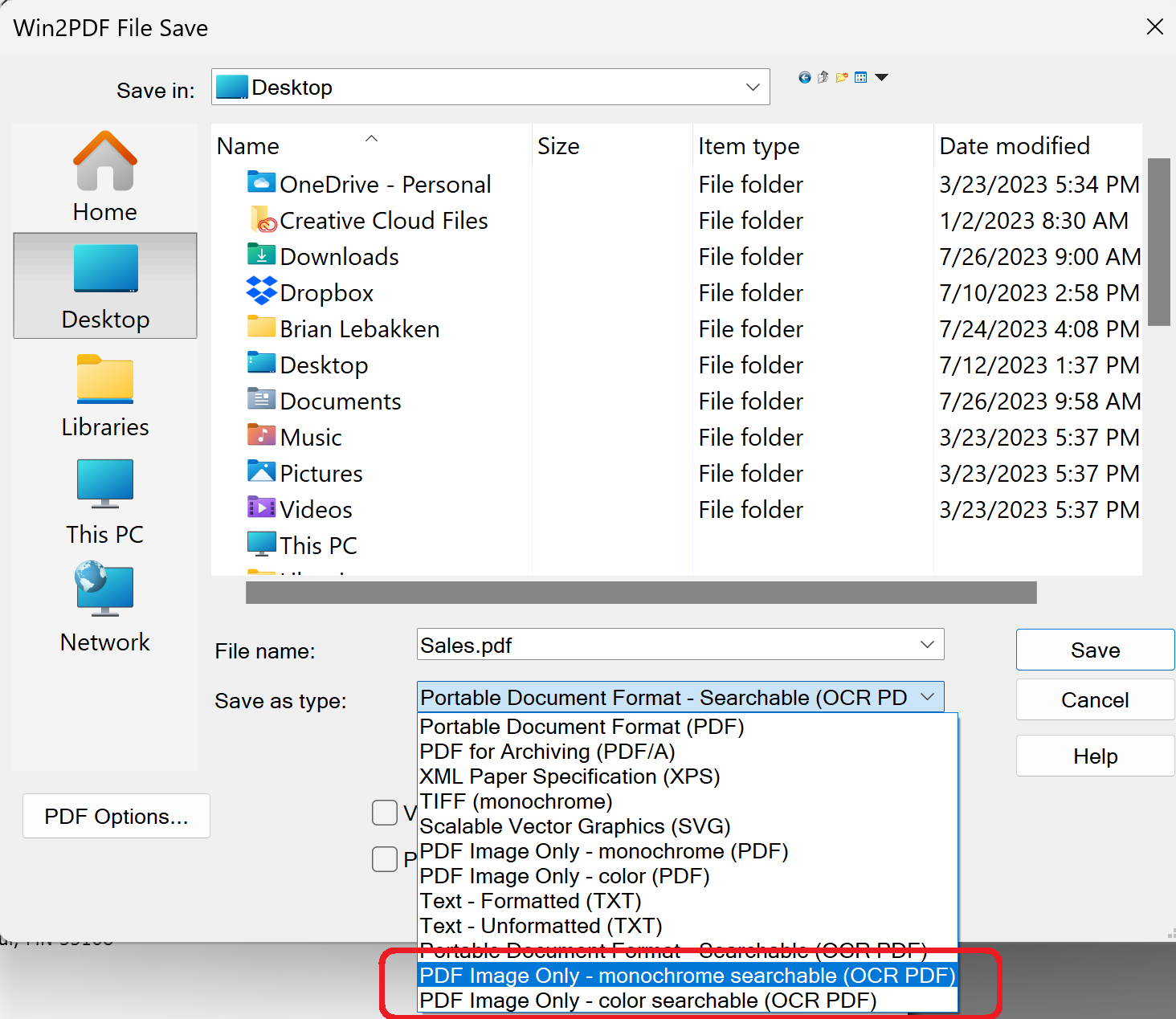
And finally, two new save as types and “Configure Auto-name” file types were added — PDF Image Only – monochrome searchable (OCR PDF) and PDF Image Only – color searchable (OCR PDF).

These formats can be useful when using Auto-name search fields. Some applications, like Crystal Reports, use encoded text to prevent searching. In this case, Win2PDF’s search fields and content fields can’t be found. These two new file types help work around this issue and are worth trying if the standard Portable Document Format – Searchable (OCR PDF) file type doesn’t work.

Win2PDF Update Adds New Features for Batch Converting, Watch Folders, and Command Line Printing

The newest release of Win2PDF 10.0.154 is now available on the Win2PDF Download site.

New features in this update include the following.

For Win2PDF Pro only:

For Win2PDF Pro Terminal Server Edition (TSE) only:

For all versions of the Win2PDF command line:

  • Added a tray selection option to the command line PRINTPDF command.

For all versions of Win2PDF:

________

This Win2PDF 10 update is a free upgrade for Win2PDF 7 and Win2PDF 10 users. If you would like to evaluate one of the new Win2PDF Pro features (PDF watermark, PDF security, batch-convert, auto-rename, or watch folder), contact us for a free 30 day trial of Win2PDF Pro.

We’ll be providing a more detailed look at these new features in the subsequent blog posts.

Win2PDF 10.0.144 is now available

The latest release of Win2PDF (10.0.144) is now available on the Win2PDF Download site.

The biggest additions to this release are specific to the Win2PDF Pro version of the software, which now supports the ability to batch convert standard word processing documents (Microsoft Word, Open Document Text, and Rich Text Format) to PDF.

Here’s a summary of changes in this new version:

This Win2PDF 10 update is a free upgrade for all Win2PDF 7 and Win2PDF 10 users. If you have an existing Win2PDF standard edition license and wish to use any of the new Win2PDF Pro features, you can purchase a Win2PDF Pro Upgrade.

We’ll be posting more specific information on some of these features next week, with more details on changes to the interface and how these new features can be used. In the meantime, if you would like to evaluate one of the new Win2PDF Pro features (PDF watermark, PDF security, batch-convert, auto-rename, or watch folder), contact us for a free 30 day trial of Win2PDF Pro.

Win2PDF Now Supports PDF Direct Printing

What is PDF Direct printing?

PDF Direct is a feature available on many printers that allows PDF files to be sent straight to the printer without being processed through any software first. There may be slightly different names used by each printer company, but it’s typically referred to as PDF Direct Print or Direct PDF printing.

This feature is useful because it is a much faster way for printers to print PDF files since there is no intermediate conversion process needed by software.

Most business class printers from HP, OKI, Kyocera, Ricoh, Canon, and Xerox support PDF Direct printing, but most consumer inkjet printers do not support it. Look up your printer’s documentation for the specific model to see if it supports PDF Direct printing or not. If you aren’t sure, it’s safer to use the Win2PDF Print PDF command line. This is slower but will work for all printers.

One important caveat: If you attempt to use this feature on a paper printer that does not support PDF Direct printing, many pages of garbled text will be printed instead of the PDF.

This feature is available in the Win2PDF 10.0.142 version or higher, and it is a free update to all Win2PDF 10 users.

There are 2 ways to use the latest Win2PDF software to print PDF files directly.

  1. Use the command line option for Win2PDF PDF Print Direct [link goes to documentation for this feature].

This is probably most useful for larger organizations that are batching many PDF files to the printers, perhaps along with other Win2PDF command line options.

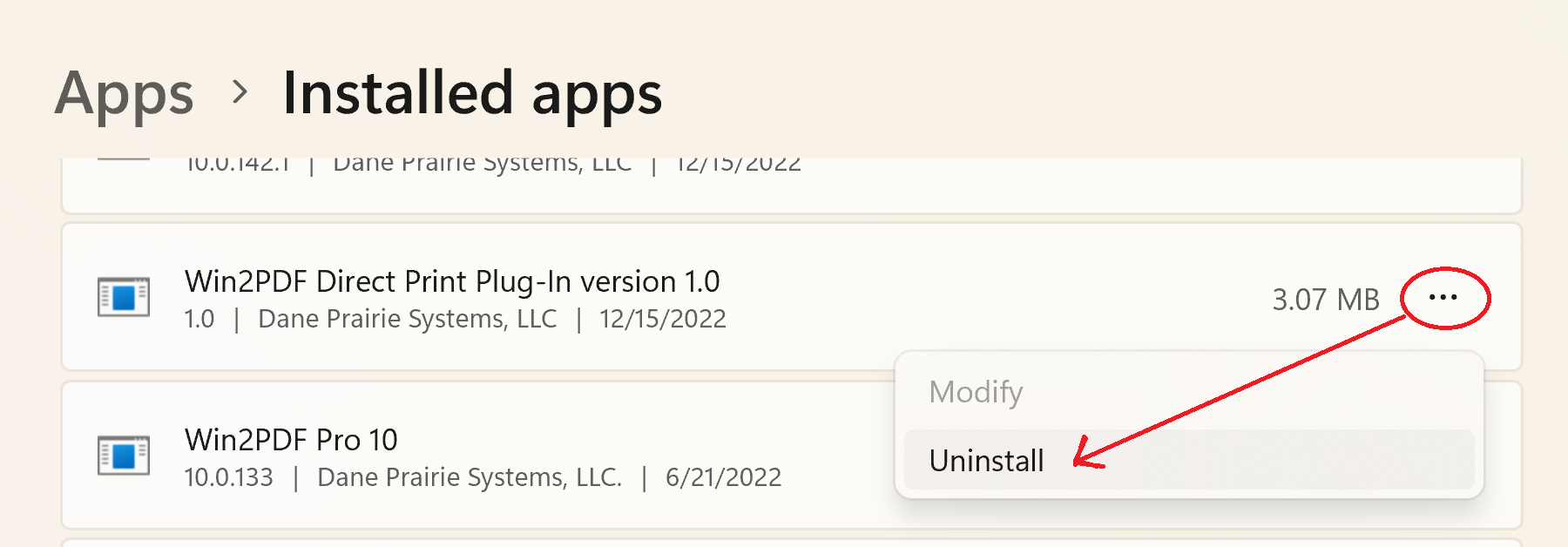
  1. Use the new Win2PDF Direct Print Plug-In [link goes to download page for plug-in].

This is probably most useful for users interactively generating PDF files.

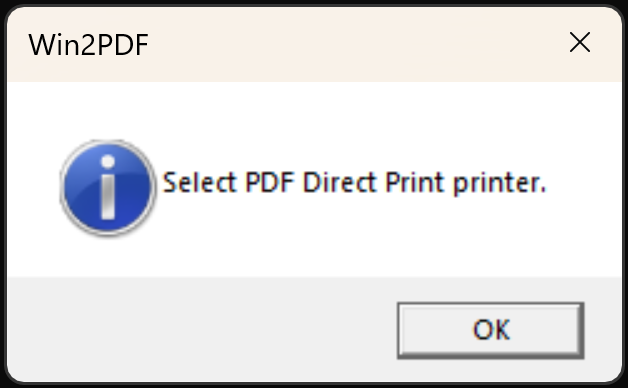
When you install the plug-in setup, you will be prompted to select a PDF Direct Printer.

After this is selected and saved, a copy of each printed Win2PDF PDF file will be sent automatically to this PDF Direct Printer until disabled. To disable this feature, you can remove the Win2PDF Direct Print Plug-In using the Windows control panel.

This feature may not be useful to all PDF users, but for organizations that are processing large volumes of PDF files it can dramatically reduce the time needed for printing.

When we presented this for testing to a customer who wanted this feature, he replied:

There is no question why I highly recommend Win2PDF to all my clients and will continue to do so! Unbelievable service for an outstanding product!

Brian H., Hawaii

Name or Rename PDF Files Based on Content Below a Search Term

In previous blog posts [see 1, 2], we showed how Win2PDF can name (or rename) PDF files based on data contained within a file. This feature has been especially useful for users needing to manipulate invoices, as this twitter user has noted:

Brainsweat. Lots of it. We’ve been talking with a lot of users that are spending a lot of time trying to sort through massive numbers of PDF invoices and renaming them based on content, attaching them to emails, splitting them apart, etc.

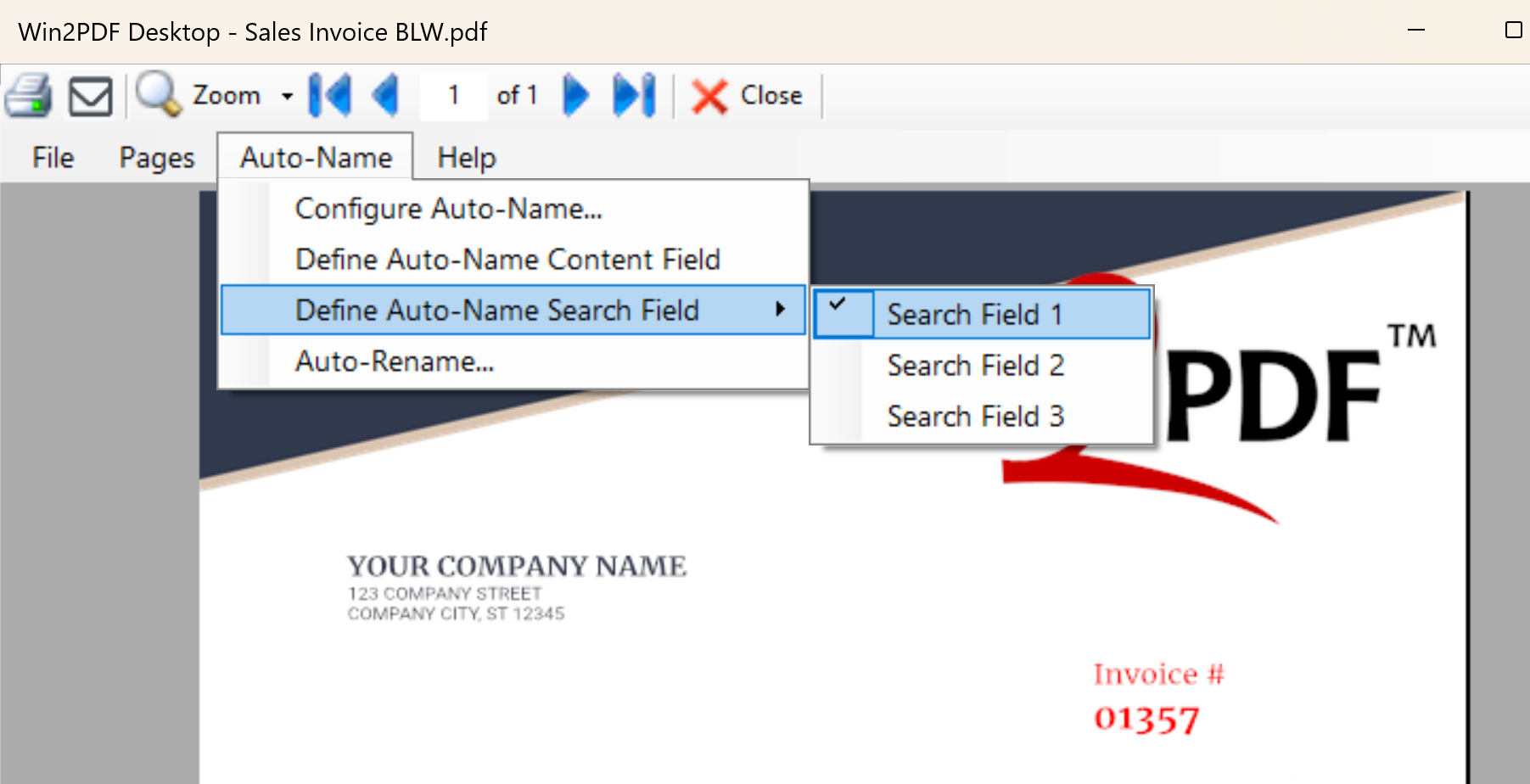
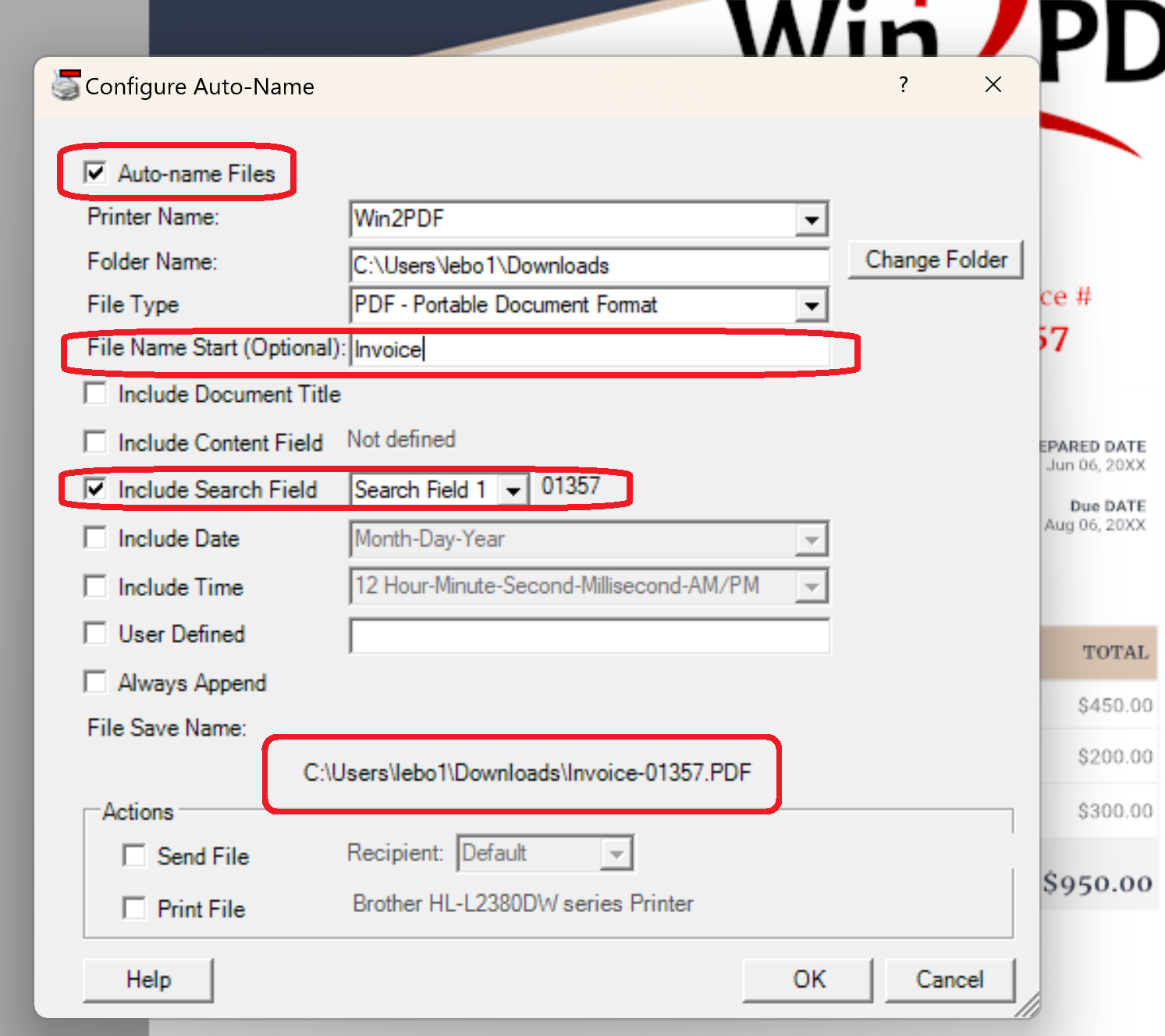
We now have a free update (Win2PDF 10.0.141) that expands on the capability to make this happen. Namely, it adds the capability to capture the search field below a search term. Previously it only allowed you to select text that followed after a search term. As many of you may know, it’s not uncommon for the invoice number to reside on a different line, so now both types of searches are possible, as shown below:

To use this feature, you’ll first need to open a sample PDF document in the Win2PDF Desktop App to define the Auto-Name Search Field.

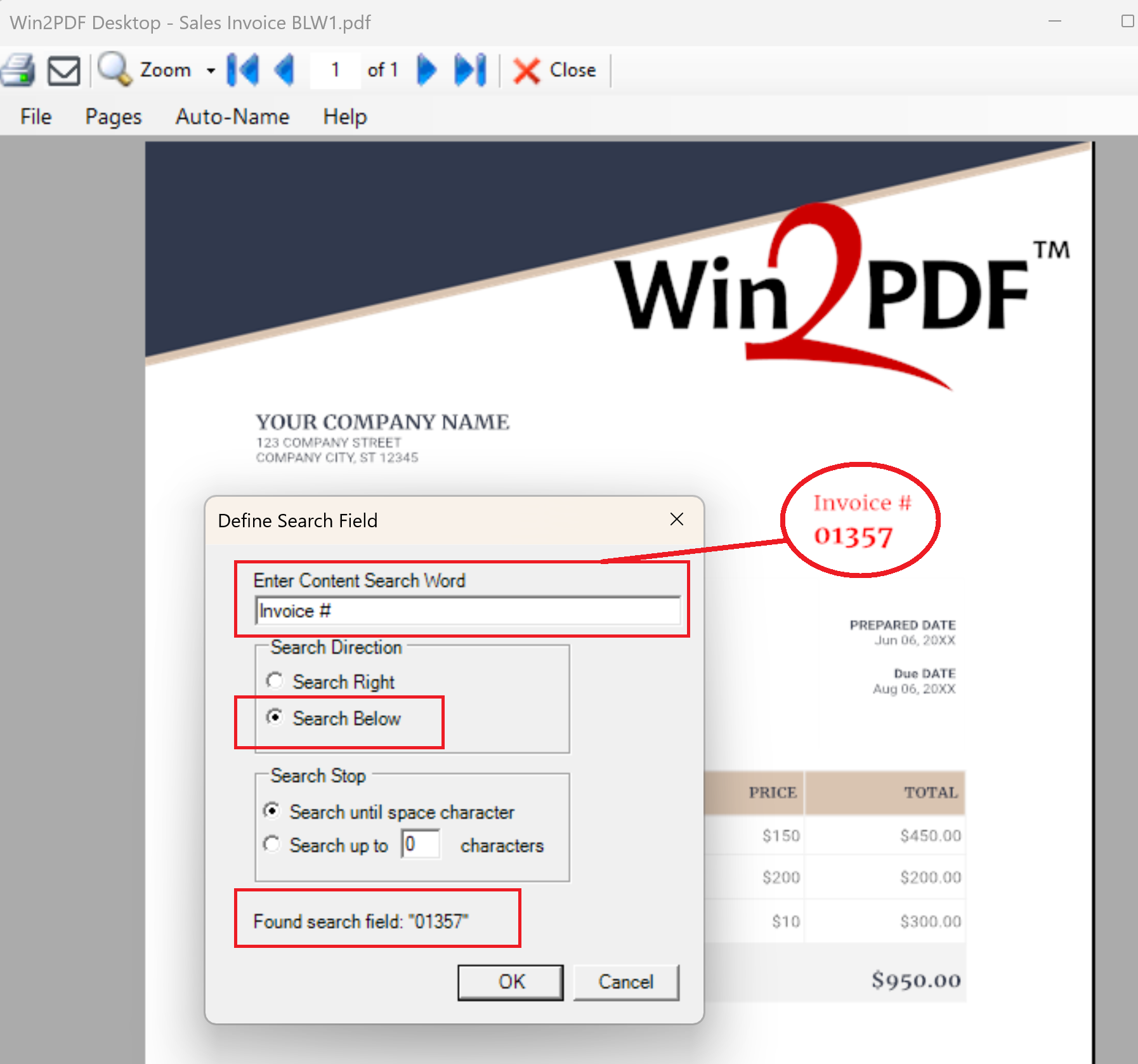
Then, based on the example file shown above, you’d enter in the Content Search Word of “Invoice #”, choose the search direction to be “Search Below”, and it will show you what the found search field is:

After you have defined this search field, you can do a few things.

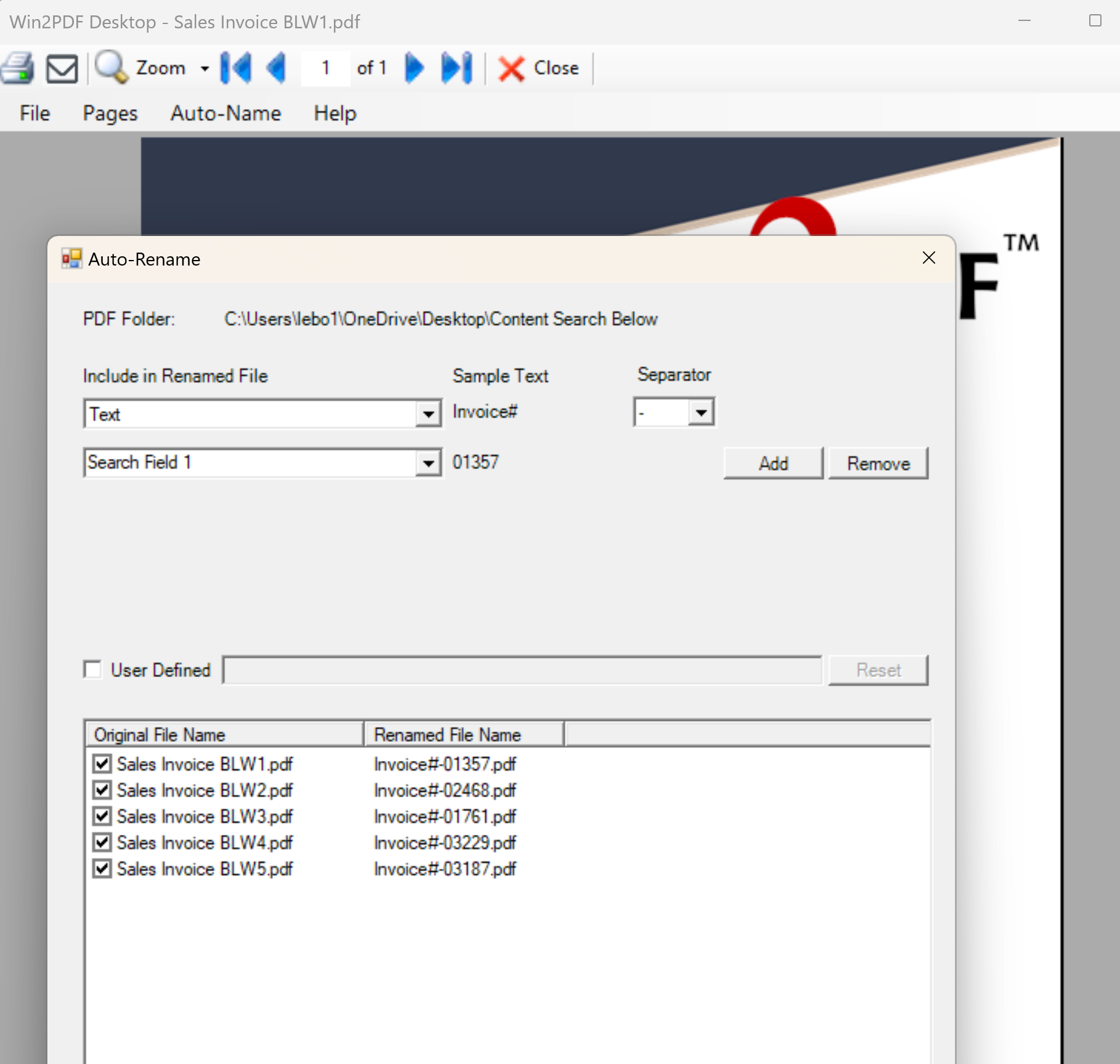
One, you can use this term to rename a batch of PDF files if they already exist. You simply need to select the Auto-Rename menu option from the Win2PDF Desktop App, and then choose your Auto-Name variables including the “Search Field 1” text as shown below.

Two, instead of renaming existing PDF files, you can set your current printing method to use this Auto-Name method for new PDF files. You’ll just need to go to the Configure Win2PDF Auto-Name Settings page to set up how you’d like the PDF files to be named.

And three, you can use this feature via the command line interface for more advanced users. Previously we used the command line command “getcontentsearch” to find search text that immediately follows the search word. Now we’ve added the “getcontentsearchbelow” command, which finds the search text that is directly below the search word.

Hopefully, this is one additional feature to reduce the amount of brainsweat required for managing your invoices.

Win2PDF Update Supports PNG and TIFF Background Transparency Formats

We recently had a specific customer request that started with,

“I need to convert a large number of PDF files into PNG image files. My original PDF files have transparent backgrounds. However, after using the Win2PDF Convert To Format command line, I get PNG files with white backgrounds. But I don’t want to change the background; I want the PNG files to have transparent background layers just like the PDF.

Could you please help me to solve that problem?”

It’s not uncommon to get some variation of this type of question. Frequently we can offer some advice or workaround that the customer may not be aware of.  In other cases, we can research the feature request and add it into our main Win2PDF software.  In this case we were able to implement this feature quickly and solve the customer’s problem.

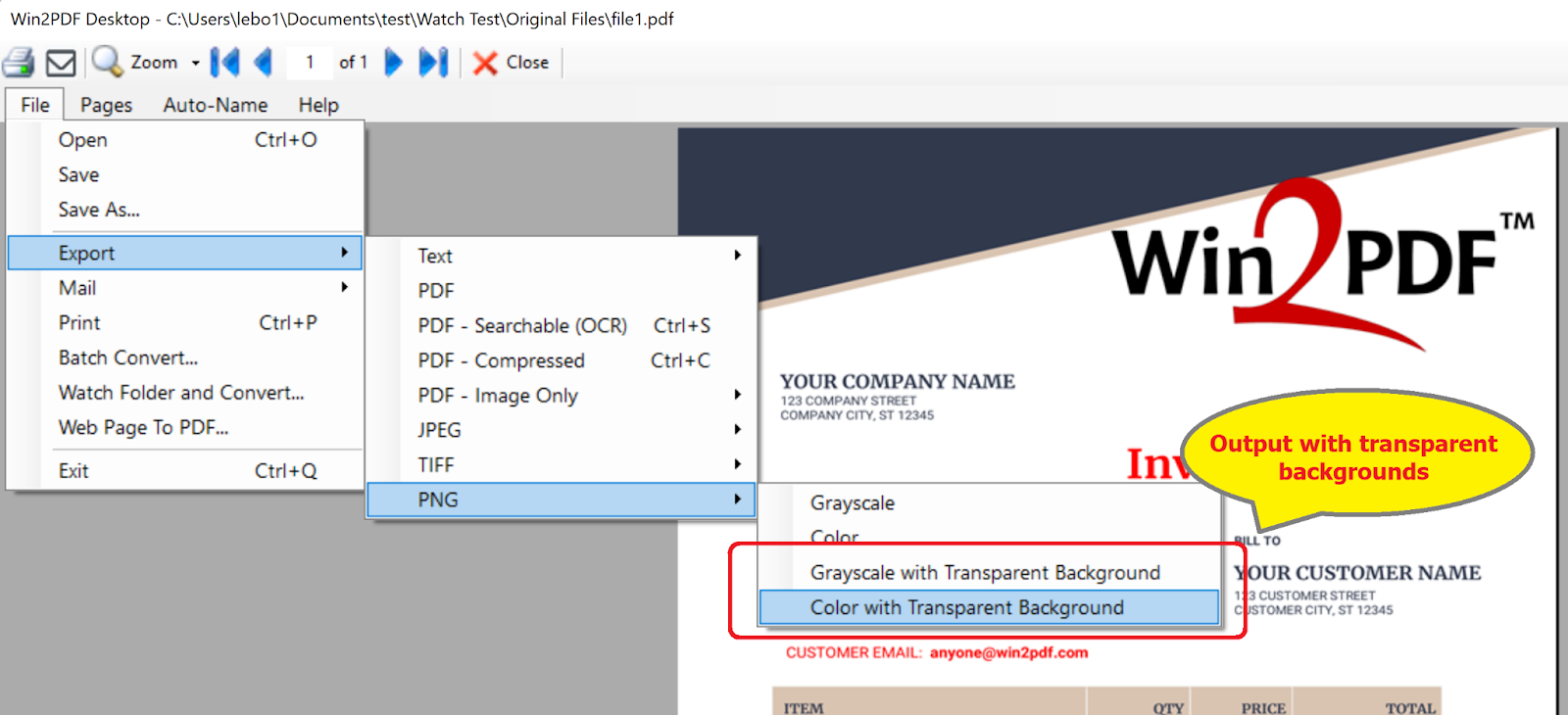
The Win2PDF 10.0.129 update now includes support for the PNG and TIFF Background Transparency formats when converting from PDF files that have transparent backgrounds.  It can be accessed in a few different ways:

  1.  To convert a individual PDF file to a PNG or TIFF with a transparent background, you can open the PDF file in Win2PDF Desktop App and then Export as shown below.

  1. To convert a group of PDF files with transparent background layers, you can use the Win2PDF Convert To Format command line from a command window to convert the files to PNG or TIFF with transparency preserved.  This is documented in the WIn2PDF online help.
  1. And lastly it is available as new output options in the Win2PDF Pro Batch Convert feature.

One thing we urge customers to do is not assume that Win2PDF can’t do something if it’s not readily apparent.  Sometimes, just reaching out with your questions to [email protected] (or through our online support portal) will allow us to give you that “missing thing” you need for your PDF solution.