Win2PDF 10 build 98 Update Now Available

The time honored tradition continues! Punxsutawney Phil saw his shadow, which means 6 more weeks of winter AND new Win2PDF 10 features to help you get through it!

The latest update to Win2PDF 10 (build 98) is now available on the official Win2PDF download page.

Some of the new features have been documented in previous blog posts, but now those features (and some others) have all been collected into a single update. This Win2PDF 10 (build 98) software is a free update to licensed Win2PDF 10 users.

The biggest changes are related to enhanced mail support for sending PDF documents, new command line options for converting and manipulating image and PDF files, and general bug fixes and stability improvements. Here’s a summary of the changes.


  • Added IMAGEPDF command line to convert a PDF file to a PDF Image Only (color or monochrome).
  • Added support for page range in PDF2TIFF command line.
  • Added a Send Mail feature to the Win2PDF Desktop App.
  • Added support for the PAGECOUNT command line option to return the number of pages in a PDF.

All of these features were added to the Win2PDF software based on customer feedback and feature requests.

Is there something you’d like to see in a future version of Win2PDF? If so, let us know. We’ve got another 6 weeks of winter to work through.

How the Lowly PDF Played the Longest Game in Tech

Here’s an interesting article on why PDF has been the de facto digital document format for almost 30 years (with Win2PDF being available for more than 20 years of that time). One secret to the format’s success: “You only think about it when it doesn’t work. And happily, for PDFs, that’s quite rare.”

As the article notes, “the real key to the dominance of the PDF has less to do with its future than with its roots. From the start, it was meant to be lightweight and forward compatible, meaning the format would continue to be readable well into the future.” Even documents created with PDF version 1.0 continue to be readable today with the existing PDF readers.

So, hats off to the lowly PDF. It rarely garners the respect it should.

Enhanced Mail Support in Latest Win2PDF 10 Update

Win2PDF has always had the capability to attach a new PDF file to a mail message, though the implementation was limited to the default MAPI mail client on the computer (typically Outlook).

Many users have asked us to support other mail programs and services, like Gmail or Yahoo! Mail, to send files. Our latest 10.0.93 version of Win2PDF dramatically improves mail client support and allows for direct mail integrations with:

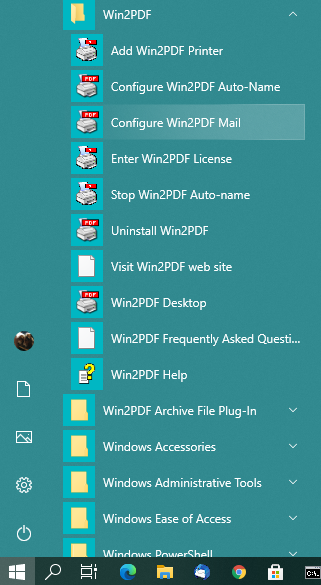
These mail programs can be set up using the new Configure Win2PDF Mail window, which can be accessed either from the Win2PDF Start menu program group (shown below):

[You can also use the Windows search box (the “magnifying glass” icon) and search for Configure Win2PDF Mail to open the configuration screen.]

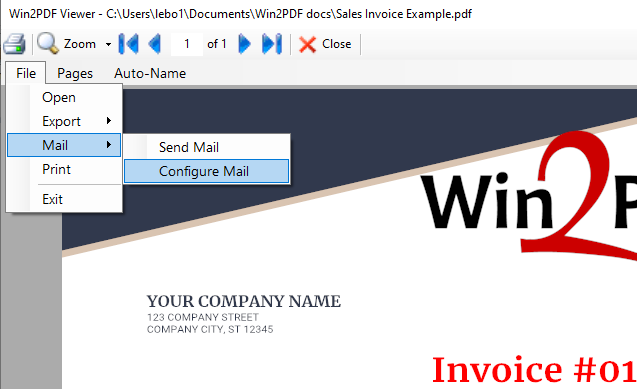
Or, it can be accessed directly from the Win2PDF Desktop program, by going to File → Mail → Configure Mail (shown below):

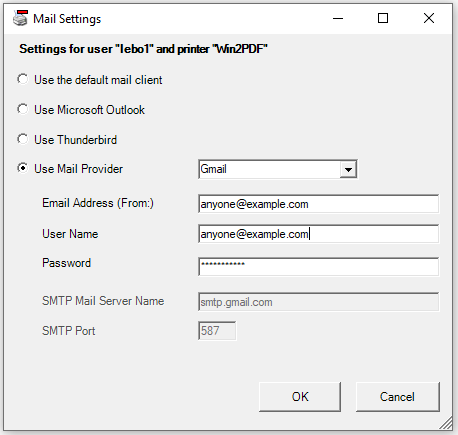
Once the Configure Mail window is accessed you will have the following options to enter your mail settings:

To fill in the different mail settings, please see the individual support pages for Microsoft Outlook, Thunderbird, Gmail, Outlook.com, Yahoo! Mail, or Custom SMTP Server.

After the mail program settings have been configured, you can send a PDF file using one of these two methods:

  1. Select the Send file… option on the Win2PDF file save window (if you are creating a new PDF file with Win2PDF), or
  1. Open a PDF file in the Win2PDF Desktop app and choose File → Mail → Send Mail (if you are just sending an existing PDF file)

And that’s it. You can download the latest 10.0.93 software (a free update for existing Win2PDF 10 users) from our Win2PDF 10 Update page.

As always, if you have any questions, just send a mail to [email protected].

[Case Study] Converting TIFF to PDF Using New Command Line Tools

Win2PDF has expanded its Command Line Interface to support two new conversion features.

  1. TIFF to PDF — This option converts TIFF graphic images into PDF files.
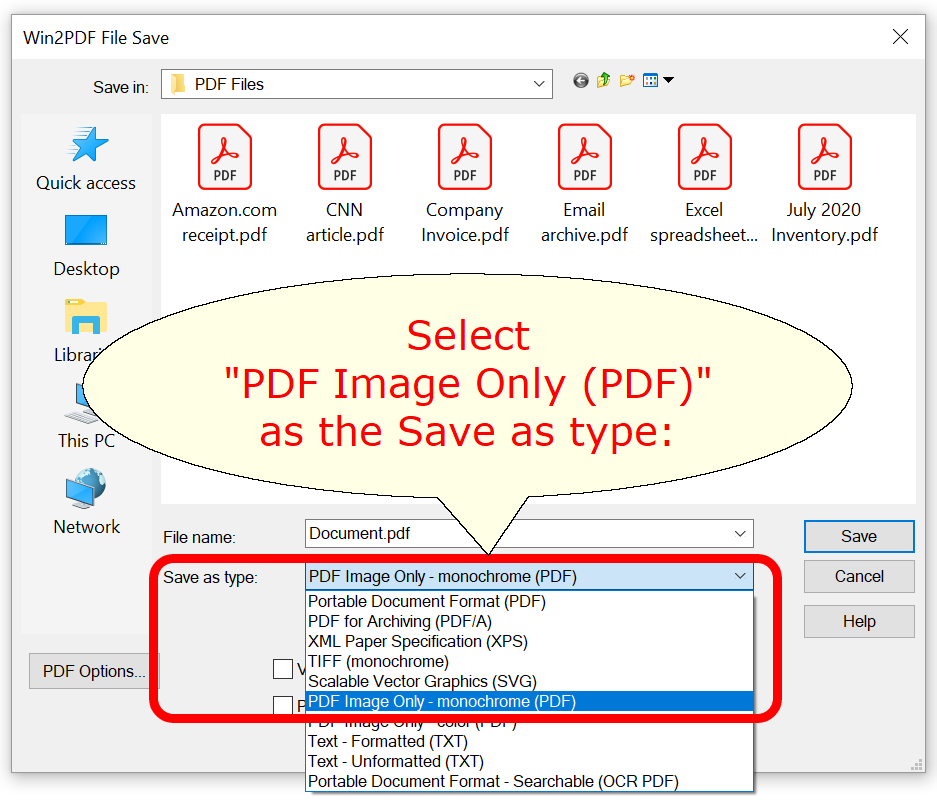
  1. PDF Image Only — This option converts PDF files to an Image Only format. Image Only PDF files can be used to make the PDF unsearchable, “flatten” text fields for security, speed up loading time for complex PDFs, and reduce the PDF file size.

As an example, consider this example we recently solved for a customer. They wanted to merge a scanned TIFF image to an existing text-based PDF file.

To accomplish this, they created a small batch file. The first line of the batch file converted the TIFF file to a PDF.

Win2Pdfd.exe tiff2pdf "1.tif" "1.pdf"

The 2nd line merged the PDF into the existing text PDF. (where “2.pdf” was an existing searchable text-based PDF).

Win2Pdfd.exe append "1.pdf" "2.pdf" "New.pdf"

The 3rd line flattened the file to an Image Only PDF. This made the combined PDF file unsearchable.

Win2Pdfd.exe imagepdf "New.pdf" "NewImageOnly.pdf" mono

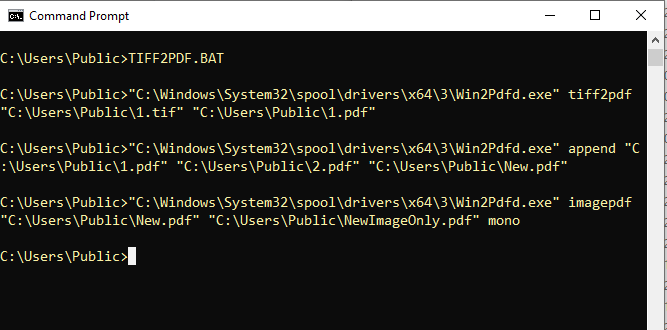
In terms of formatting for the batch file, full path names were used so that it looked like this when the batch file is run from the Windows command prompt:

They had been struggling to find a solution to do this one particular document conversion, and the batch file solution not only provided the final document with the formatting they needed, but also provided the flexibility to integrate this into their existing document management process.

As we expand the options available in the Win2PDF Command Line Interface, the ability to do these types of highly customized and automated solutions is becoming easier, especially when coupled with Win2PDF Plug-Ins.

As always, if you have a particular conversion or process need for your PDF files, let us know if we can help.

Win2PDF as a Replacement for Google Chrome’s Discontinued “Save To Google Drive” Feature

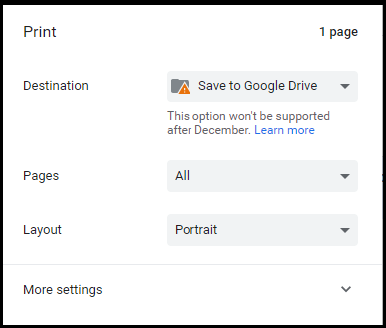
Google’s Chrome web browser currently has a feature called “Save to Google Drive”. It appears in the printer list when printing from Chrome, and allows the user to print and save a web page directly to the user’s Google Drive account (and store as a PDF).

This feature will be going away on December 31, 2020, as Google deprecates its Google Cloud Print feature.

Fortunately, you can easily replace this feature using Win2PDF.  Just follow these steps.

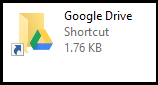
 1)  Install the free Google Drive for Desktop application on your computer. This will create a folder on your computer that will be synced with your cloud-based Google Drive account. On your PC, you will see a new folder named “Google Drive”.

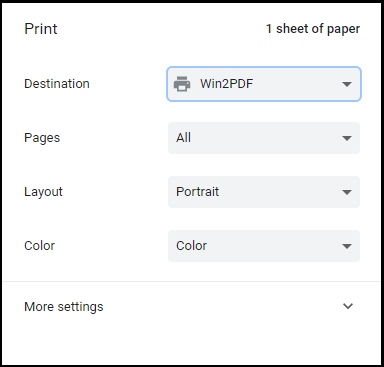
2)  Print from the Chrome browser and select “Win2PDF” as the printer.

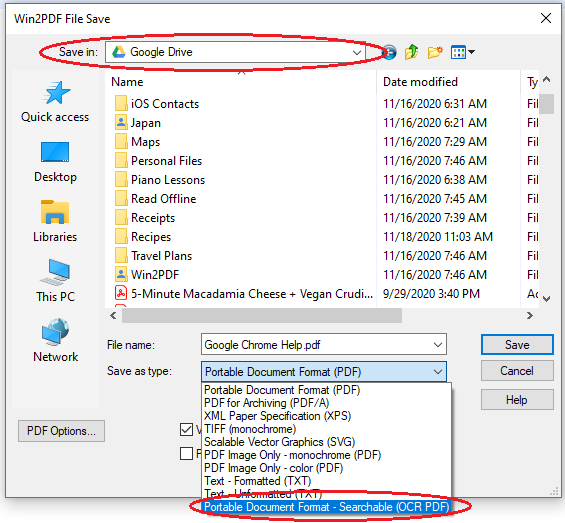
3)  Save the PDF file to the “Google Drive Folder”.

4)  [Optional] Select “Save as type:” to be “Portable Document Format – Searchable (OCR PDF)”. With this option selected, not only will the PDF file be saved to your Google Drive account, but it will also be converted to a searchable PDF file. Normally, printing from Google Chrome creates an Image-only PDF file, but this option will produce a searchable PDF file with selectable text. [Note: You’ll need to download the optional Win2PDF Desktop with OCR Download to access this save as option.]

Once the file has been saved to your Google Drive folder, it will be synced with your cloud-based Google Drive account and be accessible anywhere.

As a side note, I’ve used this feature frequently as a quick way to save recipes that I find online. If I want to save them, I just go to Print -> Save to Google Drive and then pop them into my recipes folder for future reference. Because they are a PDF file stored in the cloud, I can access them from my iPhone if I am shopping at the store, or on my iPad if cooking in the kitchen.

Now I can still do that and best of all, the Win2PDF solution is actually better because of the ability to create searchable recipes!

Bon appetit!

Win2PDF Plug-Ins Extend Features Specific to Customers’ Needs

Last month we introduced a new Win2PDF Plug-In for Slack, and this month we’re back with several new Win2PDF Plug-Ins.

A Win2PDF Plug-In is simply a small customizable program that can be created, modified, or installed that will give the user an option to automatically take some action with the PDF file after it has been created. It allows Win2PDF’s functionality to be extended to address specific customer needs or workflow integrations. For example, it has already been used by customers to upload PDF files to a content management system, automatically make archival copies of PDFs, store PDF in cloud-based services, delete blank pages, split PDF files into single page documents, use multiple watermarks, and send a PDF file to a specific email program.

Why use Plug-Ins? Why not just add these features directly to Win2PDF?

The Win2PDF Plug-Ins were created specifically to add capabilities that might be unique to each customer. Most of the new Plug-Ins were unique or very specific to a customer request, so they may not be useful to the user base at large. Rather than clutter the main Win2PDF program with these types of unique features, we allow them to be created, customized and added as needed for each customer.

As of today, there are 8 additional Plug-Ins available for download at our GitHub page. [GitHub is a central code repository for our Plug-In samples — you can download compiled Plug-Ins that are ready to use, or, if you are a developer, you can download and modify the source code to build your own Plug-Ins specific to your needs. These examples show what can be done with Win2PDF, and provide a template for future solutions.]

The new Plug-Ins are:

  • PDF Send To Outlook – Add a “Send To Outlook” option to Win2PDF File Save window to automatically attach a PDF to an Outlook email message.
  • PDF Duplicate File – Automatically make a duplicate copy of the newly created PDF file in a designated duplicate file folder which may reside on a shared network location or in a cloud based folder (OneDrive, DropBox, Google Drive).
  • PDF Print Logger – Automatically log files created by Win2PDF to the Windows Event Log.
  • PDF Archive File – Automatically archive newly created PDF files created by Win2PDF in a designated archive file folder which may reside on a shared network location or in a cloud based folder (OneDrive, DropBox, Google Drive). Files are appended to an archive PDF named based on the current date.
  • PDF Delete Pages – Automatically deletes extra pages from a newly created PDF.
  • PDF Split Pages – Automatically splits a multi-page PDF into separate one page PDFs.
  • PDF Apply Multiple Watermarks – Automatically apply different watermarks to separate sections of a PDF [Requires Win2PDF Pro].
  • PDF Image Only Flattener – Automatically merge watermark layers into a single layer Image Only PDF [Requires Win2PDF Pro].

A few other notes:

  • The samples only allow one Win2PDF Plug-In used for each instance of the Win2PDF printer.
  • If you wish to remove a particular Win2PDF Plug-In, you can use the Windows Add/Remove Programs feature to uninstall.
  • All of the Win2PDF Plug-Ins hosted on this page can be used at no charge. Some only work with licensed versions of Win2PDF. Contact [email protected] for a 30 day evaluation license.
  • An evaluation version of Win2PDF can be downloaded for free at https://www.win2pdf.com/download/

If you have any requests for Plug-Ins, let us know. We’re interested in building out this capability with more examples, so if you have a particular integration or special need, send an email to [email protected] and tell us about your requirements. If it’s something we can assist with, we’ll be happy to help.

For now, hop over to the Win2PDF Plug-Ins page and take a look.

It’s Greek To Me: Case Study for PDF Image Only Files

We recently received a unique support question that illustrated a real-world case where the PDF Image Only file save option saved the day. Here was the issue our customer came to us with:

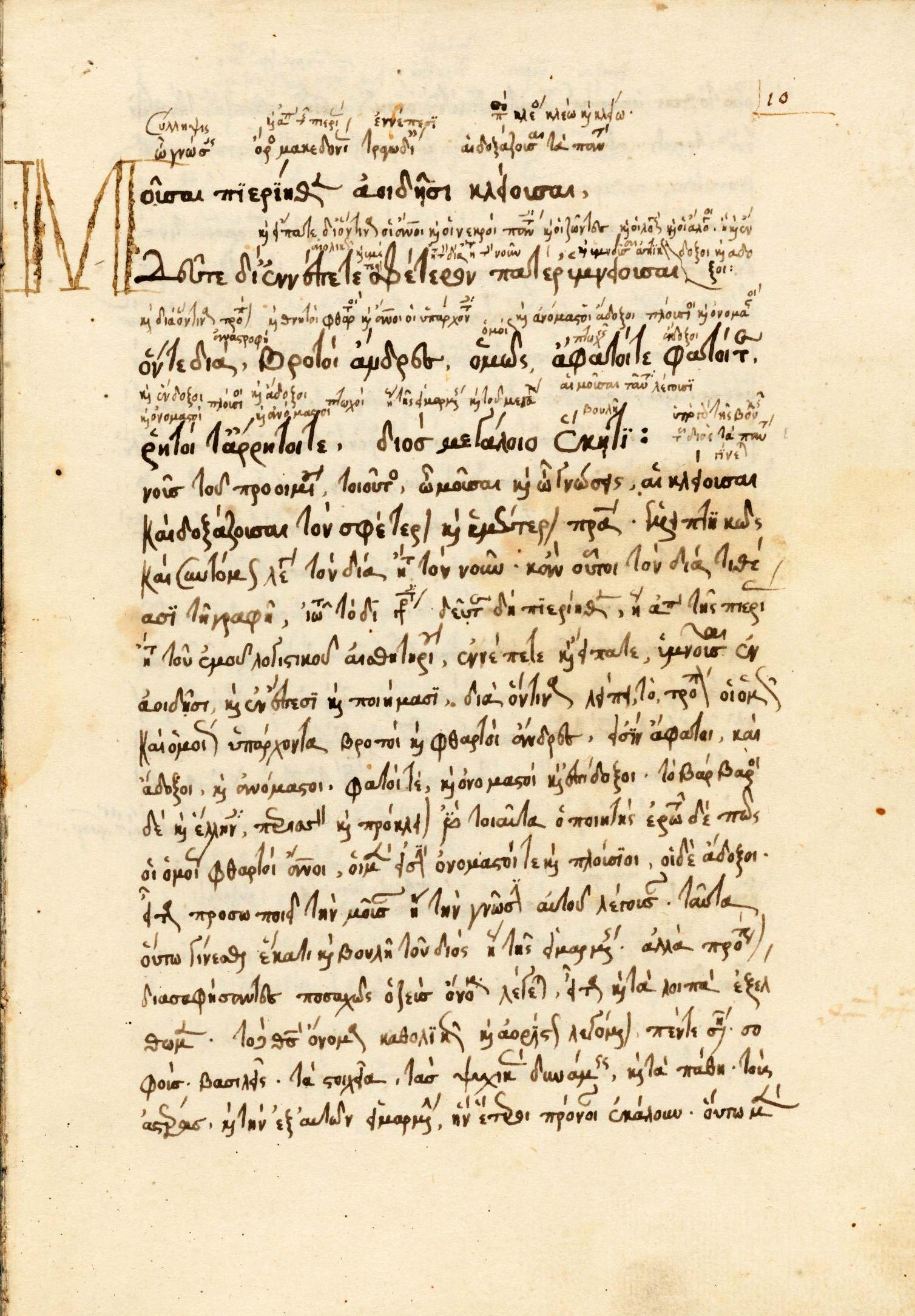
I am trying to help my wife who is teaching ancient Greek language classes online. The problem is that there is no standard universally recognized font for ancient Greek – they all render the language in different ways. And ancient Greek is quite different from modern Greek. She can create documents on her Windows PC using one of a number of specialized TrueType (TTF) fonts. And she can convert documents to Unicode for pasting into web content and/or she can print or export Unicode documents to PDFs. For most of her students these processes are successful. However some students see only gibberish. She has no control over the various platforms her students are using, Windows, Mac OS, iOS, Android, Chrome, etc.

By Hesiod / Houghton Library, Public domain, via Wikimedia Commons

Is there a way Win2PDF can handle this situation? The best option would be if she could print/export her multi-page documents to non-searchable, graphics only PDFs.

For this case, the solution was easy. Win2PDF can create multi-page image only PDFs that render the TTF fonts as graphics. It’s just a standard Win2PDF file save type the user can select when printing.

While this particular customer was able to make the conversions using other programs, this was the easiest method since it was just a single step to save the PDF file.

When we recommended this solution to the customer, he gave us the following reply:

While the Covid-19 pandemic lasts and much teaching is being done online, you might want to share this information with university departments of Classics and Religious Studies and theological colleges (and other academic institutions that teach archaic languages for which there are no universally standard means of rendering them as computer-created text). My wife cannot be the only university instructor with this problem.

Consider it done.

NEW! Win2PDF “Send to Slack” Plug-In

One of the requests we get is how to take some action after a PDF file is created, and do it automatically. The most common example is to take the PDF file and attach it to a new email message. While Win2PDF has supported this feature since the beginning, many customers want to expand this capability to integrate the PDF files with other applications. And since these processes may be unique to each customer, we’ve expanded our support into a flexible new feature called Win2PDF Plug-Ins.

A Win2PDF Plug-In is simply a small customizable program that can be created, modified, or installed that will give the user an option to take some action with the PDF file after it has been created.

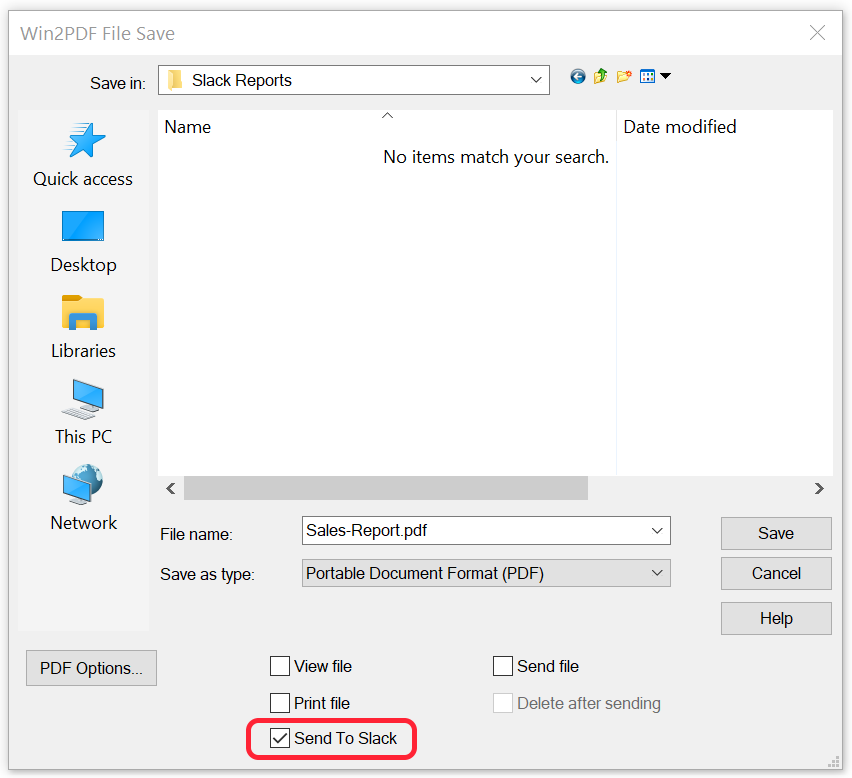
Here’s one example we’ve created for our own internal software development team using the Slack business communication platform. When we download and install the Win2PDF “Send to Slack” Plug-in, it allows our users to check a box on the Win2PDF file save window and automatically send the PDF file into a specific channel in Slack.

Slack allows teams of users to share comments, images, files, etc. in different channels. [A slack channel is simply a topic-based message board that allows any team members who are subscribed to that channel a way to share and exchange information related to that topic. Examples might be channels like #features or #support or #sales.]

With this Win2PDF “Send to Slack” Plug-In installed and configured, it gives our Win2PDF development team an easy way to share PDF files without using email, and they will all be archived in a common channel for all team members. There are a few one-time steps to configure this Win2PDF “Send to Slack” Plug-In to work with your specific Slack workspace and channel.

This is just the first of many Win2PDF Plug-Ins we have in development, and we’ll also be providing more details in future posts on how users can create their own Win2PDF Plug-Ins, or modify ones that we’ve created.

Adobe Liquid Mode for Easier PDF Viewing on Mobile Devices

Have you ever tried to read a long PDF document on your iPhone or Android phone?

Painful, right? Pinching and zooming, pinching and zooming… Something we recently chronicalled on our blog post: PDFs are unfit for human consumption.

Well, Adobe is finally offering a cloud-based and artificial intelligence (AI)-based solution called Liquid Mode that works within the Adobe Reader mobile apps.

With the push of a button, Liquid Mode automatically reformats text, images, and tables for quick navigation and consumption on small screens. Powered by Adobe Sensei, Liquid Mode uses AI and machine learning in the background to understand and identify parts of a PDF, like headings, paragraphs, images, lists, tables, and more. It also attempts to understand the hierarchy and ordering of those parts to reformat a static PDF into a more dynamic and customizable experience.

Adobe

Essentially, when you open a PDF in the Acrobat Reader app (as shown in the iPhone example below), it will try to determine if it’ll work with Liquid Mode; if so, the Liquid Mode button lights up.


Tap the button and the file is sent to Adobe’s Document Cloud for processing. Once complete, users can tweak to their liking things like the font size and line spacing. Liquid Mode will use the headers/structure it detects to build a tappable table of contents where none existed before, allowing you to quickly hop from section to section. The whole thing is non-destructive, so nothing actually changes about the original PDF. Step back out of Liquid Mode and you’re back at the original, unmodified PDF.


Liquid Mode is available in the free Adobe Acrobat Reader app for iOS and Android. It will also work on Chromebooks that support the Google Play Store and will eventually be available on desktops and browsers.

Win2PDF creates PDF files that are compatible with Adobe’s Liquid Mode. However, Liquid Mode works with most, but not all PDF documents, and is currently limited to PDFs that are under 10 MB in size or 200 pages long. This is still a developing technology and Adobe will improve support and capabilities over time.

Create PDF Documents With Searchable Text from Google Chrome and Microsoft Edge

Win2PDF now has a feature that allows you to print documents that would normally contain non-searchable text to PDF files with searchable text.

Why this feature? When would you use it?  Well, there is one area in particular where this is useful, and that’s when it comes to printing PDF files from Google’s Chrome web browser, Microsoft’s newest Edge browser, or from other Google apps like Docs. Due to the way Google and Microsoft have developed their browsers and apps, printing from these programs creates PDF files that are image-based and not-searchable (or selectable) as actual text. When documents or web pages are printed to a paper printer, this isn’t noticeable or an issue. However it is a problem if you are using Win2PDF or another PDF printer since the files will be larger, non-searchable, and non-selectable.

We’ve solved this problem by adding a new save format called “Portable Document Format – Searchable (OCR PDF)”. When you use this save option when printing from Chrome, Edge, or Google Docs, the resulting PDF file will contain searchable text. It applies Optical Character Recognition (OCR) to the file and converts the image-based text into searchable text automatically.

This has been frequently reported to our Win2PDF help desk as a problem for users and prior to this feature we had to explain a multi-step process to get the desired results. Now, it’s just a single save like it would be from any other application.

This feature is still in our pre-release testing phase, but we want users to try this and give us some feedback. To try this feature, please do the following:

    1. Download and install Win2PDF 10.0.78 (or higher). This version can be downloaded from the Win2PDF 10 Update section of our knowledgebase.
    2. Download and install the Win2PDF Desktop with OCR Download.
    3. After you install the separate Win2PDF Desktop with OCR package, Win2PDF displays an extra save as type labeled “Portable Document Format – Searchable (OCR PDF)

While this is useful when you are creating new PDFs from Chrome or Edge, what about existing files that had previously been saved as image only, or that you received as email? Is there a way to “fix” those so that they are searchable?

Yes. Just open the original PDF in the Win2PDF Desktop App and Select Export  -> PDF – Searchable (OCR) from the File menu.

make-pdf-searchable-menu

The Searchable OCR PDF is only available in our pre-release software and we’re working on improvements, but give it a try and if you have any feedback or issues, let us know by sending an email to [email protected] or opening a ticket at our Helpdesk page.